Can Apple Mail Open OST Files?
For Mac users who have previously worked in a corporate Windows environment or are working with offline data backups, dealing with a Microsoft Outlook Offline Storage Table (OST) file is one of the common problems. The most common query raised by users in such cases is whether Apple Mail can open OST files?
The simple answer to the above question is: No, Apple Mail does not natively support opening OST files. Since OST files are proprietary to the Microsoft email client only used in Windows-based computers, the in-built email client of macOS does not have the necessary infrastructure to open OST files.
But inability to open OST files right away does not guarantee that you will not be able to do anything about your data ever. The article discusses why Apple Mail cannot open OST files and the best way to open and convert your OST files using strong and effective approach.
Understanding the OST File Format on Mac
An analysis of the nature of the OST file can give one a clear answer regarding the impossibility of opening it via the Apple Mail application. The OST file represents an offline copy of your mail box that is saved on the Microsoft Exchange, Office 365, or IMAP server. It enables you to browse, edit, and organize emails without being connected to the Internet.
Nevertheless, the OST file is tied to the particular MAPI profile and the computer on which it was generated. If it is moved to the Mac, macOS does not recognize this file as a known one since the Apple Mail application supports only such formats as MBOX, EML or IMAP/Exchange cloud configuration.
Also, when you try to open the orphaned OST file, which means the deletion or deactivation of the Exchange account that this OST was originally tied to, Microsoft Outlook will not open it. This makes Mac users face an unpleasant dilemma because neither native Outlook nor Apple Mail can provide them with access to their previous emails, contact list, and schedule.
Why Manual Methods are not Reliable?
Many users look out for ways to perform their own quick-fix solution without installing any third-party applications. This can involve renaming file extensions from .ost to .pst, or setting up an intermediary IMAP email account.
- Rename File Extensions: Simply renaming file extensions from .ost to .pst won’t alter the binary content of the file. This will cause corruption issues when trying to open the file.
- Solution via IMAP Email Account: Recovering an orphaned OST file to the live server would require sophisticated third-party applications on Windows itself. It becomes almost impossible to perform the task through a normal macOS machine.
Due to the failure of such hack fixes, it becomes imperative to use a professional tool for converting Windows OST file into Apple Mail.
Opt Trouble-Free Solution to Open OST Files in Apple Mail
If you find yourself needing to circumvent the restrictions of your platform and migrate your offline database in an elegant fashion to macOS, then look no further than MacMister OST Converter for Mac.
Designed particularly for use in macOS environments, this tool enables you to analyze raw, encrypted, or orphaned OST files without the need for an active connection to Exchange or Microsoft Outlook software.
Key Features of the Application
- It allows you to directly convert your OST file into the desired format (either EML or MBOX), which is compatible with Apple Mail.
- Opens and converts orphaned, encrypted, or damaged OST files that cannot be synced or opened anywhere else.
- It preserves your hierarchy by converting your Inbox, Sent, Drafts, Archives folders, and any other folders that you have created.
- It ensures that no data is lost during the conversion process by preserving all emails and their headers (To, From, Subject, etc).
- It supports modern Mac operating systems and works natively on both Apple M series processors and Intel based systems.
Step-by-Step Guide to Transform and Save OST data into Apple Mail
Prepare your Windows Outlook offline files for migration to Apple Mail using MacMister OST file conversion app by following the below easy steps:
Step 1. Install and launch the software on your macOS machine.
Step 2. Add your OST files by clicking the Add File(s) / Add Folder(s) button.
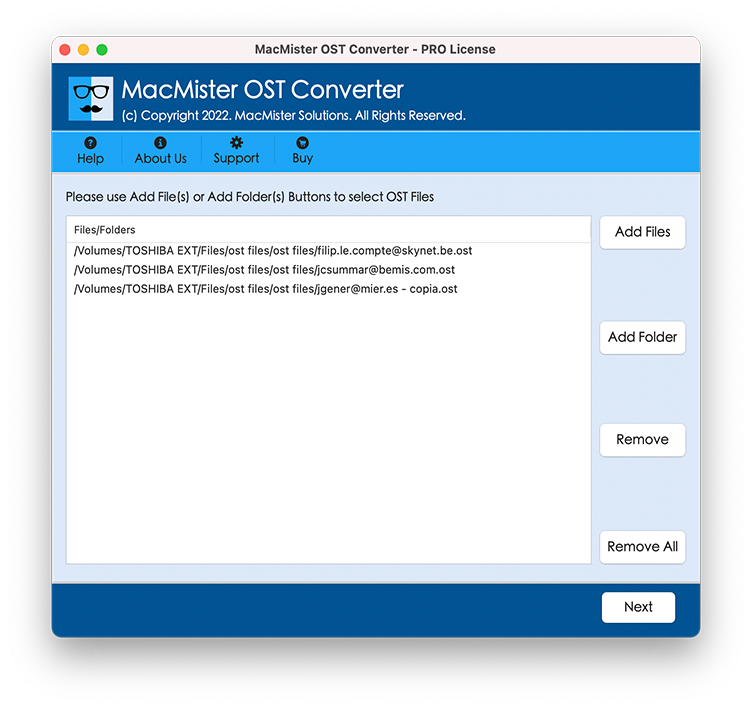
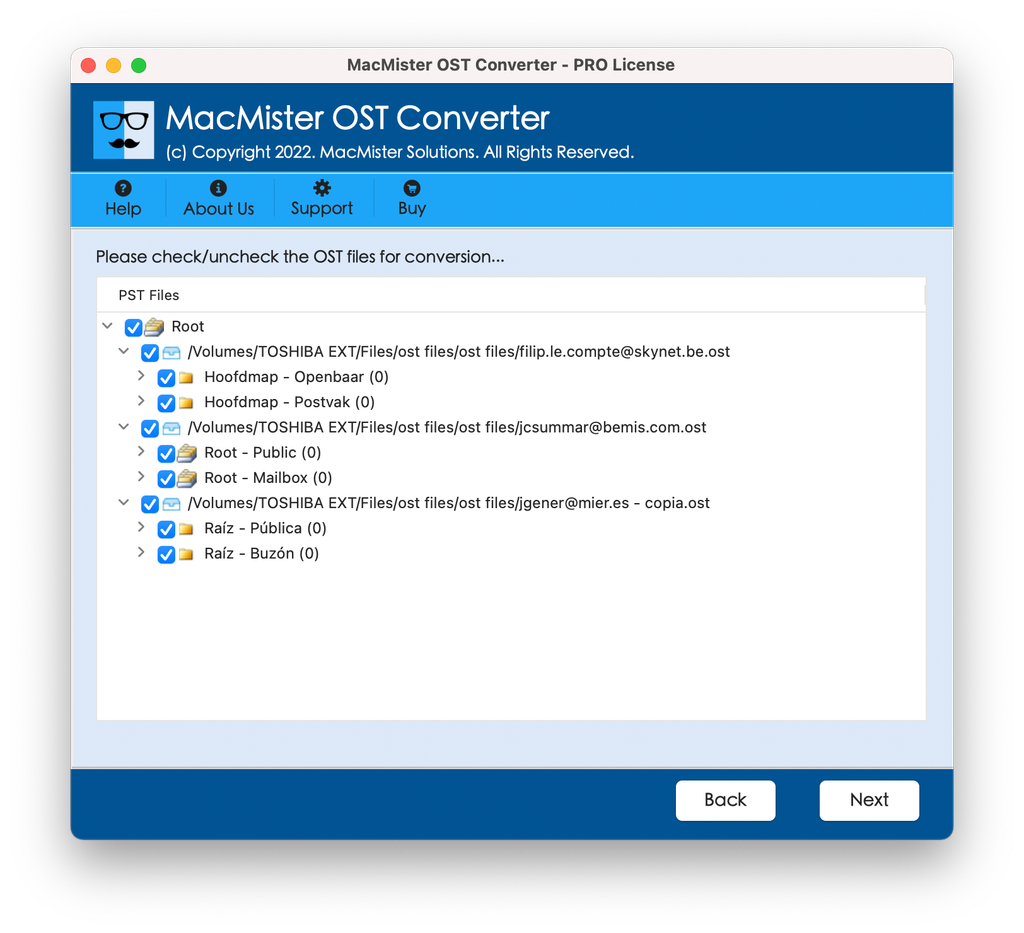
Step 3. Preview your email messages, emails folders, and attachments in order to make sure that everything is correct before converting them.
Step 4. Set the desired output format to MBOX by tapping Select Saving Options drop-down arrow.
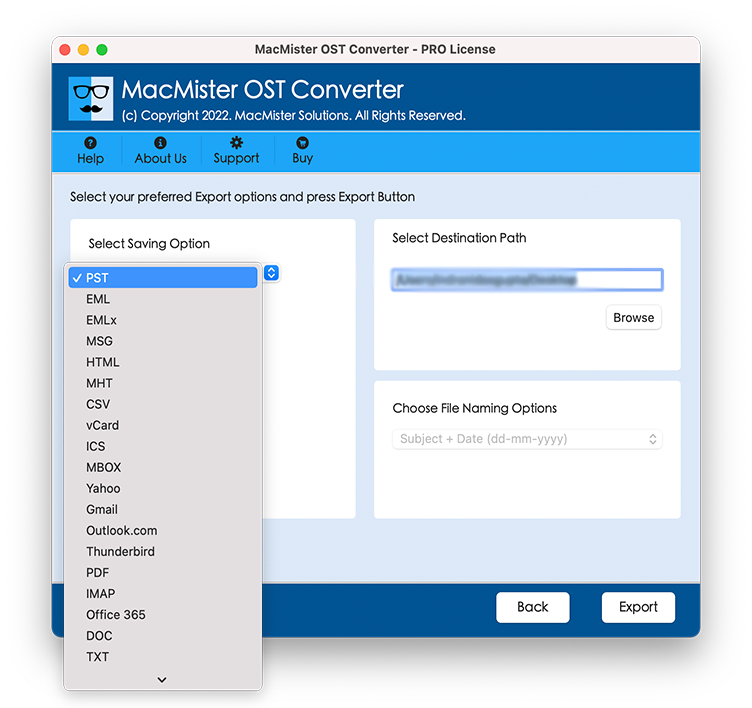
Step 5. Set sub-options as per requirements and click Export button.
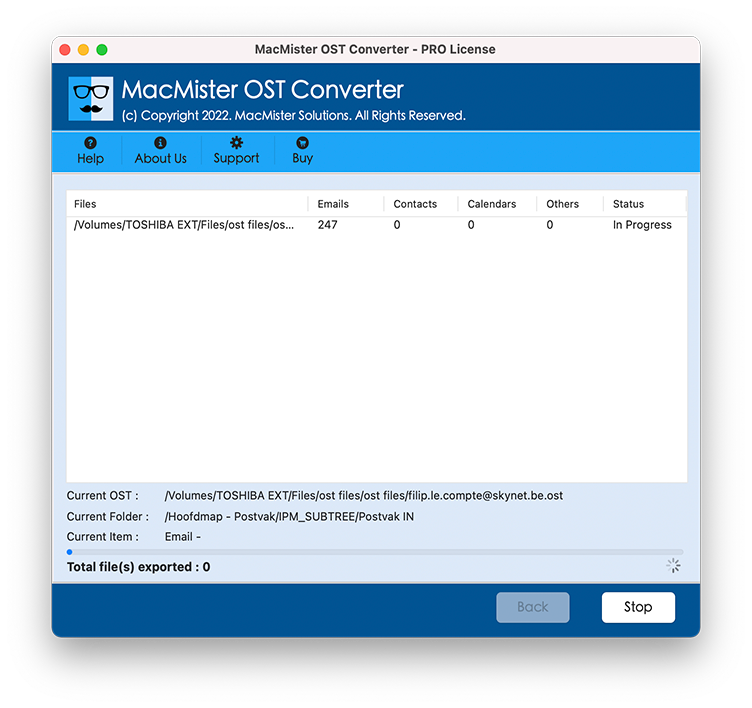
Step 6. Go through the live conversion of OST files using Live Conversion Report window.
Step 7. Launch Apple Mail, go to File > Import Mailboxes > Files in MBOX format, choose the generated MBOX files and proceed to import them.
Epilogue
Although Apple Mail does not offer direct opening of OST files, you will not have to give up the use of your previous emails, contacts, and appointments. Since Windows-specific file formats need to be converted first in order to be read by macOS, a dedicated tool is needed. With the help of MacMister OST File Conversion Tool, you can easily ignore the platform limitations imposed by Microsoft, restore your lost data, and import it into Apple Mail.