How to Move Axigen Emails to Outlook on Mac? Complete Guide
Axigen is a business email and collaboration platform used by organizations to manage emails, contacts, calendars, and other mailbox data. Outlook, meanwhile, remains a popular choice for managing professional email communication. Mac users who have historical emails stored on an Axigen mail server may therefore need to move Axigen emails to Outlook on Mac for easier access and centralized email management.
However, transferring Axigen mailbox data to Outlook on Mac is not the same as simply configuring an Axigen account. Axigen’s current documentation states that Outlook access is supported through IMAP or POP3, while the older Axigen Outlook Connector is no longer supported starting with Axigen X4.
This guide explains the available approaches, their limitations, and advanced method using a dedicated Axigen to Outlook Tool for Mac.
Overview of Axigen to Outlook Migration
There are two different requirements users often describe as “Axigen to Outlook.”
First, you may simply want to configure an existing Axigen mailbox in Outlook so that new and existing server-side messages can be accessed through the email client.
Second, you may want to permanently transfer or export Axigen mailbox data into an Outlook-compatible environment, especially when dealing with old emails, multiple folders, attachments, or a mailbox that needs to be preserved separately.
For a simple account connection, IMAP is the standard approach. For a bulk transfer or archival requirement, a dedicated migration utility can provide more control over the process.
Why Move Axigen Emails to Outlook on Mac?
There are several reasons a user may want to transfer Axigen emails to Outlook –
- Centralized email management – Keep professional messages accessible through Outlook.
- Access to older emails – Preserve historical Axigen correspondence in a familiar email client.
- Better desktop workflow – Outlook provides email organization, search, and productivity features.
- Mailbox consolidation – Organizations may want to bring emails from different platforms into one environment.
- Backup and archival – Important business correspondence can be retained independently from the original mail server.
- Transition from legacy configurations – Older Axigen Outlook Connector-based setups may need to be replaced because the connector reached end of support with Axigen X4.
Manual Method – Configure Axigen in Outlook on Mac Using IMAP
The simplest approach is to add the Axigen account directly to Outlook using IMAP.
Axigen’s documentation confirms that Outlook can be used with Axigen through IMAP or POP3, and its current migration guidance specifically recommends IMAP for Outlook users after the Outlook Connector was discontinued.
Step 1: Collect Axigen Account Details
Before configuring Outlook, obtain –
- Axigen email address
- Account password
- Incoming IMAP server
- IMAP port
- Encryption/SSL settings
- Outgoing SMTP server
- SMTP port
- SMTP authentication details
Your mail administrator or hosting provider can provide these settings if they are not known.
Step2: Open Outlook on Mac
- Launch Microsoft Outlook on your Mac and open the account-management section.
- Choose the option to add another email account.
Step3: Enter the Axigen Email Address
- Enter your Axigen email address and continue with the account setup.
- If Outlook cannot automatically discover the server settings, select the option to configure the account manually.
Step4: Select IMAP
- Choose IMAP as the account type and enter the Axigen server information supplied by your administrator.
- Use the appropriate secure IMAP and SMTP ports configured on your Axigen server.
Step5: Authenticate the Account
- Enter the Axigen username and password. Complete any authentication or security prompts displayed by Outlook.
Step 6: Verify the Mailbox
- Once the account is connected, Outlook should synchronize the available messages and folders supported by the IMAP configuration.
- Send a test email and check incoming messages to confirm that the account is working correctly.
Limitations of the Manual IMAP Method
Although IMAP is suitable for accessing an Axigen mailbox, it may not be the best choice when the objective is bulk Axigen email migration to Outlook on Mac.
1. It Is Mainly a Synchronization Approach – IMAP is designed primarily for accessing and synchronizing messages stored on the mail server. It is different from creating an independent copy of the entire mailbox.
2. Folder Synchronization Can Vary – Mailbox folders, special folders, and folder structures may not always appear exactly as they did in Axigen. The final behavior depends on the server configuration and Outlook’s IMAP implementation.
3. Large Mailboxes Can Take Time – If the Axigen mailbox contains thousands of emails or large attachments, synchronization can take considerable time and consume local storage.
4. Internet Connectivity Is Required – The mailbox needs to remain accessible from the Mac while Outlook synchronizes the server data.
5. The Old Outlook Connector Is Not a Mac Solution – Axigen’s older Outlook Connector was designed for Windows Outlook and was not available as a native Mac installation. Axigen’s community documentation confirms that the Connector was Windows-only, while Mac users were directed toward IMAP and other standard protocols.
More importantly, Axigen later discontinued Outlook Connector support starting with X4 and recommends IMAP for users who continue using Outlook.
Alternative Solution for Axigen to Outlook Tool for Mac
For users who need to transfer Axigen emails to Outlook on Mac rather than simply configure an account, a dedicated migration tool can be a more convenient option.
The MacMister Axigen Email Backup Tool for Mac is designed to simplify the transfer process by providing a dedicated workflow for moving Axigen mailbox data toward Outlook.


Instead of manually configuring server settings and waiting for mailbox synchronization, users can work through a migration-oriented interface.
How to Move Axigen Emails Using the tool
Download and install the Axigen to Outlook Tool on your Mac. Launch the application.
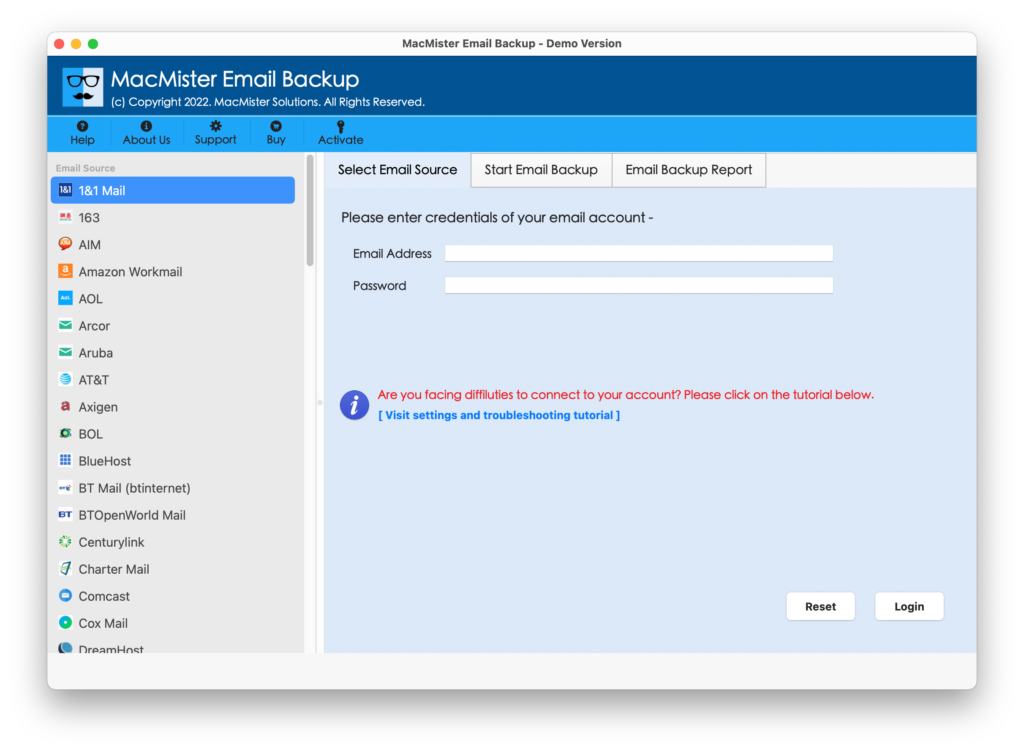
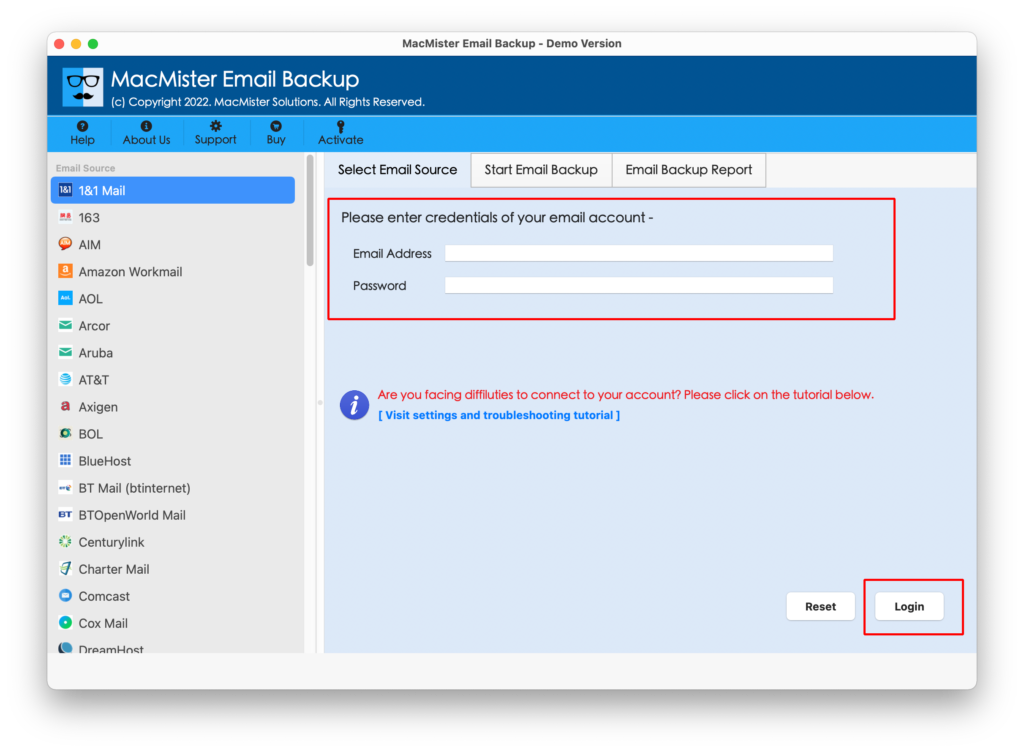
Select Axigen from the given source list. Give the login details of Axigen Webmail account. Allow the software to load the available mailbox data.
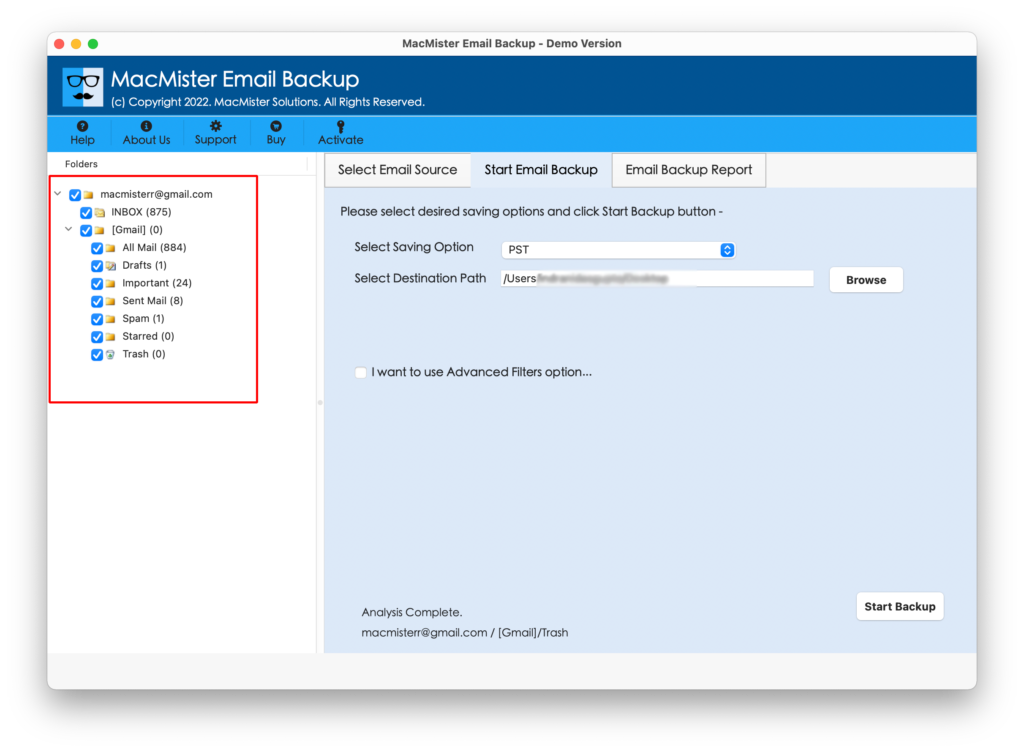
Select the required emails or folders.
Choose PST format for Windows Outlook and OLM for Mac Outlook as the destination.
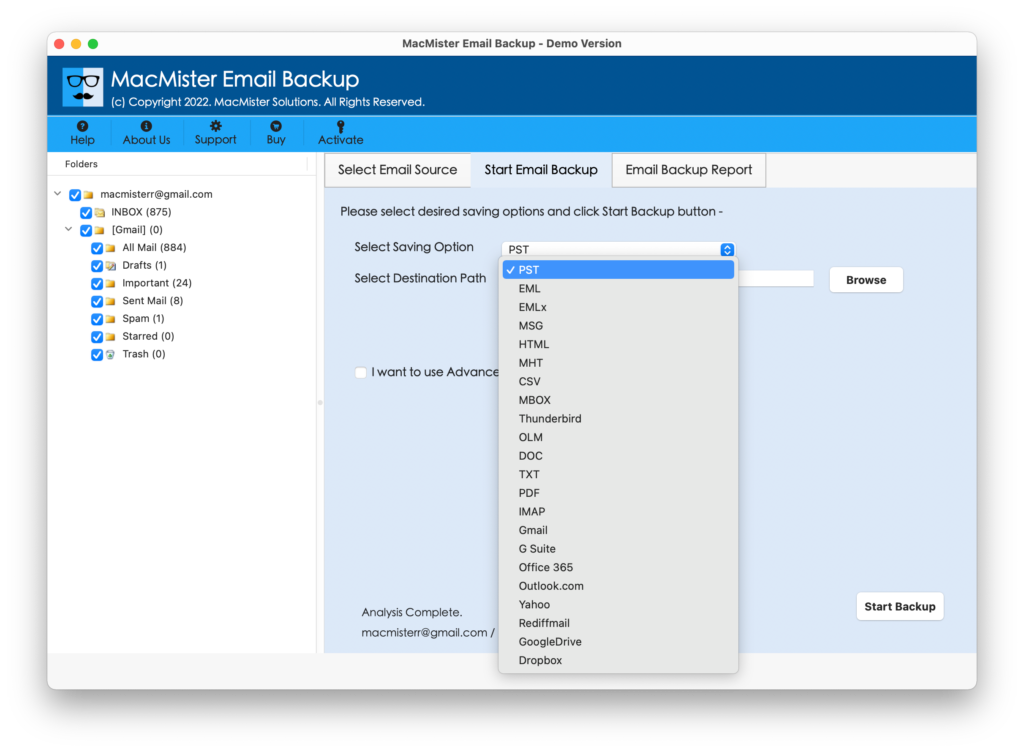
Configure the available destination options.

Start the transfer process.
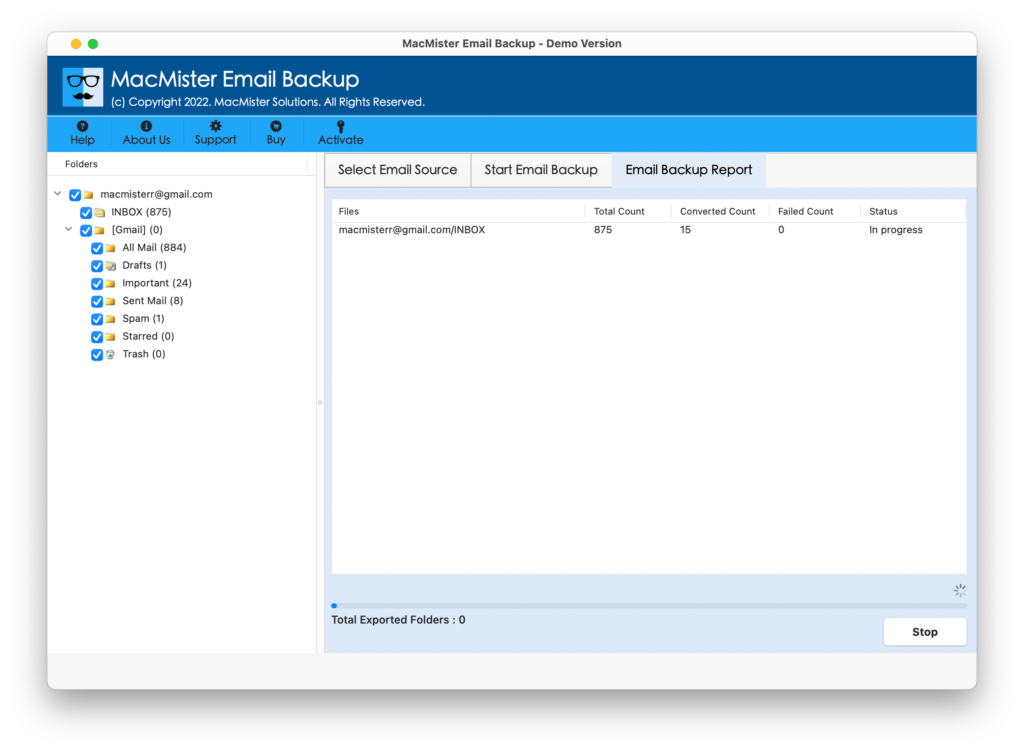
The exact interface and available options may vary according to the software version.
Why Use a Dedicated Tool?
A dedicated migration utility can be useful when the requirement is more than simply accessing an Axigen account.
For example, users may need to transfer old Axigen emails, folders, and attachments while reducing dependency on continuous IMAP synchronization. It can also be useful when the mailbox is large or when the user wants a more structured migration workflow.
Axigen’s own documentation confirms that IMAP is required for certain migration operations and that migration processes depend on the availability and configuration of the remote IMAP service.
Manual IMAP vs. MacMister Axigen to Outlook Tool
| Feature | Manual IMAP Method | Axigen to Outlook Tool |
| Axigen to Outlook on Mac | Yes, through account configuration | Yes |
| Bulk email transfer | Depends on synchronization | Designed for migration workflows |
| Technical configuration | Requires server settings | Guided software interface |
| Large mailbox handling | Can take considerable time | Suitable for structured bulk transfer |
| Folder selection | Depends on IMAP synchronization | Provides migration-oriented selection |
| Attachment transfer | Depends on synchronization | Designed to handle email data |
| Outlook Connector dependency | Not required | Not required |
| Mac support | Through Outlook for Mac | Designed for Mac users |
| Suitable for migration | Basic | More migration-focused |
Things to Check Before Migration
Before moving an Axigen mailbox to Outlook, prepare the source account carefully.
- Confirm that the Axigen account is accessible.
- Verify the correct IMAP and SMTP settings.
- Check available storage on the Mac.
- Make sure Outlook is installed and updated.
- Keep a backup of important mailbox data.
- Avoid deleting the source mailbox immediately after migration.
- Verify important emails and attachments after the transfer.
For large business mailboxes, it is also better to perform a small test transfer before processing the complete mailbox.
How to Export Axigen Emails to Office 365
How to Save Axigen Webmail to PDF
Common Axigen to Outlook Issues
Users may encounter several problems while configuring or transferring Axigen emails –
- Outlook cannot connect to Axigen – Check the IMAP server address, port, encryption, firewall, and authentication settings.
- Axigen emails are not appearing in Outlook –Allow sufficient time for synchronization and verify that the correct IMAP folders are subscribed.
- Attachments are missing – Check individual messages after synchronization or migration and verify that the original Axigen mailbox still contains the attachments.
- Outlook Connector does not work on Mac – The legacy Axigen Outlook Connector was Windows-only, and Axigen subsequently discontinued Connector support starting with X4. IMAP is the recommended Outlook access method.
Conclusion
The best method for moving Axigen emails to Outlook on Mac depends on the actual requirement. If you simply want to access an active Axigen mailbox from Outlook, configuring the account through IMAP is the standard approach supported by Axigen.
However, if the goal is to perform a structured transfer of historical Axigen emails, folders, and attachments, relying solely on manual IMAP synchronization may not be ideal. In that situation, the Axigen to Outlook Tool for Mac provides direct migration-focused workflow.
Before removing or disabling the original Axigen mailbox, always verify the migrated data in Outlook and retain a backup of important emails.
|
|
|