PST File not supported in New Outlook for Mac – Guide [2026]
Opting the “New Outlook for Mac” allows one to get benefit from an advanced user interface, enhanced speed of indexing, and improved synchronization with the latest Microsoft cloud storage systems. Additionally, such migration causes a serious problem to those who want to transfer from Windows or possesses old archives – there is no support for .pst files within New Outlook for Mac interface.
The import of a .pst file into the New Outlook will be grayed out or will be impossible at all due to feature unavailability.
Why PST Files Are Not Supported in New Outlook for Mac?
The PST file format is proprietary to Microsoft Windows Outlook. On Windows, PST files are parsed by Outlook using MAPI (Messaging Application Programming Interface) legacy infrastructure.
However, the New Outlook for Mac was re-built based on an entirely new architecture:
- Cloud First Synchronization Engine: The New Outlook depends on Microsoft Cloud synchronization protocols (Microsoft Graph and modern REST APIs).
- Legacy Local Data Store Deprecation: The New Outlook UI is built based on server data store (IMAP, Exchange, Microsoft 365, iCloud, Gmail). It does not have native file-based interfaces to work with PST files specific to Windows.
- Incompatible File Format: macOS is native in using .olm (Outlook for Mac Archive) and regular formats like .eml or .mbox. The process of parsing a binary PST file without the use of Windows API may cause performance issues, indexing failure, and possible database corruption.
Manual Methods and Their Limitations
Before turning to third-party tools, consider these standard Microsoft workarounds, along with their operational drawbacks.
Method 1: Reverting to Legacy Outlook for Mac
Legacy Outlook for Mac contains native functionality to import PST files into local “On My Computer” folders.
Steps to Convert and Import –
- Launch Outlook in Mac machine.
- Click Help option appearing in the top macOS menu bar.
- Select “Revert to Legacy Outlook” option.
- Click File, select Import, and choose Outlook for Windows archive file (.pst).
Limitations:
- Microsoft is actively deprecating the Legacy Outlook client. Future macOS and Microsoft 365 updates will permanently sunset Legacy mode.
- Once imported into Legacy Outlook, the data resides in local “On My Computer” folders. When you toggle back to New Outlook, these local folders remain invisible or inaccessible.
- Large PST imports in Legacy Outlook frequently trigger database corruption in the
Outlook 15 Profilesdirectory.
Method 2: Uploading via a Windows PC or Webmail (IMAP)
The second manual procedure entails the upload of PST files through an alternate computer or server:
- Launch Microsoft Outlook in a PC running on Windows.
- Load the PST file and add a generic IMAP or Microsoft 365 account.
- Copy and paste the PST file folders into the IMAP mailbox.
- Allow server synchronization and launch New Outlook for Mac.
Limitations:
- Uploading multiple gigabytes of PST data may hit storage quota limitations, bandwidth limitation on server-side, or connection timeouts.
- Transfer of large amounts of folder structure results in loss of metadata (reading statuses, flags, folder structures, and custom invites for calendars).
Apply Permanent and Reliable Solution
In order to open your Windows PST archives directly within macOS applications without having to use outdated Outlook releases or IMAP uploading techniques, you need to convert the PST file format into Mac-native format using MacMister PST Converter for Mac.
The application is designed to work with the Windows PST file format right on the M1/M2/M3 and Intel Macs without having to install any Windows virtualization system or any version of Outlook.
Step-by-Step Guide of the App to Preserve PSTs into New Outlook macOS
Step 1: Import PST Files to Utility
Download and run the application on a macOS machine.
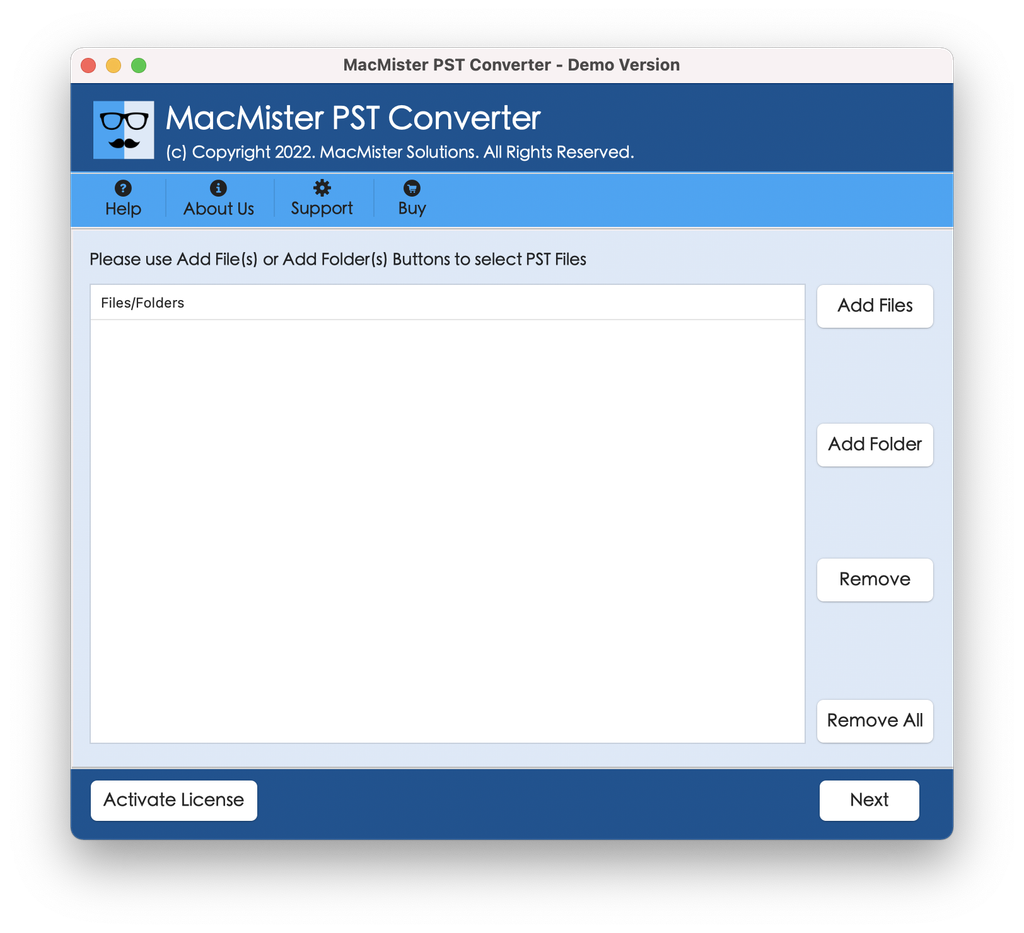
Add the .pst files by clicking Add File(s) or Add Folder.
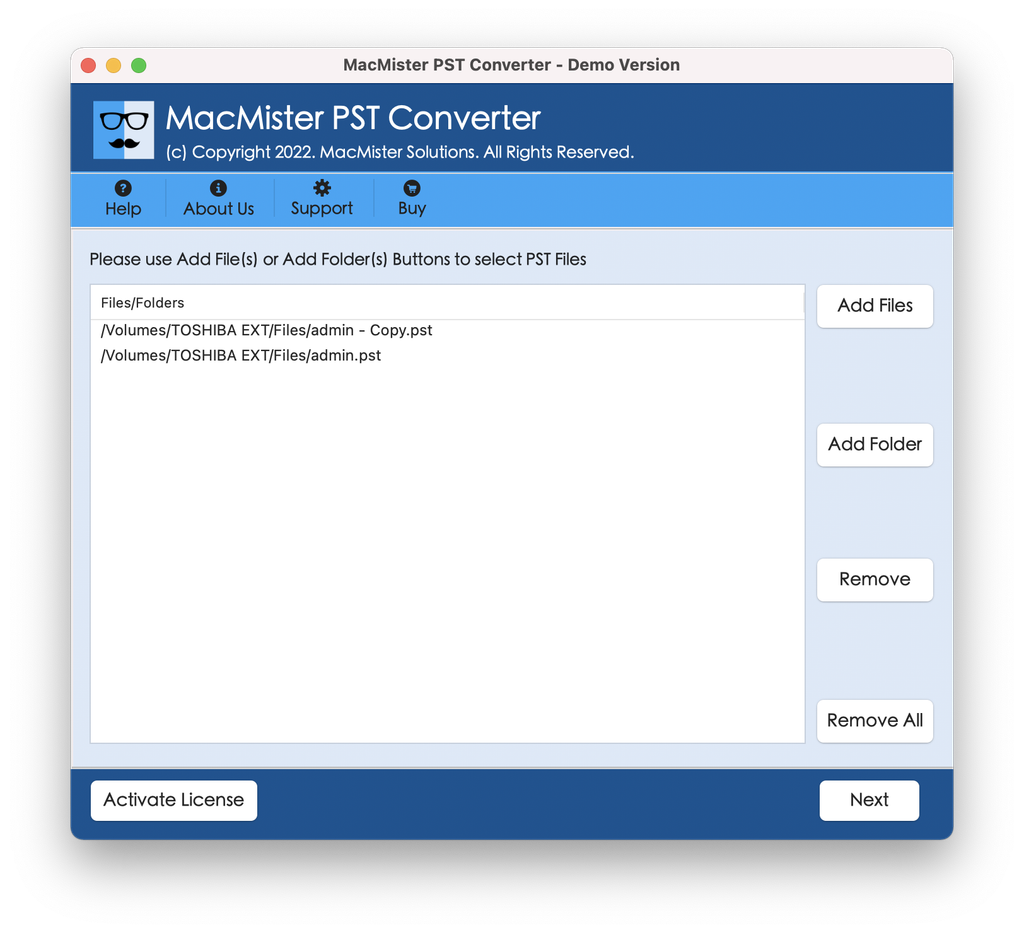
View and confirm the scanned mailbox folders tree displaying on the left panel.
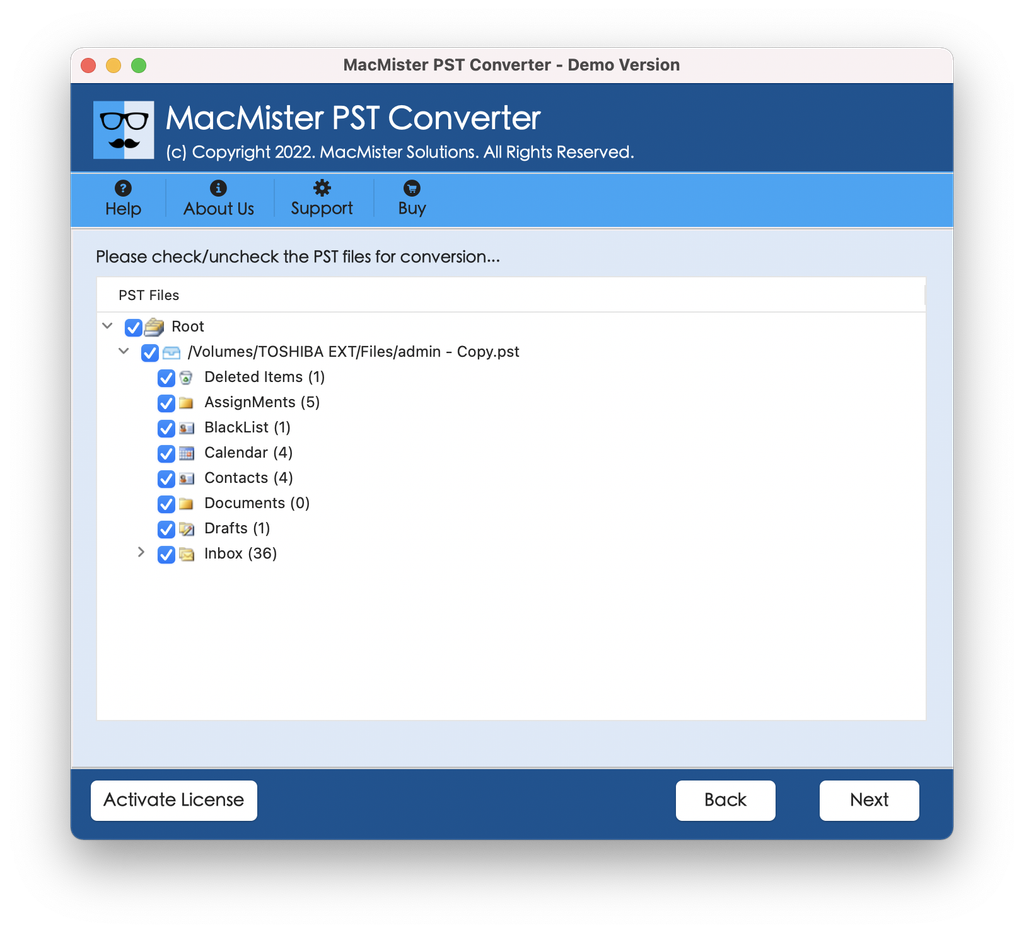
Step 2: Choosing the Output Format
Go to the “Select Saving Options” drop down menu.
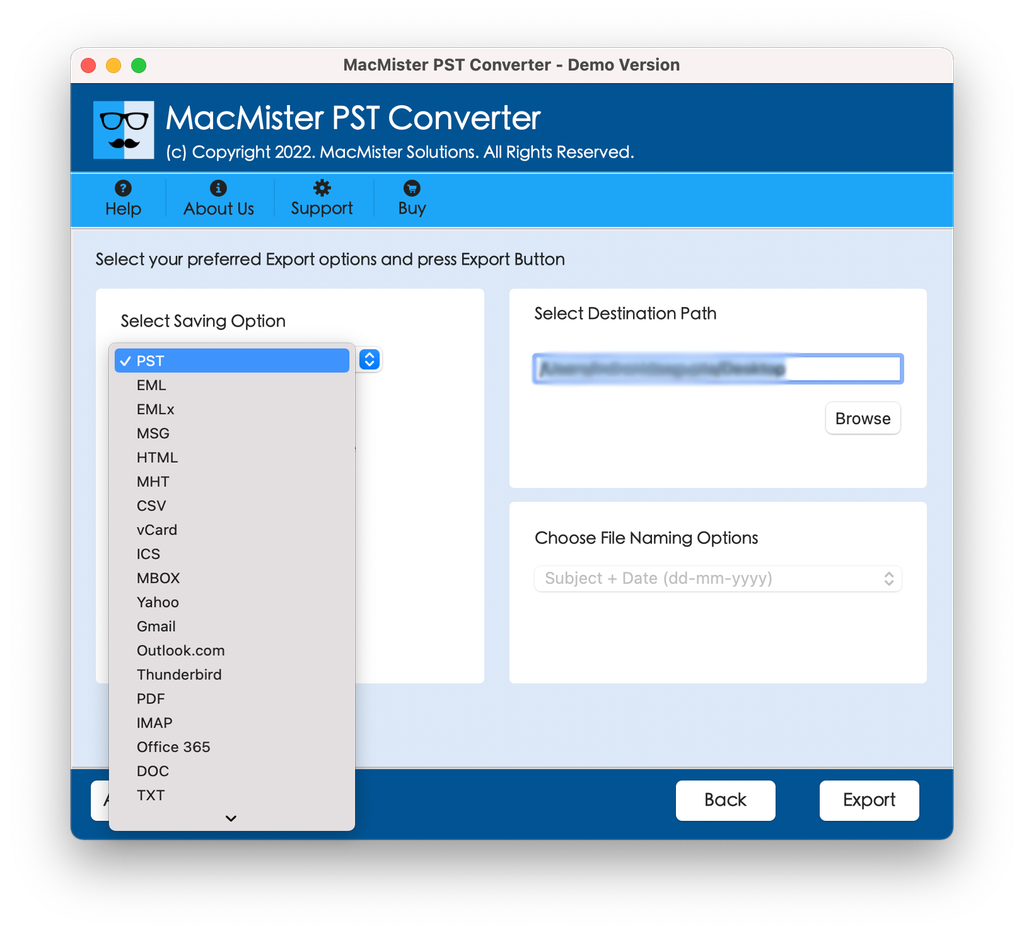
Specify your destination:
- If you want to import archives into Outlook for Mac, choose OLM.
- If you wish to import all emails directly into Apple Mail, choose MBOX / EML.
- Otherwise, select Office 365 / IMAP to transfer data directly to your cloud server.
Step 3: Initiate Conversion
Set other options as per requirements.
Tap Export button.
The utility will begin processing emails and generate a live status log and conversion report.
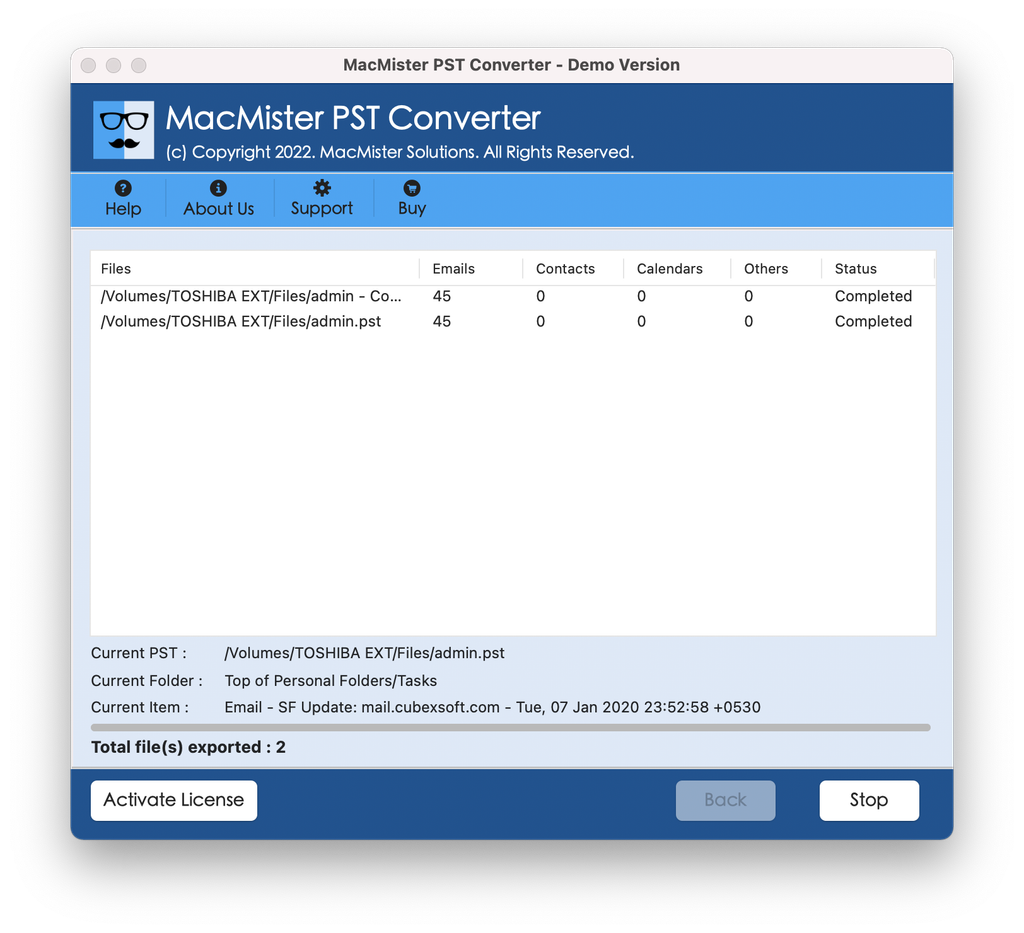
How to Import the Converted Data into Mac Applications?
For Apple Mail (With MBOX/EML Export)
- Launch Apple Mail application.
- Go to File > Import Mailboxes…
- Pick Files in mbox format, hit Continue, and point to the MacMister export directory.
- The archive becomes available right away in the Import section of Apple Mail sidebar.
For Outlook for Mac (With OLM Export or Direct Cloud Migration)
- For OLM: Launch Outlook for Mac, go to Tools > Import, pick the exported .olm file, and let native importer reconstruct your folders.
- For Direct Cloud Migration: After MacMister uploads files to the server, start New Outlook for Mac and the folder hierarchy will automatically sync in the air to your inbox.
Epilogue
The lack of PST files support in New Outlook for Mac is a structural change that Microsoft is making towards a more modern architecture in the cloud. Although some manual solutions, such as toggling Legacy Outlook, can be considered, but they are becoming less reliable with time due to the end-of-life of the old software versions. So, it is recommended to always go with the guaranteed and recommended solution.