EML File Encoding Issues – Why Emails Show Strange Characters
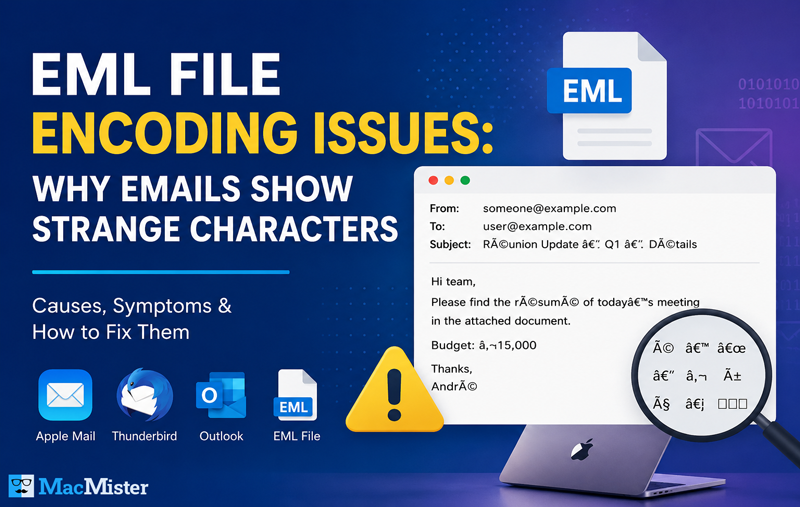
EML files are widely used to store individual email messages and are supported by popular email clients such as Apple Mail, Mozilla Thunderbird, Windows Mail, Outlook Express, and eM Client. An EML file contains not only the email body but also important information like the sender, recipient, subject, attachments, timestamps, and internet headers.
However, many users encounter an unusual problem after opening or migrating EML files—emails display unreadable characters instead of normal text. You might see symbols like é, â€, ’, □□□, ????, or random letters replacing the original message.
These strange characters usually indicate an email encoding issue rather than a damaged email. Understanding why this happens is the first step toward resolving the problem. In this article, we’ll explain what email encoding is, the most common causes behind these issues, and how to identify them before attempting any fixes.
What Is Email Encoding?
Every email uses a character encoding standard that tells the email application how text should be displayed.
Character encoding converts letters, numbers, punctuation marks, and special symbols into a format that computers can understand. When the email client interprets the encoding correctly, the message appears exactly as intended. Some commonly used encoding standards include –
- UTF-8
- UTF-16
- ASCII
- ISO-8859-1
- Windows-1252
Today, UTF-8 is the most widely used encoding because it supports multiple languages and special characters. Problems arise when an email created with one encoding standard is opened using another. As a result, readable text may be replaced with strange symbols or unreadable characters.
Common Signs of EML Encoding Problems
Encoding issues can appear in several different ways depending on the email client and the original character set. Typical symptoms include –
- Strange symbols replacing normal letters.
- Question marks appearing throughout the email.
- Accented characters displaying incorrectly.
- Foreign language text becoming unreadable.
- Blank or partially visible email content.
- Broken subject lines.
- HTML emails displaying unusual code.
- Special symbols such as €, £, ©, or ® appearing incorrectly.
These problems often confuse users because the email itself still exists, but the content cannot be read properly.
Why Do EML Files Show Strange Characters?
Several technical factors can cause encoding problems. Understanding the underlying reason makes troubleshooting much easier.
- Character Encoding Mismatch – This is the most common cause. An email may have been created using UTF-8 but opened by an application expecting Windows-1252 or ISO-8859-1. Because both encoding systems interpret the same bytes differently, the email displays unreadable symbols instead of the intended text.
- Incorrect MIME Headers – Every EML file contains MIME headers that specify how the email should be interpreted. These headers include information such as –
- Content-Type
- Character Set
- Content Transfer Encoding
If these values become incorrect or are modified during migration, the receiving email client may display the email incorrectly.
- Email Client Compatibility – Not all email applications interpret EML files in exactly the same way.
For example, an email exported from one application may display perfectly there but show formatting or encoding problems when opened in another client that handles character sets differently.
Compatibility differences become more noticeable when moving emails between Windows and macOS.
- Corrupted EML Files – Sometimes the issue isn’t related to encoding at all. If the EML file becomes damaged because of –
interrupted downloads,
storage failures,
incomplete transfers,
or file corruption,
important email information may no longer be readable.
Corrupted files often display random characters alongside missing content.
- Missing or inaccessible email attachments – In some cases, encoding problems are accompanied by missing or inaccessible email attachments. This usually happens when the MIME structure of the EML file becomes damaged or incompatible with the email client. If your attachments are missing even though the email opens successfully, you can read our detailed guide on EML Attachments Not Showing? 10 Proven Fixes That Actually Work.
- Partial Email Downloads – If an email wasn’t downloaded completely from the mail server, some portions of the message may be missing. Incomplete downloads can result from –
unstable internet connections,
interrupted synchronization,
mailbox server errors,
insufficient storage.
This may cause email clients to misinterpret the remaining content.
- Server-Side Changes – Some mail servers automatically modify outgoing emails before delivery. These changes may include –
converting character encoding,
changing MIME formatting,
compressing message content,
security filtering.
Although these processes are designed to improve compatibility, they can occasionally introduce encoding inconsistencies.
- File Transfer Issues – Encoding problems may also occur while transferring EML files between systems. Examples include –
copying files to external drives,
transferring via FTP,
moving files between Windows and macOS,
uploading to cloud storage.
If the transfer process is interrupted or altered, the email structure may no longer match the original encoding information.
Which Email Clients Commonly Experience Encoding Issues?
Although encoding problems can occur in any application, they’re more commonly reported when EML files are opened in different email clients than the ones in which they were created. Some examples include –
Apple Mail, Mozilla Thunderbird, Microsoft Outlook, Windows Live Mail, Outlook Express, eM Client
The issue often appears after migrating emails from one platform to another rather than during normal day-to-day use.
How to Identify an Encoding Issue
Before attempting any repairs, it’s helpful to determine whether the problem is actually related to encoding. You can often identify an encoding issue by –
- Comparing the same email in different email clients.
- Viewing the message source to inspect MIME headers.
- Checking whether only special characters are affected.
- Opening the file in a text editor for inspection (without making changes).
- Verifying whether attachments remain accessible while only the text appears corrupted.
If the email content is still present but displayed incorrectly, the issue is likely related to character encoding rather than permanent file damage.
Why This Matters for Businesses
For organizations that rely on archived emails, encoding issues can create significant challenges. Unreadable email content may affect –
- Legal documentation
- Financial records
- Customer communications
- Compliance audits
- Internal investigations
- Business reporting
Maintaining accurate and readable email records is essential, particularly when emails serve as official documentation.
Fix EML File Encoding Problems Without Losing Email Content
The good news is that many encoding problems can be resolved without permanently affecting the original email. In this article, we will discuss practical solutions that can help restore readable email content and reduce the chances of similar issues in the future.
Check the Original Character Encoding – Before making any changes, identify the encoding used in the original email. Every email contains information that tells the email client how characters should be displayed. Most modern emails use UTF-8, while older messages may use –
- ISO-8859-1
- Windows-1252
- UTF-16
- ASCII
If an email encoded in UTF-8 is interpreted as Windows-1252, special characters like é, £, €, or quotation marks may appear as random symbols such as:
- é
- ’
- “
- ????
Viewing the original message source can often reveal the encoding specified within the email headers.
Open the EML File in Another Email Client
Not every email application interprets encoding information in the same way. If an EML file displays unreadable text in one client, try opening it in another. Popular options include –
- Apple Mail
- Mozilla Thunderbird
- Microsoft Outlook
- eM Client
Sometimes, simply using a different application correctly interprets the character set and displays the email normally.
This is particularly useful when the problem is related to software compatibility rather than file corruption.
Verify the MIME Headers
Every EML file contains MIME (Multipurpose Internet Mail Extensions) headers that describe how the email should be processed. These headers specify information such as –
- Character encoding
- Content type
- Attachment format
- Transfer encoding
If these headers become damaged or are modified incorrectly, email clients may misinterpret the message content.
Avoid editing MIME headers manually unless you fully understand the email structure, as incorrect changes can make the file unreadable.
Download the Email Again
Encoding problems sometimes occur because an email wasn’t downloaded completely. This can happen when –
- Internet connectivity is interrupted.
- Mail synchronization stops unexpectedly.
- Storage limitations interrupt the download.
- Email servers experience temporary issues.
If the original mailbox is still available, downloading the email again may resolve the problem without any additional troubleshooting.
Check Whether the File Is Corrupted
Encoding issues aren’t always caused by character sets. Sometimes the EML file itself becomes corrupted. Possible reasons include –
- Unexpected system shutdowns
- Hard drive errors
- Malware infections
- Damaged storage devices
- Interrupted file transfers
Signs of corruption include –
- Blank email body
- Missing attachments
- Incomplete subject line
- Email fails to open
- Random symbols throughout the message
If corruption is suspected, restore the file from a backup whenever possible.
Avoid Editing EML Files with Text Editors
Although EML files can open in text editors, modifying their contents manually is generally not recommended. Even a small change to –
- MIME boundaries
- Character encoding declarations
- HTML formatting
- Header information
can prevent email clients from displaying the message correctly. If you only need to inspect the file, use read-only mode whenever possible.
Convert the EML File to Another Format
If the email opens correctly but cannot display consistently across different applications, converting it to another format may help preserve its content. Easily Know about –
- How to EML to PDF
- EML to CSV
- Migration of EML to MBOX
- EML to Outlook on Mac
Each format serves different purposes. For example, PDF is useful for sharing and archiving, while HTML preserves web-based formatting for browser viewing.
Use a Reliable EML Conversion Solution
When dealing with a large collection of EML files, manually checking encoding settings for every email is often impractical. A dedicated conversion application can simplify the process while maintaining important email properties.
For Mac users, MacMister EML Converter for Mac provides an efficient way to convert multiple EML files into various formats while preserving email metadata, attachments, folder hierarchy, and message formatting during supported conversions. Batch processing also helps save time when working with extensive email archives.


Using a specialized converter can be particularly beneficial when preparing emails for migration, documentation, or long-term storage.
Prevent Future Encoding Problems
Although not every encoding issue can be avoided, following a few best practices significantly reduces the risk.
- Keep Original Email Backups – Always preserve the original EML files before performing conversions or migrations.
- Use Modern Email Clients – Updated email applications generally provide better Unicode and UTF-8 support.
- Avoid Manual Header Modifications – Changing email headers without proper knowledge can introduce display problems.
- Verify Encoding Before Migration – When transferring emails between platforms, confirm that both applications support the same character encoding.
- Store Files Safely – Avoid sudden interruptions while copying or transferring EML files, especially across external drives or cloud storage.
- Test Before Bulk Conversion – Before processing hundreds of emails, convert a small sample to verify that formatting and characters remain intact.
Frequently Asked Questions
Q. Can encoding issues permanently damage an EML file?
Ans. Usually, no. In many cases, the email content is still intact, but the wrong character set is being used to display it.
Q. Which encoding is most commonly used today?
Ans. UTF-8 is the most widely supported encoding format for modern email communication.
Q. Can attachments be affected by encoding problems?
Ans. Encoding issues primarily impact the email body and subject line. Attachments are generally unaffected unless the overall file is corrupted.
Q. Is manual editing recommended?
Ans. No. Editing EML files directly may alter MIME headers or formatting, leading to additional display problems.
Conclusion
EML encoding issues can make important emails difficult to read, but they are often caused by mismatched character sets, damaged headers, incomplete downloads, or software compatibility differences rather than permanent data loss. By identifying the source of the problem and following appropriate troubleshooting steps, many display issues can be resolved successfully.
If you frequently manage large collections of EML files, using a professional solution such as EML Migration for Mac can simplify conversion workflows while helping preserve email structure, metadata, and formatting during supported export operations. Proper backup practices and careful handling of EML files will also go a long way toward preventing future encoding-related problems.
| |