How to Read Outlook Windows Backup Archives (.pst) on a Mac?
Switching to a Mac from a Windows PC brings exciting opportunities, but it can also lead to unexpected compatibility issues. One of the most common issues you may experience when moving from a Windows PC to a Mac is attempting to access your old emails that are saved in Microsoft Outlook for Windows backup files (.pst or Personal Storage Table files).
Outlook for Windows uses .pst files to store your emails, calendar, contacts, tasks, and notes. Unfortunately, macOS does not support the email archives that .pst files contain, so you won’t be able to just double click the file and access its data.
Whether you’re looking to move to a new Mac, get your old emails from an office backup or simply get all your archives in one place, this guide will show you how to open, convert and read Windows Outlook backup archives on Mac using expert tools.
Why Can’t Macs Open PST Files Directly?
Before proceeding to possible solutions, it is important to get familiar with the technology behind them. PST files were introduced by Microsoft and designed for Windows version of Outlook as a proprietary file format for storing local files. OLM and MBOX are the examples of file formats that are used for their respective applications on macOS systems.
Because of this architectural difference, macOS cannot manage PST file structure without a translation layer, an explicit import tool, or a third-party conversion utility. Fortunately, there are several reliable sources available to access your data, ranging from dedicated third-party software to manual migration procedures.
Method 1: Read Windows Outlook Archive File using Professional Tool
While dealing with large and complex .pst backup files or more than one file, the process of importing them manually has some limitations such as size constraints, folder corruption, and lost metadata. Thereby, it is advisable to use third-party software such as MacMister PST Converter for Mac, which is a reliable method of accessing and opening your Outlook Windows archive on macOS without Outlook.
Why to Choose the Application?
- All company/personal emails are kept secure on your computer without the need for any data retention or cloud uploading.
- Manages large .pst files without limitations.
- Converting .pst files to desktop or cloud readable formats such as PDF, MBOX, EML, MSG, HTML, and CSV or move them straight to cloud platforms like Office 365 and Gmail.
- Maintaining the same folder structure, inline images, formatting, metadata, and attachments in the converted file.
- Safe and fully checked code for the trouble-free installation on the latest version of macOS.
Step-by-Step Guide to Reading PST Files with MacMister PST Converter:
Step 1. Download the software on macOS supported syste, from the official MacMister website.
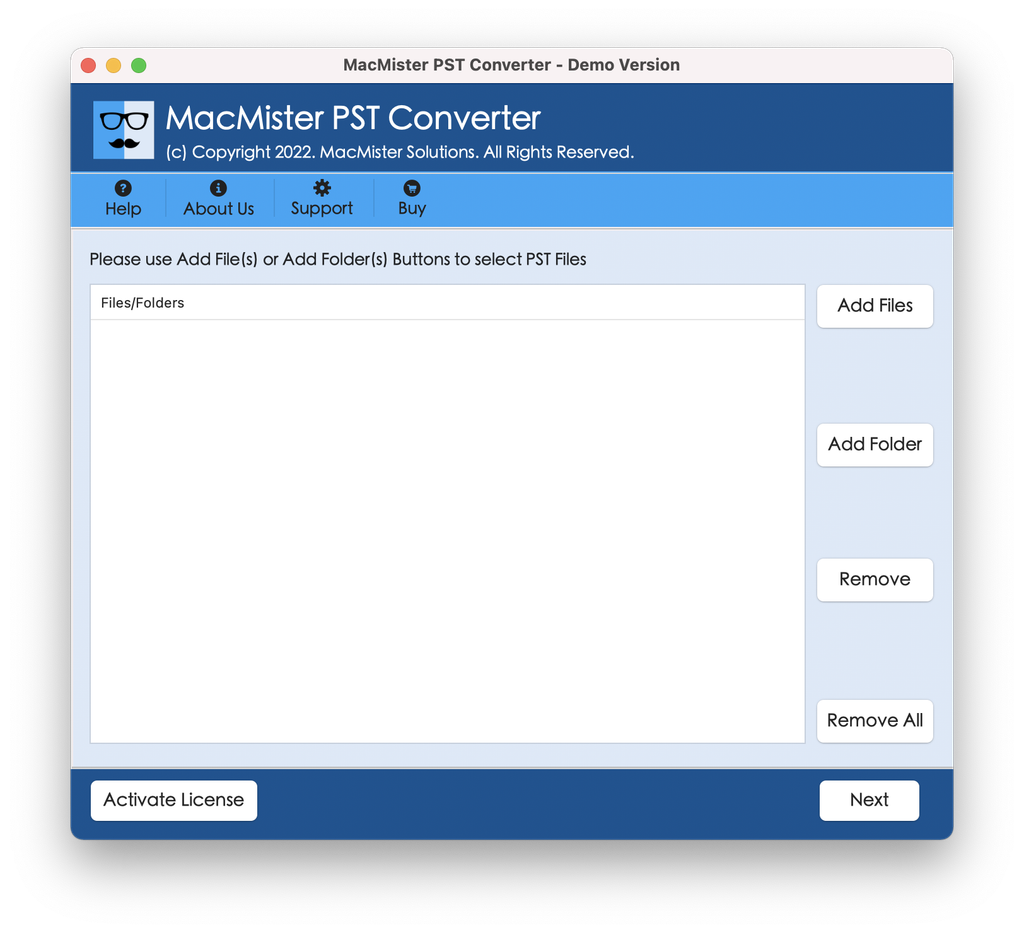
Step 2. Launch the program on your computer. Using the Add File(s) or Add Folder(s) option, you will be able to import your Windows Outlook backup archive(s). There are two loading modes available allowing you to easily process either single files or whole batches.
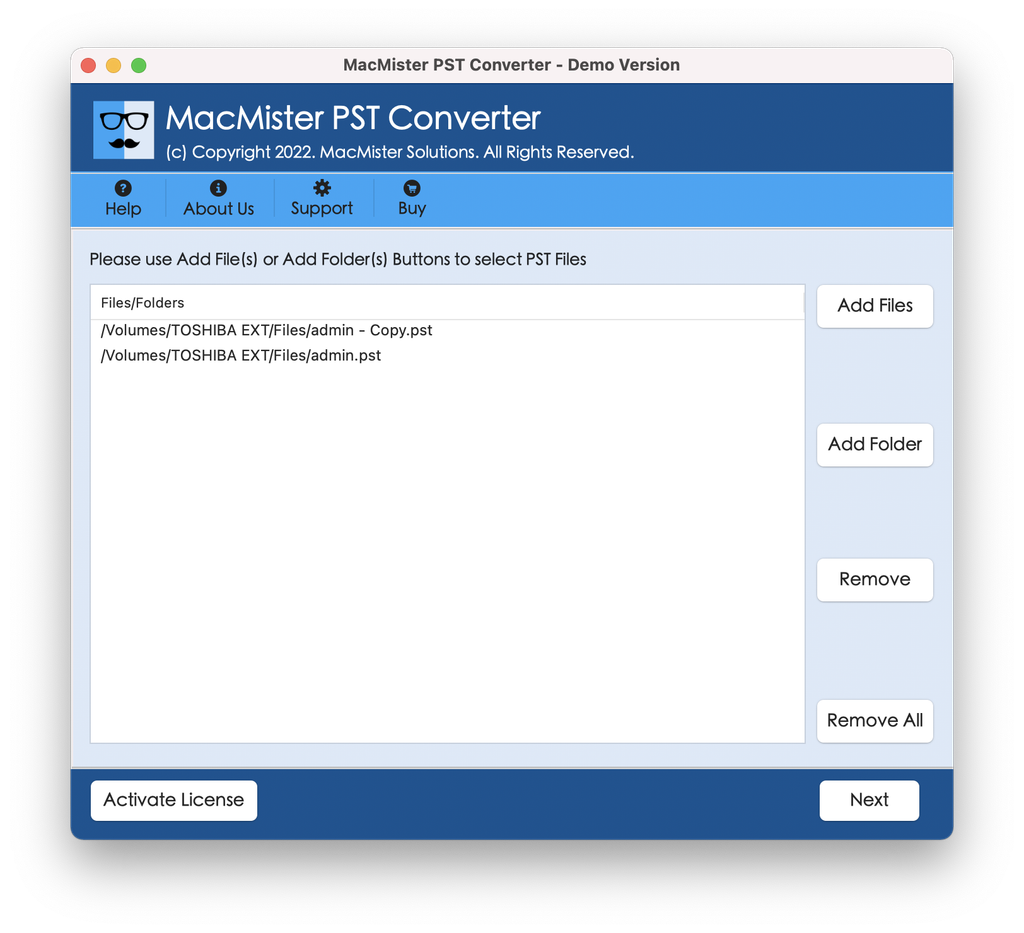
Step 3. Having been loaded, the program will show the folder structure. You will be able to mark/unmark mailboxes and extract only certain archives if necessary.
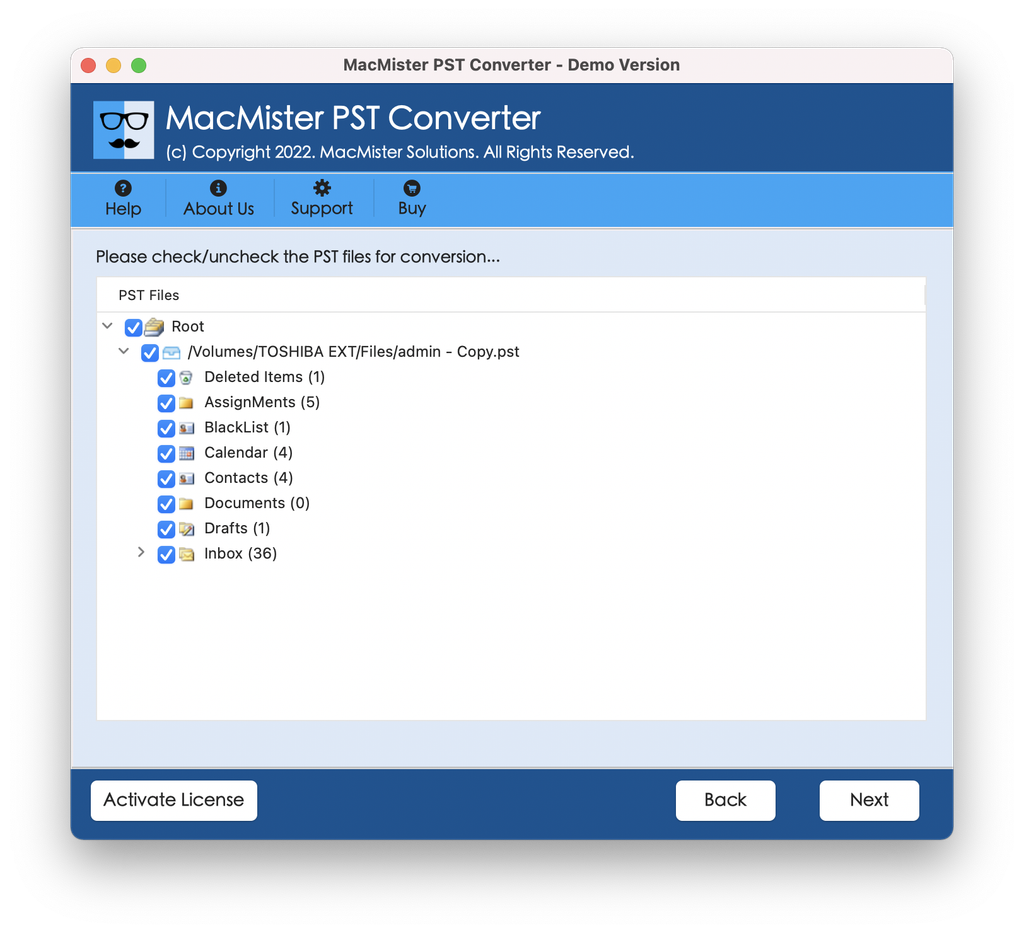
Step 4. Open the Select Saving Option drop-down list.
- Choose PDF if you want to get portable and searchable documents for further legal archive;
- Choose MBOX/EML if you prefer to open the emails in Apple Mail/Mozilla Thunderbird right away.
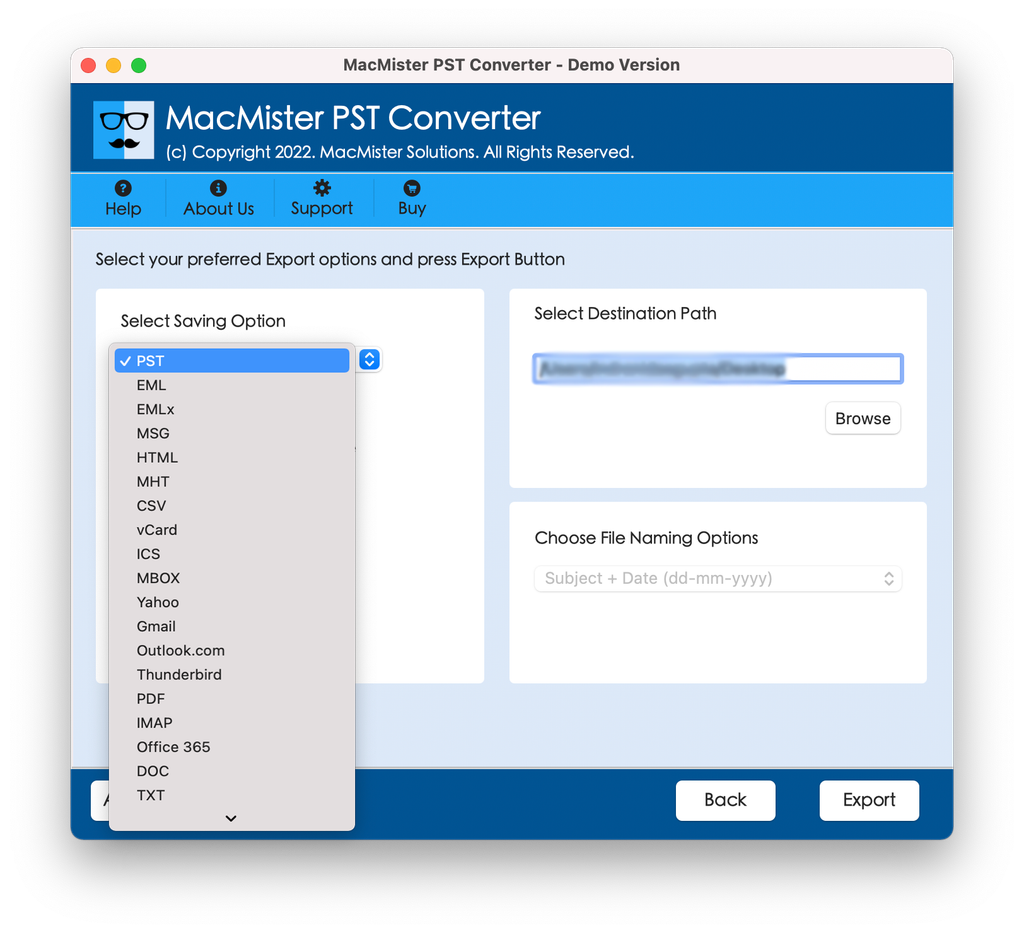
Step 5. Apply sub-options as per your requirements and tap Export.
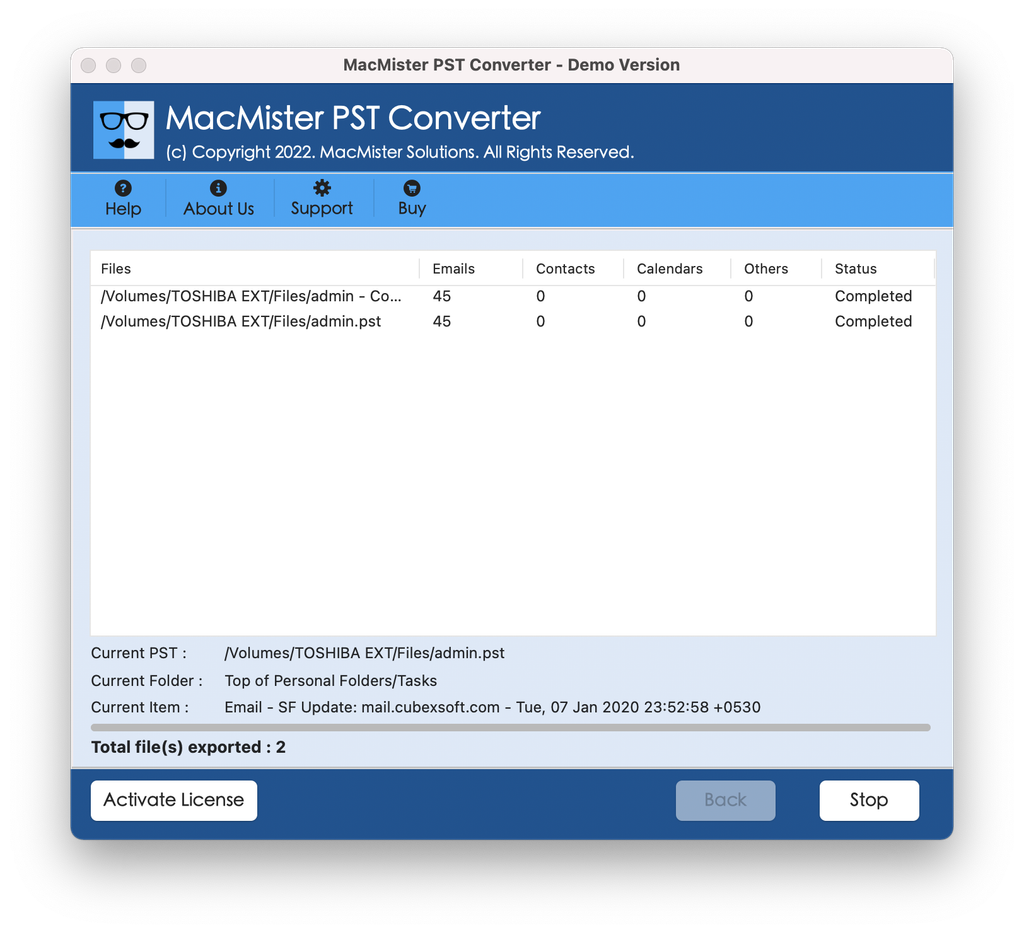
Step 6. Click on Export. Your Windows backup archive is converted to macOS compatible version within seconds.
Method 2: Perform Direct Import Using Outlook for Mac (The Official Route)
If you have a subscription for Microsoft 365 or you have the software licensed copy of Microsoft Outlook on your Mac computer, then you may directly import the .pst file in the software itself. This would be a case where this method is being used as an integrated one.
Step-by-Step Instructions:
- Transfer the backup .pst file from the Windows PC or external hard drive onto a local folder on your Mac (Documents folder).
- Open Microsoft Outlook on your Mac OS computer.
- Go to the Import Tool:
- Legacy Outlook: From the top menu bar, navigate to File and select Import.
- New Outlook: Select the Tools menu or go to Settings to find the import button.
- Select either the Outlook for Windows Data File (.pst) or the Archive File from the dialogue box that pops up and click Continue.
- Navigate to your .pst file on your Mac and click Import to transfer the file.
Once done, check your left pane to see a new tab titled On My Computer or Archive Folder with all your imported emails and calendar entries.
Method 3: Viewing Archives via Mozilla Thunderbird (Free Alternative)
Without having any kind of Microsoft 365 plan but still wanting an open-source application that is free to be used to access your backed up emails on a Windows platform, Mozilla Thunderbird for Mac comes in handy.
- Install Mozilla Thunderbird on your Mac.
- Obtain a suitable add-on or extension, which can read Windows .pst or .eml file formats.
- Carry out the importing process in order to access your previous emails.
However, due to the complexity involved in the folders and the size of the archives, open-source software might face difficulties compared to professional-grade software such as MacMister PST Converter.
Troubleshooting Common Issues
While using Windows backup archives in a Mac, there are times that you may encounter some obstacles. Consider the following pointers:
- File Corruption: The .pst files (normally larger than 20GB) tend to get corrupted when transferred from Windows to Mac. Executing Microsoft’s Inbox Repair Tool (scanpst.exe) in Windows prior to the transfer process helps avoid extraction errors.
- Permission Errors: Should there be an issue with accessing your file in Mac, right-click your .pst file, click on Get Info, click on Sharing & Permission, and make sure your user account has Read & Write permissions.
- Saving Attachments: Make sure that whatever method you choose for conversion is specifically programmed to save attachments and calendar entries because some simple applications remove them.
Epilogue
However, reading an Outlook Windows backup archive file on a Mac should not necessarily be a difficult thing. Although manual imports through Outlook for Mac may work fine in simple cases, they generally fail in large scale or multi-folder archive situations.
A good approach would be using a special tool such as MacMister PST Converter for a smooth, speedy and safe process which converts your emails and attachments along with all folders into such formats as PDF or MBOX, thus providing immediate access to your email history on your Mac computer. Don’t forget to keep an untouched backup copy of your .pst file on some other device.