How to Transfer Windows Live Mail to MBOX on Mac – Working Guide
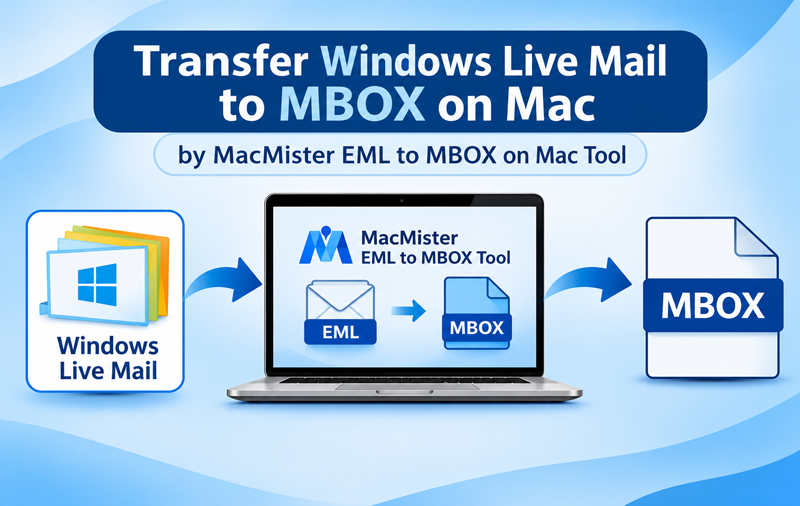
Having requirement to resolve how to transfer Emails from Windows Live Mail to MBOX on Mac manually and migration utility that help to transfer Windows Live Emails to MBOX for all supported application.
Windows Live Mail stores email messages in a format that allows users to maintain individual messages along with their associated information. However, accessing older Windows Live Mail correspondence on a Mac can become challenging when users want to organize emails in a different format or use them with applications that support MBOX files. MBOX is a widely used mailbox format that stores multiple email messages within a single file, making it suitable for email archiving, mailbox organization, and email application compatibility. Users migrating from Windows Live Mail to Mac often prefer converting their existing email collection into MBOX format for convenient access and management. Windows Live Mail to MBOX on Mac Tool provides powerful solution for transferring Windows Live Mail emails into MBOX format through a straightforward conversion process.
What Is Windows Live Mail?
Windows Live Mail was a desktop email application developed by Microsoft for managing email accounts and messages. It allowed users to access emails from different accounts, organize messages into folders, and maintain correspondence locally on their computers. Windows Live Mail commonly stores email messages in EML format, particularly when messages are exported or saved individually.
EML files contain individual email messages along with their headers, sender information, recipients, subject lines, dates, message content, and supported attachments. These files provide a convenient way to preserve email correspondence outside the original application.
What Is MBOX?
MBOX is a mailbox file format used by several email applications and email management systems. Unlike EML, which generally represents one message per file, MBOX can contain multiple email messages within a single mailbox file.
The format is useful for consolidating email collections, maintaining mailbox archives, and transferring correspondence between compatible email applications. Applications such as Mozilla Thunderbird support MBOX-based email workflows, making this format suitable for users managing email data on Mac.
Why Transfer Windows Live Mail to MBOX on Mac?
Converting Windows Live Mail emails into MBOX format offers several advantages for Mac users who want to manage their existing correspondence differently.
- Mac Email Application Compatibility – MBOX provides compatibility with email applications that support this mailbox format.
- Mailbox Consolidation – Multiple email messages can be maintained within a single mailbox file rather than separate EML documents.
- Email Archiving – MBOX offers a convenient structure for storing historical correspondence.
- Migration Flexibility – Users can prepare their existing Windows Live Mail messages for importing into compatible email applications.
- Improved Email Organization – Consolidating messages into mailbox files simplifies email collection management.
- Long-Term Accessibility – Maintaining emails in a supported mailbox format provides an alternative to depending exclusively on the original Windows Live Mail installation.
For users moving their email environment from Windows to Mac, converting existing messages into MBOX can make email management more convenient.
Manual Method to Transfer Windows Live Mail Emails to MBOX
Windows Live Mail does not provide a straightforward direct export option for MBOX files. Users can prepare their messages in EML format and then use an email application that supports importing or converting these messages into MBOX. The general manual workflow involves the following steps –
- Open Windows Live Mail on the Windows computer.
- Select the required email messages or folders.
- Export the messages using the available Windows Live Mail export functionality or save supported messages as EML files.
- Transfer the exported EML files to the Mac using an external drive or another file-sharing method.
- Install and configure a compatible email application on the Mac.
- Import the EML messages through supported application functionality or an appropriate import extension.
- Organize the imported messages into a mailbox that can be exported or maintained in MBOX format.
- Verify the converted mailbox and check the available email information.
This method requires multiple applications and several intermediate steps. The available import and export functionality also depends on the email application and its supported extensions.
Challenges Associated with Manual Migration
Manual migration can become difficult when Windows Live Mail contains a large number of messages distributed across different folders. Preparing individual EML files and importing them into another application increases the overall workload.
Users may also encounter compatibility differences between email applications, particularly when importing messages containing attachments, formatted content, or special email properties. Maintaining the original folder arrangement may require additional organization after importing.
Another concern is the time required to process extensive email collections. Repeating the same steps for different folders increases the possibility of missing messages or inconsistent mailbox organization.
For these reasons, users handling large Windows Live Mail archives can consider powerful Windows Live Mail to MBOX conversion solution.
How to Transfer Windows Live Mail to MBOX on Mac by Advanced Tool
MacMister EML to MBOX on Mac Tool provides advanced data migration utility for users who have exported Windows Live Mail messages as EML format and want to convert them into MBOX files on Mac. Instead of importing every message individually into an email application, users can process their EML collections through a dedicated conversion interface.
 |  |
The software allows users to add individual EML files or select folders containing multiple email messages. Its batch processing functionality supports converting multiple EML files together, making it suitable for users managing extensive Windows Live Mail archives.
The conversion process maintains important email information, including sender addresses, recipient details, subject lines, timestamps, and message content. It also supports email attachments and preserves supported message properties during conversion, helping users retain relevant correspondence information.
Key Features
1. Batch Windows Live Mail to MBOX Conversion – The software processes multiple EML files together, eliminating the need to convert messages individually. This functionality is useful for Windows Live Mail users maintaining extensive email collections.
2. Folder-Based Selection – Users can select folders containing exported Windows Live Mail EML files to MBOX on Mac. This tool simplifies the selection process and reduces repetitive file browsing.
3. Email Information Preservation – The conversion maintains essential message details, including sender, recipient, subject, date, and email body content, helping users retain important correspondence information.
4. Attachment Support – Email attachments are supported during conversion, allowing users to manage messages containing documents, images, and other attached files.
5. Filtering Capabilities – Available filtering options help users select particular messages according to their migration requirements. This makes it convenient to process relevant email collections.
6. Convenient MBOX Output – The software converts selected Windows Live Mail messages into MBOX format and easily Import them into supported email clients such as Apple Mail and Mozilla Thunderbird, or transfer emails to webmail services like Gmail, Yahoo Mail, Outlook.com, and Fastmail using compatible migration methods.
7. Simple Conversion Interface – The interface provides a straightforward workflow for adding EML files, selecting conversion settings, and saving the resulting MBOX files.
8. Supported macOS Editions – The Tool supports multiple macOS editions, enabling users to perform email conversion within compatible Mac environments.
Conclusion
Transferring Windows Live Mail emails to MBOX on Mac helps users maintain their existing correspondence in a mailbox format supported by several email applications. Although manual migration involves exporting EML files, importing messages into compatible applications, and managing mailbox conversion, this perfect utility simplifies the overall workflow. The EML Converter for Mac Tool provides batch processing, folder selection, attachment support, email information preservation, and filtering capabilities for converting Windows Live Mail EML collections into MBOX files. By using this conversion solution, Mac users can organize their older Windows Live Mail correspondence into a convenient mailbox format for email archiving and further management.