How to Batch Convert Orphan OST Files on Mac without Outlook?
Managing offline emails on various operating systems may often seem like solving a puzzle. As a MacBook Pro owner, you undoubtedly use macOS with its efficiency, security, and elegant ecosystem. Nevertheless, once you come across the problem of having received or found an orphaned Offline Storage Table (.ost) file created using a Microsoft Outlook account on Windows OS, you immediately get to the point where you have to solve another problem.
An orphaned OST file differs from usual file formats as it is restricted to the exact Exchange profile and Microsoft Outlook account that generated the file. In other words, there is no way to access the emails stored in the orphaned OST archive directly through macOS since the OS does not support this file format.
Regardless of whether you want to transfer email data from a Windows PC, restore data lost due to a crash of a corporate server, or simply archive historic communication, you need an effective solution. This guide aims to address this issue and provide a unique utility to batch convert orphan OST files without Outlook at once.
The Challenge of Orphaned OST Files on macOS
Microsoft Outlook for Windows makes use of OST files to keep offline copies of mailbox items that include emails, contacts, calendars, tasks, and notes. The OST file gets synchronized when the computer has access to an Exchange, Microsoft 365, or IMAP server.
In case the mailbox is removed, gets disabled, or disconnected from the server, the orphaned OST file will get generated. Since the Mac version of Outlook uses a completely different system where it makes use of olm files or local cache databases, opening an orphaned Windows OST file on Mac would not work properly.
Why Manual Workarounds Fail?
Often users first try to perform manual steps or workarounds but end up frustrated:
- Relinking of OST to Active Exchange Account: The procedure to forcibly link the OST file to another/new Exchange mailbox will not be allowed because it goes against the internal security of Outlook due to its encryption key being linked to the old mailbox profile.
- Third-party plug-ins for Mac: Using macOS mail programs to force the parsing of Windows database without conversion utilities will result in corrupted email body content or loss of attachments.
That is why a more efficient approach is using the specialized migration tools for macOS.
How to Batch Convert Orphan OST Files on Mac without Outlook using Automated Solution?
A reliable and secure software that provides an easy way of handling orphan OST files in the MacBook Pro environment without the need of using Microsoft Outlook is what MacMister OST Converter can be referred to as. The software is designed to meet the requirements of the Apple users.
Main Features of the Application
- This tool enables users to load multiple orphan OST files and process them at the same time, saving a lot of time when dealing with massive data migration.
- Users do not need any Microsoft Outlook installation, working Exchange server, or Windows Operating System on their MacBook Pro in order to open, export, or convert their OST files.
- Users can convert their OST files into 15 different file types like PST, OLM, PDF, MBOX, EML, MSG, HTML, etc., making it easy to view them in Apple Mail, Thunderbird, Adobe Reader, Microsoft 365 for Mac, etc.
- The fear associated with email conversion is that of losing folders, attachments, or even structure of emails. MacMister helps users maintain all these elements exactly as it was in original OST files.
Step-by-Step Guide of the Software to Batch Convert Orphan OST Files on Mac
The process of using the application is highly user-friendly and only requires some basic mouse clicks to move your files with ease and no hassle at all:
Step 1. First, download the software on Mac, install it on your MacBook Pro computer and then run the program.
Step 2. Then use Add File(s) / Add Folder(s) button and select your orphaned OST files directly from your computer and transfer them to the program interface. This program can work with files of any size.
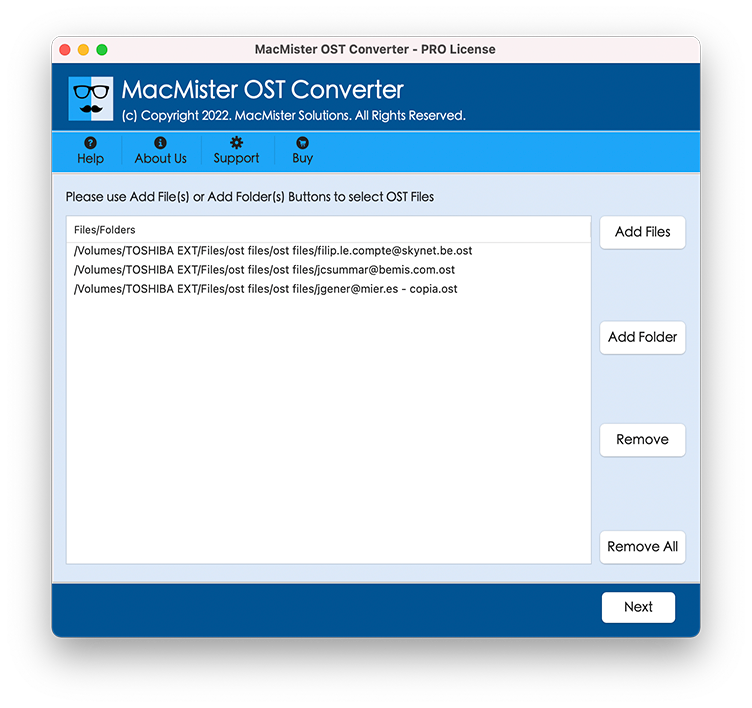
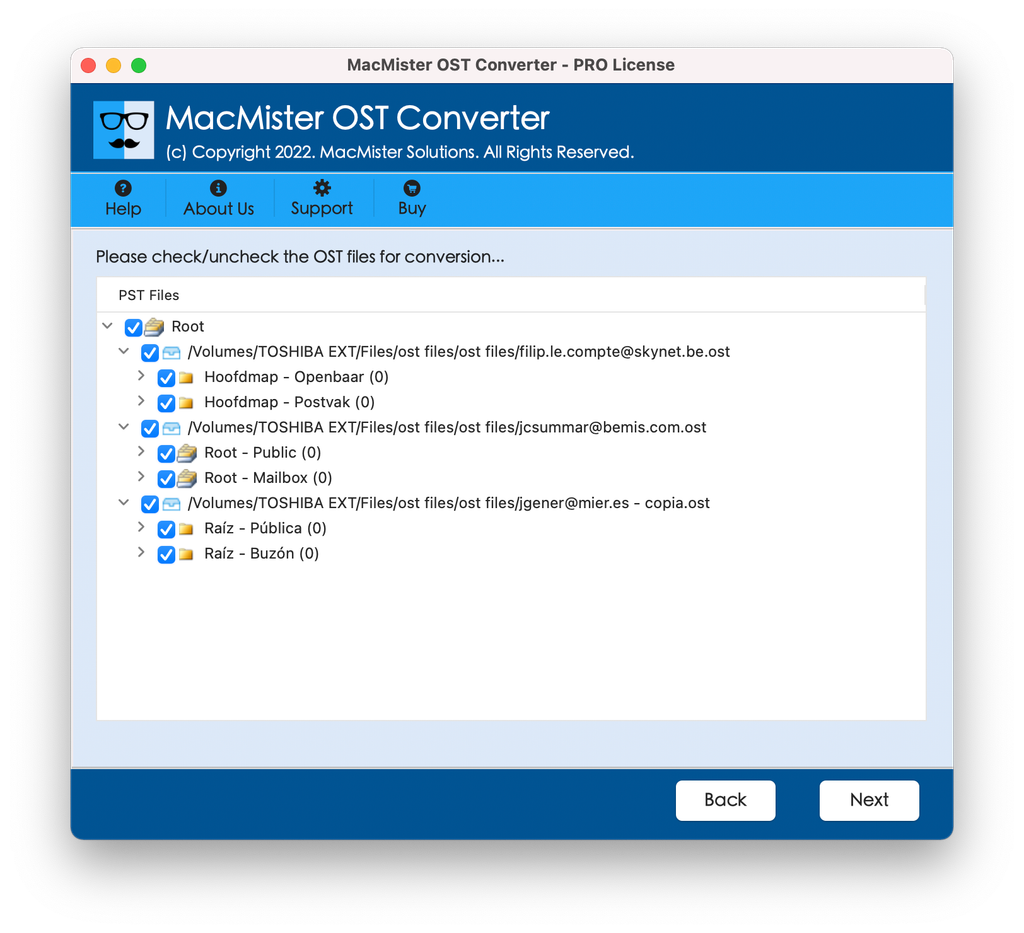
Step 3. The program will show you a full tree view preview of your mailbox contents, including emails, calendars, attachments, etc.
Step 4. From Select Saving Options drop-down list, select the required saving type.
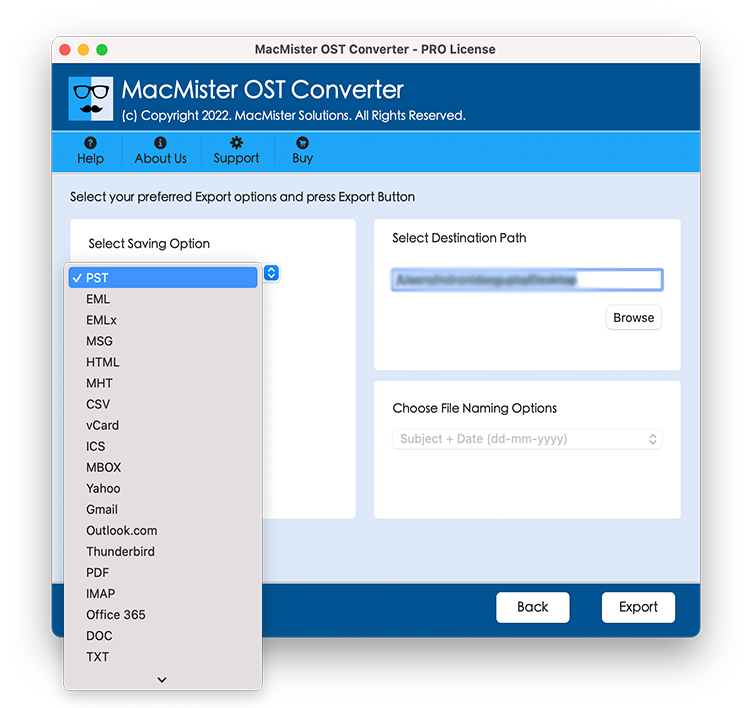
Step 5. Select your folder where you want to save the converted files.
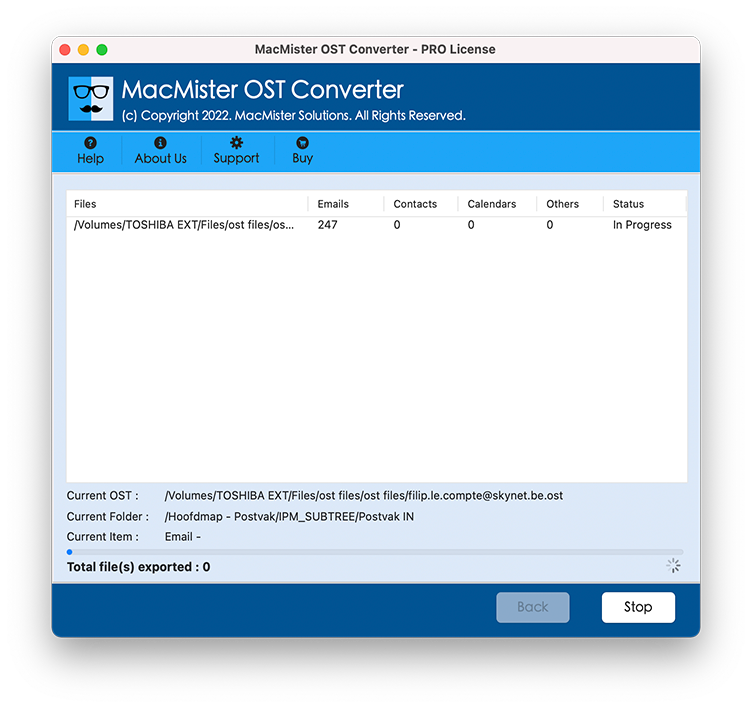
Step 6. The tool will process the archives rapidly, maintaining 100% data safety. Once completed, a confirmation prompt appears, and you can access your newly saved files instantly.
Why to Choose MacMister for Your Mac?
The processing of important documents of an organization or personal documents demands utmost reliability of the tool used. MacMister guarantees that you have total privacy of your information; no information is uploaded on any other server outside. In addition to this, the application offers a free trial version for conversion of certain items.
Conclusion
Orphan OST File Conversion Batch-wise on Mac Without Outlook Needn’t Be a Tough Nut to Crack. While it’s true that macOS makes it difficult to directly handle OST files, the professional tool makes things easy for you. With the help of MacMister OST Data Conversion utility, not only do you get rid of the hassles of platform compatibility, but you also get complete peace of mind.