How do I Import MBOX into Hotmail on Mac & Windows?
Are you using Hotmail account for email management? Having lots of MBOX files on a MacBook that you need to transfer into a Hotmail environment? Wondering how do I import MBOX into Hotmail on Mac. Looking for a trouble-free solution that can help to directly import multiple MBOX files into Hotmail account at once? If yes, then not to worry, simply follow the article discussed below. Because here you will find a technique that will definitely help to import MBOX into Hotmail with accurate emails and attachments. Let’s get started with a detailed overview of MBOX & Hotmail.
Detailed Overview of MBOX & Hotmail
Email communication has become a necessity or one can say important means for organizations as well as individuals to carry out the data exchange worldwide. And, for that, there are ample email applications available through which users can connect with others and transfer critical data files from one place to another.
MBOX
MBOX is one of the popular file formats and is supported by multiple email applications such as Apple Mail, Thunderbird, Eudora, Entourage, PocoMail, The Bat, Gmail, and more. However, most of the Mac users make use of the Apple Mail email client on the system because it is the default and can be configured easily on a Mac system. It is easy to use and provides a comfortable file management system. And, so users can make use of the email platform effortlessly and manage large amounts of day-to-day emails without dealing with technical issues.
How MBOX Files are extracted from Apple Mail?
Exporting mailboxes from macOS Mail is not difficult. Follow the steps to save mailboxes as MBOX files using Mac Mail:
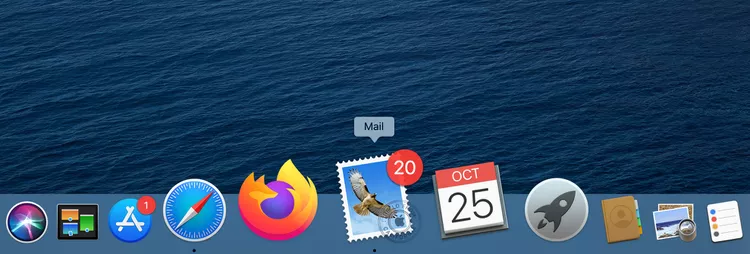
Step 1. Go to the Apple Mail icon appearing in the Mac Dock. Double-click on it to open.
Step 2. Now, in the mailbox panel, click the required mailbox or folder to export into the MBOX file.
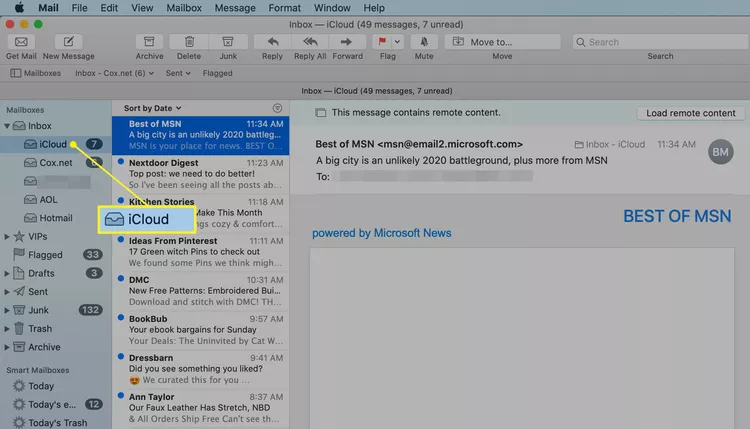
Note. You can hold the Command key and select multiple mailboxes or folders and then also you can select individual folders that you want to include. And, in order to highlight multiple folders continuously in a row, choose the first item, press the Shift key and then select the last item. However, macOS will show all the items between the two selected items.
Step 3. Navigate to the Mailbox appearing in the Mail menu bar. Click on the same and pick the option of Export Mailbox.

Step 4. Select the destination folder of your choice to save MBOX file and then click Choose to create a new MBOX file at desired destination path.
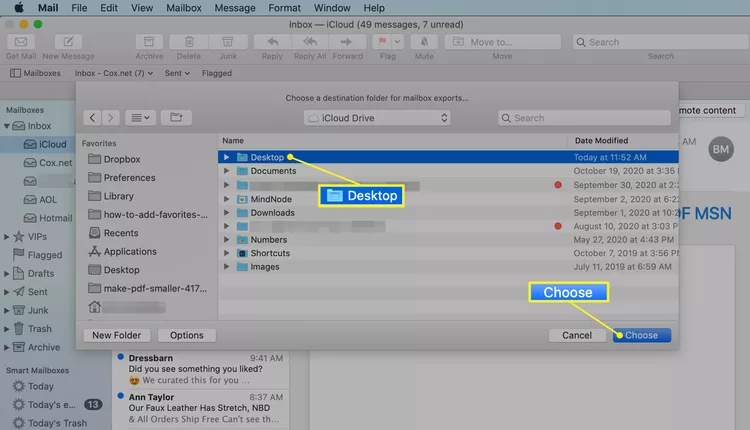
After these steps, you can go to the chosen destination to check the files.
Hotmail
Hotmail is a free webmail service that started in 1996. It was first introduced by Sabeer Bhatia and Jack Smith. Later, acquired by Microsoft in 1997. Again, rebranded as Windows Live Hotmail and then Outlook. It has many benefits and some of them are discussed below:
- Offers unlimited storage with the support of creating your own email address with either @Hotmail.com or @Outlook.com.
- Allows to easily manage contacts in Hotmail account such as name, email address, and phone numbers.
- Equipped with an inbuilt calendar that helps to schedule meetings, and create, and track tasks.
- Accessible from multiple devices like Windows, iOS & Android, Mac, and Web (Web Browser).
Hotmail has numerous beneficial features and options that help users in managing their data properly on the cloud.
How to Import MBOX into Hotmail on Mac & Windows?
With the help of MacMister MBOX Converter for Mac, users can directly import MBOX into Hotmail with accurate emails and attachments. The software is user-friendly and offers an environment that is suitable for both technical and non-technical users. Not only this, the application contains three operational steps that will save their time and help them to complete the entire required task in just three seconds.
Moreover, the software possesses a direct migration facility. In other words, simply select the Hotmail option from the menu of Select Saving Options. Provide its credentials and click Export. After this, the tool will immediately start the procedure and will successfully import all MBOX files into Hotmail with 100% accuracy. However, the application is launched with a free demo and so one can take the help of the same to test the migration for free.
Working Steps to Import MBOX into Hotmail on Mac
Step 1. Download, launch, and open MBOX to Hotmail Migration Tool on macOS.
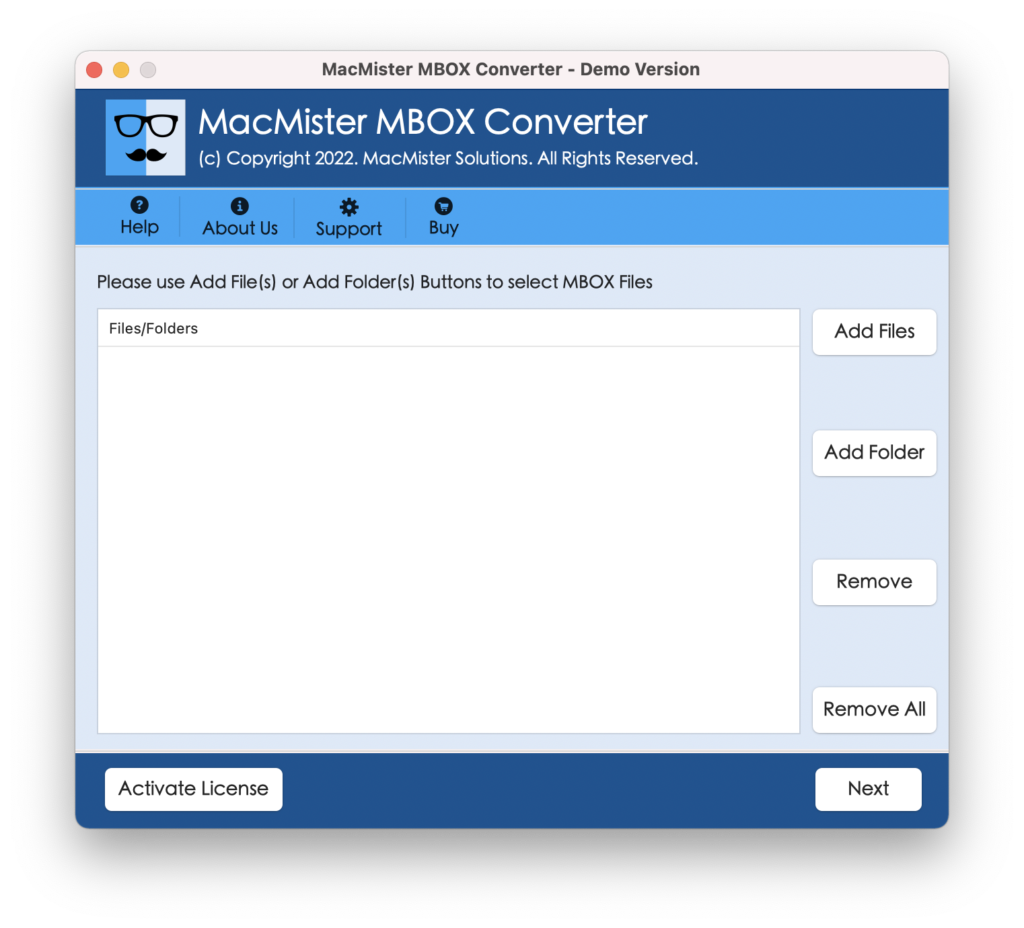
Step 2. Use Add File(s)/Add Folder buttons and add the required MBOX files on the tool for migration and proceed further by tapping the Next button.
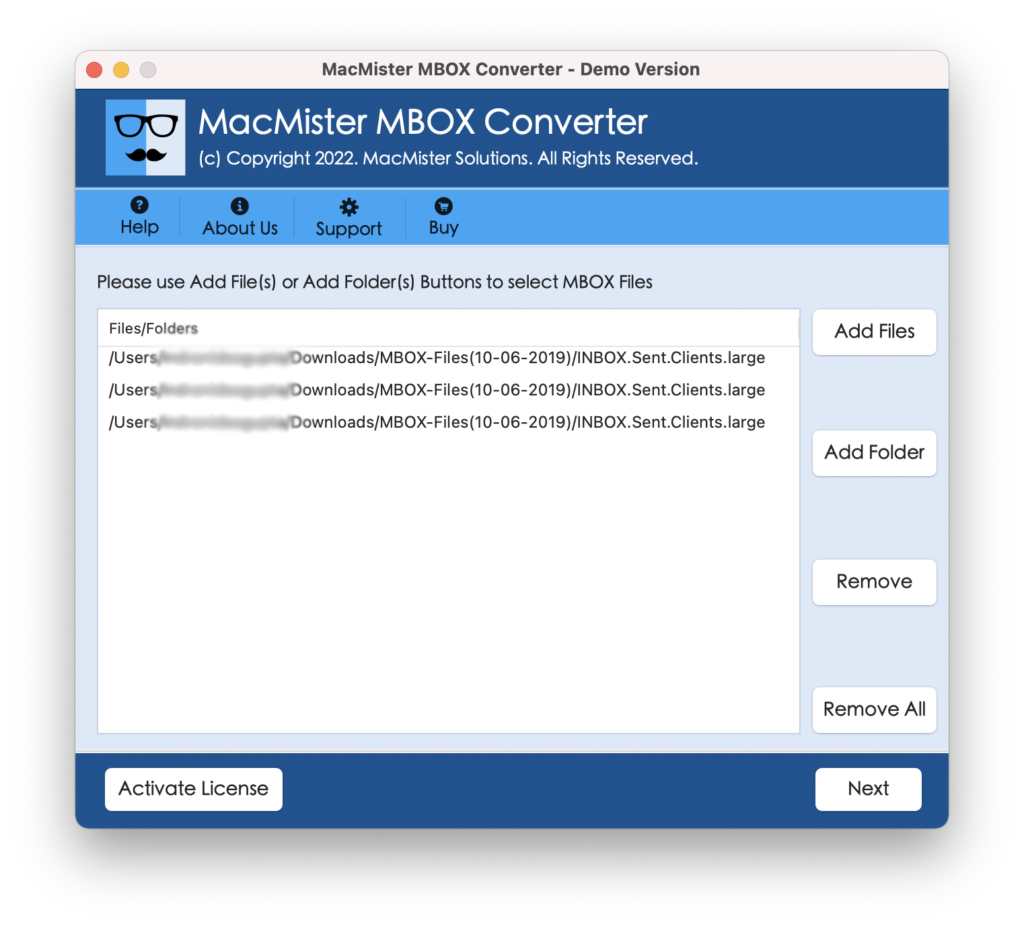
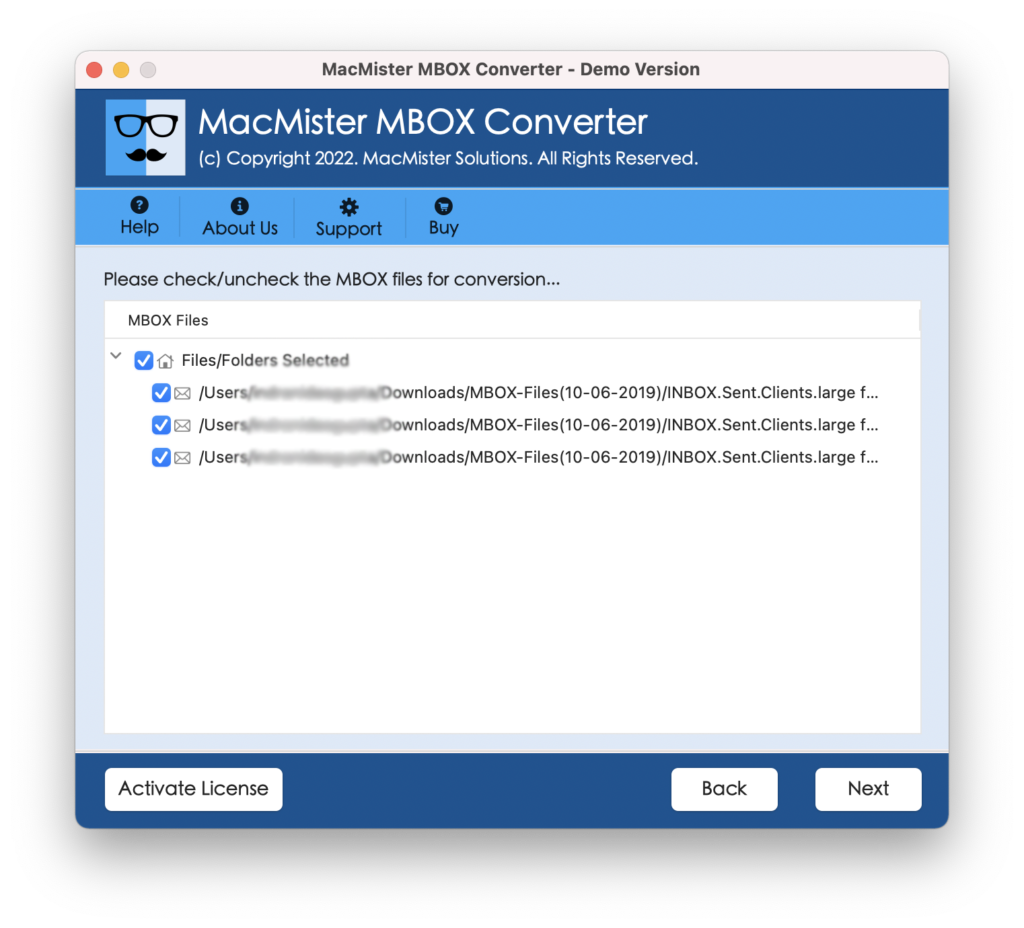
Step 3. The tool will start to list MBOX files one by one on the software pane with checkboxes. Quick Note. The checkbox will help those who are looking to import selective MBOX files into Hotmail. Click Next.
Step 4. Click Select Saving Options and choose the Outlook.com option from the menu.
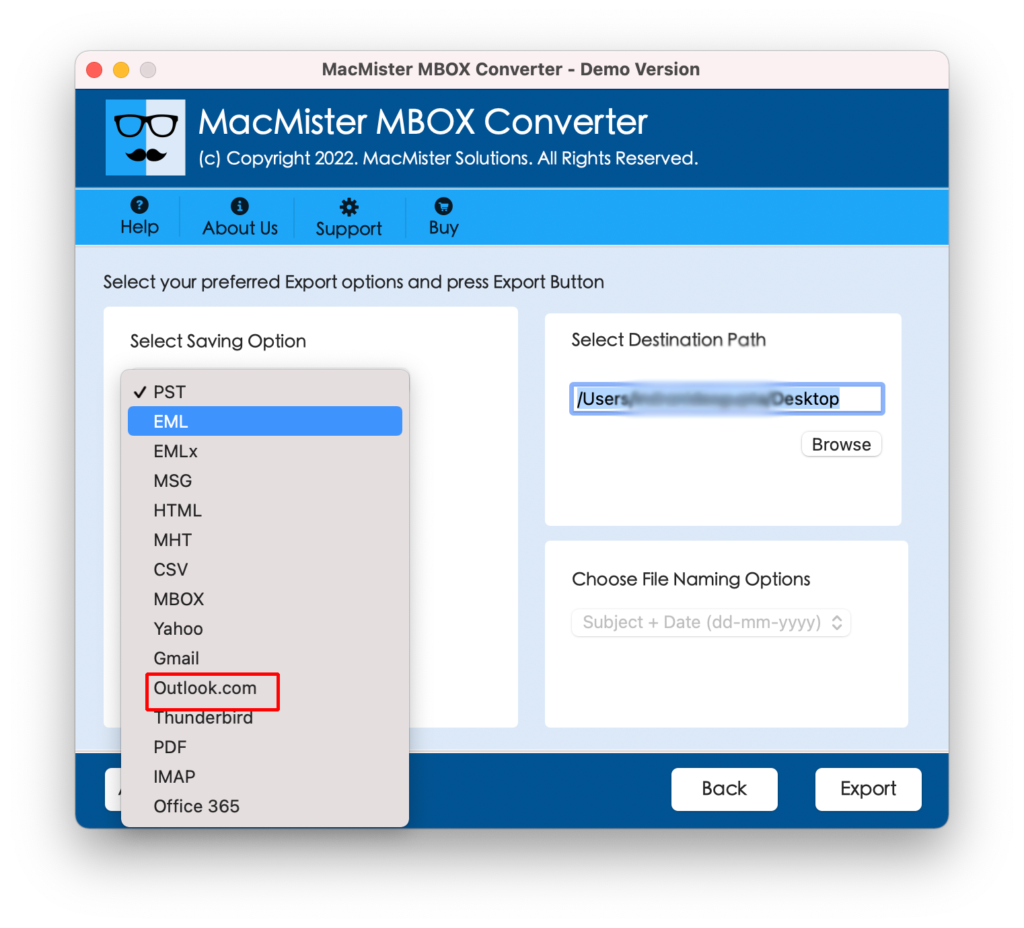
Step 5. Provide the details of Hotmail in the required fields and click the Export button to start the migration of MBOX to Hotmail.
Step 6. The tool will show the live process of MBOX files into Hotmail on Live Conversion Window.
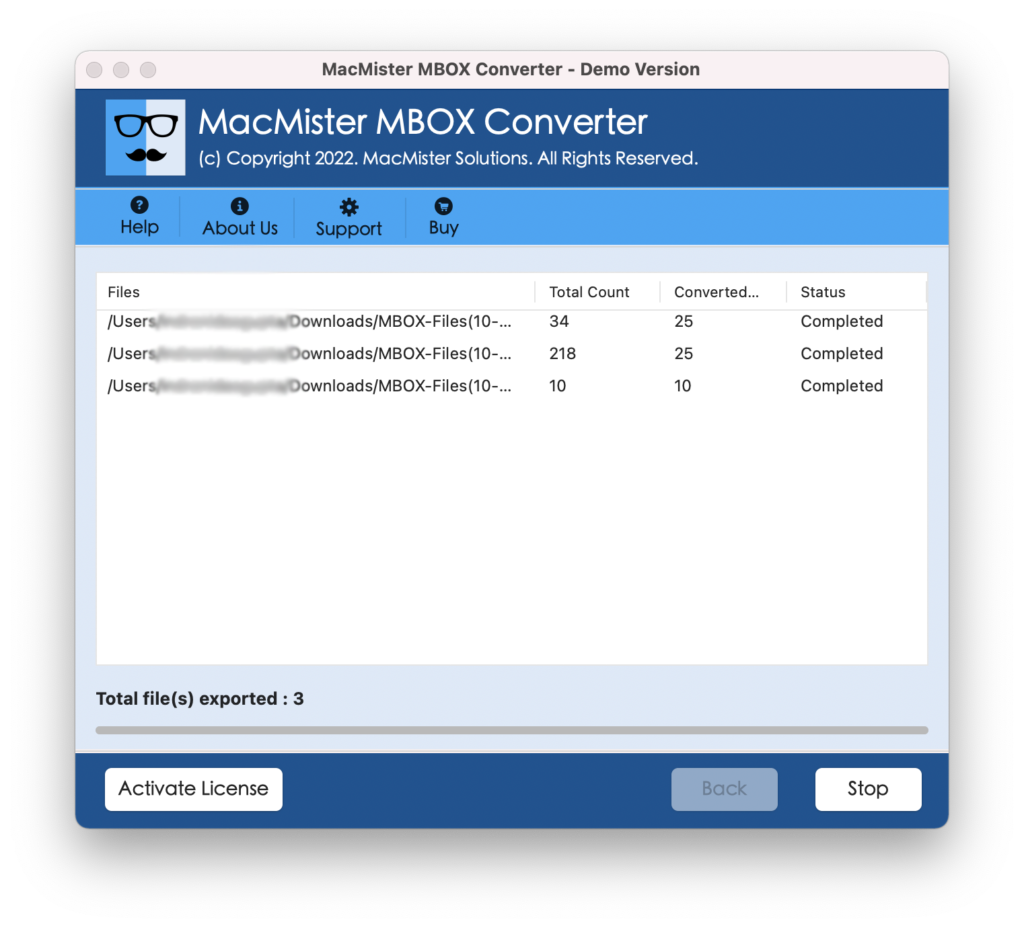
In a few seconds, the process will end and then one will get Conversion Completed message on the screen. Click OK to discard the same and then go to your Hotmail account to check the migrated files. However, you will see that the data of the resultant file is accurate. And, each email of the MBOX file will appear with precise data integrity after the migration.
Epilogue
The write-up here mentioned a powerful approach to importing MBOX into a Hotmail account. You can use MacMister Apple Mail Converter as well to import Apple Mail mailboxes directly into your Hotmail account. The tool is direct, safe, and trouble-free. Also, delivers precise results in less time. However, you can take the help of a free demo to evaluate and analyze the migration for free. Moreover, one can import the first 25 MBOX files into a Hotmail account free of cost.
Quick Note. Use the solution to import MBOX into 15+ other saving types such as MBOX to PDF Mac, PST, OLM, EML, MSG, IMAP, Thunderbird, Office 365, G Suite, and more. For assistance, contact MacMister Support.