How to Add Windstream Email to Outlook for Mac
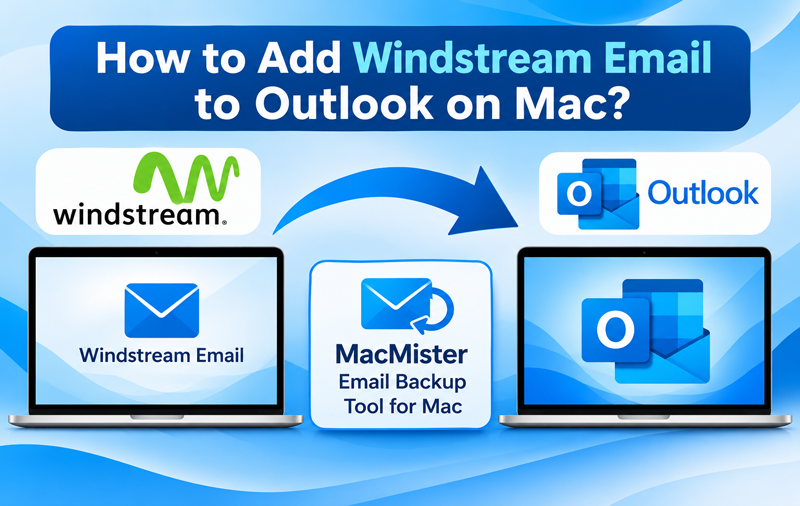
Windstream email users can access their mailbox through webmail, but managing business and personal correspondence through a desktop email application offers a different level of convenience. Microsoft Outlook provides a centralized workspace where users can read messages, maintain folders, and handle communication from multiple accounts. Connecting a Windstream mailbox to Outlook makes it possible to work with emails without repeatedly opening a browser and signing in to webmail.
There are different ways to bring Windstream email data into Outlook. Users who want to access their existing mailbox can configure the account through IMAP. However, those who need a separate Outlook PST backup or want to retain email data independently can use an email backup utility. This guide covers both approaches, including the use of MacMister Email Backup Tool for Mac.
Understanding Windstream Email and Microsoft Outlook
Windstream provides email services that allow customers to send, receive, and store messages online. The mailbox remains hosted on the email server, and users generally access it through a browser or compatible email client.
Microsoft Outlook is a desktop email application used for managing messages, contacts, calendars, and other communication-related information. It supports different email account configurations and provides local email storage options through PST files.
Connecting Windstream with Outlook through IMAP synchronizes mailbox information between the email server and Outlook. Exporting messages into PST, on the other hand, creates a separate mailbox backup that can be imported into Outlook when required.
Why Connect Windstream Email with Outlook?
Moving email access from a browser to Outlook can simplify everyday mailbox management. Several practical benefits make this arrangement useful –
- Centralized Email Access – Manage Windstream and other supported email accounts through one Outlook interface.
- Offline Availability – Read previously synchronized messages without an active internet connection.
- Organized Mailbox – Arrange correspondence into folders and manage important emails more efficiently.
- Local Email Storage – Maintain a PST copy of mailbox messages for backup or future access.
- Desktop Productivity – Use Outlook’s email management features alongside calendars, contacts, and other supported functions.
Method 1 – Configure Windstream Email in Outlook Manually
The IMAP configuration method allows Outlook to connect directly to your Windstream mailbox. Before starting, confirm that your account credentials are correct and that IMAP access is available.
Windstream IMAP and SMTP Settings
| Configuration | Server Details |
| Incoming Server | imap.windstream.net |
| Incoming Port | 993 |
| Incoming Encryption | SSL/TLS |
| Outgoing Server | smtp.windstream.net |
| Outgoing Port | 465 (SSL) or 587 (STARTTLS) |
Server availability and authentication requirements can vary depending on the Windstream email service. Verify the settings with your provider if Outlook cannot establish a connection.
Steps to Add Windstream Email to Outlook
- Launch Microsoft Outlook on your computer.
- Navigate to File > Add Account.
- Enter your Windstream email address.
- Select the manual configuration option under Advanced Options.
- Choose IMAP as the account type.
- Enter the incoming and outgoing server information listed above.
- Provide your Windstream email password and complete the authentication process.
- Allow Outlook to synchronize the available mailbox folders and messages.
- After synchronization, your Windstream mailbox becomes accessible through Outlook.
Limitation – This configuration connects Outlook to the online mailbox rather than creating an independent PST backup. Synchronization also depends on account access, server availability, and the selected folder settings.
Method 2 – Export Windstream Emails to Outlook on Mac
Mac users who need to preserve Windstream correspondence separately from the online mailbox can use the MacMister Email Backup Tool for Mac. Instead of relying exclusively on email synchronization, this approach downloads mailbox messages into a supported local format.
The MacMister Email Backup Tool for Mac provides an alternative for users who want to save Windstream emails as PST or OLM files and subsequently access the exported data through Microsoft Outlook. It is useful when maintaining a separate email archive is part of the migration requirement.
|
|
|


The software supports mailbox backup through IMAP connectivity and provides options for selecting email folders, applying date filters, and choosing an appropriate output format OLM for Mac Outlook & PST for Windows Outlook. These capabilities allow users to process the required correspondence without unnecessarily including every mailbox message.
Features of Windstream to Outlook Tool for Mac
- Multiple Export Formats – Save mailbox emails in formats such as OLM, PST, MBOX, EML, MSG, PDF, HTML, CSV, Gmail, IMAP, Office 365, Exchange Server, and other supported options.
- IMAP Account Backup – Connect to supported IMAP email services and download mailbox data.
- Folder Selection – Choose particular mailbox folders before initiating the export.
- Date-Based Filtering – Restrict the backup to emails within a specified date range.
- Batch Processing – Process multiple email messages during a single backup operation.
- Email Properties Preservation – Retain important message information, including email headers and associated properties.
- Attachment Support – Include email attachments during the backup process.
- Mac Compatibility – Run the application on supported macOS editions.
Conclusion
Adding Windstream email to Outlook can be accomplished through manual IMAP configuration or by exporting mailbox data into PST / OLM format. The manual approach is suitable for users who want to access their existing online messages through Outlook. However, users who require an independent email archive can choose MacMister IMAP Backup Tool for Mac to export Windstream emails into Outlook.
With mailbox selection, filtering, attachment support, and multiple export formats, The tool provides a practical way to save Windstream email to Outlook. Selecting the appropriate method helps users maintain convenient Outlook access while keeping their email data organized and available for future use.