Why Your PST File Does Not Show All Emails and How to Fix it?
The Personal Storage Table (PST) file format, is used by Microsoft Outlook and is quite common, especially for people who want to store a backup of their emails, archive their messages, or transfer their email items from one profile or computer to another. In spite of its popularity, people commonly experience an annoying situation where they import or open PST files and see that all their emails are missing. While the folders could seem perfect at first, it is frightening to see that some messages, attachments, or parts of history are not visible.
The reason why not all email items show from a PST file is that it has issues with corruption, viewing settings, size restrictions, or transfer problems, especially when dealing with Windows to Mac migration.
Common Reasons Why a PST File Fails to Show All Emails
Before proceeding towards a permanent solution, it is important to know the reason behind your Outlook data file hiding/missing emails:
- File Corruption: PST files get corrupt when their size increases or the system stops suddenly while writing to or reading from it. When header or root nodes are corrupted, Outlook is unable to index all emails.
- PST Oversize: Old Outlook versions impose definite size limits (like 2GB, 20GB, or 50GB). As soon as a PST file hits the limit, it shows no new or old mail properly.
- View Parameters/Filters Misconfiguration: On some occasions, your emails might be in the file but the filters hide them from Outlook (like filtering for Unread emails only etc.)
- Cross-Compatibility Issues: Opening Windows PST files in a Mac email client or older viewer leads to indexing errors.
Traditional Troubleshooting Steps
If you are having trouble with missing emails from your Outlook account, take a look at these basic troubleshooting tips:
- Reset Your View: Open Outlook and go to the View tab. Click on the Change View option and select either Compact or Single. Click Reset View to eliminate any possible filters that may prevent you from seeing every piece of mail.
- Use ScanPST: ScanPST is a Microsoft utility for fixing issues with a corrupted database. However, it is not successful when working with heavily corrupted files, perhaps as the result of wrongly using the program.
Utilize Automated Solution to Preserve PST files on Mac
If you use a Mac or require a reliable tool for recovering, fixing and converting Outlook files that cannot be accessed, MacMister PST Converter for Mac & Windows is the best option for you.
Rather than facing inaccessible Outlook systems and corrupted index tables, the app enables you to perform a thorough scan, access and convert corrupt PST files into stable formats (such as PDF format, MBOX format, EML format, MSG format and Office 365).
Important Characteristics of the Application:
- The app quickly batch save PST files into 15+ saving options at once.2
- It has “Add File” and “Add Folder” options to select a single or multiple PST files.
- The tool maintains the exact folder structure and email as well as metadata (To, Cc, Bcc, and timestamps).
- It enables the user to convert Outlook data into the formats PDF (for document archiving), MBOX (for Apple Mail/Thunderbird) or EML.
- The software works completely offline on your Mac environment with the utmost privacy.
Step-by-Step Guide to Extract Emails Using the Software
If your PST file is missing emails and you want to recover or migrate them securely on your Mac, follow these steps:
Step 1. Download and install the application to check its performance by converting a limited number of items per folder.
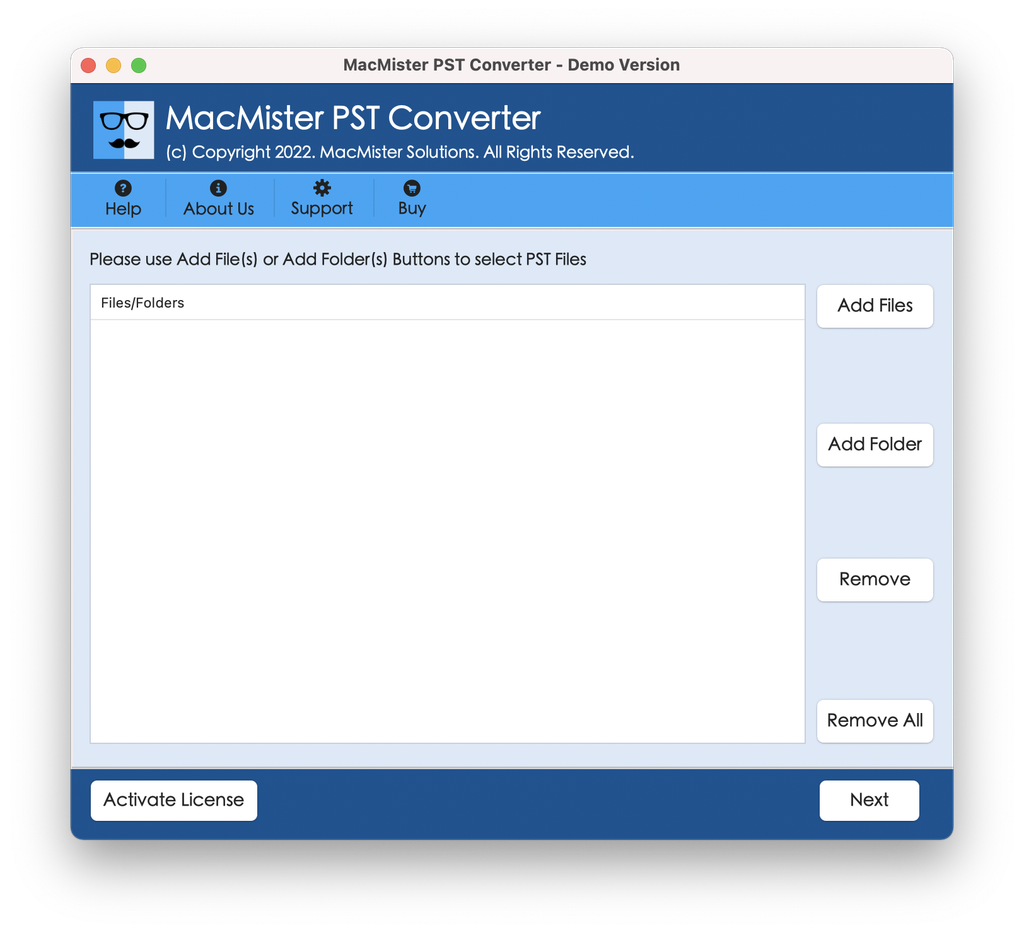
Step 2. Open app and click the Add File(s) or Add Folder(s) button to upload PST files/folder on the panel.
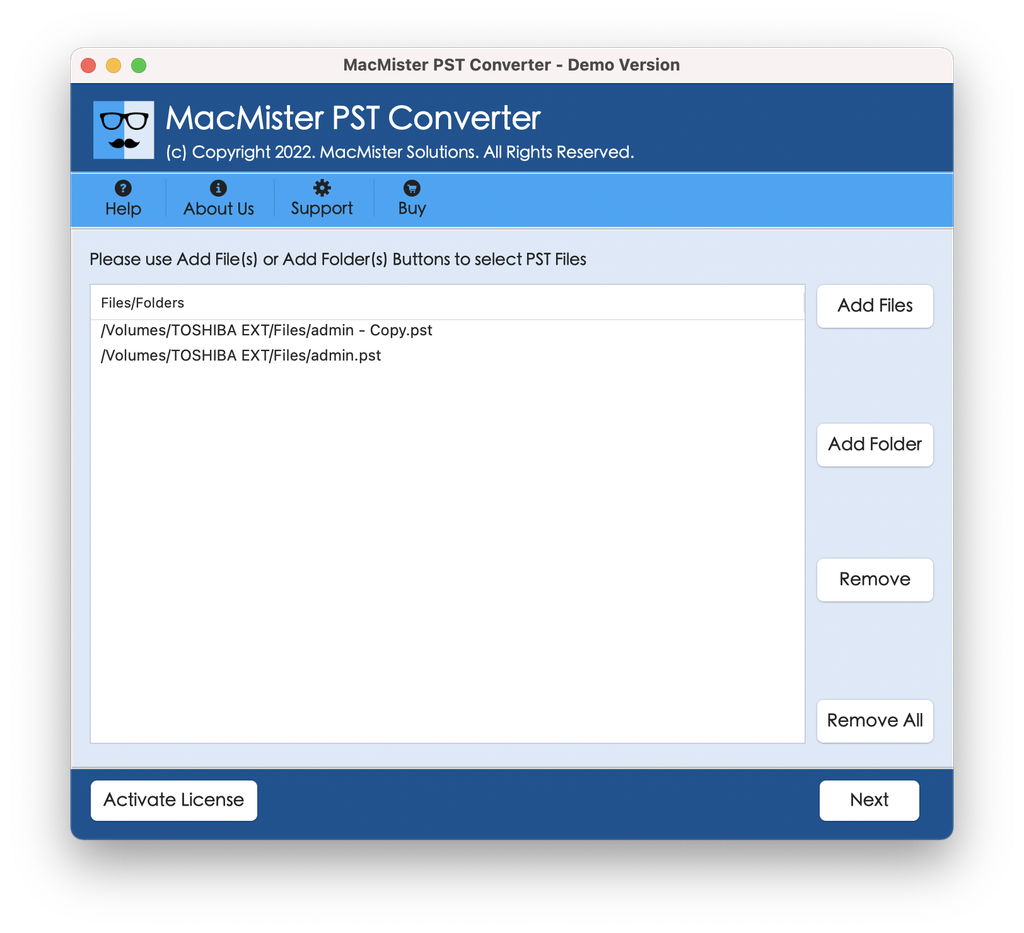
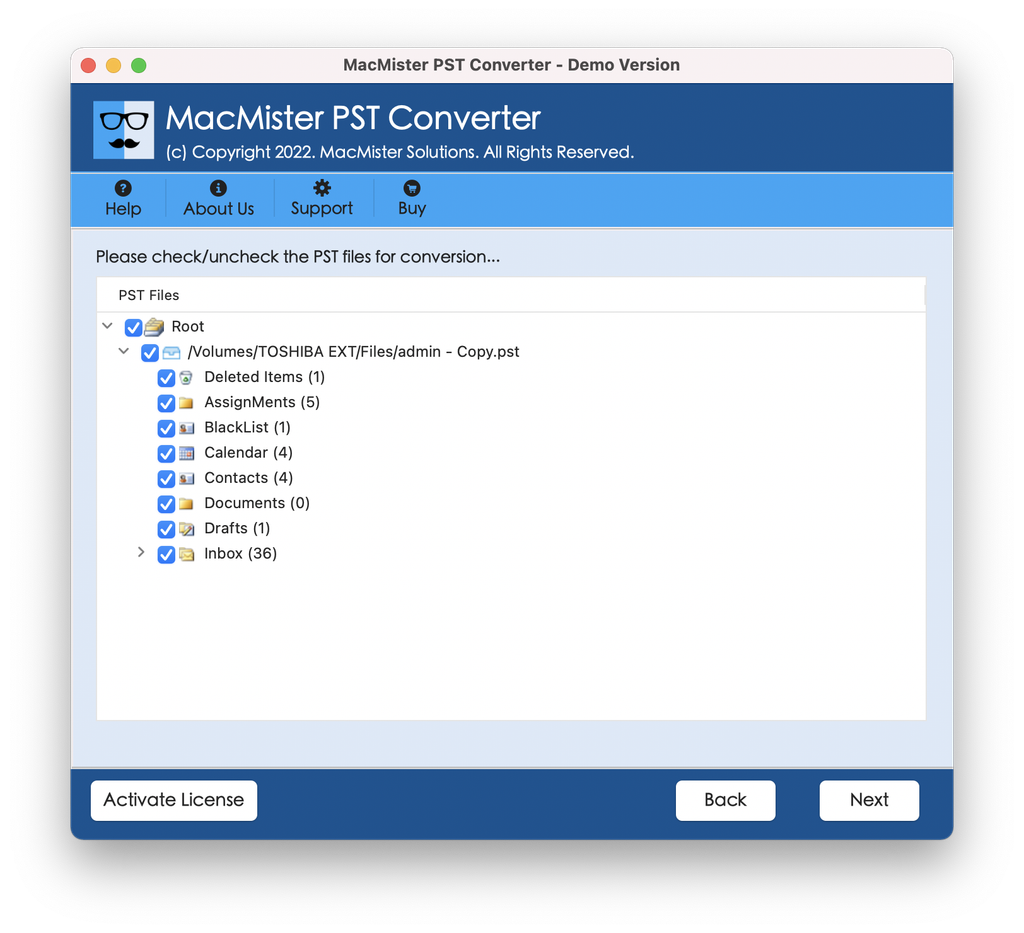
Step 3. After the upload is complete, the software will generate the entire directory tree of the PST file. You may click on each folder separately to see the emails and make sure that the files are uploaded successfully.
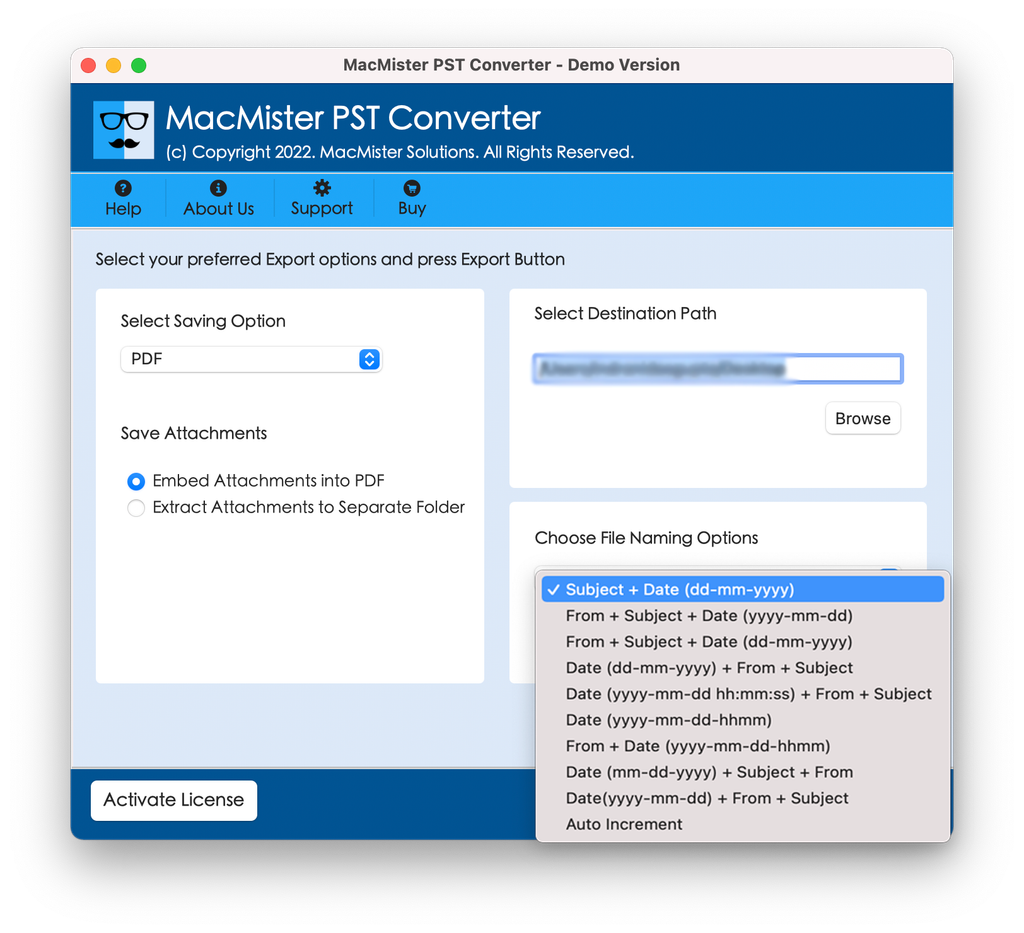
Step 4. Go to the Select Saving Options menu and choose the required output format:
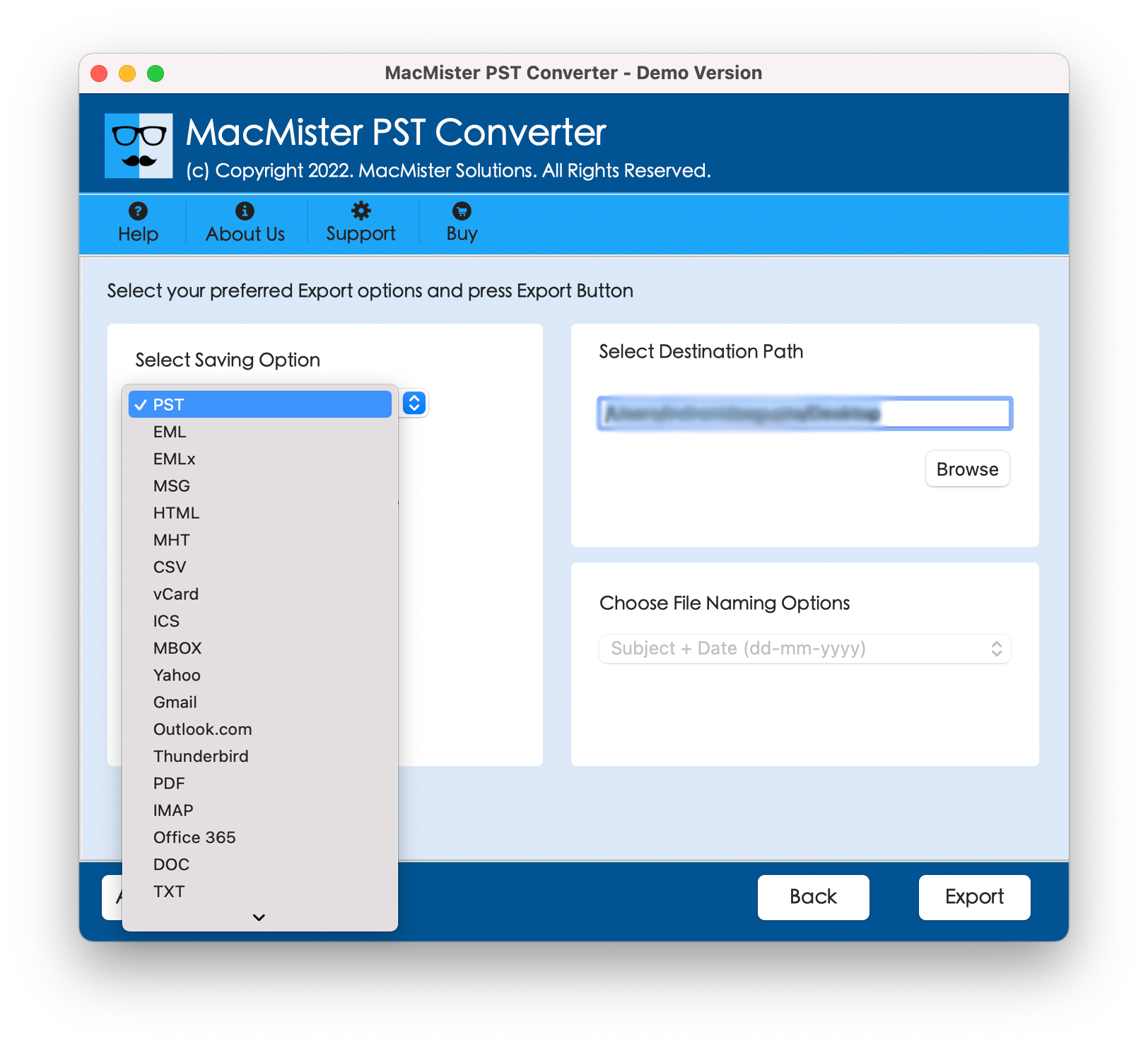
Step 5. Click Browse and select the location to save the converted files on your Mac hard drive. Set other options according to the requirements and tap Export.
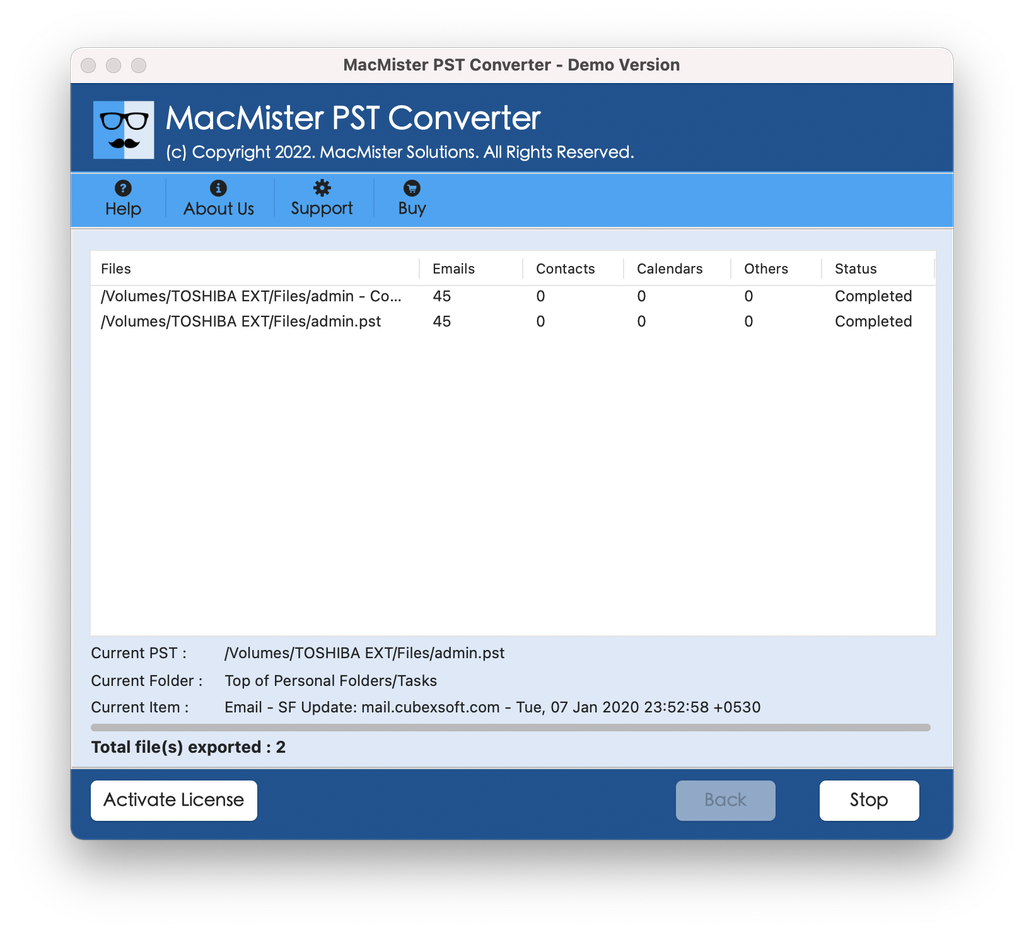
Step 6. A Live Conversion Window will open showing the ongoing conversion status to users.
Epilogue
Finding out that all your emails are not visible in the PST file can be scary, especially with critical archives. Therefore, it is advised to take regular backup and protect PST data from corruption or any data loss. Here we have discussed a solution that will resolve the issue within seconds and preserve PST emails without trouble.