How to Automatically Backup Microsoft Outlook PST Data File on Mac?
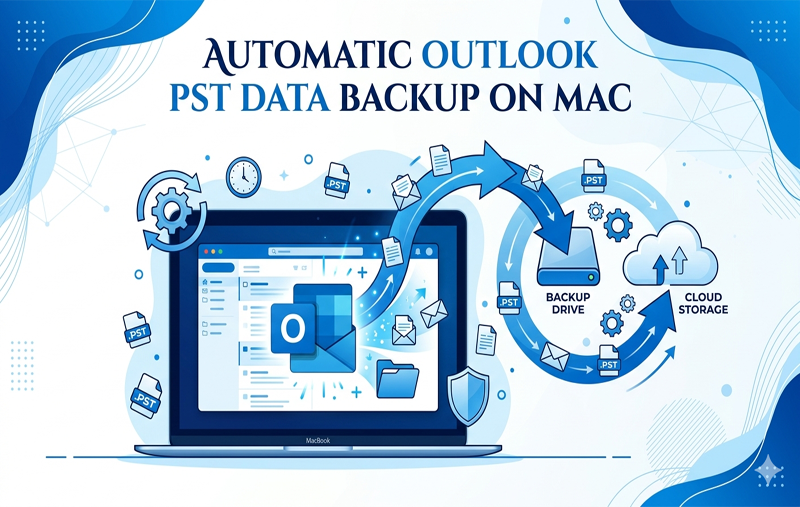
In the modern era, emails are considered the backbone of not only individual activities but also that of enterprises. However, one of the most popular email clients used by enterprises is Microsoft Outlook. On the other hand, people who use multiple platforms in their work often face certain challenges in handling data through Outlook client on macOS.
For Windows users, PST files are familiar while Mac users prefer to use OLM or SQLite database files as cache. If you have to use imported PST files on a Mac, or you need to regularly backup multiple devices of Outlook, then an automated backup solution is highly necessary to save yourself from any kind of system crash or data corruption.
This article will help you in understanding the best approaches to make your outlook data auto backups on a Mac using various methods including third party professional approach.
Understanding Outlook Data Storage on macOS
Before exploring automation techniques, it is important to appreciate how Outlook works on Apple systems.
- The Format Issue: The version of Outlook for Mac does not inherently produce or maintain a .pst file for use. Instead, the live mailboxes are stored within an invisible folder inside the user library (~Library/Group Containers/UBF8T346G9.Office/Outlook).
- The Backup Issue: Should you have already moved the individual static .pst files from your Windows environment to Mac, they reside where you saved them. Should there be no ongoing backups, a single glitch in the system will result in loss of years of archived correspondences.
It becomes imperative to have a process that replicates your database or exports individual archive files on an ongoing basis.
Method 1: Native macOS Time Machine (Default Automation)
The inbuilt tool used to create backup copies of files in the computer is Time Machine which happens to be the easiest way to automate data protection. After setting it up, it creates hourly, daily and weekly backups of your hard disk to an external disk or a Network Attached Storage (NAS).
Follow the below steps for the same –
1. Connect an external storage drive to your Mac.
2. Go to Apple menu > System settings > General > Time Machine.
3. Click on Add Backup Disk and choose the attached disk.
4. Make sure the Back Up Automatically button is on.
An Important Point for Outlook Users: Time Machine backs up files. Outlook for Mac’s active identity library is continually changing as emails come in. So, time machine might sometimes end up backing up a partially locked database file. To get clean historical backups, Outlook needs to be closed from time to time or use separate software that will extract the information without corruption.
Method 2: Making a Backup Automation Script Using Automator & Calendar
If your goal is to back up your local Outlook folders or imported PST files without backing up your entire system through Time Machine, you have the option to make an automated Mac backup script using some of Apple’s inbuilt automation capabilities.
How to Configure It:
- Open Automator application in your Mac (located in Applications).
- Create a new document by choosing the appropriate option.
- Use the search bar at the top to search “Find Finder Items”. Drag this option into the workflow pane on the right. Select the directory containing your imported PST or Outlook database files.
- The next step would be to search for “Copy Finder Items” and drag this one under the above action.
- Choose a separate location for your backups (external drive, second partition of your local storage or a localized cloud sync folder like iCloud/OneDrive)
- Name your application “Outlook_Auto_Backup”.
With Calendar Alarm, the built-in macOS Calendar app launches and helps you set up either a recurring daily or weekly event. Every time this calendar alarm goes off, the script executes silently, moving your Outlook elements into a safe area without needing any manual drag-and-drop operations.
Method 3: Try Professional Secure Approach
Despite the fact that automated native methods reproduce files as they are, they cannot deal with one crucial problem of cross-platform migration – corruption of the file structure and formatting locked in a Windows-based file format. In case an uncompressed .pst archive is corrupted on macOS, native scripts will simply replicate the corrupted file over your older backups.
Thus, using an appropriate tool such as MacMister PST Converter for Mac is your best choice.
Why Choose MacMister PST Converter for Mac?
MacMister is an efficient tool for the management of local files on Apple systems. Instead of having to keep your important emails stuck inside a cumbersome and breakable file, MacMister gives you the opportunity to transfer, process in bulk and safeguard your emails databases to compatible Mac formats.
- The tool converts the data stored in the PST format into more than 15 formats such as OLM (Outlook Mac), MBOX, PDF, EML, HTML, and CSV.
- Apart from desktop formats, MacMister will send your data straight to cloud-based applications such as Office 365, IMAP servers, and Gmail, creating an offsite cloud cloud backup.
- This tool offers two upload methods (Add File(s) or Add Folder(s)) which implies that you can select a whole folder with the old outlook data and process them at once.
- It saves all meta header information, all the structures of emails, images and hyperlinks.
Working Steps of the Application
To back up and transfer the storage through MacMister, follow these precise instructions:
Step 1. Launch MacMister PST Converter for Mac from your macOS command line or desktop interface.
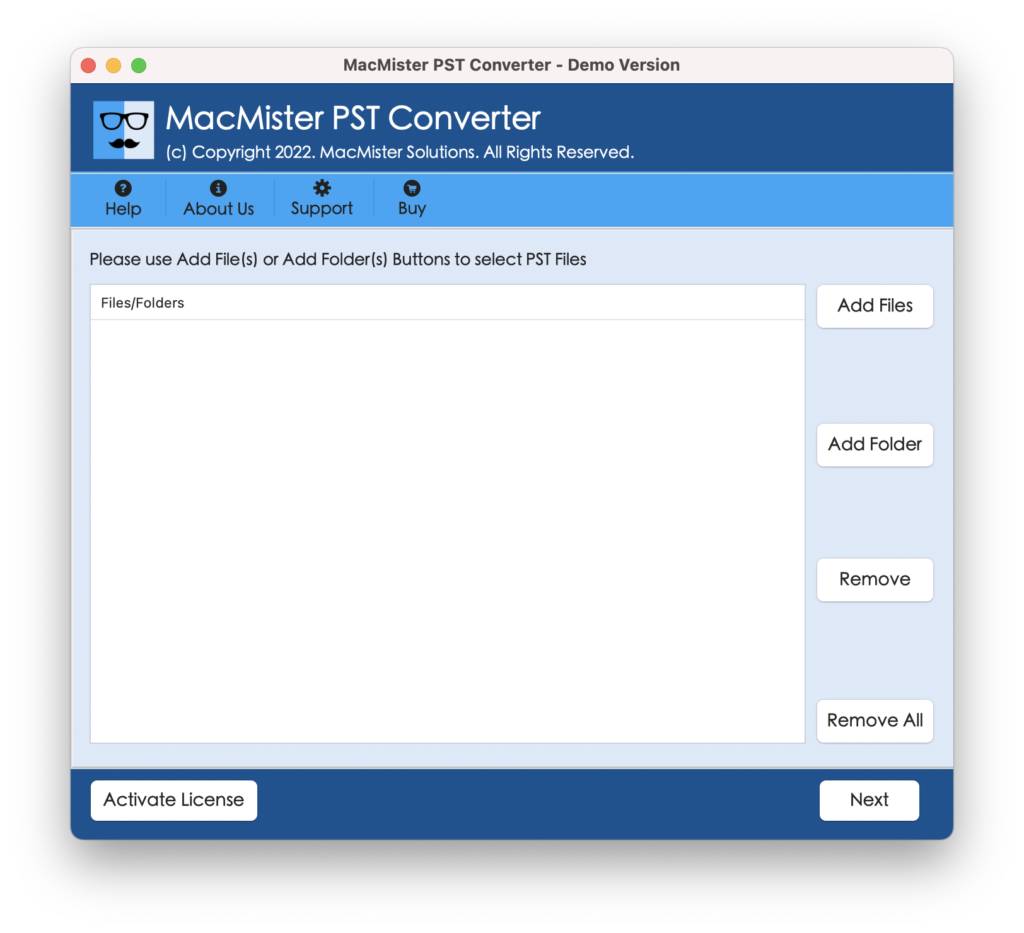
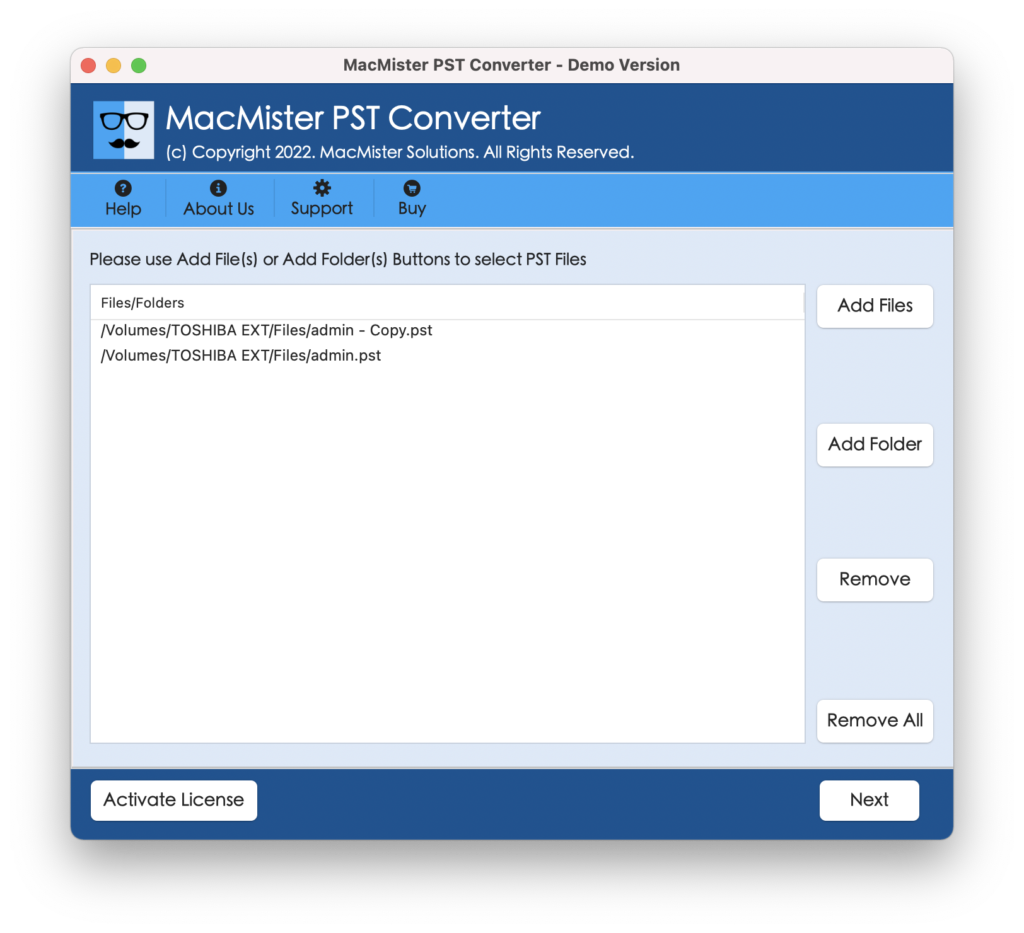
Step 2. Import your active and archived Outlook .pst databases with the help of Add Folder(s).
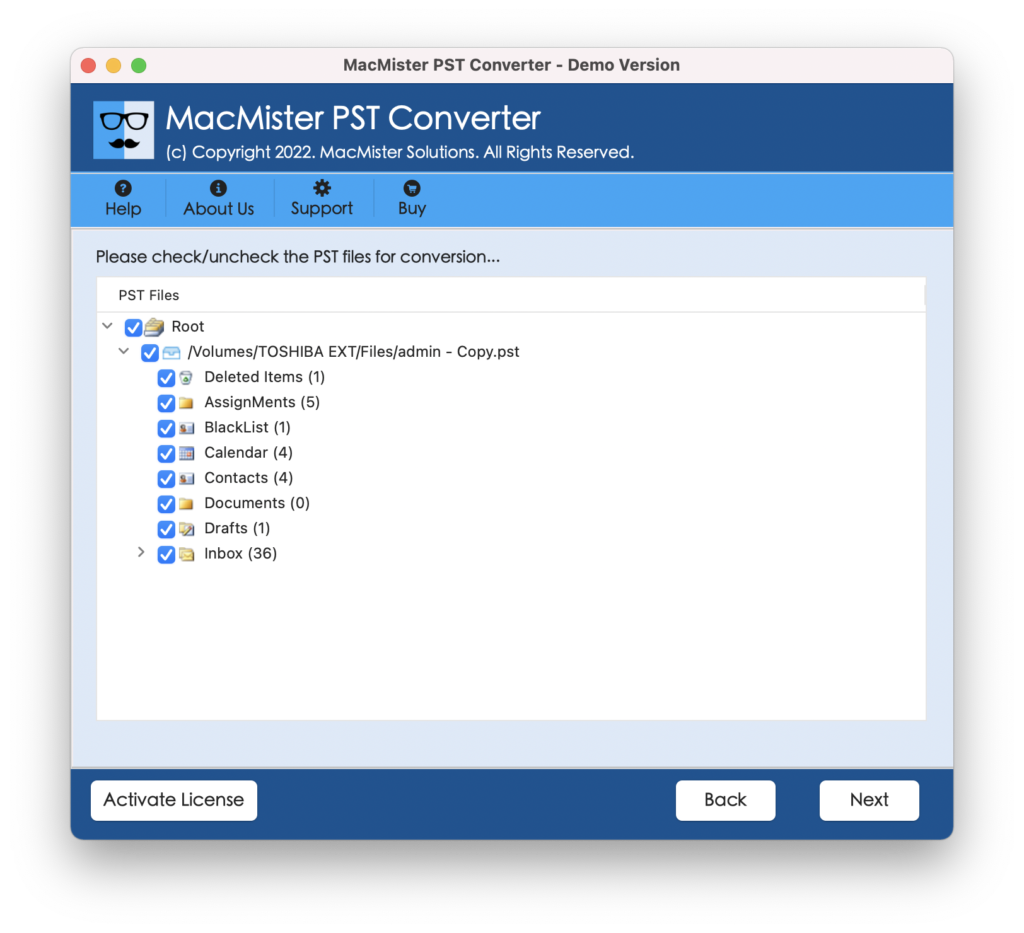
Step 3. Expand the save option menu. Choose OLM if you are going to use the Outlook for Mac further, or select PDF/MBOX if you want a cross-platform readable and permanent backup copy.
Step 4. Target the destination folder where it will be saved in a locally connected folder either to the cloud vault or secondary backup HDD.
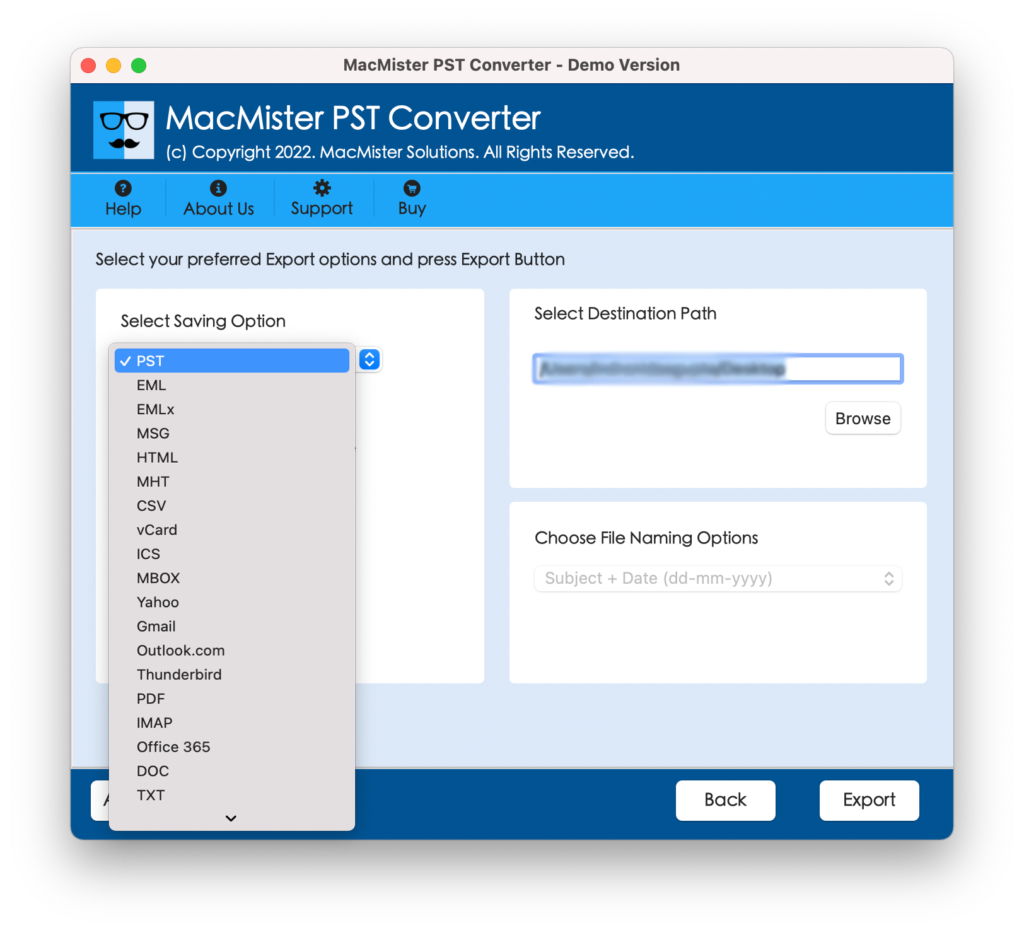
Step 5. Tap the Export button. The program will create an online progress log with a thousand elements being converted securely in just a few moments.
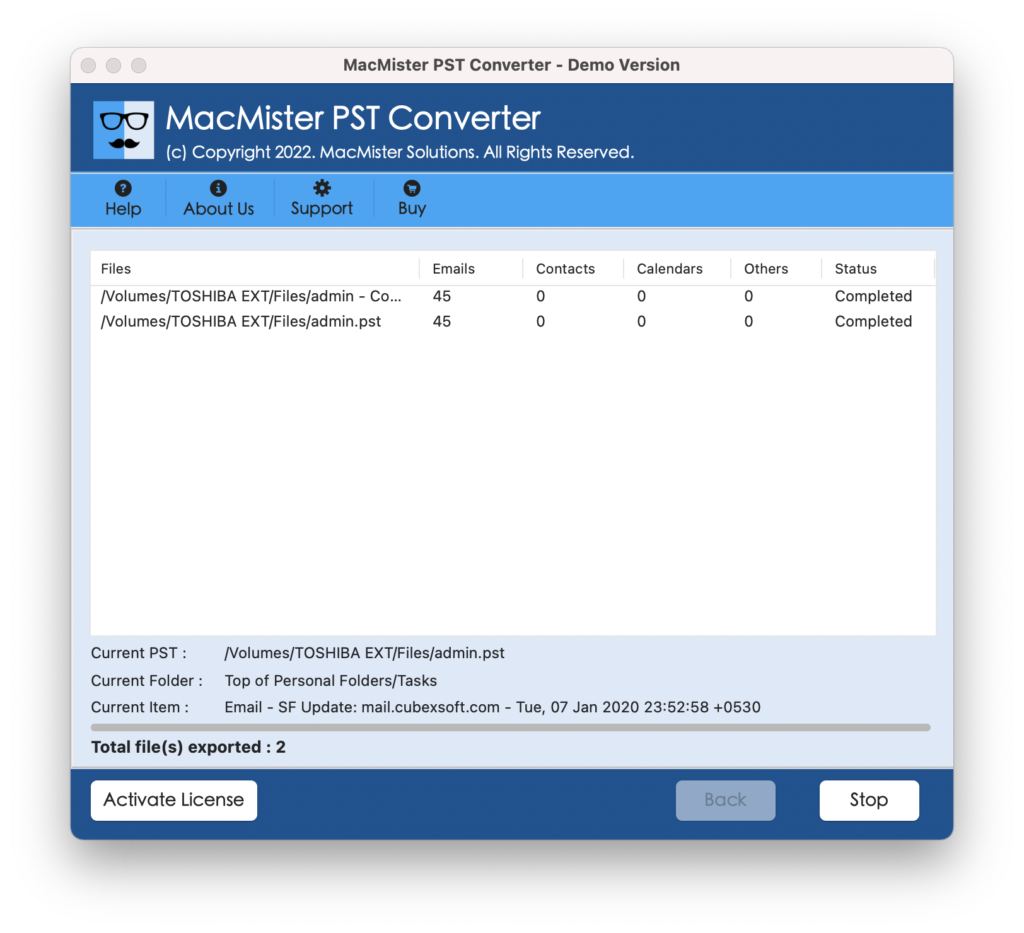
Once the export is completed, the new database will be automatically grabbed by your cloud system or macOS backup without the risk of indexing error or platform conflict.
Conclusion
Dependence upon only one version of your Outlook data file is an enormous risk for your organization. Using a combination of Apple’s Time Machine backups and specialized tools for conversion, such as MacMister PST Converter for Mac, creates an ironclad layering of data security measures. Additionally, transforming your inflexible and outdated PST layers into universally formatted data will ensure that whatever happens to your system, your essential intellectual property will always be safe and accessible.