How to Fix Unable to Unzip File Mac Error 79?
The constant display of a warning message showing “Unable to unzip file Mac error 79” is a very unavoidable frustration for users of macOS systems. The user double clicks on the archive and expects that Archive Utility opens it without any problems, but it shows a message like this.
Despite the name of the error, it is not a format problem; rather, it is just a general error of Archive Utility.
What Causes Mac Zip Error 79?
Before we discuss possible solutions, we need to have an understanding of what causes the problem to occur in the first place. The main causes for this problem to happen are:
- Failed or Incomplete Downloads: Network connection drop-outs or browser timeout errors cause lack of EOF headers in the file being downloaded.
- Unsupported Compression Software: If a file is compressed using Windows or UNIX computers and using unsupported compression software such as RAR, 7z with .ZIP extension, or AES-256 encryption.
- Restricted Permissions: Strict POSIX file permissions or flags that prevent read or write access to a destination directory or file.
- Filename Too Long: Extracting a multi-gigabyte archive with insufficient disk space.
Method 1: Force Extraction via macOS Terminal
When Archive Utility fails, the command-line environment provides direct low-level feedback and handles corrupt headers far more gracefully.
Step-by-Step Instructions:
- Press Cmd + Space to open Spotlight, type Terminal, and press Enter.
- Change your directory to where the file is stored (usually Downloads):
- cd ~/Downloads
- Run the built-in Unix unzip tool:
- unzip archive_name.zip
(Pro tip: You can type unzip with a space, then drag and drop your file directly into the Terminal window to auto-complete the path).
- If the archive is partially damaged or corrupted, force recovery using the -FF (fix firm) flag:
- zip -FF archive_name.zip –out repaired_archive.zip
- unzip repaired_archive.zip
Why it works:
The CLI unzip binary ignores non-essential metadata errors that cause the graphical Archive Utility app to fail outright.
Method 2: Leverage Third-Party Archive Managers
Archive Utility does not provide support for many codecs. In case the ZIP file uses specialized tools and encodings while creating the archive, one would require specialized extraction software to do so.
Software Recommended:
The Unarchiver – This software is free and supports almost all file formats including RAR, 7Z, TAR, and ISO along with some unconventional text encoding.
Keka – This open source software allows for easy archiving of files in macOS.
Steps:
- Install The Unarchiver or Keka.
- Right-click (Control-click) the troublesome .zip file.
- Choose Open With $\rightarrow$ The Unarchiver (or Keka).
Method 3: Reset File Permissions and Attributes
Flags set by the file system or permissions issues may be blocking the OS from extracting files into the destination folder.
Option A: Using Finder GUI
- Right-click the .zip file and click Get Info (Cmd + I).
- Open the Sharing & Permissions tab.
- Check that your account has read and write permissions.
- Go to the gear icon and apply changes to enclosed files if necessary.
Option B: Via Terminal (POSIX Permissions & Extended Attributes)
If GUI permissions look correct, reset access rights via Terminal:
# Grant full read/write/execute permissions to the owner
- chmod 755 filename.zip
# Clear extended security attributes (Quarantine flag applied to downloaded files)
- xattr -c filename.zip
Note: The xattr -c command strips Gatekeeper quarantine flags that might be blocking file operations.
Method 4: Verify Disk Space and Clear Caches
Archive Utility requires temporary working memory on your startup disk to assemble the uncompressed folder structure before moving it to the destination.
- Go to Apple Menu ($\mathbf{\Apple}$) $\rightarrow$ System Settings $\rightarrow$ General $\rightarrow$ Storage.
- Ensure you have at least twice the size of the uncompressed contents free on your drive.
- Empty your Trash and delete temporary system files if disk space is low.
Method 5: Re-download and Validate Hash / Checksum
If none of the above methods work, the ZIP file is likely severely corrupted due to a network interruption during transfer.
To verify whether your file is complete, check its SHA-256 or MD5 hash against the source checksum (if provided by the distributor).
Open Terminal and run:
shasum -a 256 filename.zip
Compare the output string to the hash provided on the download page. If they do not match, the file was corrupted during transfer.
Solution: Re-download the file using a stable connection, avoid browser pause/resume features, or use a dedicated transfer tool like curl or wget:
- curl -O https://example.com/file.zip
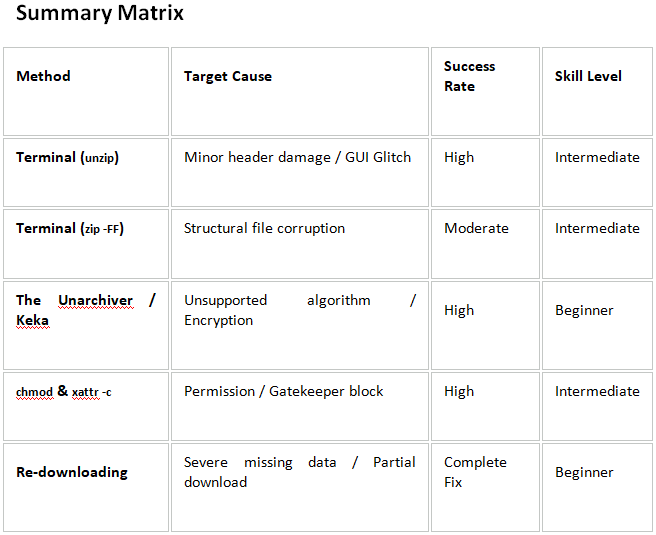
By following the solutions discussed above, one can move from CLI extraction to third-party tools and permission resets, and resolve Error 79 and extract your files safely.
Epilogue
In the write-up, we have explored multiple methods to fix “unable to unzip file Mac error 79”. Go through them and choose the suitable method that will help you in resolving the issue with ease. And for any queries, contact MacMister Support.
Quick Note. Utilize MacMister Apple Mail Converter to export Apple Mail mailboxes into 15+ saving options. It helps in backing up Apple Mail database to EML, HTML, DOC, CSV, PST, PDF, Yahoo, IMAP, and more.