Why Do EML Files Lose Formatting When Converted to PDF? Causes & Fixes
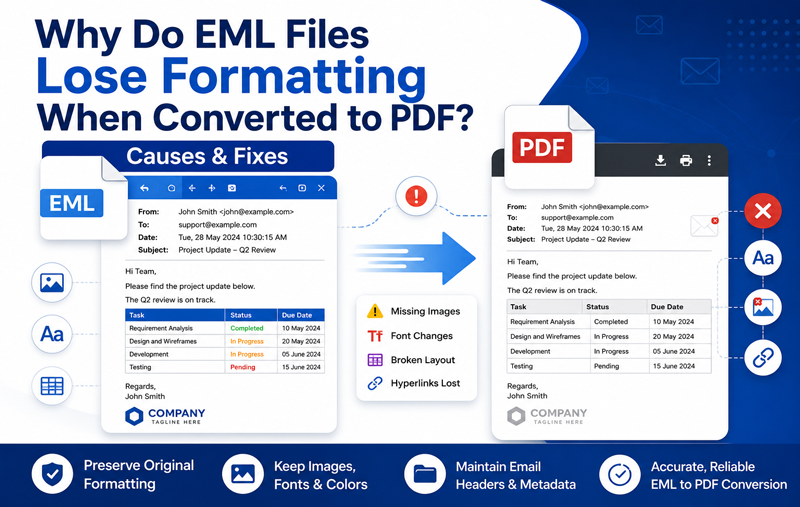
Email files stored in the EML format preserve much more than just message content. They contain HTML formatting, inline images, hyperlinks, attachments, sender and recipient details, timestamps, email headers, and other metadata that together represent the original appearance of an email.
However, many users notice that after converting EML files to PDF, the output no longer matches the original email. Fonts may change, tables become misaligned, images disappear, hyperlinks stop working, or the entire layout looks distorted. These formatting issues are especially problematic when emails need to be submitted for legal documentation, compliance audits, client records, or long-term archiving.
The reason behind this problem is that not every conversion method is capable of accurately rendering HTML-based email content into a PDF document. Free online converters, browser print functions, and manual methods often ignore important email elements during the conversion process.
Fortunately, understanding the causes of formatting loss can help you avoid these issues and produce professional-quality PDF files.
Looking for an accurate EML Data to PDF conversion solution?
MacMister EML to PDF Converter for Mac converts EML files into PDF while preserving the original email layout, fonts, inline images, attachments, metadata, and folder hierarchy. It is designed to eliminate the formatting problems commonly seen with manual conversion methods.
 |  |
Why Do EML Files Lose Formatting During PDF Conversion?
Several technical reasons can affect how an EML file appears after conversion.
1. HTML Email Rendering Issues – Modern emails are created using HTML and CSS rather than plain text. These technologies allow emails to include –
- Different fonts
- Colored text
- Tables
- Buttons
- Company logos
- Marketing banners
- Responsive layouts
If the converter cannot properly interpret HTML, the generated PDF may display –
- Broken layouts
- Missing formatting
- Incorrect alignment
- Plain text instead of styled content
This is one of the most common causes of formatting loss.
Sometimes formatting problems are caused by EML encoding issues, especially when emails contain multilingual content or unsupported character sets.
2. Unsupported CSS Styles
Many emails rely on advanced CSS properties to control spacing, colors, borders, and responsive design. Unfortunately, basic conversion tools support only a limited set of CSS rules. As a result, you may notice –
- Incorrect font sizes
- Broken tables
- Missing background colors
- Improper spacing
- Distorted buttons
The more complex the email design, the more noticeable these formatting issues become.
3. Missing Embedded Images – Business emails frequently include –
- Company logos
- Email signatures
- Product images
- Promotional banners
- Social media icons
These elements are often embedded rather than attached. If EML images or EML attachments not showing after conversion, you should first verify whether the email itself contains missing embedded resources or attachment issues.
If the converter fails to locate embedded resources, the PDF may contain –
- Blank spaces
- Missing logos
- Broken image placeholders
This significantly changes the appearance of the email.
4. Font Compatibility Problems
Not every font used in an email is available on your operating system.
When a converter cannot locate the original font, it automatically replaces it with another font. This substitution often causes –
- Different text sizes
- Line wrapping issues
- Misaligned paragraphs
- Altered page layout
Even small font changes can affect the readability of long emails.
5. Corrupted EML Files
Formatting problems may also originate from damaged email files. Corrupted EML files may result from –
- Interrupted downloads
- Improper email exports
- Disk errors
- Incomplete backups
Such files can contain missing HTML sections or damaged MIME structures, making accurate conversion difficult.
6. Incorrect Character Encoding
Emails exchanged between different countries often contain Unicode characters and multilingual text. If character encoding isn’t interpreted correctly during conversion, you may see –
- Random symbols
- Question marks
- Missing special characters
- Broken non-English text
This issue commonly affects multilingual business communication.
7. Manual Print-to-PDF Limitations
Many users simply open an EML file in an email client and choose Print > Save as PDF. Although convenient, this method has several limitations. It may fail to preserve –
- Original HTML layout
- Embedded images
- Email headers
- Hyperlinks
- Metadata
- Complete formatting
The resulting PDF often looks different from the original email.
8. Large or Complex Email Structures
Some EML files contain –
- Long email conversations
- Multiple replies
- Nested tables
- High-resolution images
- Numerous attachments
Basic converters may struggle to process such emails efficiently, leading to –
- Truncated content
- Missing sections
- Slow conversion
- Formatting inconsistencies
How to Fix EML Formatting Issues Before PDF Conversion
Before assuming that the EML file is damaged, try these troubleshooting steps.
Verify the EML File – Open the email in a compatible email client and confirm that –
- Images appear correctly.
- Text formatting is intact.
- Hyperlinks work.
- Attachments are accessible.
If the email already displays incorrectly, the problem lies with the original file rather than the conversion process.
If the EML file opens as a blank email before conversion, the issue may be related to file corruption, unsupported email clients, or damaged MIME content. Learn how to diagnose and resolve this problem in our guide on Why Are My EML Files Opening Blank?
Update Your Email Client – Older email applications may not render modern HTML emails properly. Using an updated email client helps ensure that emails display as intended before conversion.
Check Character Encoding – If multilingual text appears corrupted, verify that the email client is using the correct encoding format, such as UTF-8. Incorrect encoding can lead to unreadable text in the final PDF.
Avoid Browser-Based Converters – Online converters are convenient but often have limitations. They may –
- Ignore advanced HTML
- Compress images
- Remove formatting
- Limit file size
- Restrict attachments
For business or legal documents, relying solely on browser-based tools is not recommended.
Keep Embedded Resources Available – If your email references external images or linked content, ensure these resources are still accessible before starting the conversion. Missing resources can result in incomplete PDF output.
Limitations of Manual Conversion Methods
Although manual techniques can convert small numbers of EML files, they are not ideal for maintaining formatting consistency. Manual methods often fail to preserve –
- Original fonts
- HTML formatting
- Tables
- Inline images
- Hyperlinks
- Email headers
- Metadata
- Attachments
- Folder hierarchy
They also become time-consuming when converting hundreds or thousands of EML files. For organizations that require accurate email records for legal, compliance, or business purposes, these limitations can lead to incomplete or unprofessional PDF documents.
Why Choose the tool for Mac?
If you’re frequently losing email formatting while converting EML files to PDF, the issue may not be with the email itself—it could be the conversion method. Manual techniques and many free converters often fail to interpret HTML emails correctly, resulting in broken layouts, missing images, and inconsistent fonts.
| |
The software is built to overcome these challenges by accurately converting EML files into PDF while preserving the original email appearance. Whether you’re converting a few emails or an entire mailbox, the software ensures that the output remains professional and suitable for business, legal, and archival purposes.
Steps to Convert EML Files to PDF Without Losing Formatting
Using the software is straightforward and requires no technical expertise.
Step 1 – Install and Launch the Software
Download and install EML to Adobe tool for Mac on your Mac.
Launch the application to begin the conversion process.
Step 2 – Add EML Files
Click Add Files or Add Folder to import your EML files.
The software supports –
- Individual EML files
- Multiple EML files
- Entire folders containing thousands of emails
- After loading the files, the application displays all emails in a preview panel.
Step 3 – Select PDF as the Export Format
Choose PDF from the available saving options.
If required, configure additional settings such as –
Destination folder, File naming convention, Date-based filters, Folder selection
These options help organize converted PDF files more efficiently.
Step 4: Start the Conversion
Click the Convert button.
Once the conversion is complete, your PDF files are ready for sharing, printing, or long-term storage.
Key Features of the tool for Mac
- Preserves Original Email Formatting – The software accurately maintains the original appearance of emails, including HTML layouts, colors, fonts, and tables.
- Maintains Inline Images – Embedded images, company logos, signatures, and banners remain visible in the converted PDF instead of appearing as broken placeholders.
- Converts Multiple EML Files at Once – Batch conversion allows you to convert hundreds or thousands of EML files in a single operation, saving considerable time.
- Preserves Email Metadata – Important email properties remain intact, including –
Subject, Sender, Recipient, CC/BCC, Date, Time, Internet headers
This is particularly valuable for legal documentation and compliance purposes.
- Supports Large EML Collections – The software handles extensive email archives without slowing down or compromising formatting accuracy.
- Advanced Email Filters – Convert only the emails you need by applying filters such as -Date range, Selected folders, Specific email sets.
This reduces processing time and keeps exported PDFs organized.
- Simple and User-Friendly Interface – No advanced technical knowledge is required. The intuitive interface guides users through every step of the conversion process.
- Supported All Mac OS Versions – Compatible with a wide range of macOS versions, including – Tahoe, Sequoia, Sonoma, Ventura, Monterey, Big Sur, Catalina, Mojave, and High Sierra, ensuring smooth email conversion across supported Mac systems.
Best Practices for Accurate the Conversion
To achieve the best results, consider the following recommendations –
- Verify that EML files open correctly before conversion.
- Store all EML files in a stable local directory.
- Ensure enough disk space is available for exported PDFs.
- Avoid interrupting the conversion process.
- Convert emails in batches if you’re working with very large datasets.
- Use a dedicated converter instead of browser-based or print-to-PDF methods for important business or legal emails.
Following these practices helps maintain formatting consistency and minimizes conversion errors.
Frequently Asked Questions
Q. Why does my PDF look different from the original EML file? Ans. This usually happens because the converter cannot properly render HTML formatting, embedded images, or custom fonts. A dedicated EML-to-PDF converter is designed to preserve these elements more accurately.
Q. Can I convert multiple EML files to PDF at once?
Ans. Yes. EML to Adobe tool for Mac supports batch conversion, allowing you to process multiple EML files or entire folders in a single operation.
Q. Will email attachments be preserved during conversion?
Ans. The software preserves the email content and metadata accurately. Depending on your export settings, attachments can also be managed during the conversion process.
Q. Does the software maintain email headers?
Ans. Yes. It preserves important email headers, including sender, recipient, subject, and date information, making the PDF suitable for record-keeping and documentation.
Q. Can I convert HTML-based EML files without losing formatting?
Ans. Yes. The software is designed to preserve HTML formatting, fonts, tables, colors, inline images, and hyperlinks as closely as possible to the original email.
Q. Is the software suitable for legal and compliance purposes?
Ans. Yes. Because it preserves formatting and essential email metadata, the converted PDFs are well suited for archiving, audits, documentation, and other professional record-keeping requirements.
Conclusion
Formatting issues during EML files in PDF conversion are often caused by HTML rendering limitations, unsupported CSS, missing embedded images, font substitution, character encoding problems, or the shortcomings of manual conversion methods. These issues can affect the readability and authenticity of your emails, especially when they’re needed for legal, compliance, or business purposes.
the EML files to PDF tool provides a dependable solution by converting EML files into PDF while preserving the original layout, fonts, images, hyperlinks, metadata, and overall email structure. Whether you are converting a handful of emails or an entire archive, it helps ensure that your PDF documents remain accurate, professional, and ready for long-term use.