Why Is Gmail Not Receiving Roundcube Emails After Migration? Causes & Fixes
Migrating emails from Roundcube to Gmail is a common requirement for individuals and businesses looking for a more reliable and feature-rich email platform. Gmail offers excellent spam protection, generous cloud storage, seamless integration with Google Workspace, and easy accessibility across devices. However, many users experience an unexpected issue after the migration—their Roundcube emails do not appear in Gmail.
This problem can occur whether you use IMAP synchronization, manual import methods, or an automated migration tool. Sometimes only a few emails are missing, while in other cases entire folders fail to transfer. Attachments may also disappear, making the migration incomplete and unreliable.
The good news is that this issue is usually caused by configuration errors, synchronization delays, mailbox restrictions, or unsupported migration methods. Once you identify the actual reason, restoring your missing emails becomes much easier.
Need a reliable way to migrate Roundcube emails to Gmail without missing messages?
MacMister Email Backup for Mac provides a direct migration solution that transfers complete Roundcube mailboxes to Gmail while preserving folders, attachments, metadata, and email formatting. It eliminates many common migration issues associated with manual methods.
 |  |
Why Doesn’t Gmail Receive Roundcube Emails After Migration?
Several technical factors can interrupt the migration process. Understanding these reasons helps you choose the right troubleshooting method.
1. Incorrect IMAP Configuration – Most Roundcube migrations rely on IMAP because Roundcube itself is only a webmail interface. If the IMAP server settings are incorrect, Gmail cannot establish a proper connection with the mail server. Common configuration mistakes include –
- Wrong IMAP hostname
- Incorrect port number
- SSL/TLS disabled
- Invalid username or password
- Authentication failure
Even a minor configuration error can prevent Gmail from downloading emails from the Roundcube server.
If the IMAP server isn’t configured correctly, Gmail cannot access your mailbox. Learn how to troubleshoot common IMAP connection issues before starting the migration.
2. Gmail Sync Is Still Running – Large mailboxes require time to synchronize. Gmail may continue importing messages in the background for several hours depending on –
- Mailbox size
- Number of folders
- Internet speed
- Server performance
Many users assume the migration has failed when Gmail is actually still processing the mailbox.
3. Roundcube Server Limits – Most hosting providers impose restrictions on IMAP connections. Typical server limitations include –
- Connection timeout
- Daily bandwidth limits
- Maximum simultaneous IMAP sessions
- Rate limiting
If these limits are exceeded, Gmail may stop importing emails before the migration is complete.
4. Folder Subscription Issues
Roundcube allows users to subscribe only to selected folders. If some folders are unsubscribed, Gmail cannot detect them during migration. Examples include –
- Archived emails
- Custom project folders
- Client folders
- Department folders
As a result, only Inbox and Sent Items may appear in Gmail.
5. Corrupted Email Messages – Damaged email headers or corrupted MIME structures can interrupt synchronization. This usually happens because of –
- Server crashes
- Interrupted backups
- Corrupted mailbox indexes
- Broken attachments
- Problematic messages are often skipped during migration.
6. Gmail Storage Is Almost Full – Although Gmail provides significant storage, accounts nearing their quota may reject additional emails. If storage becomes full –
- Synchronization pauses
- Imports fail
- Some folders remain incomplete
- Always verify your available Gmail storage before starting migration.
7. Network Interruptions – Migration depends on a stable internet connection. Temporary interruptions may cause –
- Partial migration
- Missing folders
- Duplicate emails
- Broken synchronization sessions
- Users often overlook network instability while troubleshooting.
8. Unsupported Manual Migration Methods – Many users attempt migration using drag-and-drop techniques or email forwarding. These methods often fail to preserve –
- Folder hierarchy
- Read/unread status
- Attachments
- Email metadata
- Internal dates
Incomplete migration is a common outcome.
How to Fix Gmail Not Receiving Roundcube Emails
Let’s examine several solutions before considering a professional migration utility.
Verify IMAP Settings – Confirm that your hosting provider has enabled IMAP. Check –
- IMAP hostname
- SSL settings
- Port number
- Username
- Password
If any value is incorrect, Gmail cannot connect to your Roundcube mailbox.
Check Folder Subscription – Log into Roundcube and verify that every required folder is subscribed. Missing folder subscriptions are among the most common causes of incomplete migration.
Wait for Synchronization – If your mailbox contains several GB of data, give Gmail enough time. Avoid –
- Restarting migration repeatedly
- Removing the connected account
- Interrupting synchronization
- Repeated attempts may create duplicate emails.
Review Gmail Import Settings – Open Gmail settings and verify –
- POP/IMAP options
- Connected accounts
- Import progress
- Synchronization status
If an authentication error appears, reconnect the account.
Ensure Sufficient Gmail Storage – Check whether your Gmail account has enough free space. Delete unnecessary –
- Spam
- Trash
- Large attachments
- or upgrade your storage if required.
Disable Antivirus or Firewall Temporarily – Sometimes security software blocks IMAP traffic. Temporarily disabling firewall filtering during migration can help identify whether security software is causing interruptions. Remember to enable protection again after testing.
Limitations of Manual Troubleshooting
Although the above methods solve some synchronization problems, they cannot guarantee a complete migration. Manual migration often struggles with –
- Large mailboxes
- Thousands of emails
- Custom folders
- Attachments
- Server timeouts
- Metadata preservation
- Duplicate messages
For business users or anyone migrating important emails, relying solely on manual methods can increase the risk of incomplete transfers and data inconsistency.
Why the Email Backup for Mac Is the Best Way to Migrate Roundcube Emails to Gmail
If you have tried manual methods but Gmail is still not receiving your Roundcube emails, it’s time to use a professional migration solution. MacMister Roundcube Backup tool for Mac is designed to transfer emails directly from Roundcube-supported IMAP accounts to Gmail without the common issues associated with manual migration.
| |
Unlike traditional methods that rely on unstable synchronization, the software establishes a secure connection with your email account and uploads mailbox data directly to Gmail while maintaining its original structure.
Whether you have a personal mailbox or a business email account, the software helps ensure that your emails are migrated accurately and efficiently.
Steps to Migrate Roundcube Emails to Gmail
Follow these simple steps to move your Roundcube emails to Gmail:
Step 1 – Install and Launch the Software
Download and install MacMister Email Backup for Mac on your Mac system.
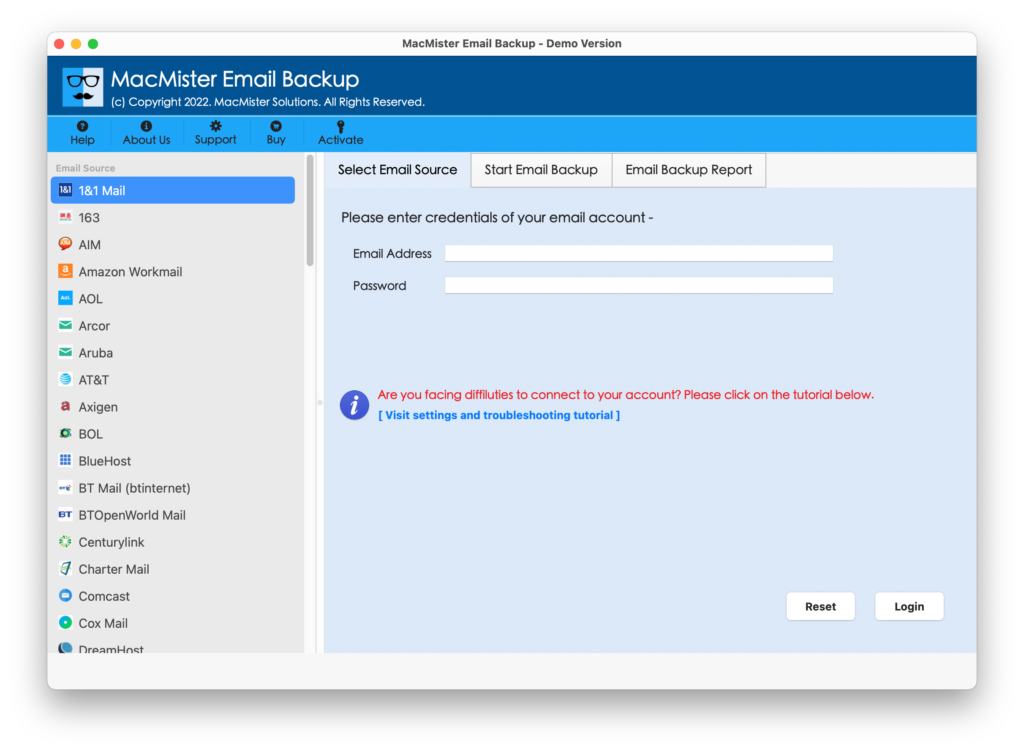
Step 2 – Add Your Roundcube Account
Now Choose Roundcube from the left side of the software, then Provide Email address, Password. Click on Login button.
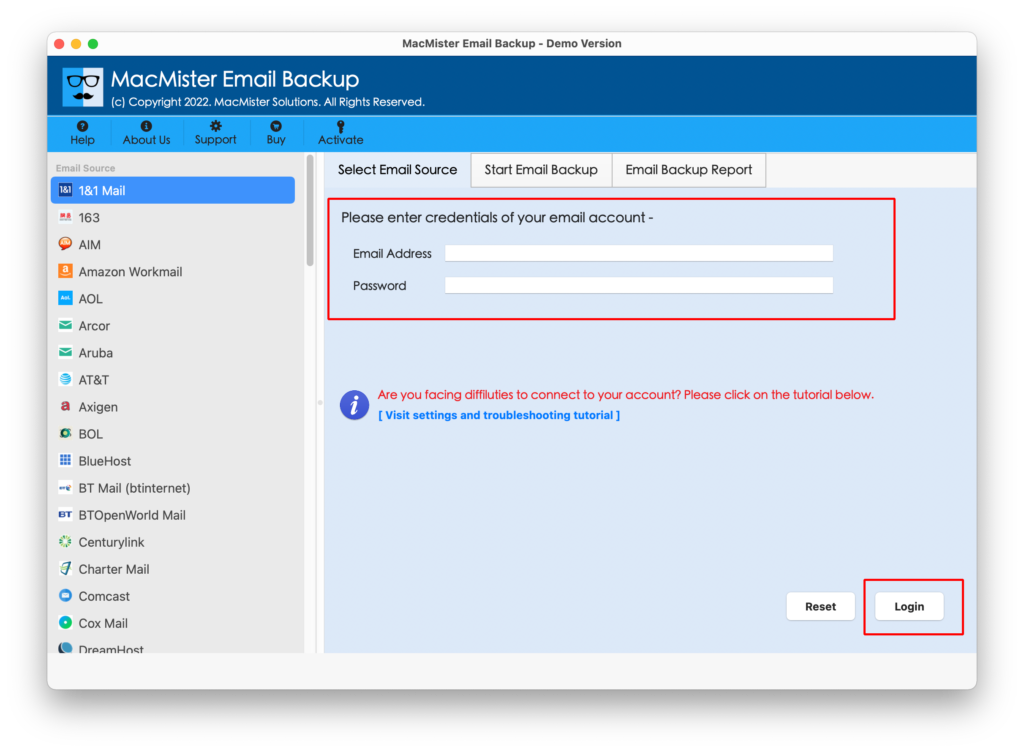
The software will authenticate and display your mailbox folders.
Step 3 – Select Required Email Folders
Choose the folders you want to migrate, such as –
Inbox, Sent, Drafts, Archive, Custom folders
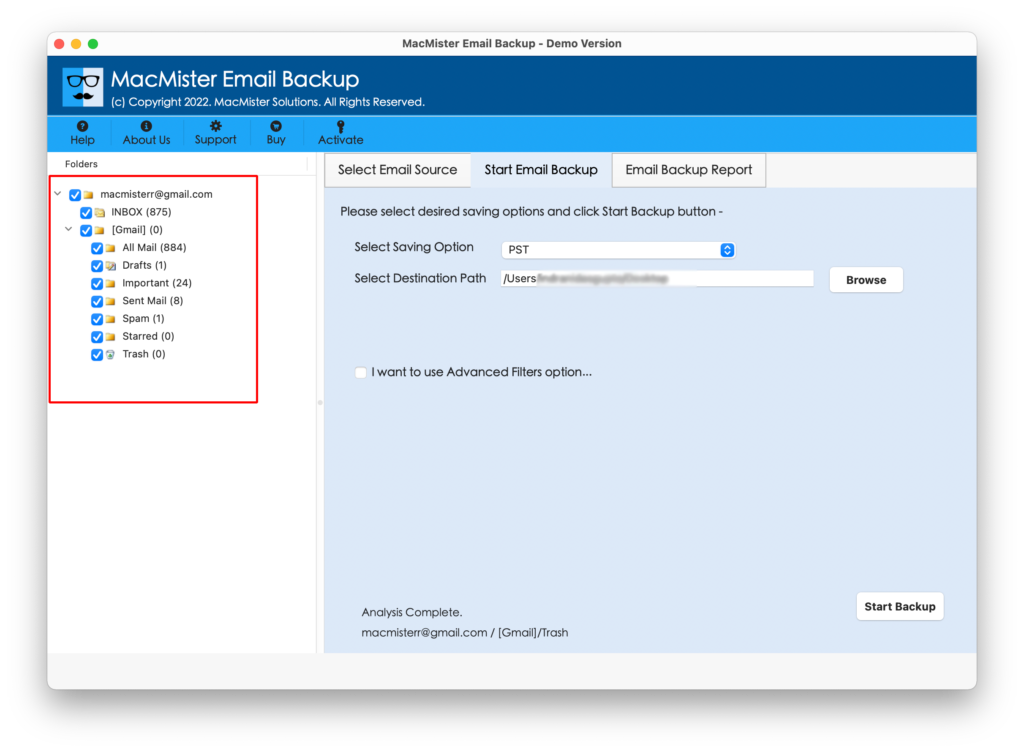
You can migrate the entire mailbox or only selected folders.
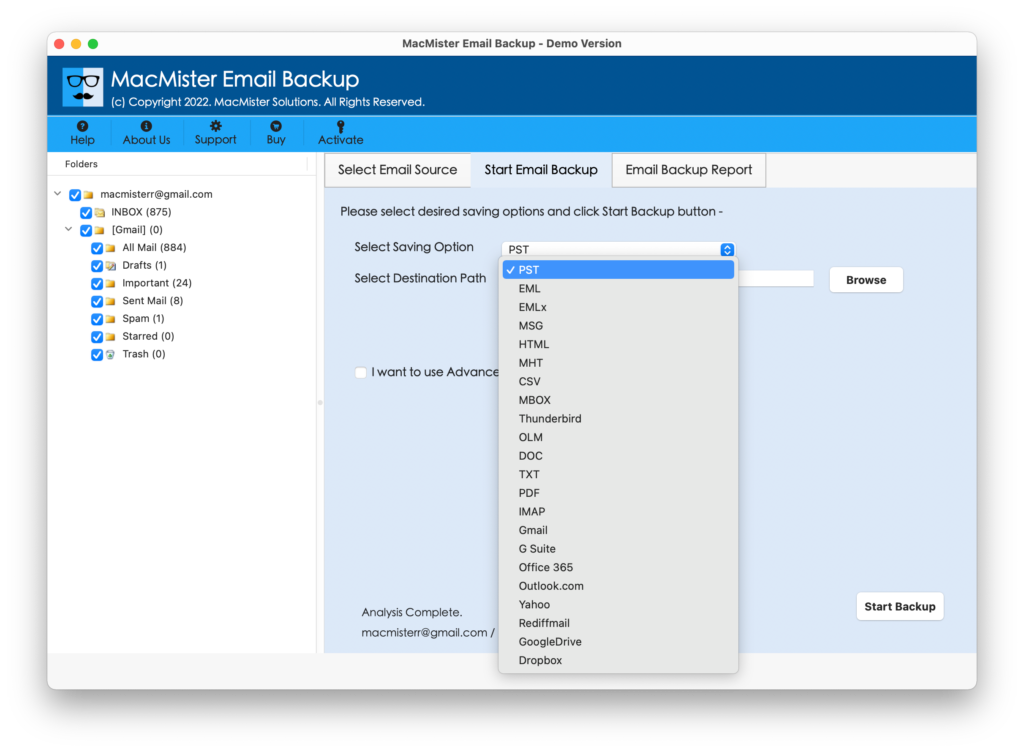
Step 4 – Choose Gmail as the Destination
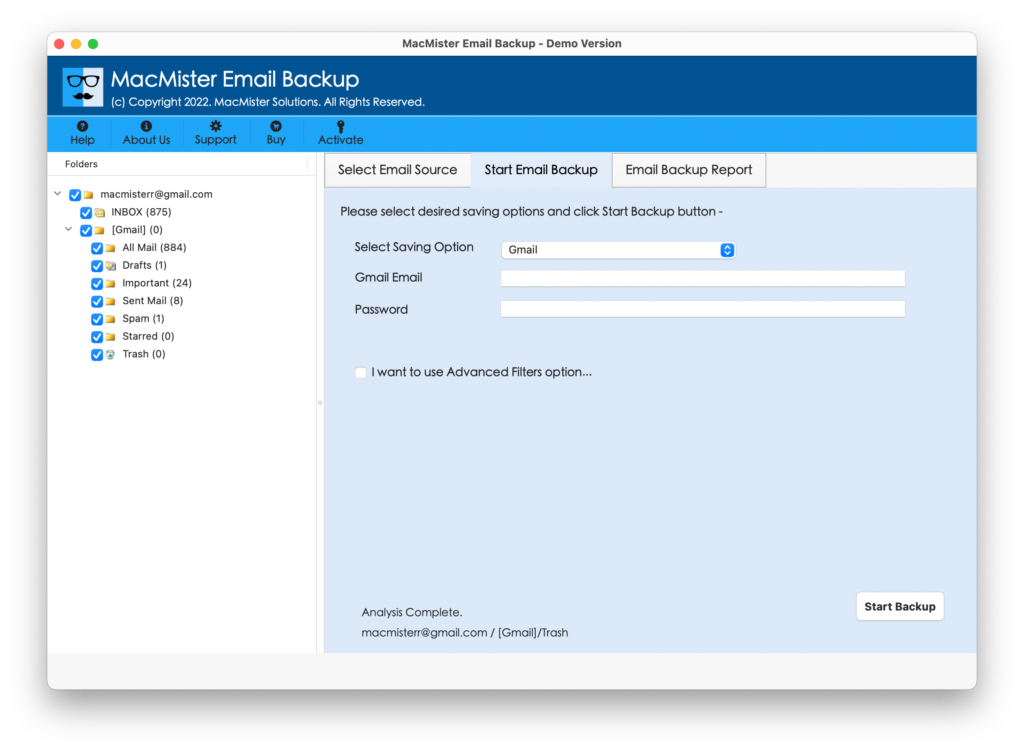
From the list of saving options, select Gmail.
Enter your Gmail account credentials and authorize the connection securely.
Step 5 – Start the Migration
Click Backup to begin the migration.
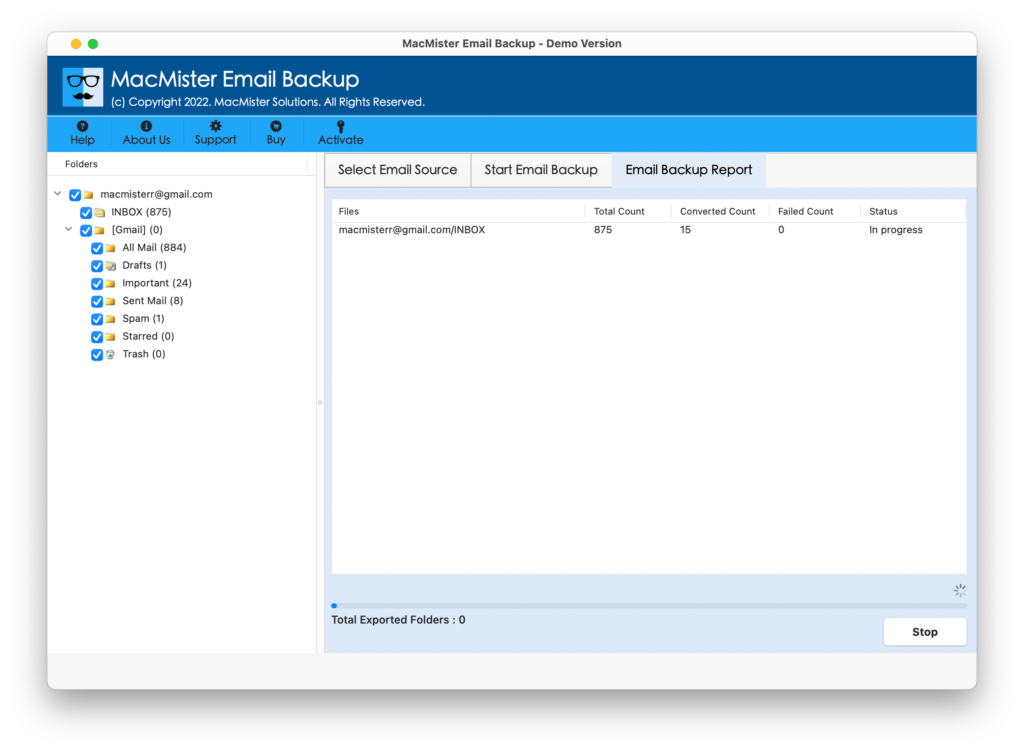
After completion, log in to Gmail and verify that all emails appear correctly.
Why Choose the Roundcube to Gmail for Mac?
The software includes advanced capabilities that simplify even large mailbox migrations.
- Direct Roundcube to Gmail Migration – Move emails directly from your Roundcube-supported IMAP account to Gmail without complicated configurations.
- Preserves Complete Mailbox Structure – Maintains the original folder hierarchy, making it easy to locate emails after migration.
- No Data Loss – Transfers emails along with attachments, inline images, formatting, and metadata.
- Supports Large Mailboxes – Migrate thousands of emails without worrying about server interruptions or mailbox size.
- Secure Login Process – Your account credentials are used only to establish an authenticated connection for migration. The software supports secure IMAP connections to protect your data during transfer.
- User-Friendly Interface – No technical expertise is required. The step-by-step interface allows anyone to complete the migration with ease.
- Smart Email Filters – Save time by migrating only selected emails using filters such as –Date range, Specific folders, Required email categories
Best Practices Before Migrating Roundcube to Gmail
To minimize migration issues, follow these recommendations –
- Verify that your IMAP settings are correct.
- Ensure your Gmail account has enough available storage.
- Remove unnecessary spam and deleted emails from Roundcube.
- Maintain a stable internet connection throughout the migration.
- Avoid logging out or interrupting the process until it finishes.
- If possible, create a backup of your mailbox before starting the migration.
- These simple precautions can help ensure a smoother and more reliable migration.
Frequently Asked Questions
Q. Why are my Roundcube emails not appearing in Gmail after migration?
Ans. This can happen due to incorrect IMAP settings, synchronization delays, server limitations, unsubscribed folders, insufficient Gmail storage, or interruptions during the migration process.
Q. Can Gmail import all Roundcube folders?
Ans. Yes. Gmail can import all folders as long as they are subscribed and accessible through IMAP. Using a professional migration tool helps preserve the complete folder structure.
Q. Will my attachments be transferred?
Ans. Yes. the Email Backup for Mac migrates emails together with their attachments, preserving the original content and formatting.
Q. Is Roundcube itself an email server?
Ans. No. Roundcube is a web-based email client. It accesses emails stored on your hosting provider’s mail server through IMAP or POP3 protocols.
Q. Can I migrate only selected folders?
Ans. Yes. The software allows you to choose specific folders instead of transferring the entire mailbox, giving you greater flexibility.
Q. Is the Email Backup for Mac suitable for business migrations?
Ans. Yes. It is designed for both individual users and organizations, making it suitable for migrating large mailboxes while maintaining email integrity.
Conclusion
If Gmail is not receiving your Roundcube emails after migration, the problem is often linked to IMAP configuration errors, server restrictions, synchronization delays, or limitations of manual migration methods. While basic troubleshooting can resolve some issues, it may not guarantee a complete and accurate transfer—especially for large or business-critical mailboxes.
The Roundcube to Gmail for Mac offers a dependable alternative by enabling direct migration from Roundcube-supported IMAP accounts to Gmail. It preserves folder hierarchy, attachments, email metadata, and formatting while reducing the risk of incomplete transfers. If you want a smooth and reliable migration experience, using a dedicated migration solution can save time and help ensure that every important email reaches your Gmail account successfully.
| |