How to Import Gmail to Thunderbird?
Looking a solution to import Gmail to Thunderbird directly? If yes, then stick with the article as MacMister Solutions is here to help you out!

Gmail is one of the popular cloud-based program which stores personal database of users such as email messages, calendars, contacts and more. Undoubtedly, it is an amazing email server but it is also susceptible to hacking. And, if this happens unexpectedly, then all your crucial data will be lost. Therefore, to avoid such situations, it will be better to store the copy of original data on your local machine. So, to do the same, configure Gmail account to desktop-supported email client such as Thunderbird.
Note. In case you have downloaded Gmail files in MBOX format. And, you have to import MBOX files to Thunderbird, then you can use MBOX Converter for Mac. It allows to export unlimited MBOX files at once with accurate mail files and attached documents.

Now, in the following blog, we will discuss the approach to import Gmail to Thunderbird on macOS. Let’s first know more reasons behind Gmail to Thunderbird migration.
Reasons to Import Gmail to Thunderbird on Mac
Everyone is aware that Thunderbird is one of the widely used desktop-supported email client. It runs on both Windows and Mac. However, configuring Gmail account in Thunderbird application makes the work easier for users. Because, they do not need to go to Gmail every time to check the latest files. Now, go through some reasons to export Gmail to Thunderbird on macOS.
- Thunderbird saves all user’s data locally. So, one can access the desired data when needed.
- In Thunderbird, it is impossible to vanish all email files due to the interruption from outside source.
- Moreover, the data files can be shared with multiple users in a single time, if needed.
Multiple Solutions to Save Gmail Emails to Mozilla Thunderbird on Mac
In the section, we have highlighted two ways to download the Gmail database to Thunderbird.
- Professional Technique
- Manual Method
Solution 1. Professional Technique to Access Gmail Emails in Thunderbird
Utilize Gmail Backup Tool for Mac to download Gmail emails to Thunderbird directly on macOS. The software has direct migration facility. With the help of the tool, users can choose Thunderbird as a saving option and save all Gmail emails in the same at once without data loss. The simple GUI is one of the beneficial feature as any technical and non-technical users can use the tool and achieve the required output successfully.
Moreover, the application allows to enter Gmail login details and transfer all its emails to Thunderbird with attachments. The smart options of the software will help users to migrate Gmail to Thunderbird according to requirement. However, use the trial edition of the tool and know the process of how to download Gmail emails to Thunderbird.
Steps to Export Gmail to Thunderbird for Mac
Step 1. Run Gmail to Thunderbird Tool on Mac.
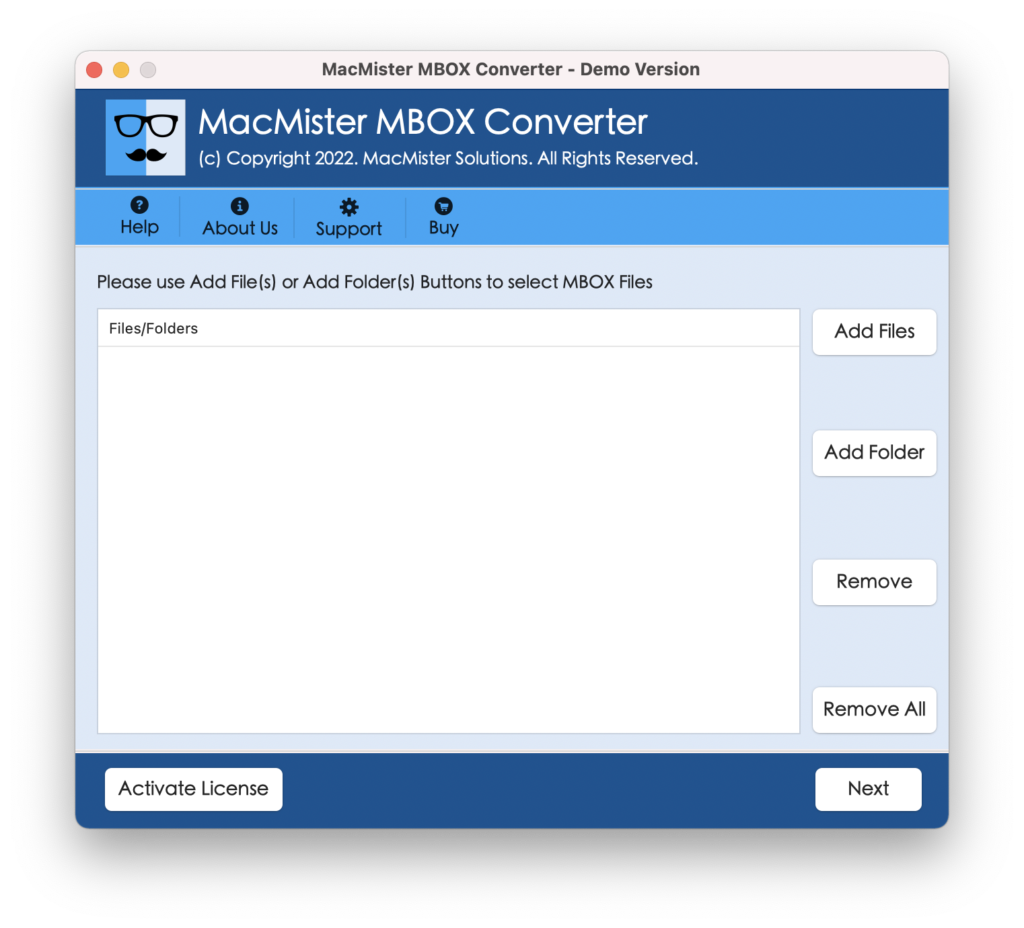
Step 2. Choose Gmail option from list of source appearing on left pane.
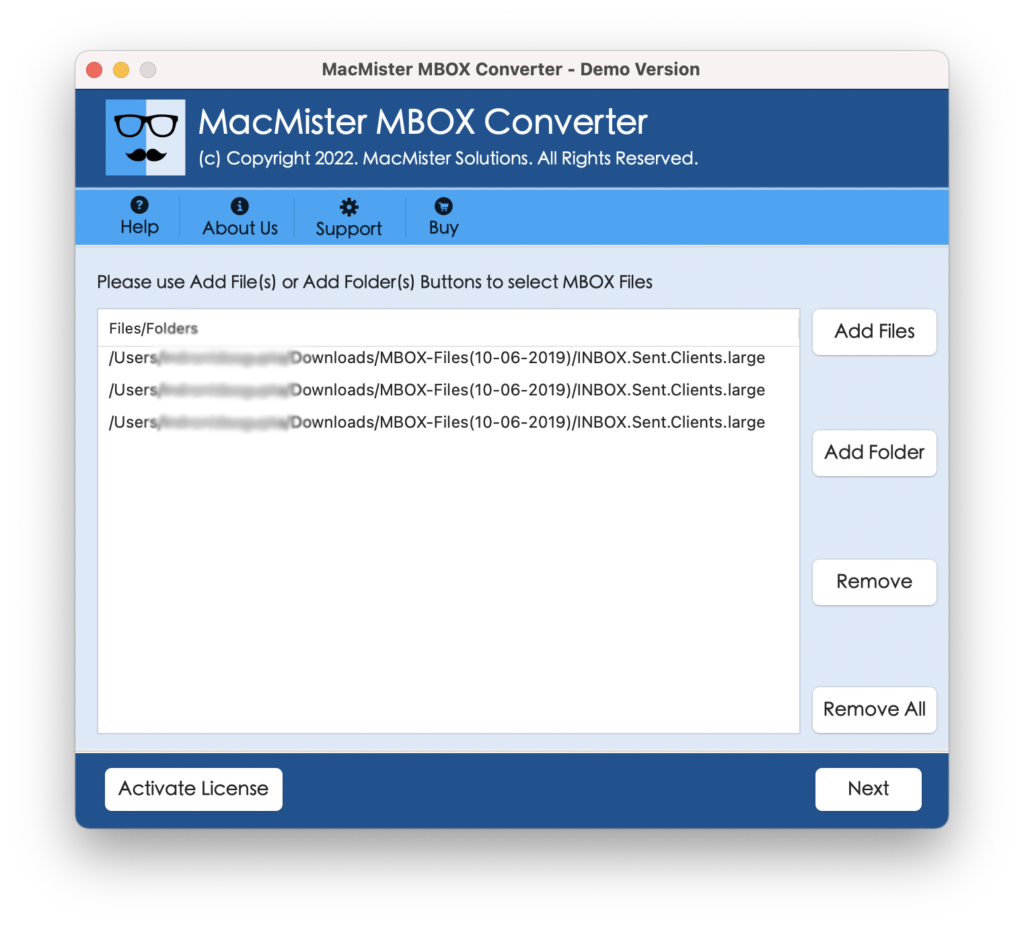
Step 3. Provide the login details of Gmail account from which you want to transfer emails to Thunderbird and click Login button.
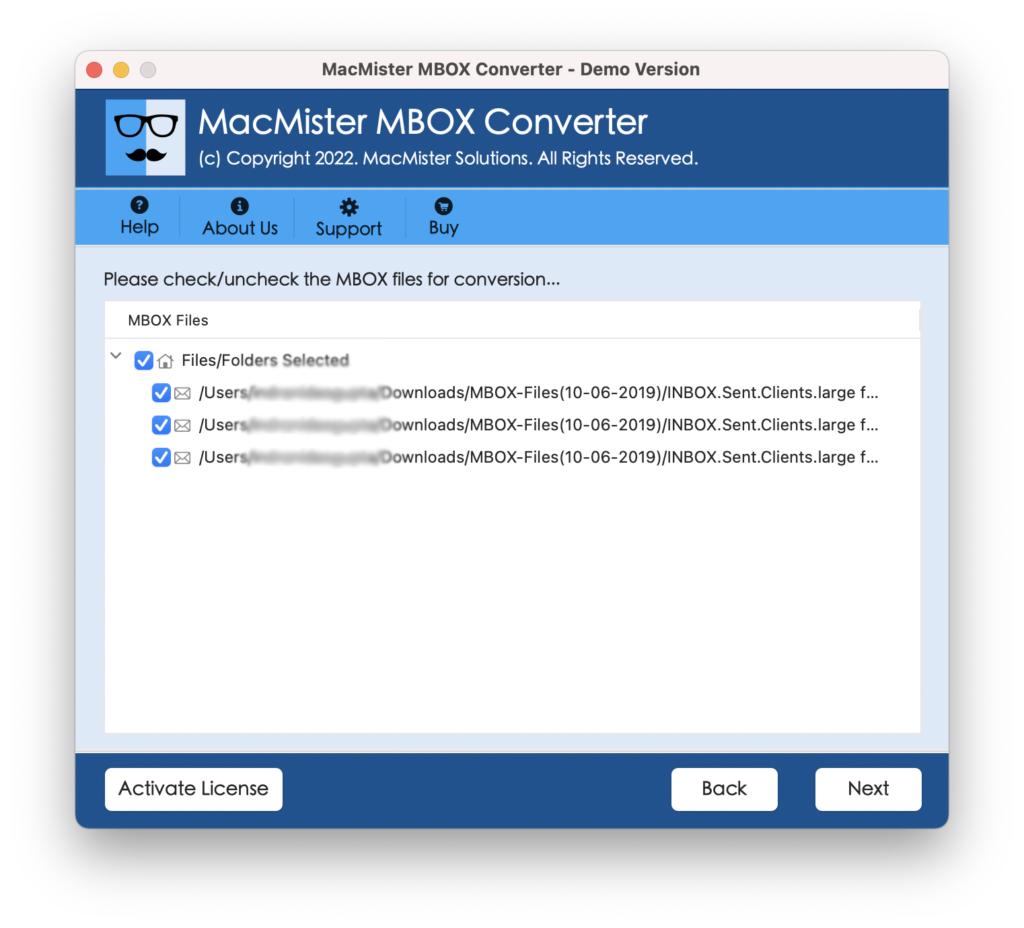
Step 4. Tool will create a connection with Gmail account and list all the Gmail related files with checkboxes. The checkbox are designed so that users can import selective mails if needed. Otherwise go to Select Saving Option.
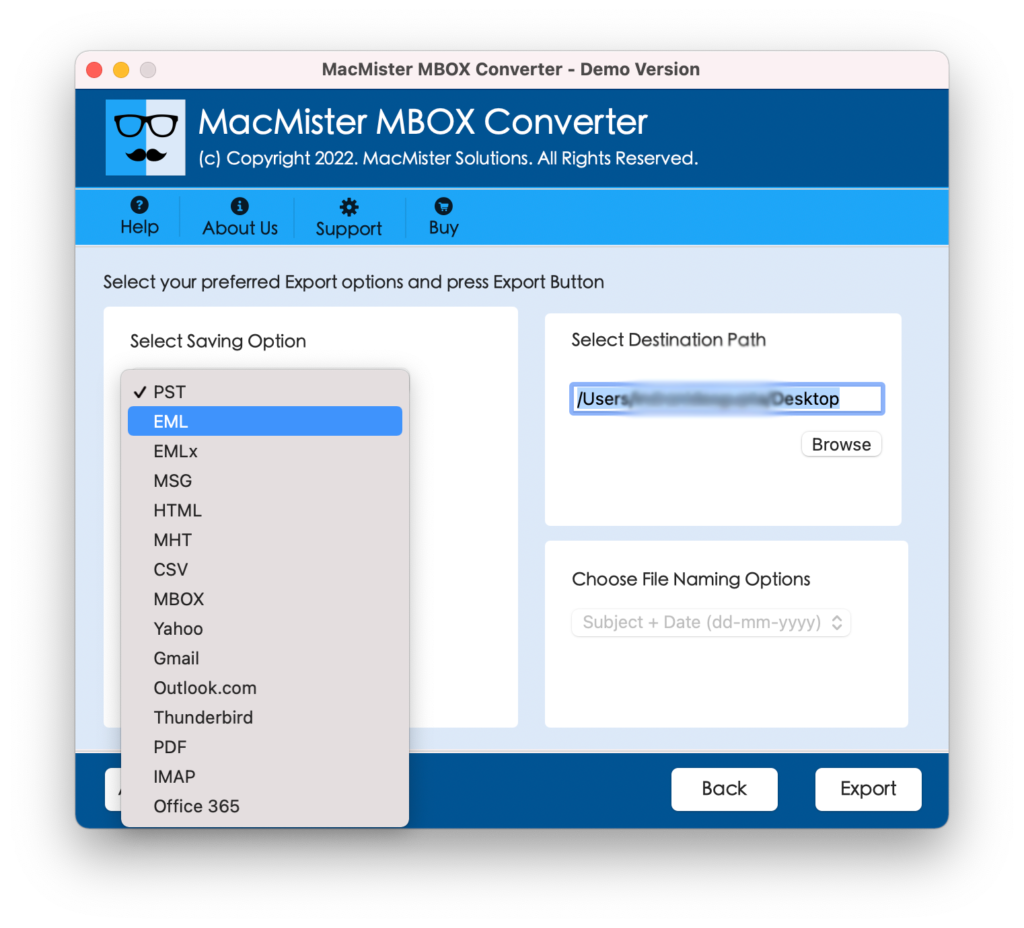
Step 5. Choose Thunderbird from the list and apply its other options as well.
Step 6. Click on Backup button to start the backup process of Gmail files to Thunderbird.
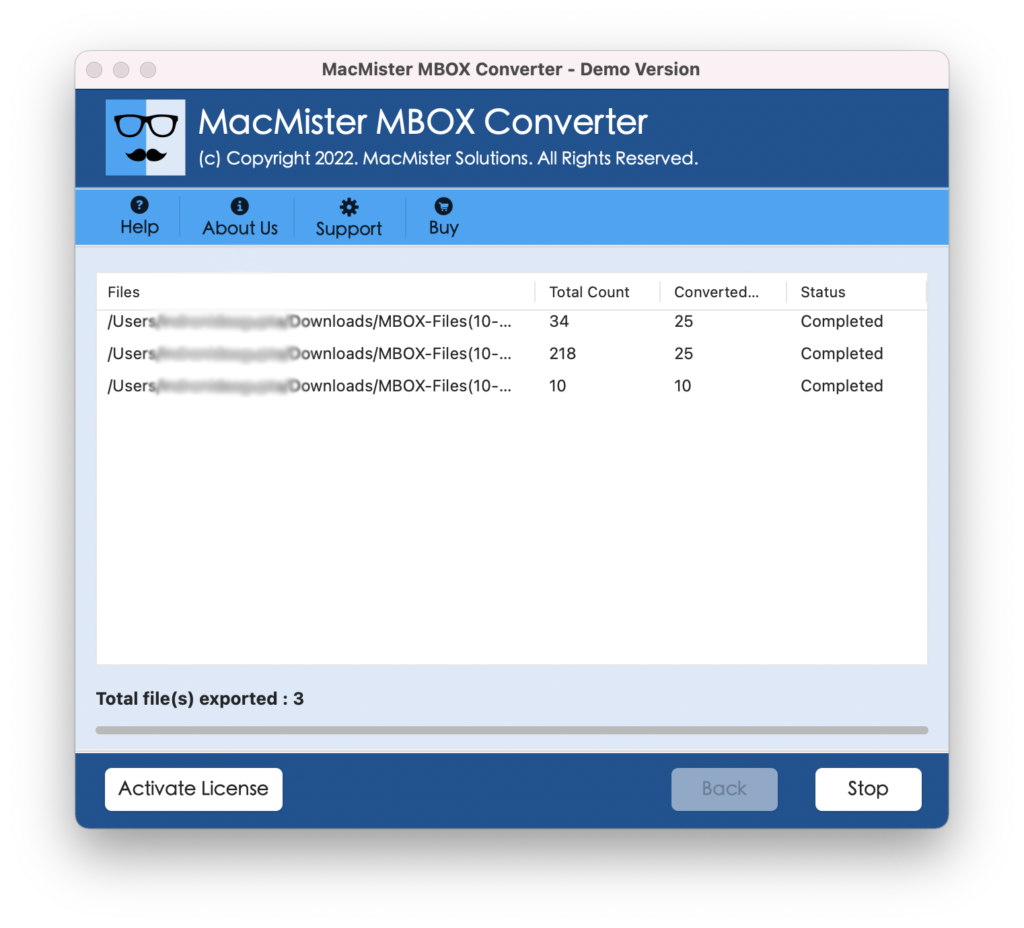
Go to the specified location of resultant file and check the originality of the content. The data integrity and file structure will be accurate after the backup process.
Solution 2. Manual Method to Export Gmail to Thunderbird on Mac
Before implementing the manual process, make sure you take the backup of Gmail email files. Now, execute the steps listed:
- Run Thunderbird application in your system.
- Open Gmail account in your web browser from which you want to import emails.
- In order to make sure that end-users Gmail files should be obtained to another machine, go to Settings and click Settings option.
- Choose Forwarding and POP/IMAP tab, select Enable IMAP option and then hit Save Changes.
- Now, go to Thunderbird client and right-click on the username and navigate to Settings.
- When dialogue box appears, click Account Actions and choose Add Mail Account.
- Mail Account Setup window will pop-up. After this, provide username, email address and password in the same and hit Continue.
- Choose IMAP (remote folders) and press Done.
- Press Browse option for directory modification. Click OK button to finish the setup to save Gmail emails to Thunderbird.
- Now, new email ID will appear at left pane. Double-click on the same and choose Read Messages and start viewing all Gmail messages in Thunderbird email client.
- Users will have the freedom to generate new message, changing settings, and settings up advance features according to requirement.
Conclusion
The entire article highlighted multiple techniques to import Gmail to Thunderbird on Mac directly. The first solution i.e. Gmail to Thunderbird Converter for Mac discussed above provides direct solution with the help of which users can directly transfer all Gmail emails to Thunderbird. Moreover, you can check the process by downloading the free demo which allows to import 25 Gmail emails with attachments free of cost. And, the second solution facilitate to manually access Gmail files in Thunderbird. You can choose the suitable method and perform the process accordingly.