How Do I Fix POSIX 61 Error Apple Mail? – Direct Guide
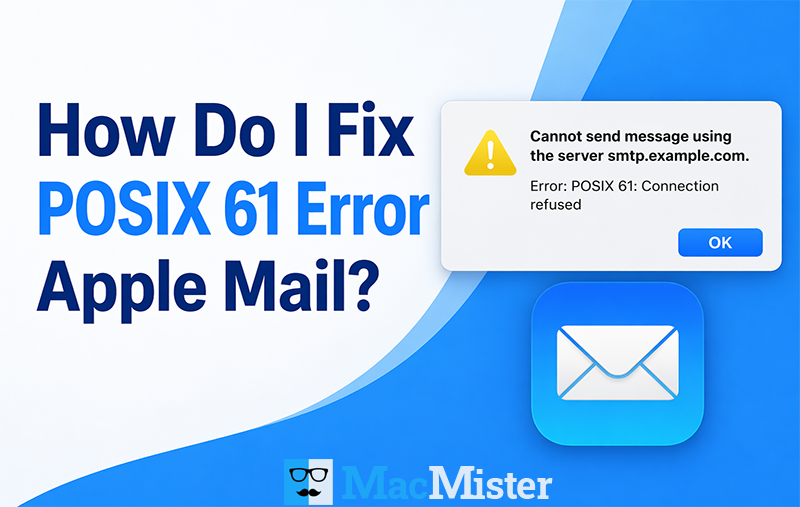
How do I fix POSIX 61 error Apple Mail is a common question among Mac users who suddenly find their email not working as expected. Since email communication is essential for both personal as well as professional tasks, encountering this issue can quickly disrupt your workflow.
The POSIX 61 error in Apple Mail usually appears when you try to send or receive emails and indicates that the Mail app is unable to establish a connection with the mail server. Although the message may look technical and confusing, it is essentially a network-related error, often referred to as a network error POSIX 61 in Apple Mail.
In this article, we will explain what the network error POSIX 61 means, how it impacts your email workflow, and the most effective ways to troubleshoot and resolve it.
Understanding Network Error POSIX 61 in Apple Mail
Network error POSIX 61 in Apple Mail indicates that the connection to the email server has failed. This issue usually occurs in the Apple Mail app on Mac or iPhone when the device is unable to communicate with the mail server. Common triggers include VPN interference, restrictive firewall or security settings, or compatibility issues after iOS updates.
This error may also appear in different forms such as “Connection Refused,” “Cannot Get Mail – The connection to the server failed,” or IMAP/POP-related connection errors. Now that the meaning is clear, let’s move on to the main causes behind this issue so it becomes easier to troubleshoot and fix.
Causes behind POSIX 61 Error in Apple Mail
The POSIX 61 error in Apple Mail usually occurs due to a mix of network, security, or configuration-related issues. Here are the main reasons behind it:
- Active VPNs or security apps that block Apple Mail from connecting to the mail server.
- Restricted Wi-Fi or network settings that prevent IMAP/POP3 traffic.
- Weak or unstable internet connection, or temporary email server downtime.
- Incorrect SMTP or IMAP settings, including wrong ports or authentication details.
- Bugs or glitches after iOS or macOS updates that affect mail connectivity.
Understanding these causes makes it easier to identify and fix the issue effectively.
Pro Tip: Try These Fixes & Consider a Reliable Backup Solution
Make sure you carefully try all the methods mentioned below one by one. If none of them resolve the issue, or if the problem continues, you may need to explore alternative solutions.
In such cases, the MacMister Mac Apple Mail Converter tool can be a helpful option. It allows you to migrate Apple Mail to PST, PDF, EML, HTML, Office 365, Gmail, IMAP, Thunderbird, Outlook.com, and more while keeping your data safe and intact throughout the process. You can also download the trial version to explore its features before making a decision.
How Do I Fix Posix 61 Error Apple Mail?
There are several effective solutions depending on what is causing the network error POSIX 61 in Mac Mail. Try the methods below one by one:
1: Check Your Internet Connection
- Ensure you have a stable internet connection.
- Switch between Wi-Fi and mobile hotspot to test connectivity.
- Restart your router if needed to refresh the network.
2: Verify Mail Server Settings
Incorrect settings can trigger this error. Check the following:
- Open Mail > Settings (Preferences)
- Go to Accounts
- Select your email account
- Verify IMAP/POP settings, SMTP details, port numbers, username, and password
3: Update SMTP Port Settings
Blocked ports may cause connection issues. Try using:
- 587 (Recommended)
- 465 (SSL)
- Avoid port 25, as it is often restricted
4: Disable Firewall or Antivirus Temporarily
Security tools may block Mail connections:
- Go to System Settings > Network > Firewall
- Temporarily turn it off or allow Apple Mail access
- If this resolves the issue, add Mail as an exception
5: Rebuild Mailbox
A corrupted mailbox can cause syncing errors:
- Open Apple Mail
- Select the affected mailbox
- Click Mailbox > Rebuild
6: Remove and Re-add Email Account
- Go to Mail > Settings > Accounts
- Remove the email account
- Restart your Mac
- Add the account again to reset configurations
7: Check Email Provider Status
Sometimes the issue is from the server side.
- Visit your email provider’s status page
- Check for outages or downtime
- Wait until services are restored if needed
8: Update macOS and Apple Mail
Outdated software may cause compatibility issues:
- Go to System Settings > General > Software Update
- Install the latest updates
9: Test on another Device
- Try accessing your email on another Apple device or browser
- This helps confirm whether the issue is device-specific
10: Check SSL and Authentication Settings
- Ensure SSL is enabled
- Verify correct authentication method (password or OAuth)
- Double-check server security settings for accuracy
Tips to Prevent POSIX 61 Error in Mac Mail
To reduce the chances of facing the POSIX 61 error in Apple Mail, follow these best practices:
- Always use the recommended and correct mail server settings.
- Avoid using public or unsecured Wi-Fi networks for email access.
- Keep your macOS system updated to the latest version.
- Regularly verify and update your email account credentials.
- Use a trusted antivirus program with proper configuration that does not block Mail connectivity.
Conclusion
To solve the POSIX 61 error in Apple Mail, we have covered multiple troubleshooting methods based on different possible causes of the issue. If manual fixes do not resolve the network error POSIX 61 in Apple Mail, you may consider using the Mac Mail Converter tool to migrate your data into more compatible formats without data loss.
If you still have questions or continue facing issues with Apple Mail errors across your Apple devices, you can contact the technical support team anytime. Expert assistance is available 24/7 to help you resolve your problems quickly.