How to Resolve “Apple Mail Flagged Emails Not Showing Error” Effortlessly?
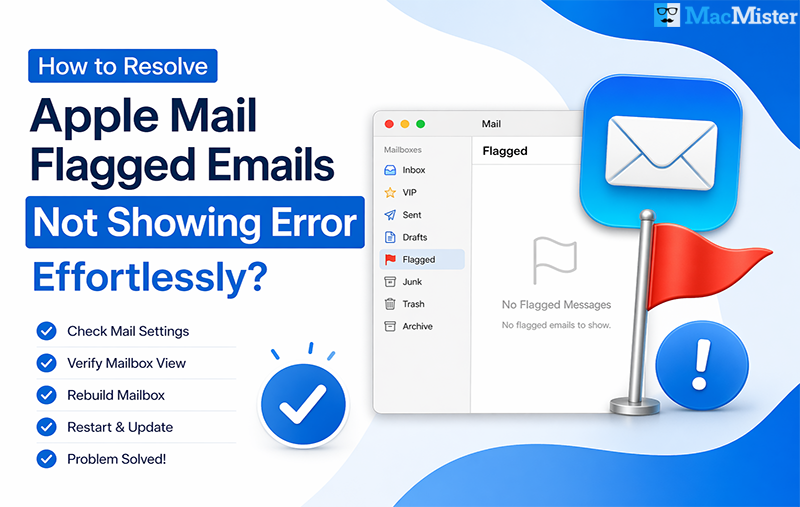
Opening Apple Mail to quickly check your flagged messages should be simple, but sometimes those important emails seem to disappear. If you’re wondering how to resolve apple mail flagged emails not showing error, you’re not alone. This issue can interrupt your workflow, especially if you depend on flags to keep track of urgent messages.
When flagged emails stop appearing, it may look like all your reminders are gone, no red flags, no priority messages, nothing. This is a common problem that can make accessing important emails difficult. Before trying to fix it, it’s helpful to understand the possible reasons behind why flagged messages in Apple Mail are not showing.
Why Flagged Emails May Not Appear in Apple Mail?
Here are some common reasons why flagged messages might not be visible:
- Mail filters such as Unread or VIPs only can sometimes hide flagged emails.
- Improper synchronization may prevent the flag status from updating correctly.
- Apple Mail relies on index files to display emails; if these become corrupted, messages may not appear.
- Incorrect IMAP or SMTP settings can lead to inconsistencies with flagged emails.
- After a macOS update, temporary bugs can affect your mailbox and hide flagged messages.
Now that you understand the possible causes, the next step is to explore effective ways to fix the issue.
How to Resolve Apple Mail Flagged Emails Not Showing Error? – Follow Simple Methods
There isn’t a single fix for this issue because different causes require different solutions. Here are some practical methods you can try:
1. Turn Off Mail Filters
- Open Apple Mail, then go to View > Filter > Disable Message Filter.
- Filters like Unread or VIPs can hide flagged emails, so turning them off may make them visible again.
2. Enable the Flagged Mailbox
- Open the Mail app and look at the sidebar.
- Click Mailbox, then choose Edit, and make sure Flagged is enabled so those emails are displayed.
3. Rebuild Your Mailbox
- Select your mailbox, then go to Mailbox > Rebuild.
- This refreshes the email index and often brings back missing flagged messages.
4. Check Account Sync Settings
- Go to System Settings > Internet Accounts and select your email account.
- Ensure Mail is enabled, and try toggling it off and on to refresh syncing.
5. Remove and Add the Account Again
- If syncing issues continue, remove your email account from Apple Mail.
- Restart your Mac, then add the account again to restore proper syncing.
6. Verify Flags on the Server
- Log in to your email via webmail (like Gmail or iCloud).
- Check whether the emails are still flagged there, sometimes the issue is with server syncing.
7. Restart Mail and Your Mac
- Close the Mail app completely and restart your Mac.
- Reopen the app and check if flagged messages appear.
8. Update macOS
- Go to System Settings > Software Update and install any available updates.
- Updates often fix bugs that affect email visibility.
9. Reset Mail Preferences (Advanced Step)
- Close Apple Mail, then go to ~/Library/Preferences/.
- Delete Mail preference files and restart the app. This can resolve deeper configuration issues.
How to Fix the Apple Mail Flagged Emails Not Showing Error Using Mac Apple Mail Converter?
If you’ve tried all the manual methods and your flagged messages are still not appearing in Apple Mail, it may be time to use a more dependable solution to access your important data.
In such situations, MacMister Apple Mail Converter for Mac can help you manage your mailbox efficiently. This tool allows you to back up Apple Mail data to PST, PDF, EML, MSG, MBOX, CSV, Gmail, IMAP, Thunderbird, Office 365, Yahoo, and more without complications. It also offers bulk conversion option and simple steps that make it easier to convert your Mac Mail mailbox data into a more accessible and compatible format.
With this solution, you can safely handle your entire mailbox and avoid issues like missing flagged emails. A trial version is available for both Mac and Windows, so you can explore its features before making a decision.
Outstanding Functions of Mac Apple Mail Migrator
- Easily convert and save multiple Apple Mail emails into another format on Mac in one go, including all attachments.
- Designed with a user-friendly interface, making it suitable for both beginners and professional users.
- Supports both Add Files and Add Folder options to upload individual Mac Mail files or entire folders for conversion.
- Includes a Set Destination Path feature, enabling you to choose your preferred location to save output files.
- Fully compatible with all Mac OS versions, including the latest macOS Sequoia.
Need Further Assistance with Mac Mail Flagged Emails Not Showing
If you’re still facing the issue in Apple Mail after trying all the methods above, don’t worry, help is available. You can reach out to a professional technical support team for quick and reliable assistance.
Experts are available 24/7 to guide you through the problem and provide effective solutions. Whether it’s the flagged emails issue or any other technical concern, they can help you resolve it smoothly and ensure your email workflow gets back on track.