How to Import Google Workspace to Neo Mail?
If you recently switched to Neo Mail from Google Workspace and worried about the essential data stored in Google Workspace account! Wondering how to import Google Workspace to Neo Mail with ease? Looking for a transformative approach but unable to find any! Then no worries simply go through the write-up and explore a solution that will directly import Google Workspace to Neo Mail with precise results within seconds.
Neo Mail is a cloud-based business emailing platform which is designed for small businesses and professionals both, widely known for providing custom domain (e.g. abc@yourbusiness.com), inbuilt email marketing tools, and AI-powered writing assistance. It offers read receipts, free one-page website builder, appointment booking, and more; making it professional, budget-friendly alternative to Google Workspace.
Why to Choose Neo Mail over Google Workspace?
Choosing Neo Mail over Google Workspace is highly beneficial. Some of its powerful aspects are highlighted below –
- Provides free custom domain registration (.co.site or others) that enhances customer trust with inbuilt signature templates.
- Offers one-page website builder, email marketing features, and appointment booking such as campaigns and templates at one place.
- Features such as Neo Smart Write supports instant draft, reply, and improve email professionalism.
- Specially programmed for solo entrepreneurs and starters as it is more cost-effective in comparison to large competitors such as Google Workspace, often providing free domain for one year.
- Designed for novice users, supports quick set up and configuration.
- Equipped with modern features such as two-factor authentication, robust security, antivirus, and 256-bit encryption.
Note. Neo Mail is specifically suitable for the ones who are looking for a simple, all-in-one solution to handle professional identity without managing many vendors.
How to Import Google Workspace to Neo Mail?
There are two ways to import Google Workspace to Neo Mail account –
- Manual Method
- Third Party Automated Solution
Method 1. Manually Import Google Workspace to Neo Mail Account
The manual method is divided into two categories –
- Taking Email Backup from Gmail Account
- Migrating Emails to Neo account
Taking Email Backup from a Gmail Profile
- Go to Gmail profile icon and navigate to Manage your Google Account option, go to Data & Personalization and tap Download your Data.
- Deselect all the selected options and select the checkbox of Mail. Then, tap Next.
- As per your preferences, choose file type, frequency, and destination for download.
- Tap Download button. Enter the password of Google account when asked. Once the verification is done, click Download button again and email data of MBOX format that will be downloaded as Zip.
- After successful download, retrieve MBOX file to the specified folder on the machine.
Migrate Downloaded Data to Neo Mail Account
To add Gmail data to Neo Mail account, set up a Neo Mail on a third-party app using IMAP. Once the email data is downloaded in MBOX file, it will be easier to configure Neo profile on email clients such as Mozilla Thunderbird or Apple Mail.
Note. It is advised to make a copy of email backup file so that if you encounter any corruption during email migration, you will have a copy of your data.
Follow the steps mentioned below to configure accounts on these clients –
- Configure Neo Account on Thunderbird
- Configure Neo Mail on Apple Mail
After Neo account is setup successfully on a Third Party app, follow the instruction discussed below –
Configure Neo Mail in Mozilla Thunderbird
- Go to Add-ons appearing in the sidebar and install ImportExportTools NG in Thunderbird account.
- After it is added, restart the client by tapping Exit in a sidebar and then launch the client again.
- Go to local folders, right-click on the same. Click ImportExportTools NG, choose Import MBOX file option and tap OK.
- Once the MBOX is added to client, simply use drag-and-drop method to the inbox folder of Neo account. Although, it can take a little while for folder to be transferred.
- The new folder will be added to Neo Mail’s Inbox folder.
Configure Neo Mail in Apple Mail
- Open Apple Mail and go to File.
- Navigate towards Import Mailboxes…. And choose the option Files in MBOX format.
- Tap Continue. Browse and choose MBOX file from Mac.
- Wait until the process completes. When done, then imported emails will display under Import section.
Method 2. Directly Import Google Workspace to Neo Mail Account
The best approach to import Google Workspace to Neo Mail is MacMister Email Backup Software Mac & Windows. Although, it has a manual approach as well but that will be very time-consuming and difficult for the users The application is user-friendly, secure, and simple to manage. It is operable by all types of users with ease. With the help of the tool, users can import Google Workspace to Neo Mail by choosing IMAP saving type. And with IMAP, there are 15+ more saving options available to import Google Workspace mailboxes.
Know Step-by-Step Working of the Tool to Import Google Workspace to Neo Mail Account on Mac
Step 1. Download and run the software on a Mac system.
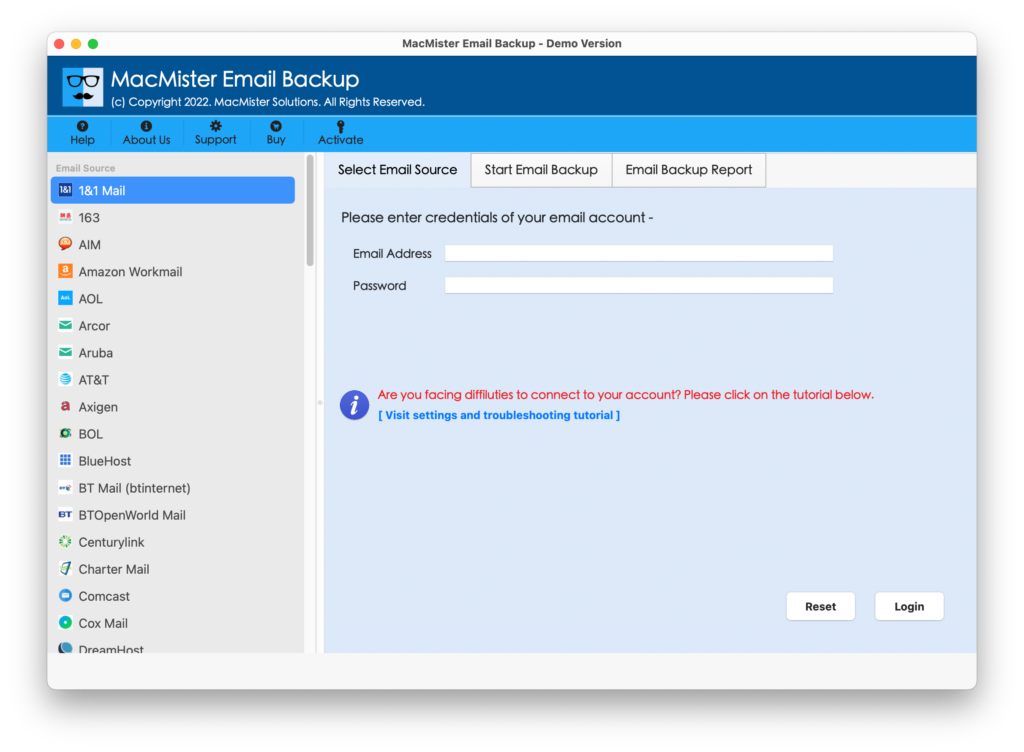
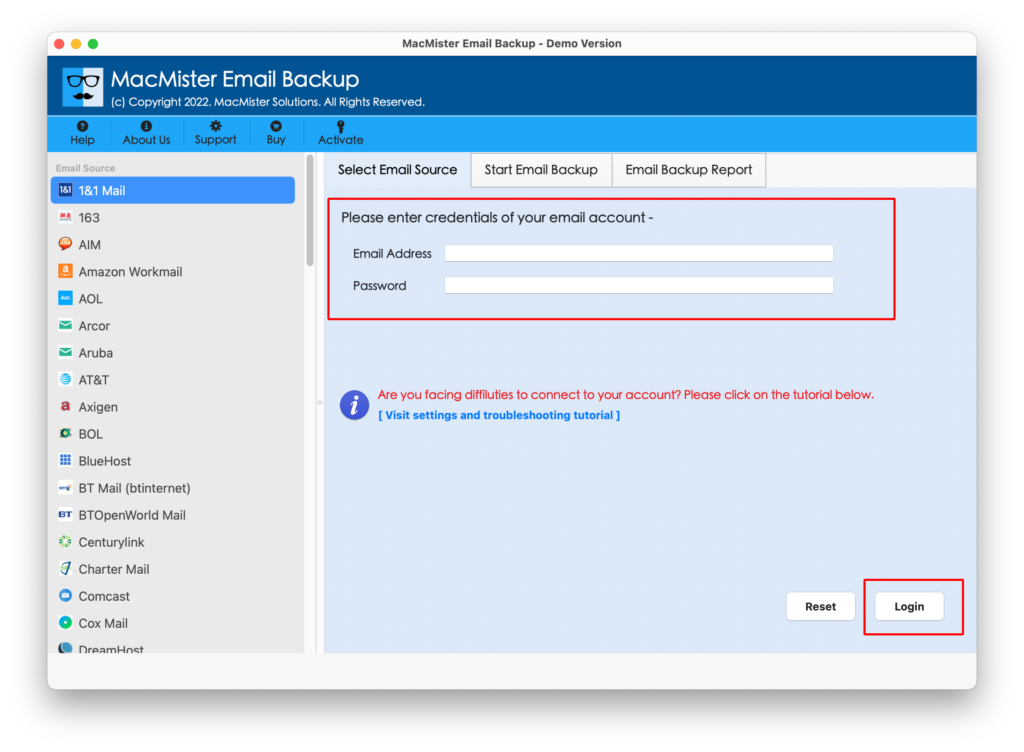
Step 2. Choose the required source from the left panel. Add the details and tap Login button.
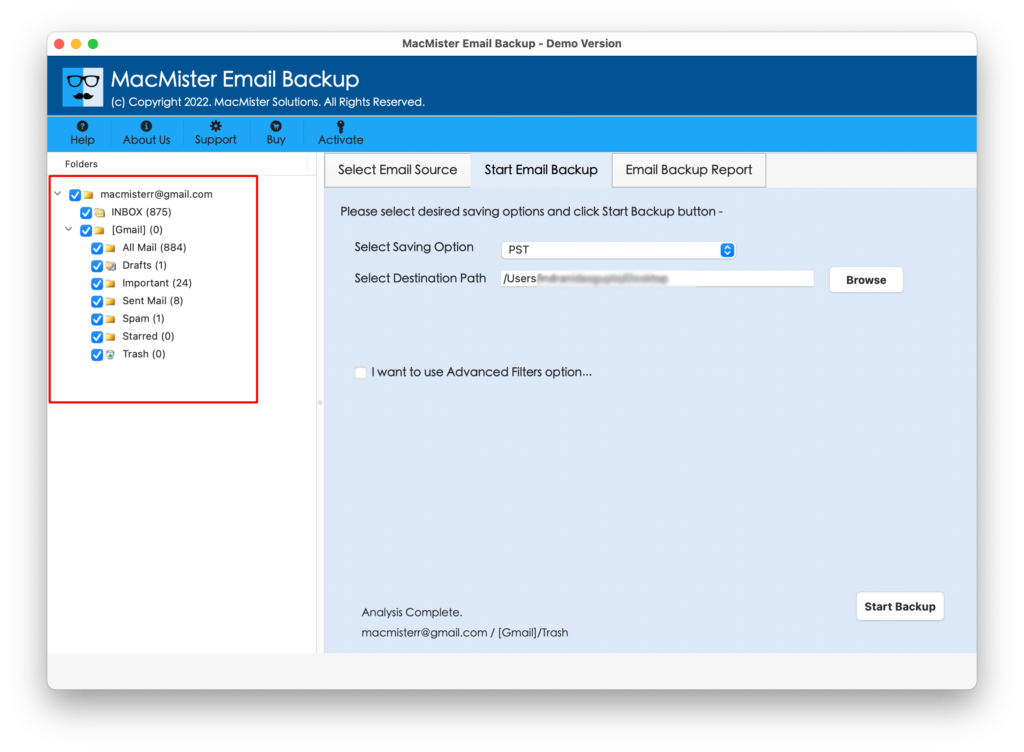
Step 3. The tool connects with the specified Google Workspace account and lists all Google Workspace folders on the left panel.
Step 4. Navigate to the right-pane, click Select Saving Options and choose IMAP.
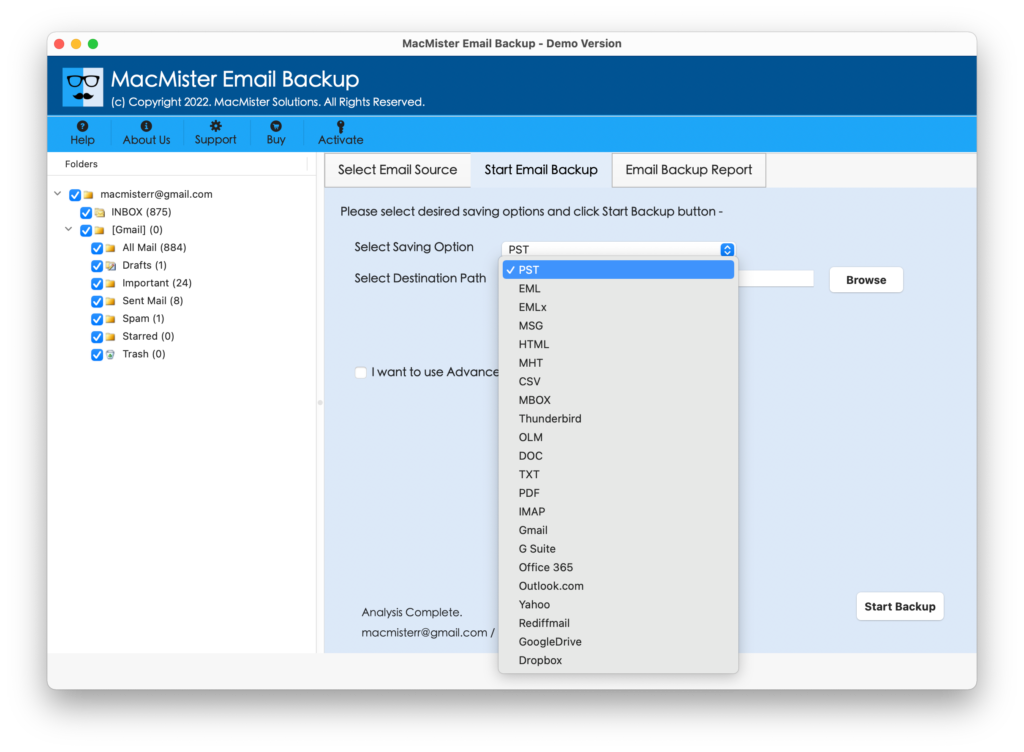
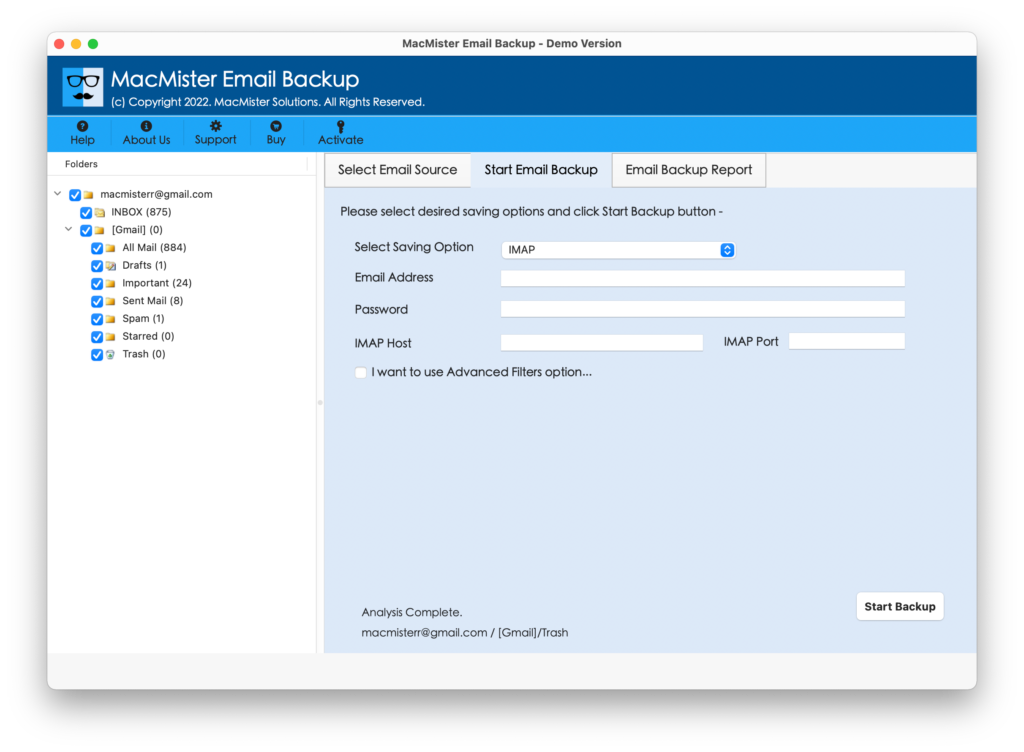
Step 5. Set Neo Mail login details with IMAP host and Port number. Add filtering, if required and click Start Backup button.
Step 6. The Email Backup Report screen appears displaying the live import of Google Workspace emails to Neo Mail account.
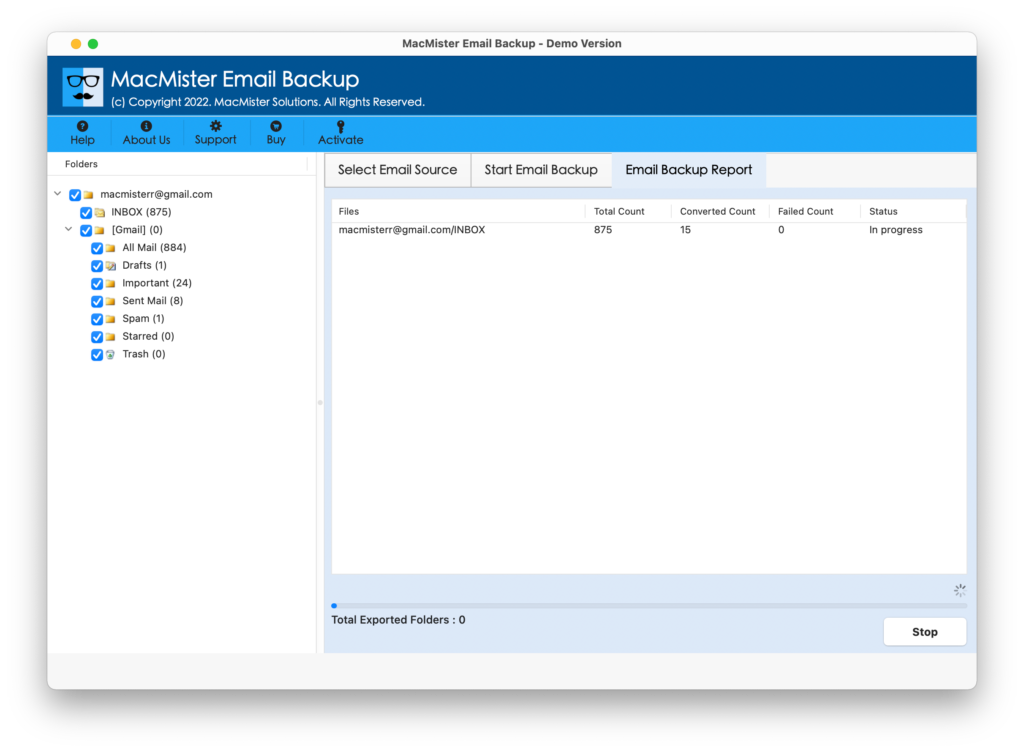
Within seconds, all Google Workspace mailboxes will be transferred to Neo Mail account.
Epilogue
In the write-up, we have offered two methods to import Google Workspace to Neo Mail account. The first method has discussed the manual approach. It is free to use but time-consuming. The second method is direct, cost-effective and robust. Any user can handle and operate it instantly. And it is recommended to take the backup of your important Google Workspace account beforehand to avoid any data loss during the process. For further assistance, contact MacMister Support.