How to Import MBOX to BlueHost on Mac & Windows?
The write-up here will highlight the easiest trick to resolve how to import MBOX to Bluehost on Mac & Windows both. In the segment, we will explore an approachable method that will instantly open MBOX files in Bluehost email server with complete mailbox items.
MBOX is a commonly used email storage format that consolidates all the mailbox folders in one file. At times, users face many challenges while managing them. Also, the files are only accessible in MBOX–based email applications. That is why; it creates a requirement to import MBOX files into a web-supported email service i.e. Bluehost.
Bluehost is a web-hosting company that also offers email services to its clients. One can easily retrieve Bluehost email service using any web browser. However, uploading MBOX into Bluehost webmail can help in consolidating emails at one place to manage and access them easily.
In the further segment, we will discuss direct & easy-to-use approach to import MBOX files into BlueHost account.
How to Import MBOX to BlueHost on Mac & Windows Directly?
By utilizing MacMister MBOX Converter for Mac & Windows, users can directly import MBOX files into Bluehost account with 100% accuracy. Its GUI is easily manageable, thus all professional and novice users can operate the app without any trouble. Besides, the three-operational steps of the application will save users lot of time and efforts. And along with BlueHost, the tool has 15+ more saving options to import MBOX files.
Additionally, the application offers remarkable features that help users importing MBOX files to Bluehost account according to the requirements. However, the tool is available with a freeware version. Users can download it for free and experience the detailed import steps of the application free of cost.
Working Steps of the Tool to Import MBOX to BlueHost on Mac
Step 1. Download and launch the software on a Mac system.
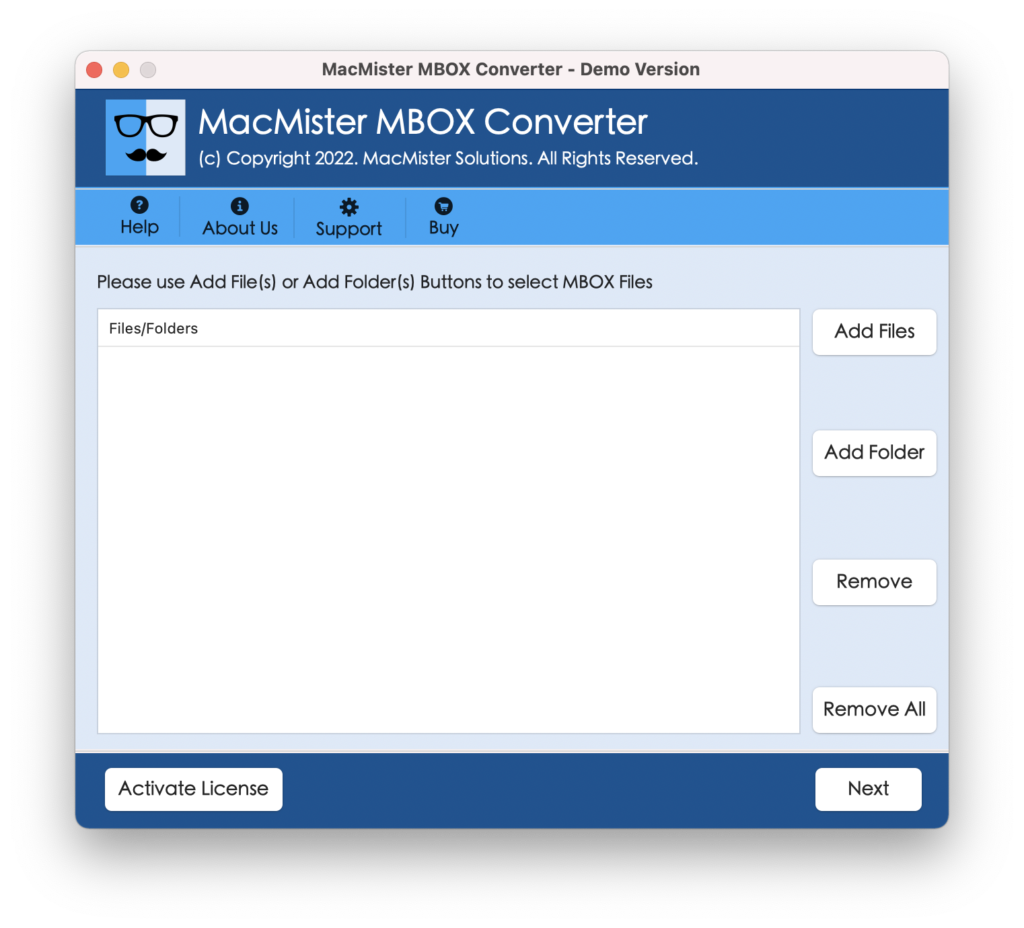
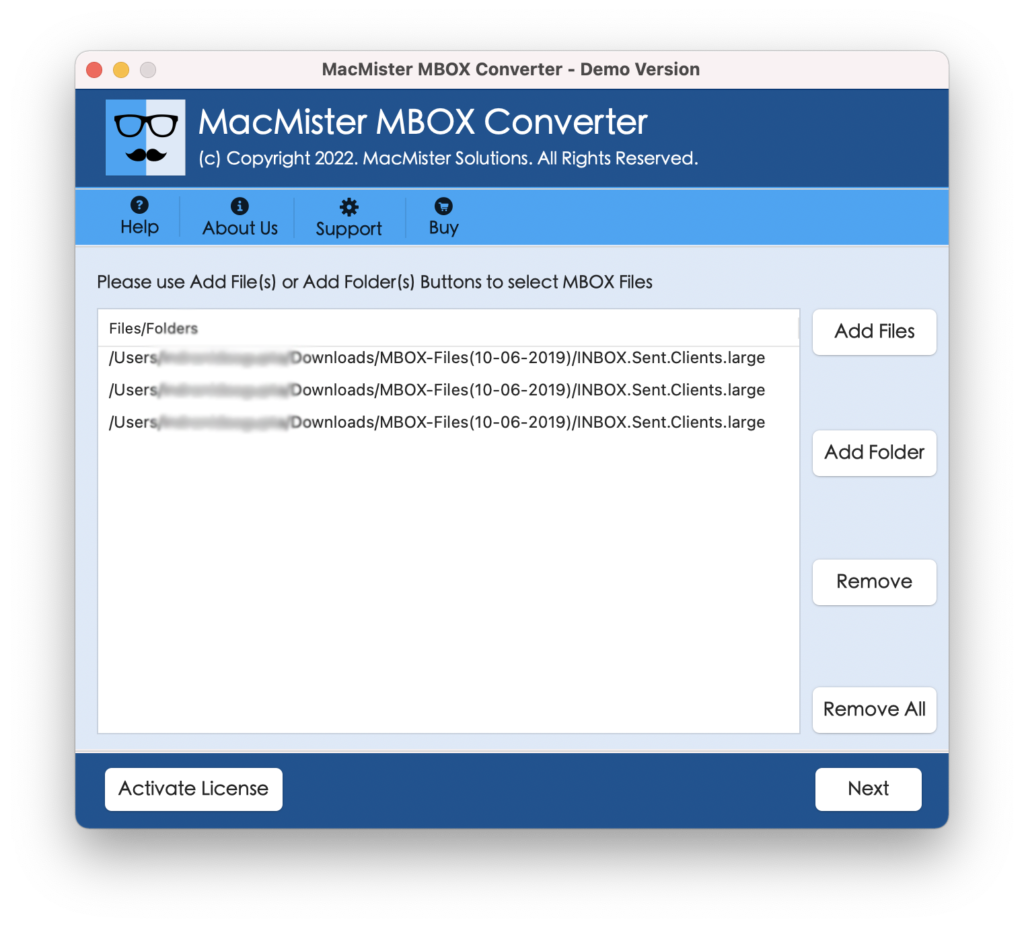
Step 2. Take help of Add File(s)/Add Folder buttons appearing on the right side of the tool to load MBOX files on the software panel. Then, tap Next.
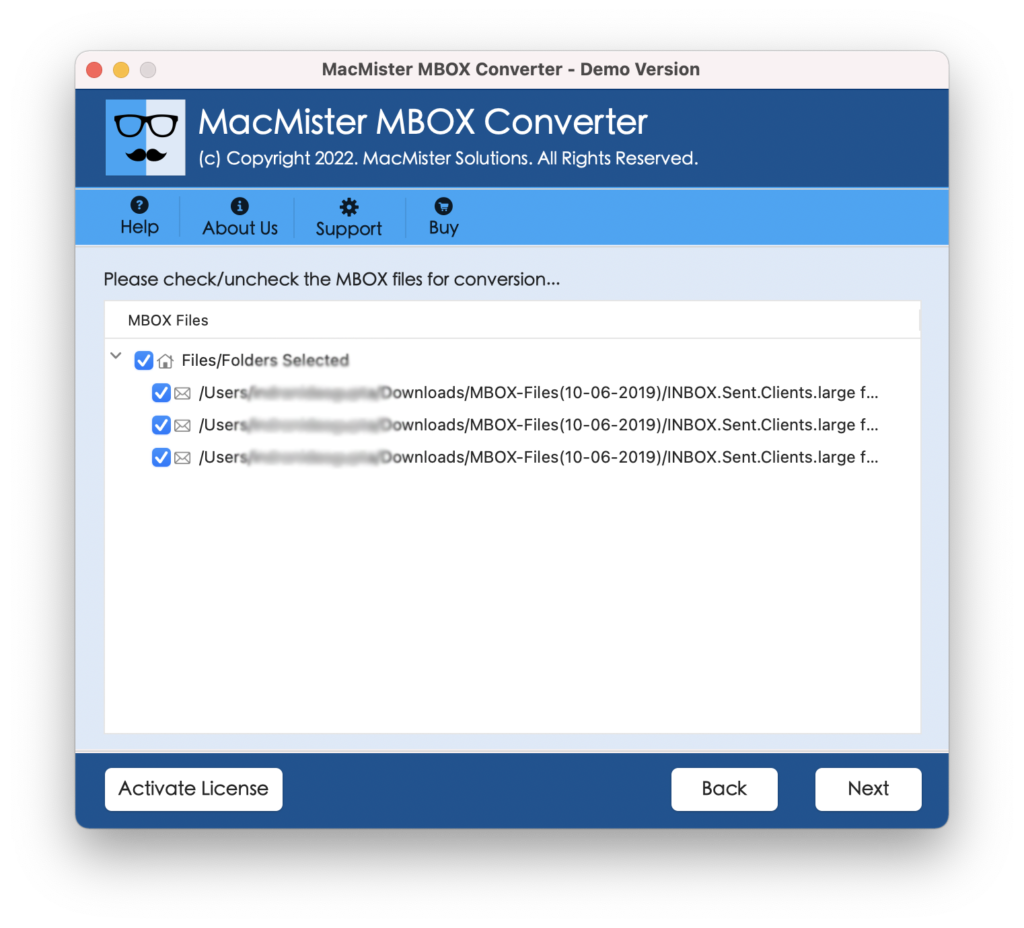
Step 3. Cross-check the listed files. Use the checkboxes to import selective MBOX files to Bluehost, if needed and then click the Next button.
Step 4. Click Select Saving Options and choose IMAP Server from the list.
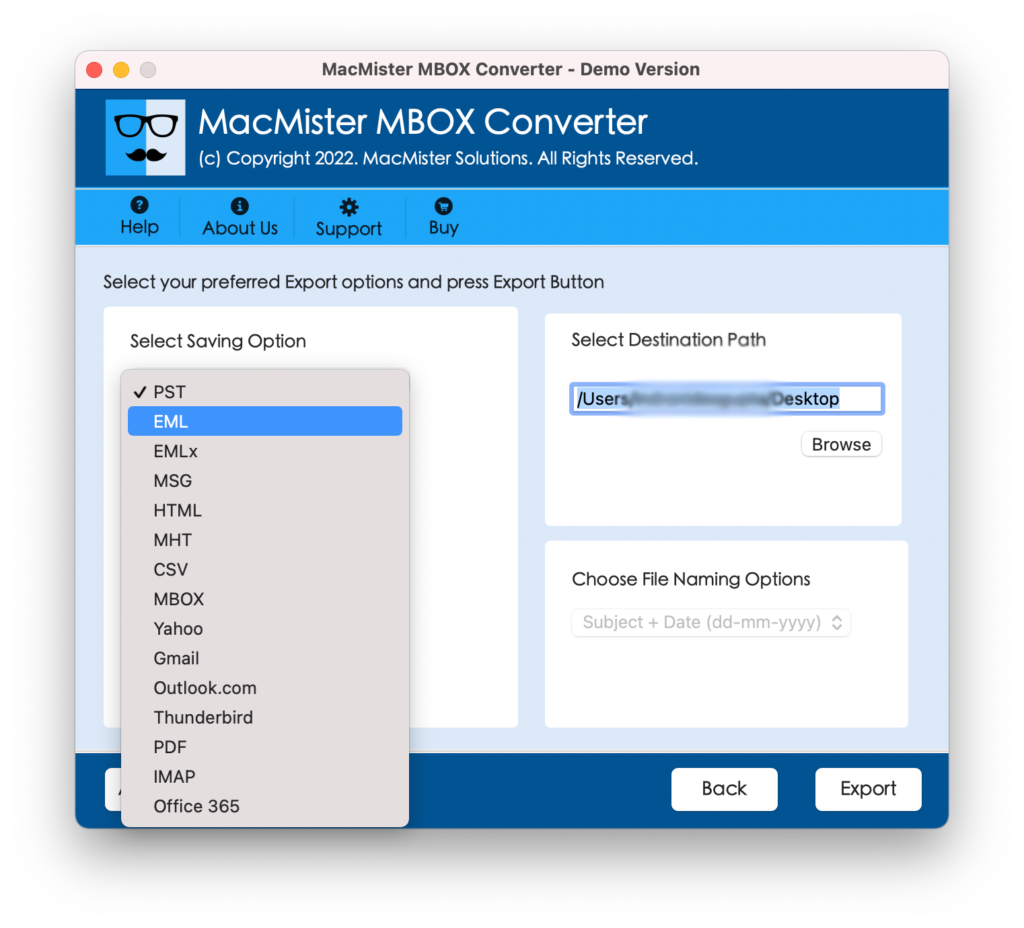
Step 5. Add BlueHost login details along with its IMAP host and port number. Then, click the Export button.
Step 6. The Live Conversion Report screen appears displaying the live import status of MBOX emails to users.
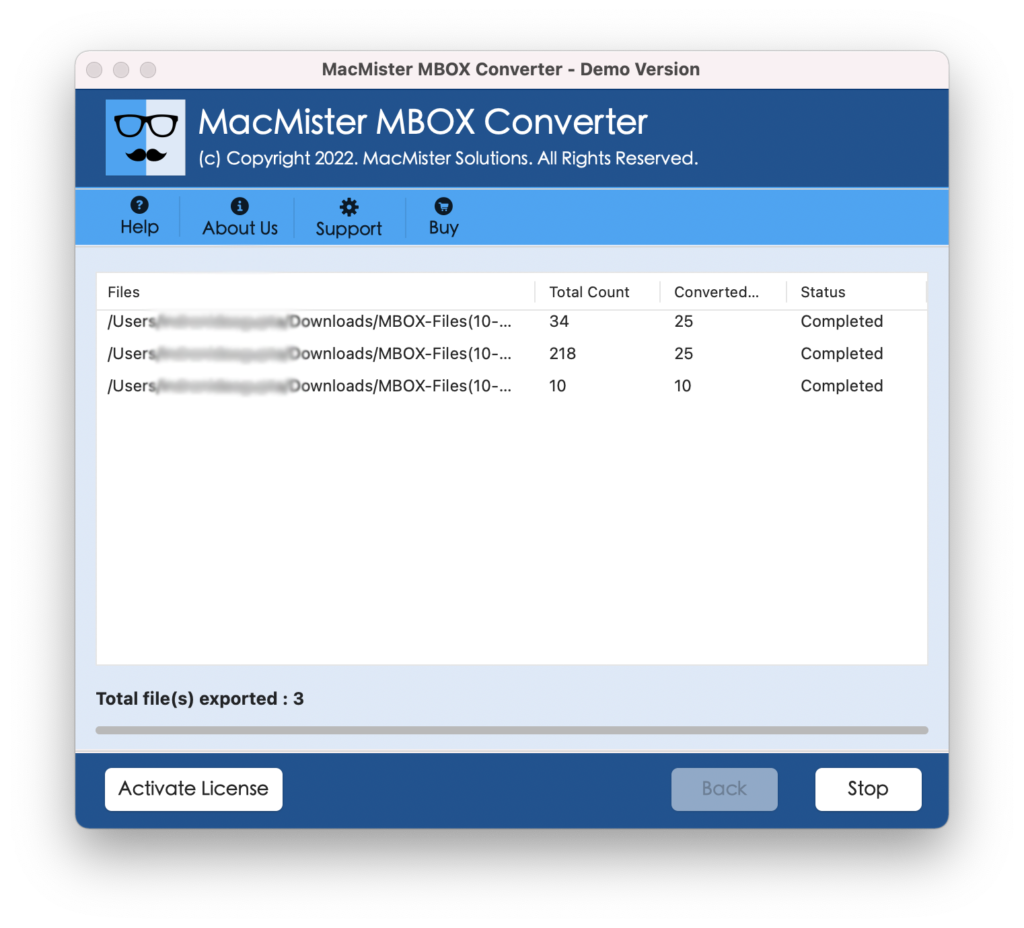
Within seconds, the task will complete and then “Conversion Completed” notification will appear on the screen. Tap OK and then go to Bluehost account to check imported files.
Why to Choose MacMister MBOX to Bluehost Migration Tool?
There are many reasons for choosing the application; some of them are discussed below –
Batch Import MBOX Files to Bluehost at Once
MBOX to BlueHost Migration Tool offers two options to load MBOX files on the software – Add File(s) and Add Folder. Choose the Add Folder button and upload a folder carrying bulk MBOX files on the tool and import all of them at once into Bluehost account without any issues.
Supports Friendly and Intuitive User-Friendly GUI
The tool is programmed with a friendly and intuitive GUI. Users with professional and non-professional skills can handle the task with ease and import MBOX files to Bluehost without facing any challenges.
Includes Multiple Saving Types other than IMAP
MBOX to BlueHost Migration Tool not only import MBOX mailboxes into Bluehost account but also into 15+ more saving options. With the help of the software, users can import MBOX to PST, EML, HTML, DOC, CSV, Gmail, Yahoo, Office 365, Thunderbird, and more.
Protects data originality of MBOX files during Import
The application maintains the originality of MBOX data during import. MacMister MBOX to BlueHost Tool makes sure to protect the original content, email layout, and metadata properties of MBOX emails throughout process. Thereby, once the process completes, users will encounter precise result.
Import MBOX file on Windows and Mac OS Both
The software is available for Mac & Windows OS versions both. Mac users can download and operate the Mac software version to import MBOX files into Bluehost account. Windows users can utilize the Windows software version and import MBOX to Bluehost on Windows OS.
Epilogue
In the write-up we have provided a robust and effective technique to import MBOX to Bluehost email account on Mac & Windows. The above-discussed method is a tested and expert’s recommended solution. It is programmed with an easy operational environment so that all users can quickly and effectively carry out the import process. Besides, users will encounter exceptional features with the help of users can implement the task according to their specific requirements. And the best part is, it is available with a freeware version. Users can download it and check the in-depth processing of the application for free. It also allows to import 25 MBOX emails to Bluehost account free of cost.