How to Transfer Rackspace Emails to Thunderbird on Mac? Complete Guide
Rackspace Email is widely used by businesses and individuals for managing professional email accounts. However, users may need to move their Rackspace mailbox data to Thunderbird for several reasons, including switching email clients, accessing emails locally, creating an additional copy of mailbox data, or managing multiple accounts from one application.
If you are looking for a way to transfer Rackspace emails to Thunderbird, this guide explains the available methods for Mac users. It covers the basic manual approach, its limitations, and an alternative solution for handling Rackspace mailbox data more efficiently.
Overview of Rackspace to Thunderbird Migration
Thunderbird is a desktop-based email client that supports popular email protocols such as IMAP and POP. Rackspace Email can also be configured with email clients using the appropriate server settings.
The manual approach generally involves adding the Rackspace account to Thunderbird through IMAP and allowing Thunderbird to synchronize the mailbox folders. This method can work well when the Rackspace account is active and the user only needs to access the mailbox through Thunderbird.
However, situations become different when users have downloaded Rackspace emails, need to process mailbox data in bulk, or want to transfer previously backed-up email files. In such cases, a dedicated Rackspace to Thunderbird tool for Mac can provide a more convenient approach.
Why Transfer Rackspace Emails to Thunderbird?
There can be several reasons to move Rackspace emails to Thunderbird –
- Switch email clients – Users may prefer Thunderbird’s interface and features.
- Local email access – Thunderbird allows users to manage email through a desktop application.
- Manage multiple accounts – Multiple email accounts can be configured within Thunderbird.
- Preserve important emails – Users may want an additional copy of business or personal correspondence.
- Reduce dependency on webmail – Desktop email access can be useful when users prefer working outside a browser.
- Access older mailbox data – Previously saved Rackspace email data may need to be opened or organized in Thunderbird.
For businesses, maintaining access to older email communication can also be important for reference, documentation, and internal record management.
Method 1 – Transfer Rackspace Emails to Thunderbird Manually
The most common manual method is to configure the Rackspace email account in Thunderbird using IMAP. IMAP keeps email folders synchronized between the mail server and the email client.
Step 1: Open Thunderbird – Launch Thunderbird on your Mac. If it is not already installed, install the appropriate version and open the application.
Step 2: Configure Your Rackspace Account in Thunderbird – Select the option to add a new email account. Enter your Rackspace email address and password when prompted.
Thunderbird may automatically detect the required server configuration. If automatic detection does not work, you may need to enter the Rackspace incoming and outgoing mail server details manually.
Step 3: Select IMAP – When configuring the account, select IMAP if you want Thunderbird to synchronize folders with the Rackspace server.
IMAP is generally preferable when the original mailbox remains available online because it allows Thunderbird to access the server-side mailbox structure.
Step 4: Complete Account Configuration – Enter the required authentication and server information. After Thunderbird successfully connects to Rackspace, it should begin synchronizing available folders.
Step 5: Allow Mailbox Synchronization – Depending on the size of the mailbox and the internet connection, synchronization may take some time. Larger mailboxes containing numerous messages and attachments can require additional time.
Step 6: Verify the Emails – Once synchronization is complete, open the Inbox, Sent Items, Drafts, and other required folders in Thunderbird. Check a few messages and attachments to ensure that the expected data is available.
Limitations of the Manual Method
Although configuring Rackspace with Thunderbird is relatively straightforward, the manual approach has some limitations.
- Requires an Active Rackspace Account – The IMAP method depends on access to the Rackspace mailbox. If the account has been closed or the mailbox is no longer accessible, Thunderbird cannot synchronize the data from the server.
- Not Ideal for Backup Files – If you already have Rackspace emails stored as local backup files, configuring an online Rackspace account in Thunderbird may not solve the problem. A different approach may be required to process the existing files.
- Synchronization Can Take Time – Large mailboxes may contain thousands of messages and attachments. Synchronizing the complete mailbox can take considerable time depending on the mailbox size and network speed.
- Folder Synchronization Issues – Not every mailbox folder may immediately appear or synchronize as expected. Users may need to check Thunderbird’s account and synchronization settings.
- Internet Dependency – The initial synchronization requires a stable internet connection. If the Rackspace server or network connection is unavailable, the process may be interrupted.
- Difficult for Bulk Processing – When multiple Rackspace accounts or large collections of previously exported email data need to be handled, configuring accounts individually can become repetitive.
Method 2: Transfer Rackspace Data Using a Mac-Compatible Tool
For users who need to process Rackspace mailbox data in bulk or work with locally stored email files, a dedicated Rackspace Backup tool for Mac can be a practical alternative.


It provides email migration and conversion solutions designed for Mac users. A dedicated approach can help users process Rackspace email data without relying exclusively on the traditional account synchronization process.
This can be particularly useful when the objective is to handle older or exported Rackspace mailbox data rather than simply synchronize an active account.
General Workflow
A typical workflow with a dedicated migration solution includes –
Install and launch the tool on your Mac.
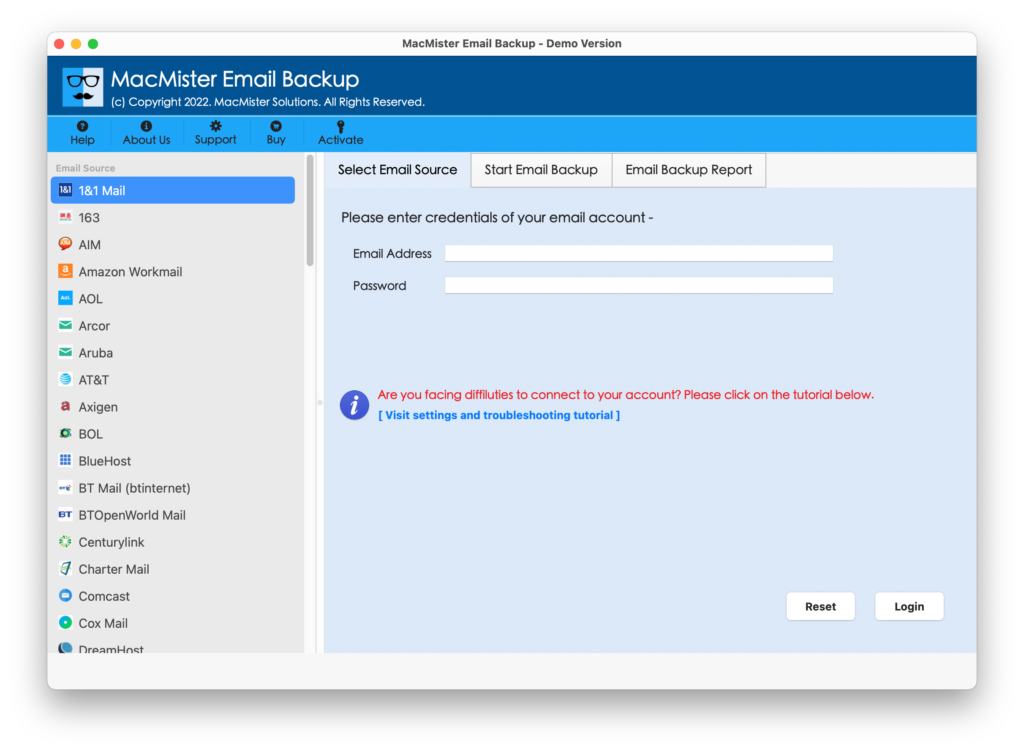
Select Rackspace from webmail list. Add the Rackspace mailbox or select the required email data.
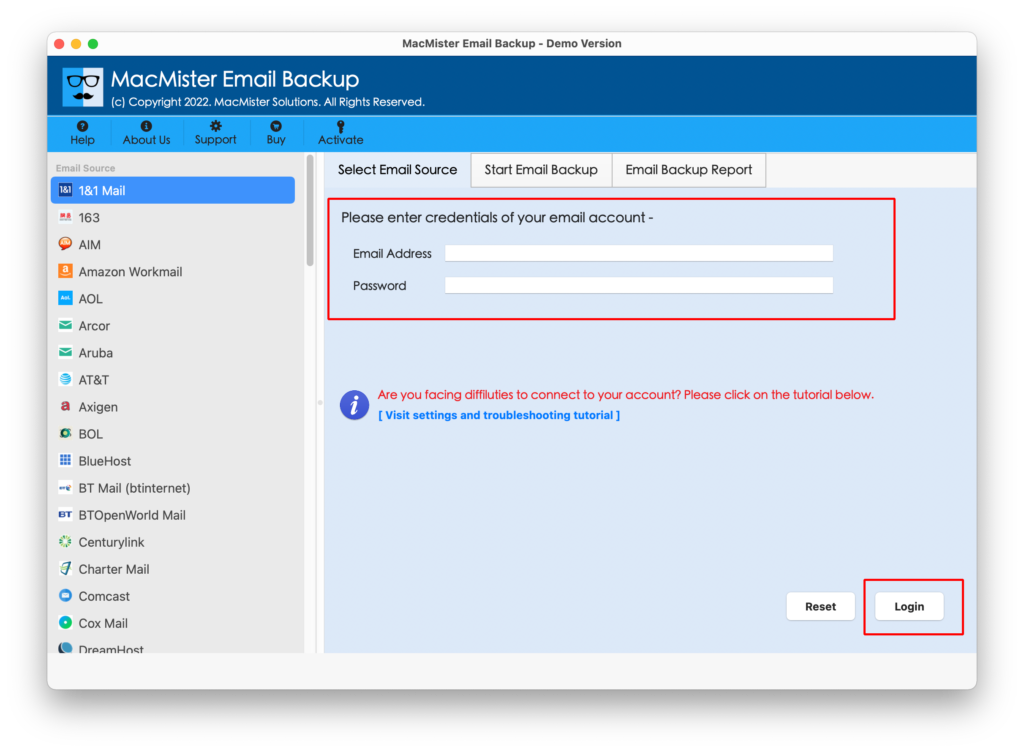
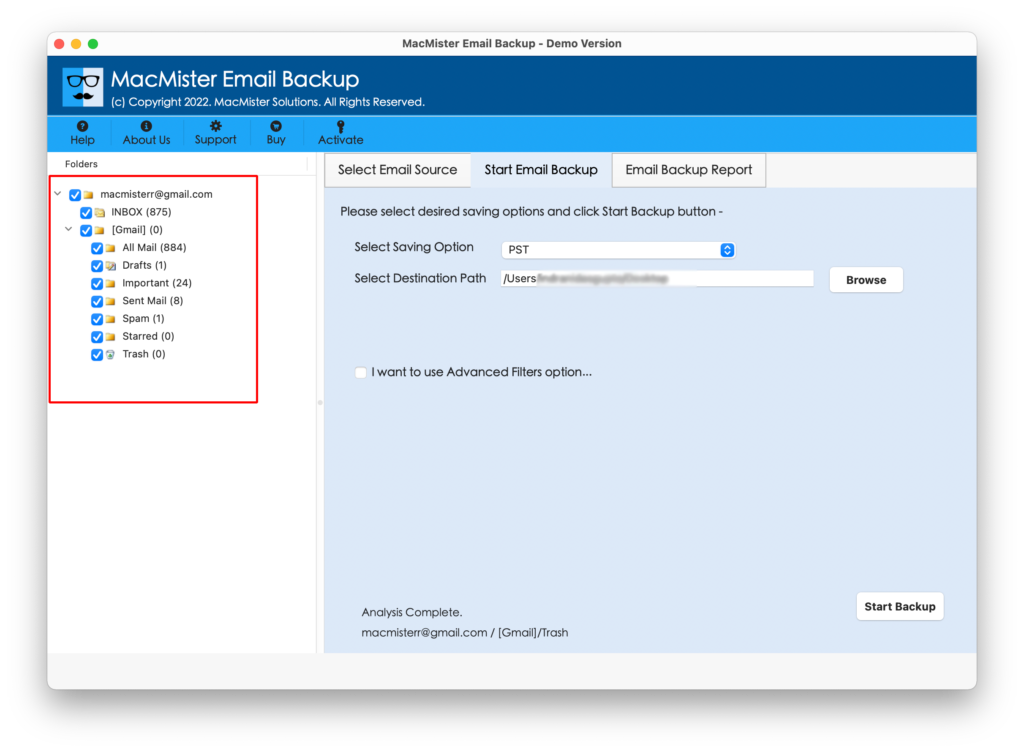
Allow the software to scan and load the available mailbox content. Select the required folders or emails.
Choose Thunderbird-compatible output or the appropriate migration option.
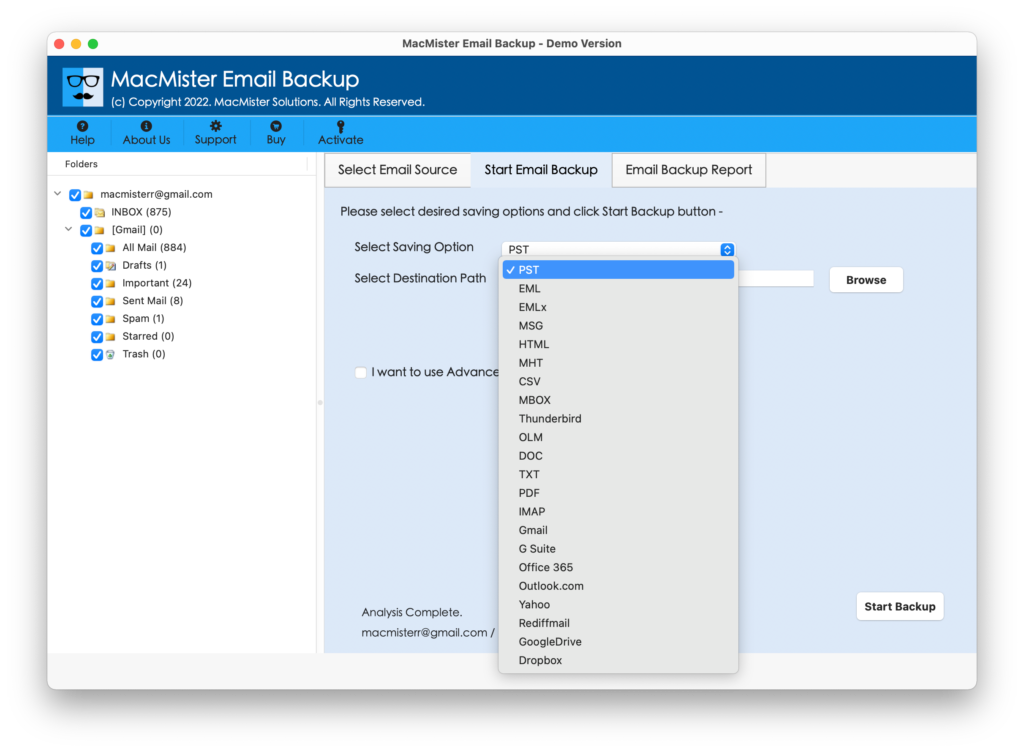
Select a destination location when required.
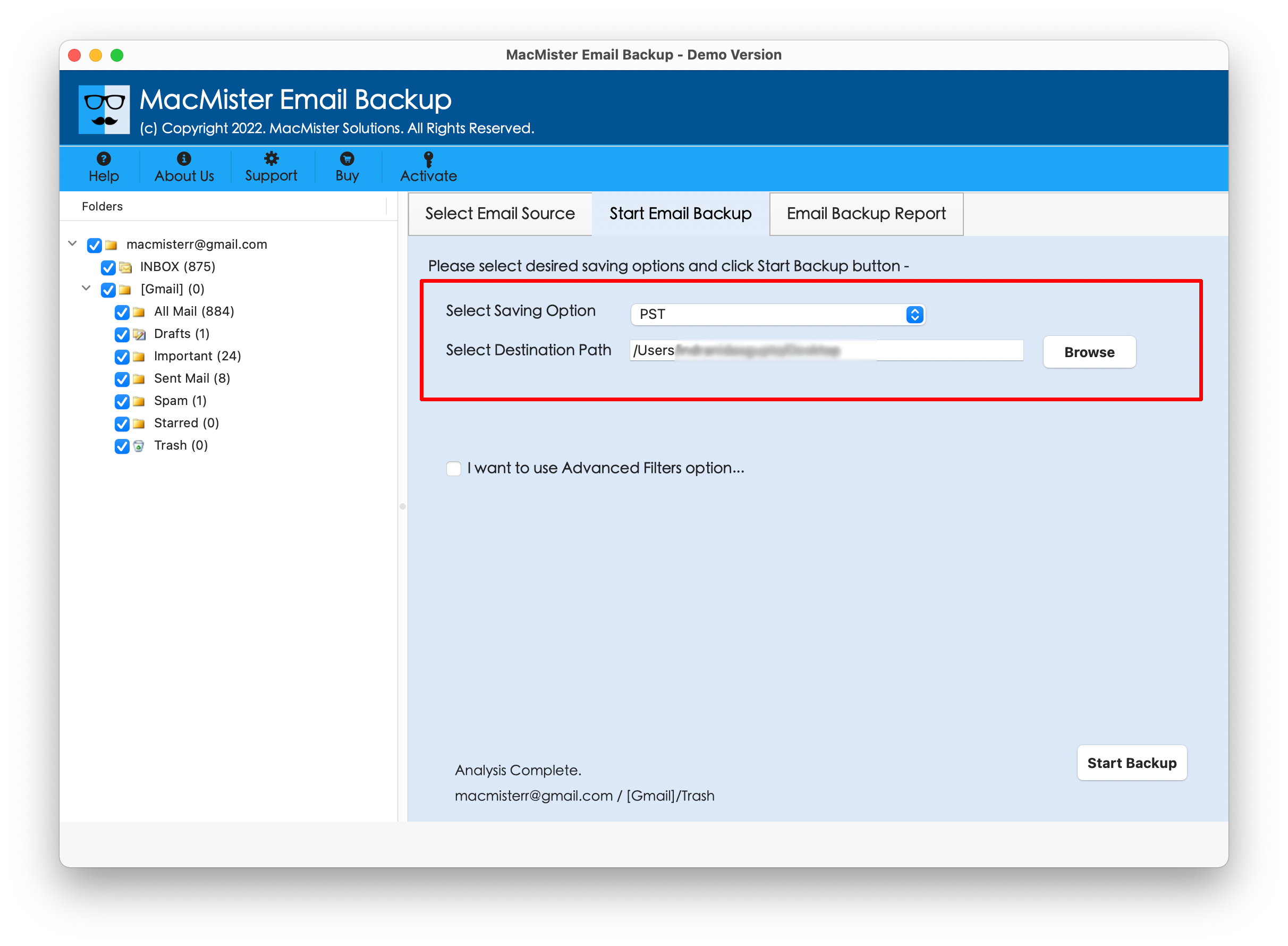
Start the transfer or conversion process.
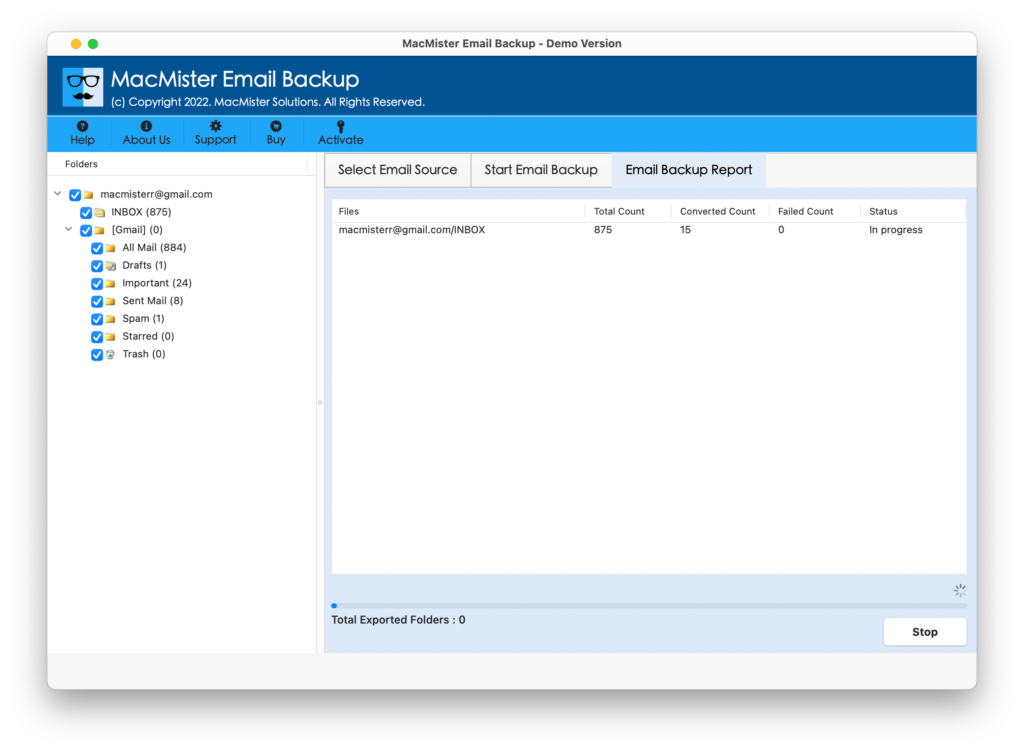
The exact steps can vary depending on the type of Rackspace data being processed and the destination workflow supported by the software.
Rackspace to Thunderbird – Manual vs. Dedicated Tool
| Feature | Manual IMAP Method | Dedicated Mac Tool |
| Mac Support | Yes | Yes |
| Requires Active Rackspace Account | Generally yes | Depends on source data |
| Bulk Processing | Limited | More suitable |
| Previously Exported Data | Limited | Better suited |
| Folder Selection | Available through synchronization | Depends on software |
| Technical Setup | Requires account/server configuration | Guided workflow |
| Best For | Active mailbox synchronization | Bulk or local email processing |
The manual method is appropriate when you simply want to connect an active Rackspace account to Thunderbird. A dedicated tool becomes more useful when you need to process large amounts of email data or work with existing mailbox files.
Frequently Asked Questions
Q. Can I transfer Rackspace emails to Thunderbird on Mac?
Ans. Yes. You can configure an active Rackspace account in Thunderbird using IMAP. For existing local or exported Rackspace email data, a dedicated migration or conversion solution may be more appropriate.
Q. What Is the Simplest Approach for Transferring Rackspace Emails to Thunderbird?
Ans. For an active mailbox, configuring Rackspace through IMAP is the simplest manual option. If you have a large amount of data or locally stored mailbox files, using a dedicated Rackspace to Thunderbird tool for Mac can make the process more convenient.
Q. Does Thunderbird support Rackspace email?
Ans. Yes. Thunderbird supports standard email protocols used for connecting email accounts, including IMAP. The account must be configured with the correct Rackspace server and authentication settings.
Q. Can I transfer only selected Rackspace folders?
Ans. Depending on the method, you can work with selected folders. Thunderbird allows users to manage synchronized folders, while dedicated migration software may provide additional selection options depending on the supported source and destination.
Q. How Much Time Is Required to Transfer Rackspace Emails to Thunderbird?
Ans.The time depends on the mailbox size, number of messages, attachment volume, internet speed, and selected migration method. Large mailboxes generally require more time to process.
Conclusion
Transferring Rackspace emails to Thunderbird on Mac can be accomplished through the manual IMAP configuration method when the Rackspace account is active and accessible. This approach is suitable for users who simply want to synchronize their mailbox with Thunderbird.
However, the manual method can become less convenient when dealing with large mailboxes, multiple accounts, or previously exported Rackspace email data. In such situations, a dedicated Rackspace to Thunderbird Converter for Mac can provide a more streamlined way to process and organize email data.
MacMister offers solutions for Mac users who need to work with email migration and conversion tasks. Before beginning any large transfer, it is recommended to keep a backup of the original Rackspace data and verify the emails, folders, and attachments in Thunderbird after the process is completed.