How to Transfer Outlook Data File from PC to Mac?
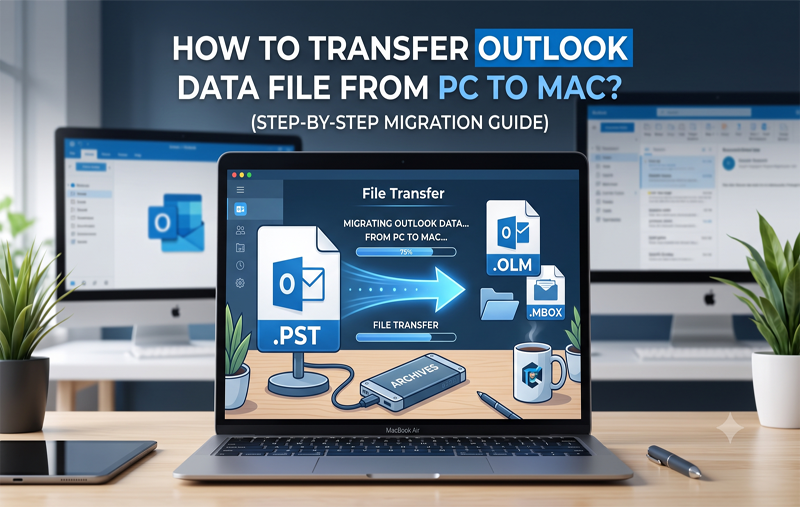
Transferring your entire Microsoft Outlook account from a Windows computer to a Mac computer may seem like a challenging undertaking. This is because the Microsoft Outlook software for Windows uses PST database files, while Mac-based email clients use other types of file formats, such as OLM or MBOX. This means that transferring your email messages, contacts, and other calendar information needs a strategy.
If you are planning to get a MacBook, switching employers, or simply consolidating all your devices, here’s how you can transfer your Outlook account from PC to Mac.
Understanding the PC-to-Mac Outlook Data Gap
On the Windows platform, all data, i.e., inbox folders, sent messages, attachments, custom folders, and contact lists, are stored in the form of .pst files.
There are two major issues faced when switching to the Mac environment:
- Differences in File Systems and Formats: The native format of Apple Mail is .mbox, while the default format in which the Outlook application saves data on macOS is .olm. There is no support for reading .pst files in native formats of Mac OS.
- Permissions on External Drives: When connected to macOS, drives formatted using NTFS are mounted as read-only. Accessing .pst files from an NTFS drive on Mac can produce system errors.
In order to migrate successfully, the PST file must be copied to the local drive (e.g., Desktop or Documents folder) on your Mac.
Phase 1: Locating and Exporting Your PST File from Windows
You should find or create your PST data file on your Windows computer before transferring any files to your Mac.
- Launch Microsoft Outlook on your Windows computer.
- Navigate to File > Account Settings > Account Settings.
- Choose the Data Files tab.
- Choose your primary data file and press Open File Location.
- Then copy the .pst file that is highlighted to a USB flash drive or an external storage drive.
(As another option, you may navigate to File > Open & Export > Import/Export, click Export to a file, choose Outlook Data File (.pst), and export your mailbox together with all the subfolders.)
Step 1: Data Conversion with MacMister PST Converter (Automated Migration)
For those who do not want a manual and non-automatic process and want an easy way of transferring data regardless of the version of Outlook used or even when importing data manually, using a Mac application is the best thing to consider. MacMister PST Converter for Mac & Windows was developed to enable users of macOS to have a link between PST files from Windows and the email application on the Mac.
Benefits of Utilizing PST Data Conversion Utility
- Runs independent of having MS Office applications installed on your Mac computer.
- Converts PST files to OLM, MBOX, EML, PDF, MSG, and HTML format.
- Transfers your PST file to Office 365, Gmail, Outlook.com or any IMAP server.
- Preserves all the details in your inbox including your custom folders.
- Transfers more than one PST file at a go.
Working Guide of the Application
Step 1. Insert your USB drive into your Mac and copy the .pst file into your Documents folder.
Step 2. Install and run the software on your Mac.
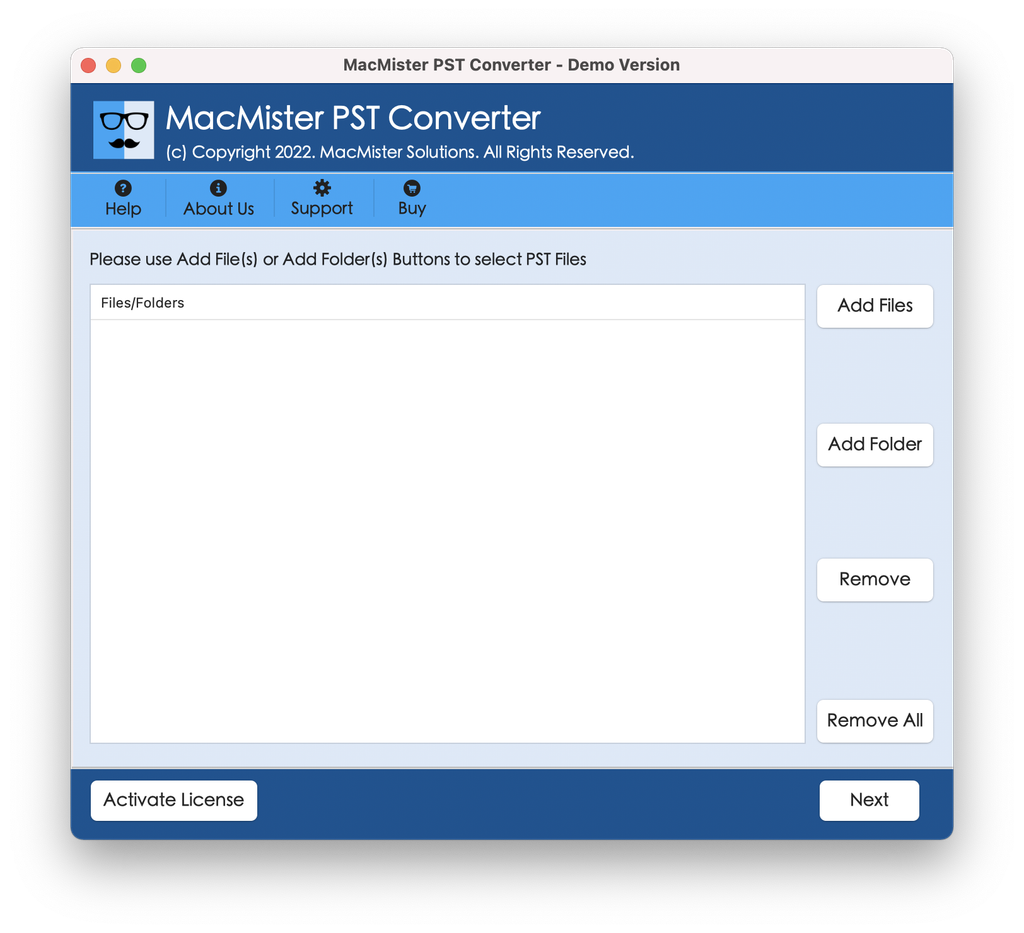
Step 3. Select Add Files or Add Folder to add your converted PST file.
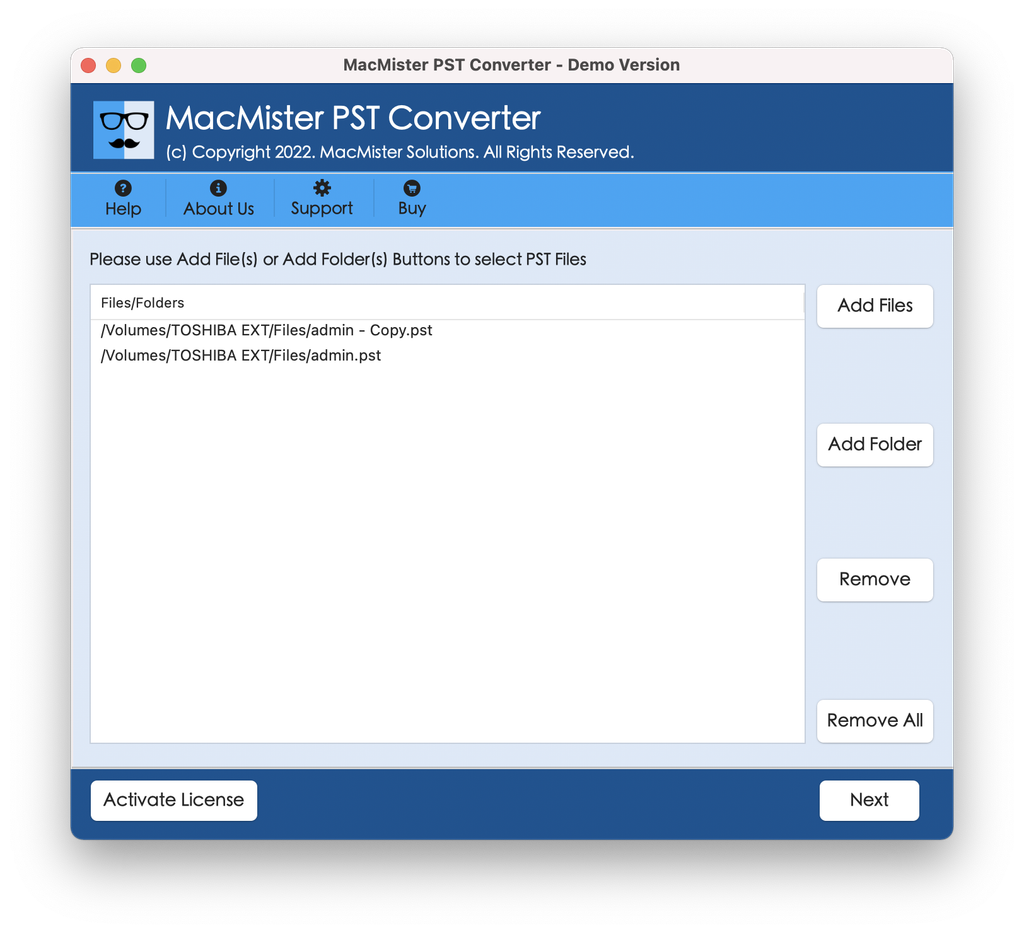
Step 4. Go through the files listed, cross-check the same and proceed further by tapping Next.
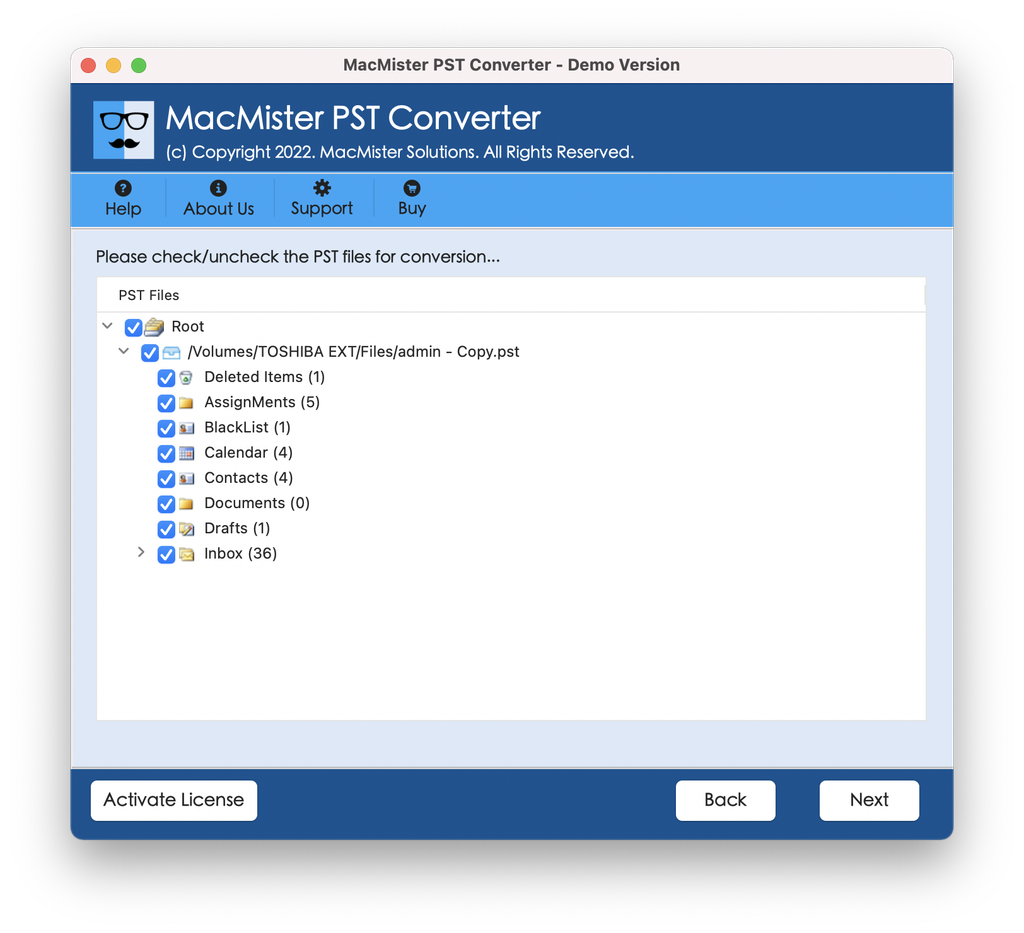
Step 5. Pick the desired target format:
- OLM if you want to use Outlook for Mac.
- MBOX if you wish to migrate to Apple Mail or Thunderbird.
- Office 365 or Gmail in case of direct cloud migration.
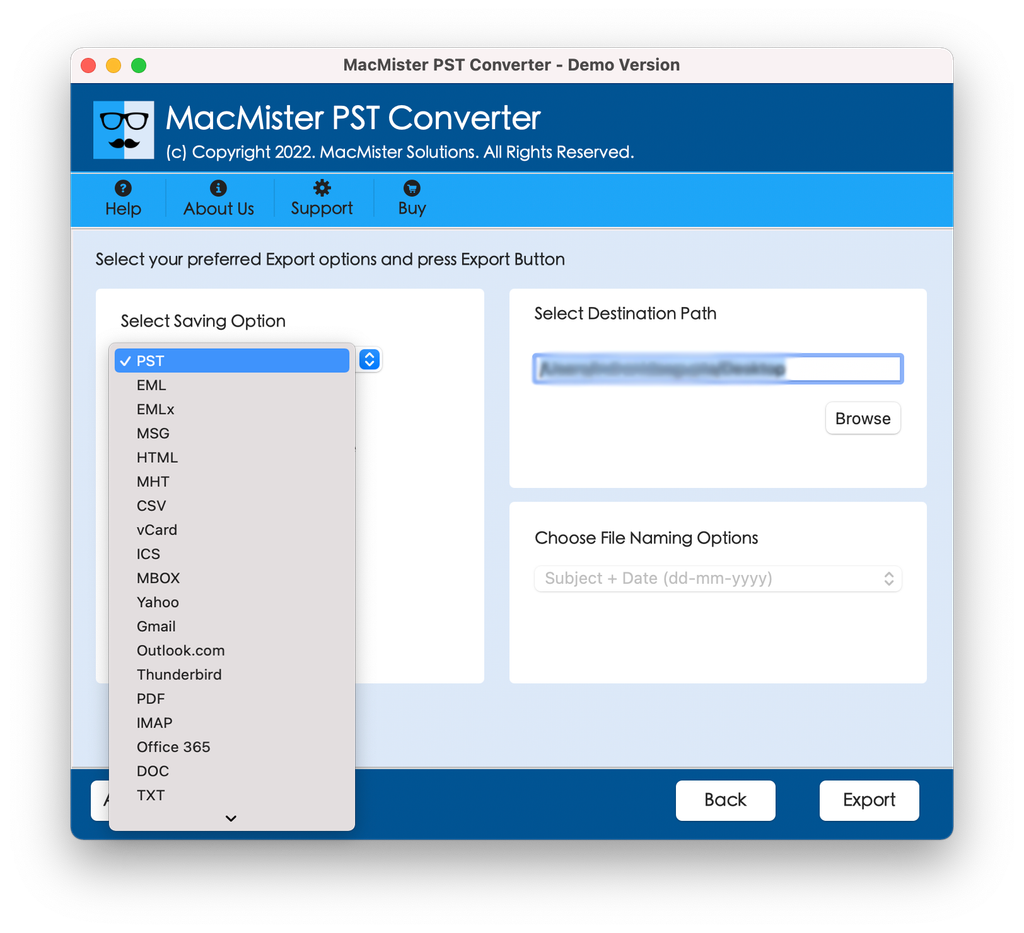
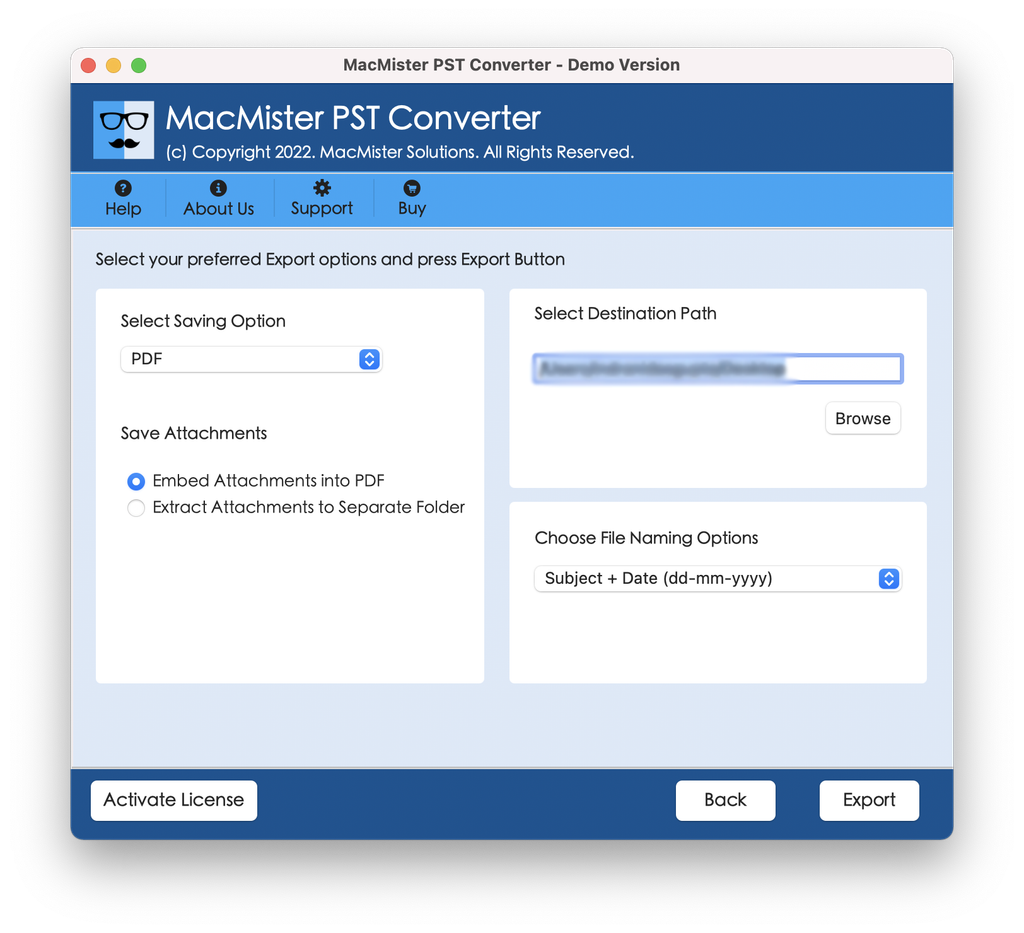
Step 6. Set sub-options according to the requirements and hit Export.
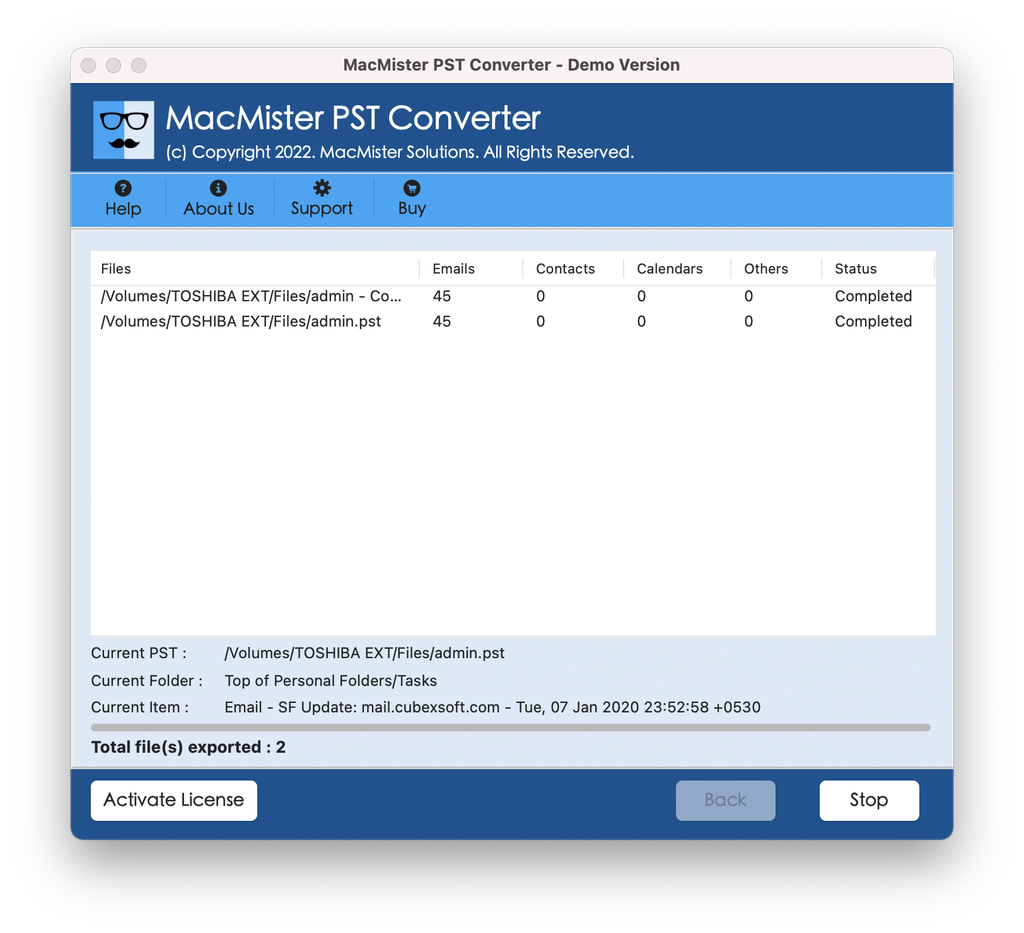
Step 7. Check the live conversion status of PST files using Live Conversion Report appearing on the screen.
Method 2: Manual Import via Outlook for Mac (Legacy Mode)
If you have access to the MS 365 account and the desktop application Outlook for Mac has been installed, you can use the wizard of the application for importing PST files.
Step 1: Switch to Legacy Outlook
The new interface of “New Outlook” for Mac does not always enable importing PST files from your local computer. Therefore, you should turn on Legacy Outlook:
- Run Outlook for Mac.
- Navigate to the Help menu in the top bar of the interface.
- Choose Revert to Legacy Outlook (or disable the switch of New Outlook).
Step 2: Importing the PST File
- Open the File menu and select Import… in the menu.
- Pick Outlook for Windows archive file (.pst) and choose the option “Continue”.
- Browse for your PST file and press “Import”.
- Click “Finish” after the completion of the process of importing (when 100% is reached).
Imported PST files will be located in the left panel in the folder “On My Computer”.
Method 3: Over-the-Air Transfer via Cloud IMAP Sync
However, if you don’t wish to use any third-party tools such as external hard drive storage and conversion software, then you could simply move the data over the internet with the help of a free IMAP email account (e.g., Gmail or Outlook.com).
- From Windows Computer: Create a Gmail or IMAP account on Windows Outlook.
- Move the PST files to the Gmail/IMAP account’s inbox via drag-and-drop from the Windows Outlook account.
- Let the data get uploaded to the cloud.
- From the Mac: Navigate to “System Settings” > “Internet Accounts” and sign in to the Gmail/IMAP account.
- Launch Apple Mail or the Outlook account on Mac computer.
Essential Tips for a Smooth Migration
- Avoid Working Across Network Drives: Always copy the PST file to your Mac’s internal SSD before initiating an import or conversion.
- Check File Corruption: If an import fails, run Microsoft’s free
Scanpst.exetool on your Windows PC to fix index errors before transferring the file. - Verify Attachments: After completing the transfer, open a few sample emails containing large attachments to verify that all data transferred cleanly.
Epilogue
Transferring your Outlook data file from a PC to a Mac doesn’t have to be complicated. If you are staying within the Microsoft ecosystem, using Outlook for Mac in Legacy mode gives you a native import tool. If you want to move your data to Apple Mail, save messages as searchable PDFs, or complete a fast batch transfer without installing Microsoft Office, MacMister PST File Coversion app offers a reliable, standalone solution to get your workflow running smoothly on macOS.