How to Open and Import PST Files on Mac (With or Without Outlook)?
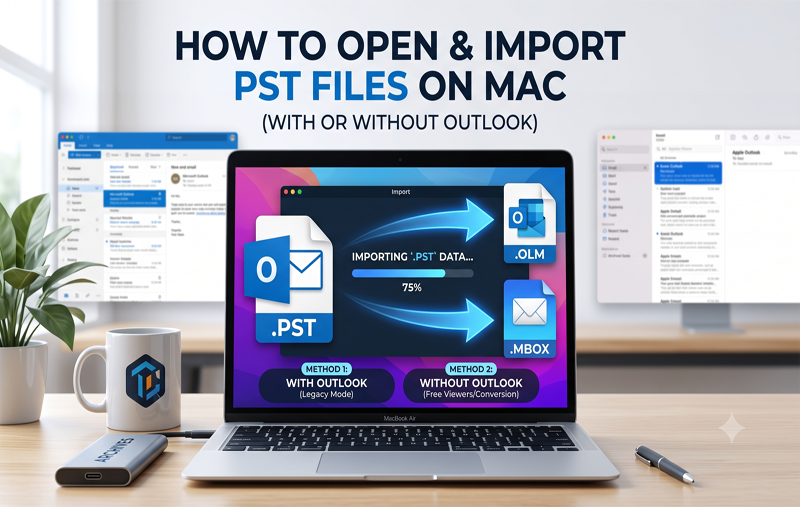
When changing from a Windows system to a Mac system, one frustrating thing that you may face is that macOS does not have support for Windows Outlook PST files by default.
When trying to open a .pst file on a Mac system using the Double-click option, programs such as Preview or TextEdit won’t be able to open this type of file. In Apple Mail, the format used is MBOX while in the Outlook for Mac the native format is OLM. But still opening old emails, contacts, and calendar events that are saved in the PST file is possible on a macOS system.
Explaining the Problem of PST Files in macOS
Microsoft Outlook on Windows combines all elements contained in a mailbox such as emails, attachments, contacts, tasks, and calendars into .pst files.
Since macOS operates using Unix-based file systems and mail files, it does not support the opening of PST files without using any intermediary program. Changing the .pst extension will damage the file structure.
Method 1: Import PST Files via Outlook for Mac
The proper way to view a PST file in a Mac system is via Microsoft Outlook for Mac. But there is one exception depending on which interface version you use in your Outlook program.
Step 1: Switch to Legacy Outlook Interface (If Required)
Sometimes, the new outlook interface in a Mac prevents you from importing local PST files. When you find the import feature grayed out, use Legacy Outlook interface:
- Launch Outlook for Mac.
- Click the Help menu at the top of the screen.
- Select Revert to Legacy Outlook (or toggle off New Outlook in the top-right corner/app menu).
Step 2: Importing the PST File
- Launch Outlook and navigate to File > Import…
- From the wizard window, choose Outlook archive for Windows (.pst) file and click Continue.
- Choose the .pst file from your Mac hard disk and click on Import.
- Click on Finish after the completion of the process.
The imported folders can be seen in the sidebar section under “On My Computer.”
Method 2: Import PST Files into Apple Mail
Importing PST files in Apple Mail is not possible. To transfer your emails stored in PST format into Apple Mail without using paid programs, cloud-based IMAP synchronization (Gmail or Outlook.com) can be considered.
- Uploading through Windows (or web mail): Set up a Gmail or Outlook.com free account in Windows Outlook. Drag and drop the PST emails into the cloud-based account’s inbox.
- Performing synchronization on Mac: Launch System Settings -> Internet Accounts on your Mac computer.
- Set up the Gmail/Outlook account and activate the Mail.
- Your PST file messages will be automatically synced into Apple Mail.
Option #2: Convert the .pst file into .mbox format using some off-line program for transferring files, and then import the converted file into Apple Mail using File -> Import Mailboxes -> Files in MBOX format.
Method 3: View PST Files on Mac Without Installing Outlook
If you need access only to your archived emails and their attachments, there are some light weight readers you may consider:
| Viewer Tool | Type | Key Features | Best Used For |
| GoldFynch PST Viewer | Web Browser (Free) | Does not require registration; works client-side within the browser, opens attachments. | Does not require registration; works client-side within the browser, opens attachments. |
| Enolsoft PST Viewer | macOS App (Freemium) | Supports large PST files (over 10 GB); supports searching and folders. | Heavy desktop viewing without using Outlook. |
| PST Bridge | macOS App (Mac App Store) | Supports reading PST files and works seamlessly with Apple Mail. | Those switching fully to the native Apple mail suite. |
Troubleshooting Common Mac PST Issues
- The file is Grayed Out: Make sure the file is not on the NTFS-based external storage device that can be accessed on the Mac in read-only mode. First, copy the .pst file to the Downloads or Documents directory of your Mac computer.
- Corrupted PST Files: In case of any problems with importing the PST file, use the built-in Windows utility scanpst.exe to fix the file first and then move it to the Mac.
- High PST Files Size (over 20GB): Split large PST files on Windows Outlook.
Method 4: Import PST Files on Mac using Automated Solution
For users who want a direct, one-stop conversion without relying on intermediate cloud syncing or switching between Outlook interface modes, specialized automated utilities offer the fastest workflow. MacMister’s Mac PST Converter is built specifically for macOS to convert PST files directly into formats compatible with Mac email clients.
Working Guide of the Application
Step 1. Download and launch the app on your Mac.
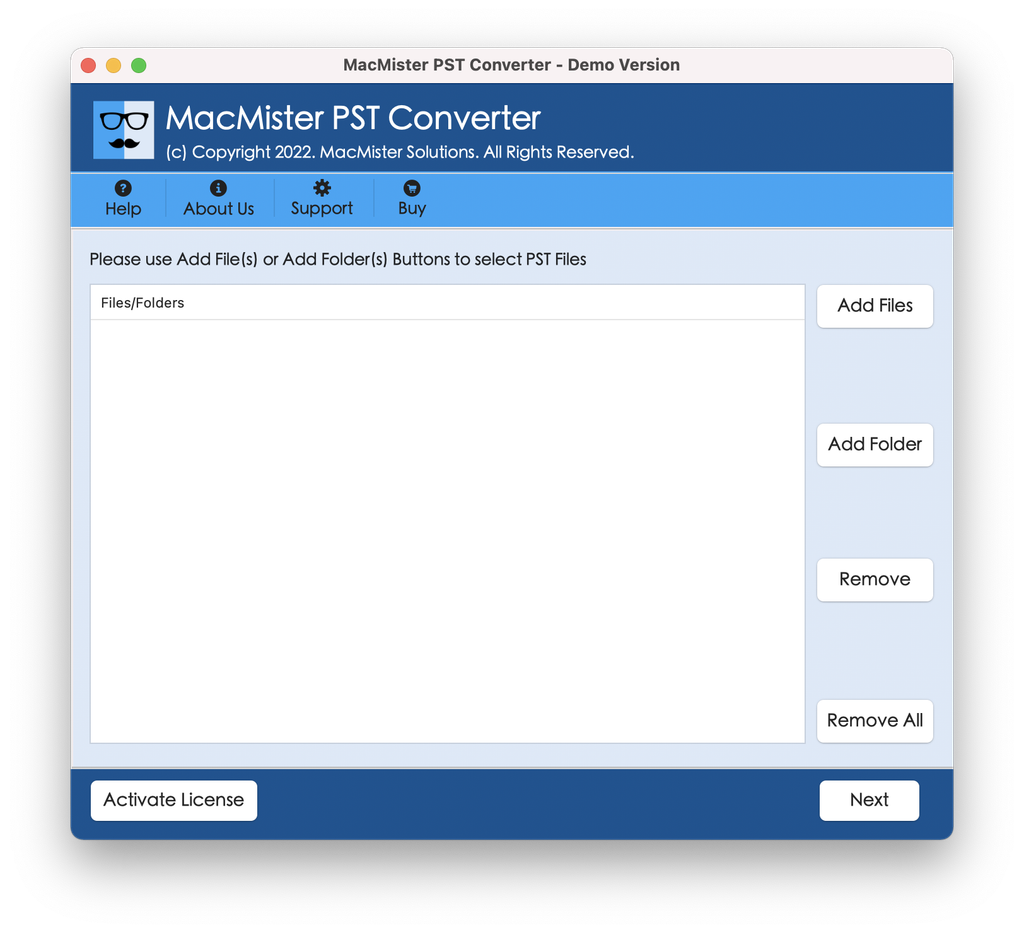
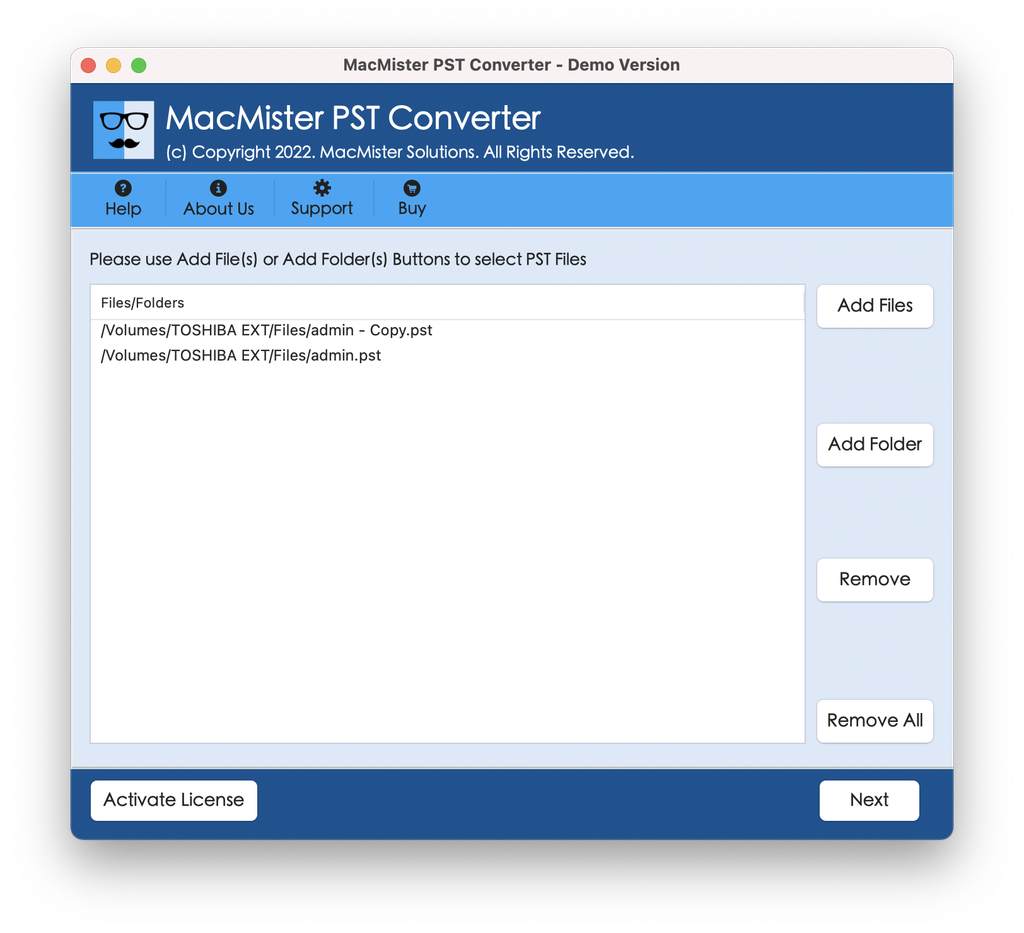
Step 2. Click Add Files or Add Folder to load your .pst archives.
Step 3. Select your desired output format (e.g., MBOX for Apple Mail, OLM for Mac Outlook, or a direct Cloud Service).
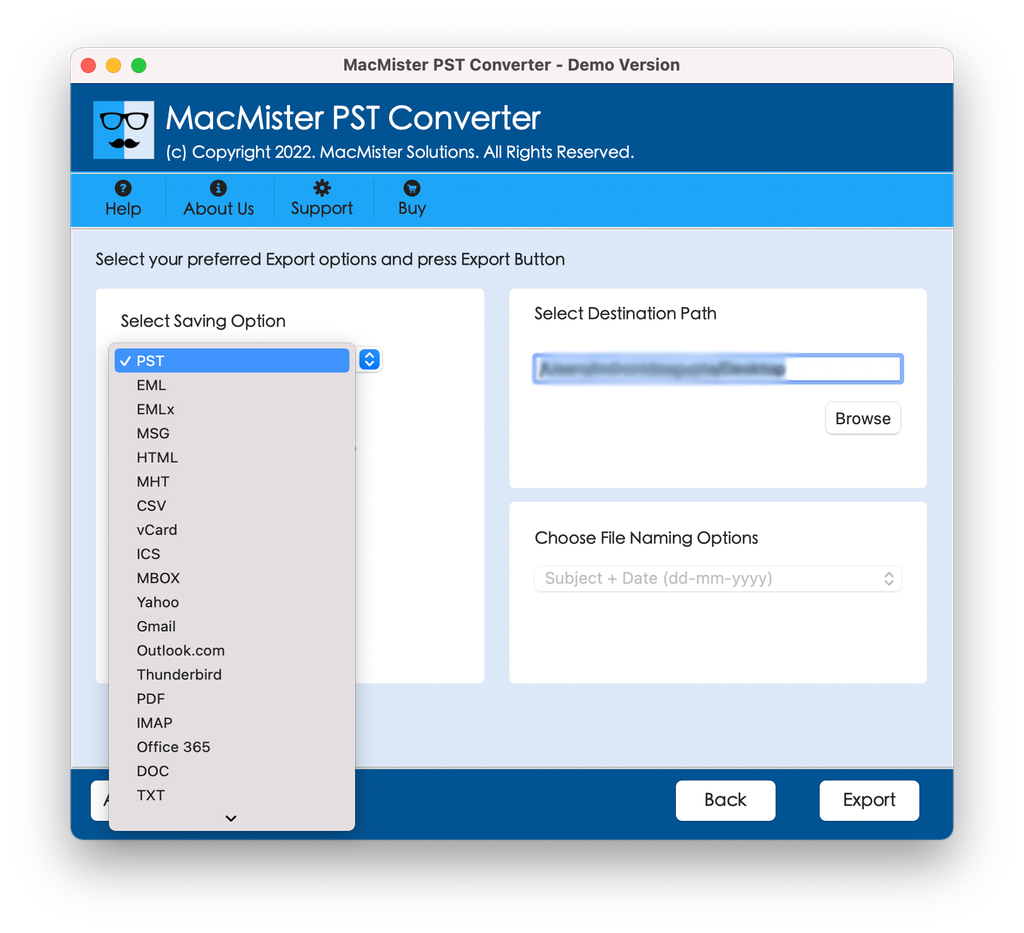
Step 4. Set sub-options and tap Export to execute the process.
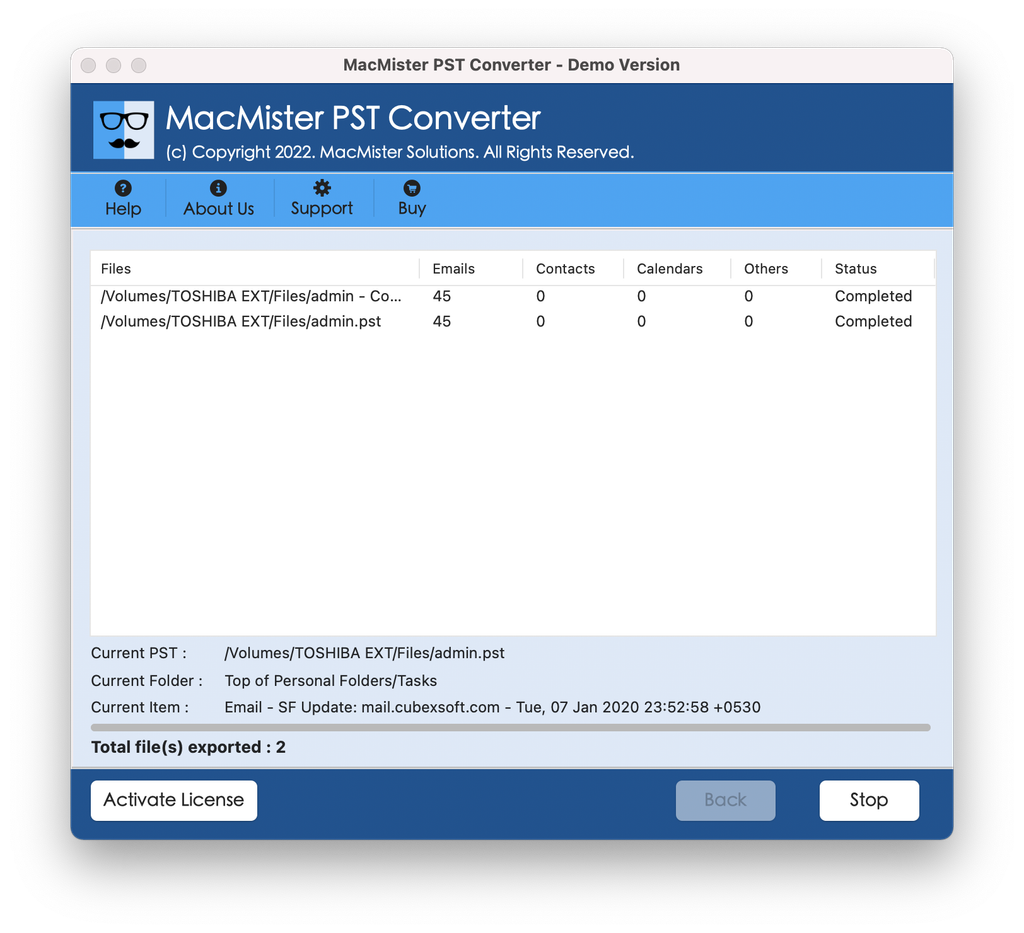
Step 5. Check the live import status of PST files using Live Conversion Report screen.
Main Advantages of the Application:
- Conversion of .pst files to native Mac formats such as OLM, MBOX, EML, MSG, and PDF.
- Migration of PST files content into Office 365, Gmail, Outlook.com, and IMAP server without having to manually transfer any file.
- Processing of several PST files at once keeping the folder structure intact.
- A stand-alone tool that does not require the installation or subscription of Microsoft Outlook for Mac.
Epilogue
Though macOS is not designed to open Windows PST files, getting your old emails and other information from them does not have to be too much of a challenge. The easiest way to get your emails would be to use the Legacy mode in the Microsoft 365 app – if you have one, of course. Otherwise, if you wish to shift all of your accounts to the Apple environment, you can opt for an IMAP cloud account or convert your PST to MBOX format.
If you only need to retrieve some old email or an attachment, you can use a simple web browser viewer tool for this purpose or download a special utility for macOS. In any case, be sure to first transfer your PST file to your Mac for a trouble-free import.