How to Open MBOX File in Chrome Browser: Step-by-Step Guide
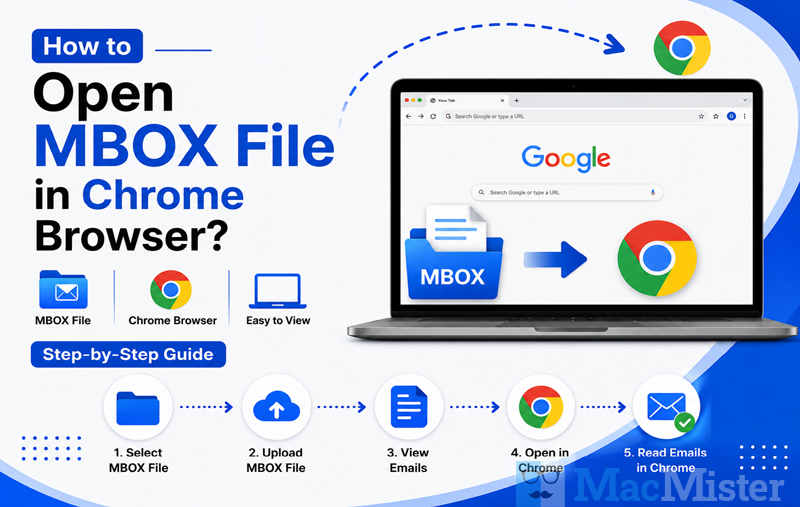
Summary: MBOX is a commonly used file format for storing email data from various email applications. However, accessing MBOX files directly in a web browser like Google Chrome is not always straightforward because Chrome does not natively support this format. Users who want to view or read MBOX emails without installing a dedicated email client need an alternative approach. In this guide, we will explain different ways to open and view MBOX files in the Chrome browser. Whether you want to quickly preview email content or access mailbox data from an exported MBOX file, this article will walk you through the available methods and help you find a suitable solution for opening MBOX files easily.
What Are MBOX Files?
MBOX, short for MailBOX, is a file format used to store multiple email messages in a single mailbox file. Instead of saving each email separately, an MBOX file combines a collection of messages along with their details, such as sender information, headers, content, and attachments.
There are several variations of the MBOX format, including MBOXO, MBOXRD, MBOXCL, and MBOXCL2, each with slight structural differences. This format is widely supported by many email applications, including Mozilla Thunderbird and Apple Mail, and is also commonly used when exporting emails from services like Google Takeout.
One of the main advantages of MBOX files is their ability to store large collections of emails in an organized and portable way, making them useful for backups and email migrations. However, MBOX files are not designed to be opened directly by regular file viewers or web browsers such as Chrome.
When an MBOX file is opened in Chrome without proper conversion, the browser may only display the raw text structure, including email headers, encoded attachment data, and formatting information. It does not provide a proper email-like view with readable messages, folders, or attachments. To view MBOX content clearly, users typically need a compatible email application or a suitable conversion method.
Methods to Open MBOX Files in Chrome Browser
Since Chrome does not provide a built-in feature to display MBOX emails in a readable format, accessing mailbox data directly through the browser can be difficult. However, there are a few practical ways to view MBOX files and make their content accessible without complicated procedures.
1) Open MBOX Files Using an Email Client
The most reliable way to access MBOX data is by importing the file into a compatible email application. Since MBOX is a widely supported mailbox format, many email clients can open and read these files while maintaining the original email structure, including messages, folders, and attachments.
After importing the MBOX file into an email client, you can also export the emails into an HTML format. HTML files can be opened directly in Chrome and other web browsers, allowing you to view your emails in a more organized and readable format.
This method is recommended for users who want to preserve email formatting and access mailbox data safely before viewing it through a browser.
How to Open MBOX Files in Chrome Browser: Effective Methods
Since MBOX files cannot be viewed properly in Chrome by default, you need an alternative method to access the emails in a readable format. Below are some practical solutions that allow you to open and view MBOX content easily.
1) View MBOX Files Using Thunderbird
Mozilla Thunderbird is a popular email client that supports MBOX files and allows you to import and manage mailbox data. You can also export the imported emails into HTML format, which can then be opened in Chrome.
Follow these steps:
- Download and install Thunderbird from its official website.
- Launch the Thunderbird application.
- Install the ImportExportTools NG add-on.
- Right-click on Local Folders.
- Select ImportExportTools NG > Import MBOX file.
- Choose the option Import one or more mbox files and click OK.
- Browse to the location of your MBOX file and select it.
Once the MBOX file is imported, you can export the emails as HTML files:
- Right-click on the required email folder.
- Select ImportExportTools NG > Export all Messages in Folder > HTML Format.
- The emails will be saved as HTML files that can be opened directly in Chrome.
This method allows you to read MBOX emails with their original formatting instead of viewing raw mailbox data.
Open MBOX Files Using Apple Mail on Mac
Mac users can use Apple Mail because it provides native support for MBOX files. You can import the mailbox and access the emails directly.
Follow these steps:
- Locate your MBOX file on your Mac.
- Make sure the file has the .mbox extension. If required, rename the file extension.
- Open the Apple Mail application.
- Navigate to File > Import Mailboxes.
- Select Files in MBOX format and click Continue.
- Browse and select the MBOX file location.
- Click Continue to complete the import process.
After importing, you can access the emails with proper formatting and export them into a browser-friendly format if needed.
2) Use an Instant Solution
If you only need to quickly view MBOX emails without installing an email client, an MBOX Converter for Mac can be a convenient option. These tools allow you to open mailbox files and display individual emails in an organized format directly within a browser environment. Instead of showing the raw MBOX structure, the emails are separated and listed individually, allowing you to select and read each message easily.
For users who prefer offline access, a dedicated MBOX viewer application can also be used. It provides additional features such as searching within mailbox content and browsing emails without uploading data online.
3) Convert MBOX File into HTML Format
Another effective way to open MBOX files in Chrome is by converting them into a format supported by web browsers, such as HTML.
During conversion, each email is transformed into a separate readable webpage that can be opened directly in Chrome. This approach helps maintain important email elements, including:
- Email formatting
- Images
- Hyperlinks
- Message details
- Original content structure
A reliable MBOX to HTML Converter tool can simplify this process and help you access your mailbox data in Chrome without dealing with complicated steps.
Conclusion
Google Chrome does not directly support viewing MBOX files in a proper email format, but several solutions can help you access the data easily. Using email clients like Thunderbird or Apple Mail is a reliable option for importing and managing MBOX files. For quick access, an MBOX viewer can provide an instant preview, while converting MBOX files into HTML allows you to open emails directly in Chrome with proper formatting.