How to Import MBOX Files into Microsoft Office 365 for Mac?
User’s Query: I recently received several MBOX files from a coworker and need to move all of them into my Office 365 account so everything is stored and managed in one place. I’m not sure what the safest way is to import multiple MBOX files into Office 365. Since these files contain confidential and important information, I need a reliable method that transfers the data without any risk of loss or corruption. Can anyone recommend a secure and efficient solution?
Before choosing a migration method, many users decide to move their MBOX files to Microsoft Office 365 to take advantage of its advanced collaboration tools, cloud accessibility, and enhanced productivity features. Office 365 also includes strong security and compliance capabilities that help safeguard sensitive and confidential information. To complete the migration, you can either use a manual approach or opt for a trusted MacMister MBOX Converter tool, which is often a more efficient and secure choice when importing multiple MBOX files while preserving data integrity.
Why Should You Migrate MBOX Files to Microsoft 365?
Many individuals and organizations choose to migrate MBOX files to Microsoft 365 because it offers a more secure, flexible, and efficient email management experience. Instead of storing emails locally, Microsoft 365 keeps your mailbox in the cloud, making it easier to access and manage your data from anywhere.
Some of the key advantages of migrating MBOX files to Microsoft 365 include:
- Secure cloud-based storage that helps protect email data.
- Access to emails from any location using any supported device.
- Centralized mailbox management for better organization.
- Powerful search capabilities to quickly find important emails.
- Advanced security, compliance, and data protection features.
- Smooth integration with Microsoft applications such as Outlook, Teams, OneDrive, and other productivity tools.
With these advantages, migrating MBOX files to Microsoft 365 is a smart choice for users who want improved accessibility, enhanced security, and a modern email management platform.
Method 1: Transfer MBOX Emails to Microsoft 365 Using Thunderbird and Outlook
One of the traditional ways to move MBOX data into Microsoft 365 is by first converting the MBOX files into PST format with the help of Mozilla Thunderbird and Microsoft Outlook. Once the PST file is created, it can be used with Outlook before syncing the mailbox with your Microsoft 365 account.
Follow these steps:
- Open Mozilla Thunderbird on your computer.
- Select the emails you want to export, right-click them, and choose Save As.
- Save the exported MBOX files to a preferred folder on your system.
- Launch Microsoft Outlook.
- Create a new folder in Outlook and drag the saved MBOX files into it.
- Outlook stores the imported mailbox data in PST format, which can then be synchronized with your Microsoft 365 mailbox.
Drawbacks of This Method
Although this approach is free, it comes with several limitations:
- It is suitable only for importing a limited number of MBOX files.
- Bulk migration can be slow and difficult to manage.
- Both Mozilla Thunderbird and Microsoft Outlook must be installed and configured.
- There is a possibility of missing email properties or folder hierarchy during the transfer.
- The process can be confusing for users with limited technical knowledge.
If this manual method doesn’t meet your requirements or you’re working with multiple MBOX files, you may want to consider a more automated solution that supports direct migration while preserving all email attributes.
If your goal is to transfer MBOX files directly to cloud-based mailboxes, you can also explore a dedicated guide on importing MBOX files into Exchange Online.
Method 2: Use a Professional MBOX Migration Tool for Outlook and Microsoft 365
If the manual approach seems complicated or doesn’t support bulk migration, using a professional MBOX migration tool is a more efficient alternative. An advanced MBOX to Office 365 Converter allows you to transfer MBOX files directly to Microsoft 365 without first converting them to PST, making the process faster and easier.
In addition to Microsoft 365 migration, the software can also export MBOX files to OLM format, enabling seamless import into Outlook for Mac. Throughout the migration, it preserves the original folder structure, email formatting, attachments, and metadata, including To, Cc, Bcc, Subject, Date, and other message properties.
The utility is compatible with MBOX files generated by popular email clients such as Thunderbird, Apple Mail, Gmail (via Google Takeout), Eudora, Entourage, Opera Mail, and many others. It is designed to maintain data integrity while ensuring that no email information is altered during the migration process.
For Mac users, the software also provides a straightforward way to import MBOX files into Outlook 365 on macOS, making it a convenient solution for both individual users and organizations managing large-scale email migrations.
Steps to Import MBOX Files into Microsoft 365
After installing and launching the MBOX to Microsoft 365 tool, follow these instructions to transfer your MBOX emails to an Outlook (Microsoft 365) account:
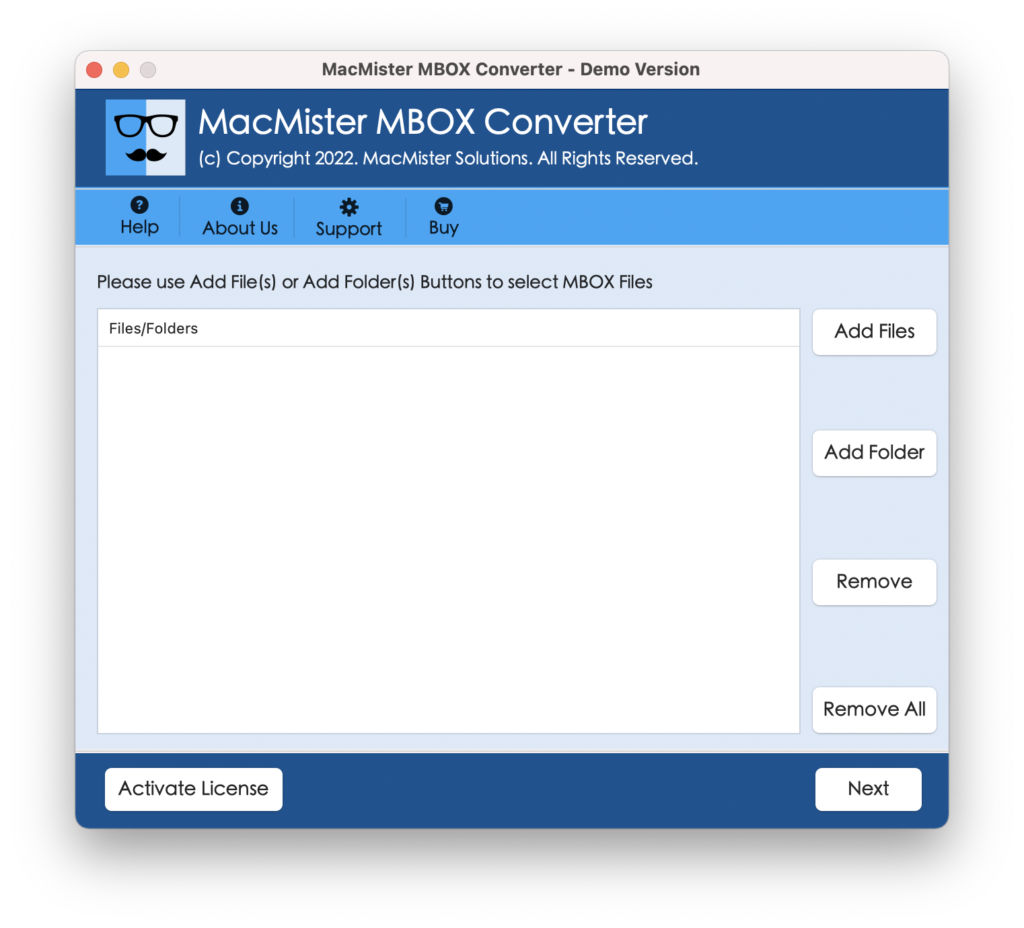
Click Add Files and browse to select the required .mbox files from your computer. Once added, click Next.
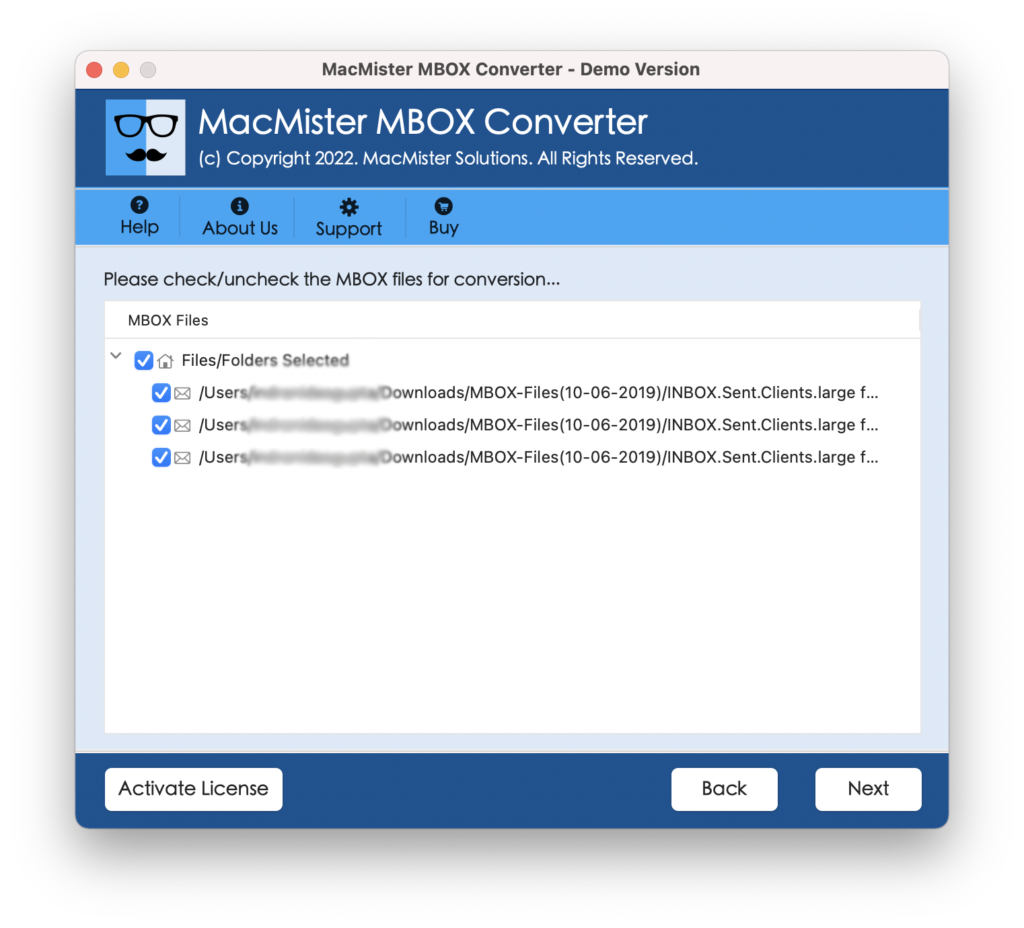
Preview the loaded mailbox files, select the ones you want to migrate, and click Next to continue.
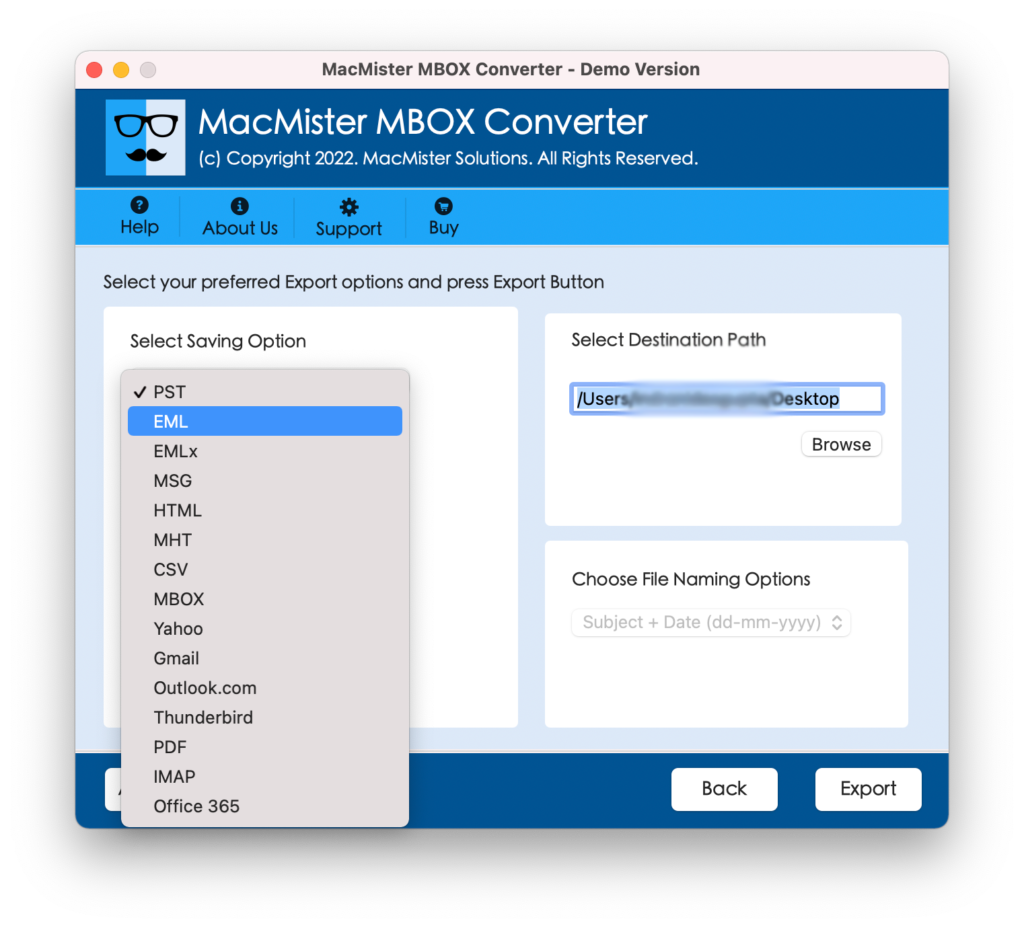
From the list of available export options, choose Office 365 as the destination.
Enter your Microsoft 365 email address and proceed to the Microsoft sign-in page.
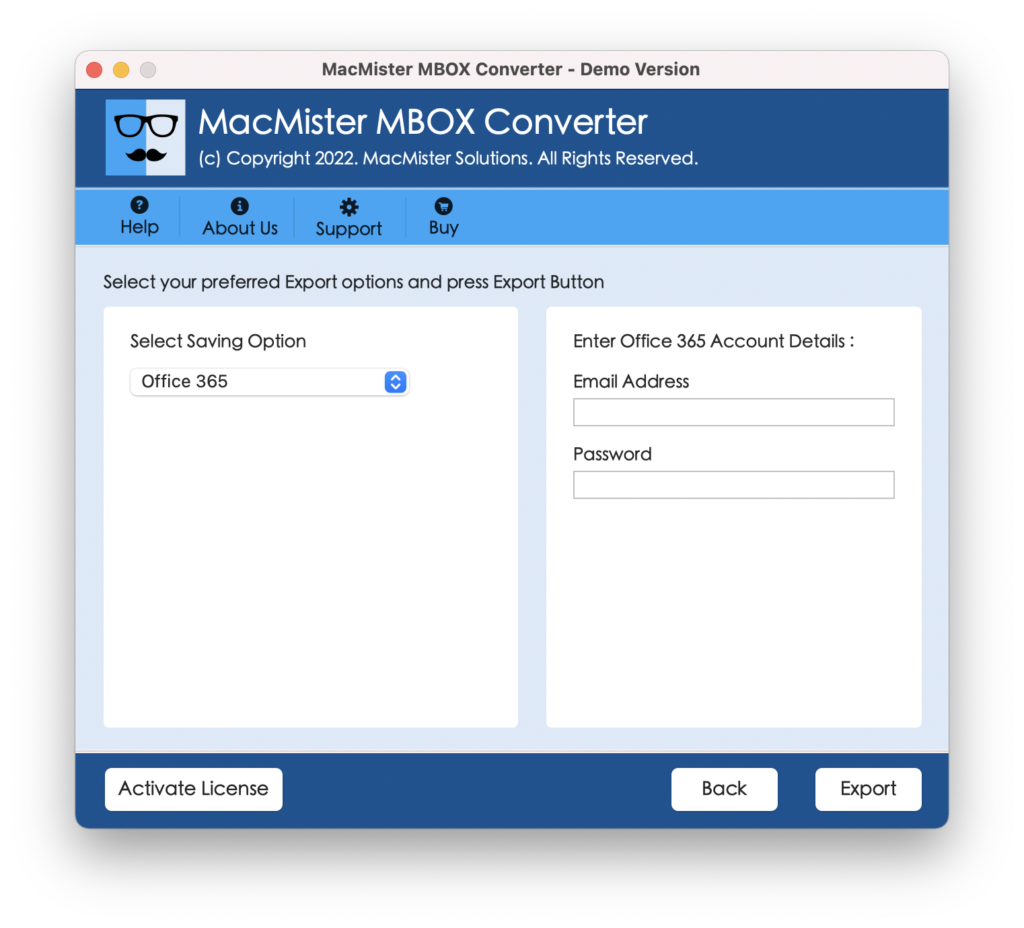
Sign in using your Microsoft 365 credentials and complete the authentication process by granting the required permissions.
After successful authentication, start the migration. The software will automatically upload all selected MBOX files to your Microsoft 365 mailbox while preserving the original folder structure and email properties.
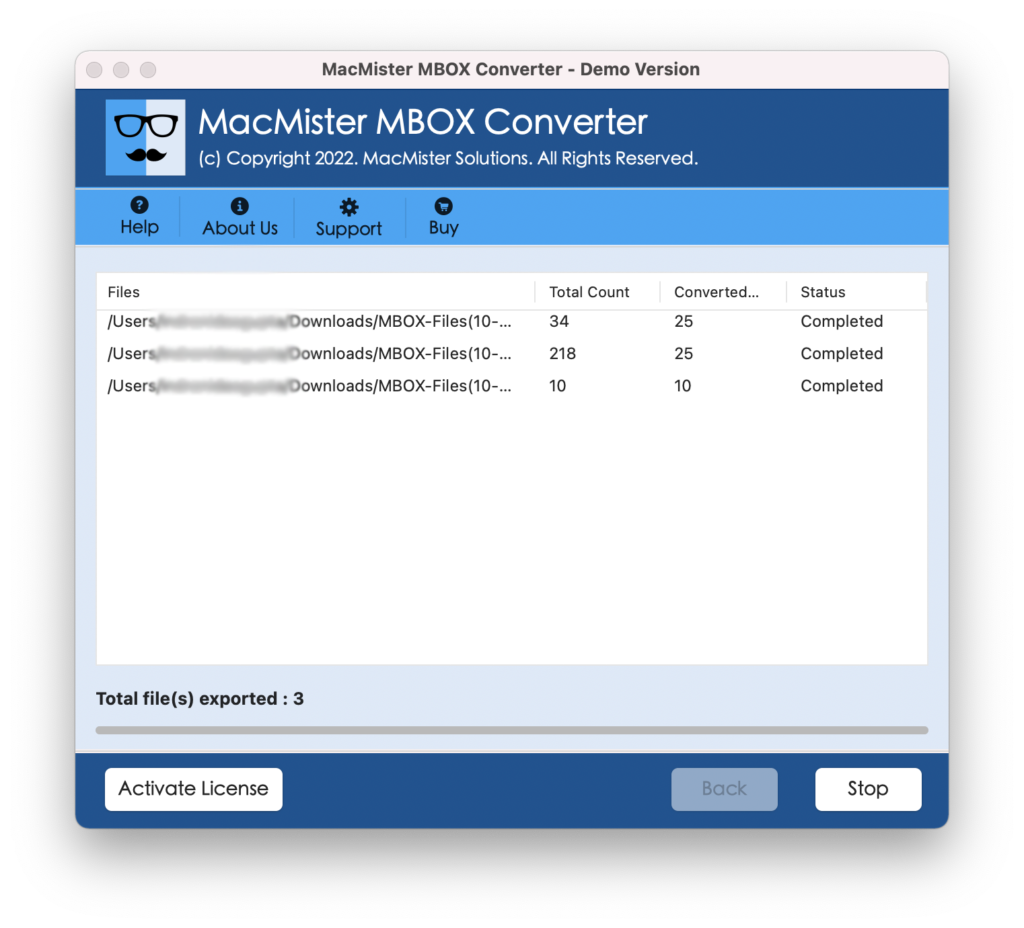
Once the process is complete, your MBOX emails will be available in your Outlook 365 account without data loss or formatting changes.
To evaluate the software before purchasing, you can use the trial version, which lets you test its features and migration process. If you’re satisfied with the results and need to migrate a larger number of emails, you can upgrade to the Pro edition for unrestricted MBOX to Microsoft 365 migration.
Final Thoughts
Choosing the right method to import MBOX files into Microsoft 365 depends on the size of your mailbox and your migration needs. Although the manual approach can work for a small number of emails, it requires additional applications and involves several steps that may not be practical for everyone. If you need to migrate multiple MBOX files while keeping your emails, attachments, folder hierarchy, and other mailbox details intact, an automated solution is a more efficient option. By selecting the approach that matches your requirements, you can complete the migration smoothly and manage all your email data from a single Microsoft 365 account.
Frequently Asked Questions
Q. Why is a professional MBOX migration tool recommended over the manual method?
A dedicated migration tool simplifies the process by reducing manual effort, supporting bulk migrations, preserving email properties and attachments, and minimizing the chances of errors or data loss. It is particularly useful for users who need a fast and reliable way to move multiple MBOX files to Microsoft 365.
Q. Is the trial version suitable for testing the software?
Yes. The trial edition allows you to evaluate the software’s functionality and understand the migration workflow before purchasing the full version. However, it may have limitations on the number of emails that can be migrated.
Q. What happens if my Microsoft 365 account requires multi-factor authentication (MFA)?
Most modern migration tools support Microsoft’s secure authentication process, including MFA. Simply complete the verification steps during sign-in to authorize the migration.
Q. Is it safe to migrate confidential emails to Microsoft 365?
Yes. If you use a trusted Macmister solution, your emails are transferred through Microsoft’s authentication process while preserving data integrity and keeping your mailbox content secure.
Q. Will duplicate emails be created after the migration?
A dependable migration tool is designed to transfer your mailbox accurately. Some applications also provide options to identify and skip duplicate emails during the migration.
Q. Can I import MBOX files created by Apple Mail into a Microsoft 365 mailbox?
Yes. MBOX files generated by Apple Mail, Thunderbird, Google Takeout, and other MBOX-supported email clients can be migrated to a Microsoft 365 account using a compatible migration tool.