MSG to DOC Conversion Failed? Here’s How to Save Outlook Emails as Word Documents
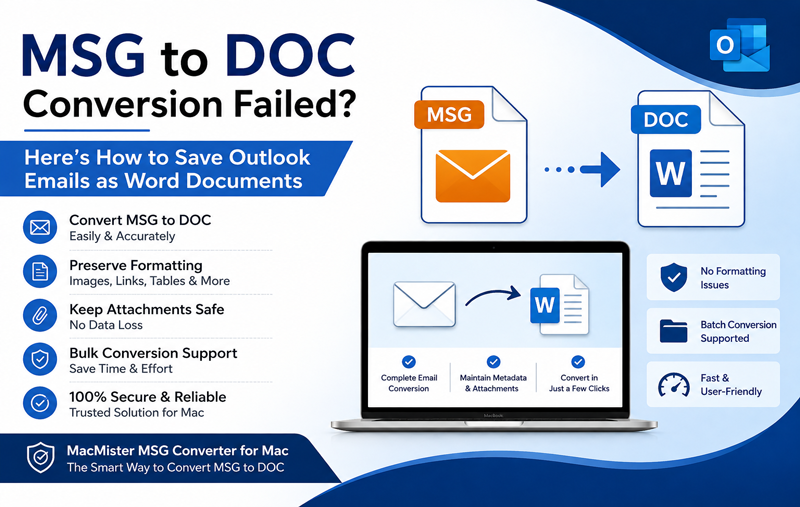
Outlook saves each email as an individual MSG file, preserving its content, attachments, and metadata. While MSG files work perfectly within Outlook, they are not easy to access, edit, or share with users who don’t have Outlook installed. That’s why many professionals, legal teams, students, and businesses prefer to convert MSG to DOC (Microsoft Word Document).
A DOC file is easier to edit, print, archive, and share across different platforms. However, many users encounter errors during the conversion process. The MSG file may fail to convert, formatting may break, attachments may not appear, or the resulting Word document may be blank or incomplete.
If you’re facing similar issues, don’t worry. This guide explains why MSG to DOC conversion fails, how to fix common errors, and the easiest way to convert Outlook MSG files into DOC documents without losing data.
Convert MSG to DOC Without Losing Email Formatting
Looking for a quick and reliable solution? The MacMister MSG Converter for Mac allows you to convert MSG to DOC in just a few clicks while preserving email formatting, attachments, metadata, and folder hierarchy. Whether you need to convert a single email or thousands of MSG files, the software ensures fast, accurate, and hassle-free conversion on macOS.
 |  |
Why Convert MSG to DOC?
Converting Outlook MSG files into DOC format offers several advantages, especially when you need to edit or share email content. Some common reasons include –
- Edit email content in Microsoft Word.
- Print emails professionally.
- Share emails with users who don’t have Outlook.
- Archive emails in a universally accepted format.
- Prepare legal documentation.
- Include emails in reports or project documentation.
- Maintain business records for future reference.
- Because DOC files are widely supported, they are much easier to manage than Outlook MSG files.
If you need a non-editable format for sharing or legal documentation, you can also convert MSG to PDF while preserving the original email layout and attachments.
Common Reasons Why MSG to DOC Conversion Fails
If you are unable to convert MSG files to Word documents, one or more of the following issues may be responsible.
1. Corrupted MSG File
Damaged or incomplete MSG files are among the most common causes of conversion failures. This may happen due to –
- Interrupted email export
- File corruption
- Storage device errors
- Virus infections
- Improper Outlook shutdown
Corruption in an MSG file can interrupt the conversion process, resulting in an incomplete or unreadable DOC file.
2. Unsupported Outlook Version
Older Outlook versions sometimes generate MSG files that are incompatible with certain conversion methods or outdated software. Compatibility issues may result in –
- Conversion failure
- Missing email content
- Incorrect formatting
- Attachment errors
- Export interruptions
Keeping Outlook and your conversion software updated helps avoid these problems.
3. Large Email Attachments
Emails containing multiple or large attachments require additional processing during conversion. As a result, you may experience:
- Slow conversion
- Software freezing
- Partial conversion
- Missing attachments
- Conversion timeout
- Large attachments often increase the overall conversion time.
4. Permission Restrictions
Sometimes the MSG file cannot be accessed because of insufficient file permissions. Common causes include –
- Read-only files
- Restricted folders
- Limited user privileges
- File encryption
- Security software blocking access
Ensure you have the required permissions before starting the conversion.
5. Unsupported Manual Methods
Many users try to copy email content manually into Microsoft Word. While this may work for a few emails, it often causes several problems. For example –
- Formatting changes
- Missing embedded images
- Broken hyperlinks
- Lost metadata
- Missing email headers
Manual methods are suitable only for very small conversion tasks.
6. Batch Conversion Limitations
When hundreds or thousands of MSG files need to be converted, manual techniques become impractical. Typical issues include –
- Long processing time
- Duplicate work
- Human errors
- Inconsistent formatting
- Missed emails
Businesses should use an automated solution for bulk conversions.
If you can’t even access your Outlook email before converting it, first learn how to open MSG files on macOS Sequoia and resolve common compatibility issues before starting the conversion.
Signs That Your MSG to DOC Conversion Has Failed
You may notice one or more of these symptoms –
- Word document is blank.
- Email formatting is broken.
- Attachments are missing.
- Images don’t appear.
- Hyperlinks stop working.
- Conversion freezes midway.
- Software crashes unexpectedly.
- Some MSG files are skipped.
- DOC file cannot be opened.
Identifying these issues early helps you choose the right solution.
Manual Methods to Convert MSG to DOC
Before using professional software, you can try these basic approaches.
Method 1: Copy and Paste into Microsoft Word
The simplest method is to open the MSG file in Outlook, copy the email content, and paste it into Microsoft Word.
Steps
- Open Outlook.
- Open the MSG email.
- Select the entire email content.
- Copy it using Ctrl + C.
- Open Microsoft Word.
- Paste the content using Ctrl + V.
- Save the document in DOC format.
Limitations:
- Doesn’t preserve complete email metadata.
- Attachments are not included.
- Formatting may change.
- Not suitable for bulk conversion.
Method 2 – Drag and Save Email Content
Some Outlook versions allow limited drag-and-drop operations into Word, but this method is inconsistent and may not preserve the original structure of the email.
For occasional use, it may be acceptable, but it is not recommended for business or legal documentation where data accuracy is essential.
Method 3: Verify the MSG File Before Conversion
Before converting, ensure that –
- The MSG file opens correctly in Outlook.
- The email is not corrupted.
- Attachments are accessible.
- The file is completely downloaded.
- You have permission to access the file.
Verifying the source file can help eliminate many common conversion errors before they occur.
Professional Solution to Convert MSG to DOC Without Data Loss
While manual methods may work for a few emails, they become time-consuming and unreliable when you need to convert multiple MSG files. They also fail to preserve important email properties such as metadata, attachments, formatting, and folder organization.
To overcome these limitations, you can use the MacMister MSG Converter for Mac. The software is designed to convert MSG to DOC quickly and accurately while maintaining the original structure of every email. Whether you’re an individual user, legal professional, or business organization, it provides a simple and efficient way to save Outlook emails as Word documents.
| |
If you’re planning to switch from Outlook to Mozilla Thunderbird, you can also learn how to import MSG files into Thunderbird while preserving your email data.
Why Choose MSG to DOC for Mac?
The software includes advanced features that make the conversion process smooth and reliable.
- Convert MSG to DOC in Bulk – Instead of converting one file at a time, you can process hundreds or even thousands of MSG files in a single operation, saving significant time and effort.
- Maintain Email Metadata – Important email information is preserved, such as –
From, To, CC, BCC, Subject, Date and time, Internet headers (where applicable)
Maintaining metadata is especially valuable for business records, audits, and legal documentation.
- Keep Attachments Safe – Unlike many manual methods, the software processes email content accurately while ensuring associated attachments are handled correctly during conversion.
- Support Selective Conversion – You don’t always need to convert an entire collection of emails. The software allows you to convert only the required MSG files, helping save storage space and processing time.
- User-Friendly Interface – Even users with no technical experience can complete the conversion in just a few clicks without complicated settings.
- Compatible with Latest macOS Versions – The software works smoothly with modern macOS editions and supports Outlook-generated MSG files from various Outlook versions.
- Preserve Original Email Formatting – The software keeps the original appearance of your emails, including –
Font styles and sizes, Text formatting, Images, Hyperlinks, Tables, Email headers
This ensures the converted DOC files closely match the original Outlook emails.
How to Convert MSG to DOC Using MacMister MSG Converter for Mac
Follow these simple steps to convert Outlook MSG files into DOC documents.
Step 1: Install the Software – Download and install the MacMister MSG Converter for Mac on your Mac system.
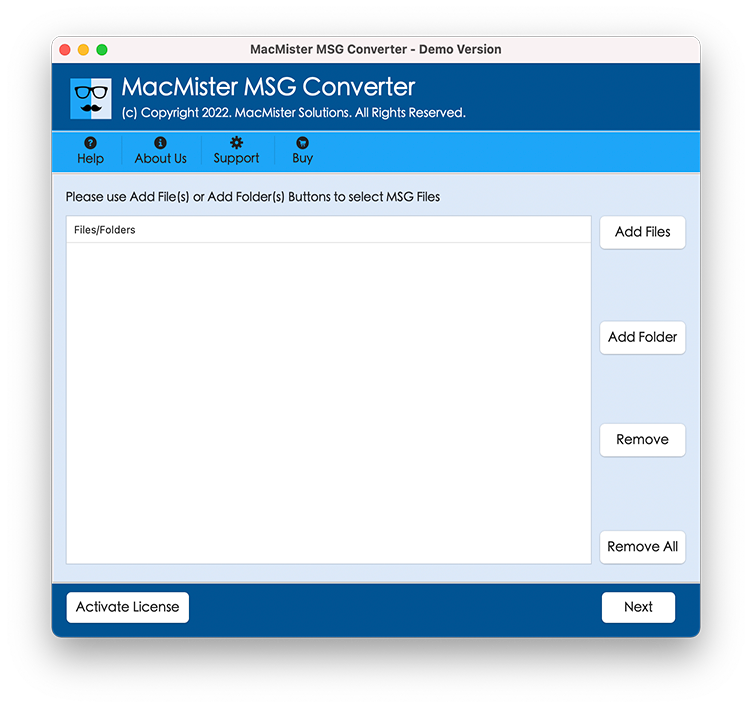
Step 2: Add MSG Files – Launch the application and click Add Files or Add Folder to import the MSG files you want to convert.
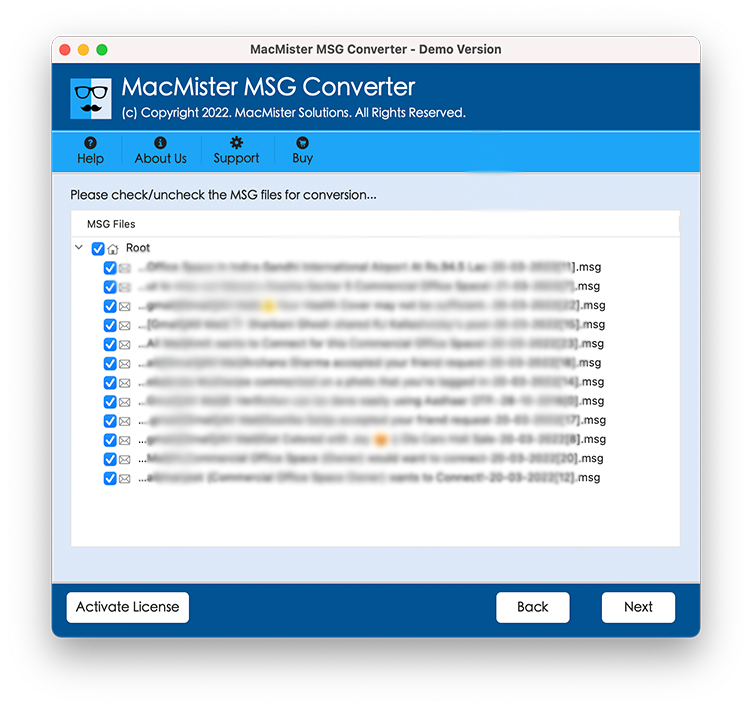
Step 3: Preview Emails – The software displays all selected emails, allowing you to preview the content before conversion.
Step 4: Choose DOC as the Output Format – From the list of available export options, select DOC as the desired output format.
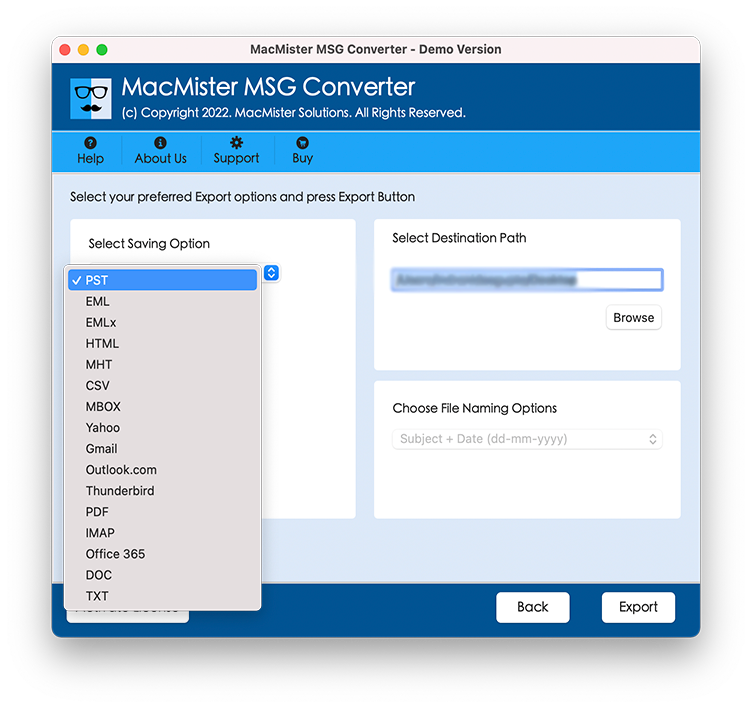
Step 6: Select Destination Folder – Choose the location where the converted DOC files will be saved.
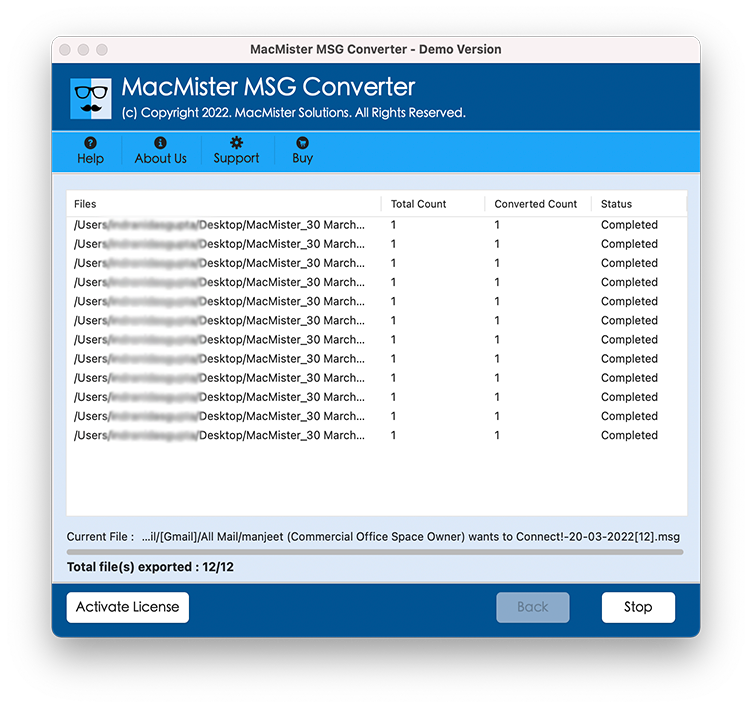
Step 7: Start Conversion – Click the Convert button. The software will convert all selected MSG files into DOC format while preserving the original email structure. Once completed, your Word documents are ready to edit, print, archive, or share.
Benefits of Converting MSG to DOC
Converting Outlook emails to DOC format offers several practical advantages.
- Easy Editing – Unlike MSG files, DOC documents can be edited directly in Microsoft Word whenever changes are required.
- Better Document Sharing – DOC files can be shared easily with colleagues, clients, students, or legal teams without requiring Microsoft Outlook.
- Professional Printing- Word documents provide better control over page layout, margins, headers, and formatting, making them ideal for printed reports and documentation.
- Long-Term Archiving – Organizations often archive emails in DOC format because it is widely supported and easy to manage.
- Improved Accessibility – Word documents can be opened by many document editors, allowing users to access important email content even without Outlook.
For publishing emails on websites or viewing them in a web browser, you can also convert MSG to HTML without losing formatting.
Tips to Avoid MSG to DOC Conversion Errors
To ensure a successful conversion every time, follow these best practices –
- Verify that the MSG files are not corrupted.
- Keep sufficient free storage on your Mac.
- Close unnecessary applications during conversion.
- Use the latest version of Outlook.
- Avoid interrupting the conversion process.
- Back up important MSG files before bulk conversion.
- Use a trusted converter for large or business-critical email collections.
- These precautions help reduce errors and ensure accurate output.
Frequently Asked Questions
Q. Can I convert multiple MSG files to DOC at once?
Ans. Yes. Professional conversion software supports bulk conversion, allowing you to convert multiple MSG files into DOC documents in a single process.
Q. Will the email formatting remain unchanged?
Ans. Yes. A reliable MSG to DOC converter preserves the original email formatting, including fonts, colors, tables, images, and hyperlinks.
Q. Are attachments included in the conversion?
Ans. The software processes emails while maintaining associated attachment information, helping preserve the integrity of the original message.
Q. Can I convert MSG files without Microsoft Outlook?
Ans. Yes. Professional MSG conversion tools allow you to convert MSG files without requiring Outlook to be installed on your Mac.
Q. Is DOC a good format for email archiving?
Ans. Yes. DOC files are easy to read, edit, print, and share, making them suitable for documentation, legal records, business reports, and long-term email storage.
Conclusion
MSG to DOC conversion can fail for several reasons, including corrupted MSG files, permission restrictions, large attachments, unsupported manual methods, or compatibility issues. While manual techniques may work for a few emails, they often fail to preserve formatting, metadata, and attachments—especially during bulk conversions.
For a faster and more dependable solution, the MSG Converter for Mac provides a secure way to convert MSG to DOC without compromising email integrity. It supports bulk conversion, preserves formatting, maintains metadata, and simplifies the entire process with an easy-to-use interface. Whether you need to save Outlook emails as Word documents for documentation, legal purposes, or business records, it offers a reliable and efficient conversion experience.
| |
If your goal is to make Outlook emails accessible to everyone, our guide on sharing Outlook MSG files with non-Outlook users explains additional methods for hassle-free email sharing.