Why won’t my .PST File Open in Outlook Mac? Root Causes and Ultimate Solutions
Moving to a Mac can be a thrilling experience for many individuals, but moving all of your work data may be a real buzzkill. Perhaps one of the most frequent obstacles when switching from one platform to another is the problem of accessing the email archives of your PC. So, you’ve located your old Windows Outlook file, tried to open it, and faced an error.
In case you are confused as to why your .PST file is not working in Outlook for Mac, you definitely are not alone. In fact, this problem of incompatibility between two platforms confuses millions of users on a daily basis. But now we are going to figure out what causes this trouble and how to fix it.
Why Outlook for Mac Rejects Your .PST File?
The .PST (Personal Storage Table) file is a database format that was exclusively created by Microsoft for use with the Windows version of Outlook.
There are a few reasons why your file refuses to open:
1. Interface Problem of New Outlook for Mac
Microsoft Outlook for Mac application had completely revised its user interface with the development of “New Outlook”. While many changes have been made with respect to improvement in performance and interface aesthetic features, the new outlook for Mac interface does not have the ability to import local files like .PST or .OLM. Thus, if you are working on this interface, then it will not be possible for you to import .PST file.
2. Old ANSI File Format Issues
Your .PST file is old (exported from Outlook before 2002) and most likely has been saved in the old ANSI-encoded format. The Mac version of Outlook application does not support old style ANSI-encoded .PST files at all. Attempting to open an ANSI file will result in immediate failure of your import assistant.
3. Issues with Corrupted PST File
Your .PST file could suffer corruption while transferring. It may happen even while transferring large amounts of data through a USB flash drive or external hard drive or even the network drive which results in data loss. Header index of the .PST file will be corrupted.
Ultimate Solution: Converting PST File to Mac-based Format
Since native Outlook for Mac supports either .OLM format or cloud-based IMAP, the best method to get access to your archived information is converting the .PST file to an incredibly convenient format.
The most effective tool on the market in this particular case is MacMister PST Converter for Mac, which is available both on macOS and Windows platforms and thus removes all possible inconveniences from the conversion process.
Why to Choose the Application?
- Dual-Platform Compatibility: You may choose to carry out the extraction process on your brand-new Mac through MacMister solution or on your previous PC prior to transferring through MacMister PST Converter for Windows—the software is equally effective on both of the platforms.
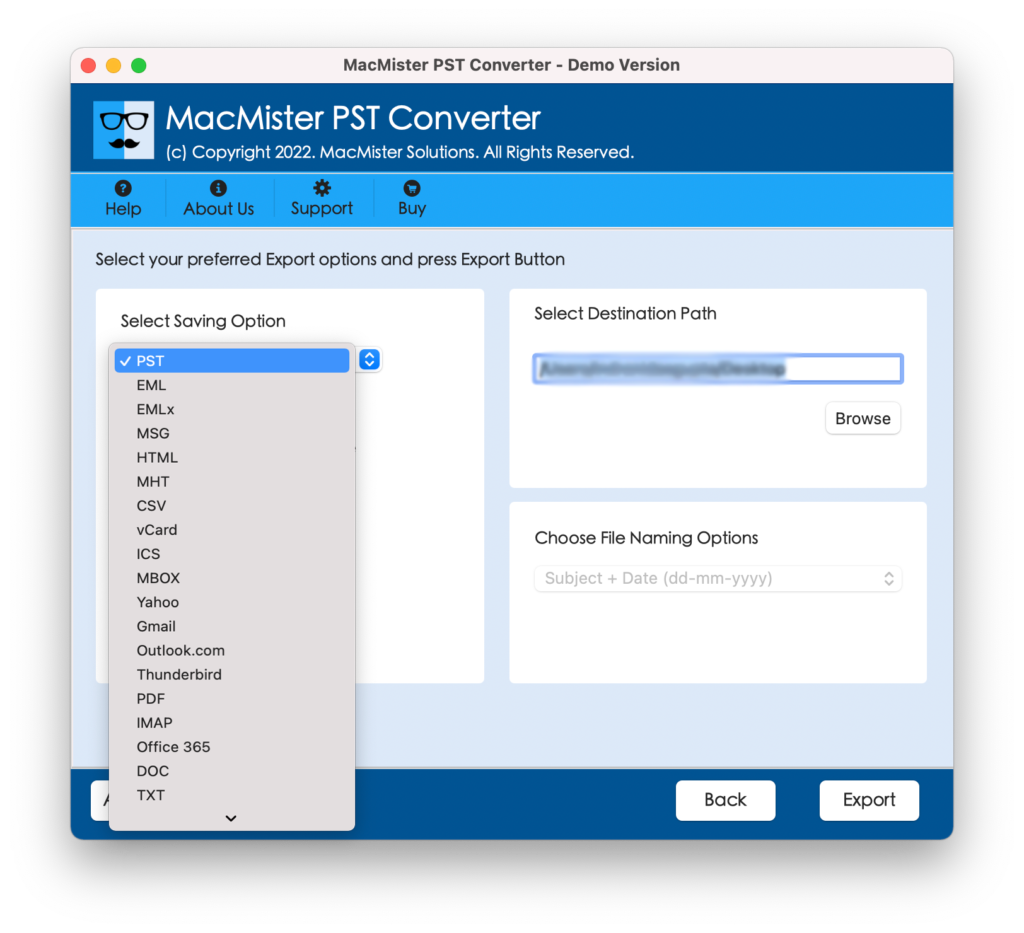
- Variety of Formats Supported by MacMister: You do not need to be tied up to Outlook. Your .PST file can be converted to OLM (Outlook Mac native format), MBOX (Apple Mail format), PDF (for legal archiving), or even be uploaded to various online storage providers including Gmail, Office 365, and IMAP.
- Safe and Accurate Retaining of Folder Structure: It takes care to ensure that your nested subfolders, inbox structure, sent messages, and tags get transferred safely and accurately.
- Data Parameters Security: All your vital data parameters including attachments, header information, time-stamping, hyperlinks, and even inline formatting remain fully intact.
Step-by-Step Software Tutorial
If you need to access your emails right away, you can use MacMister on either system to convert the file into an import-ready format.
Step 1: Initiate by converting PST files using MacMister
This is identical regardless of whether you are working with Mac or Windows version of the program:
Step 1. Launch MacMister PST Converter on your computer.
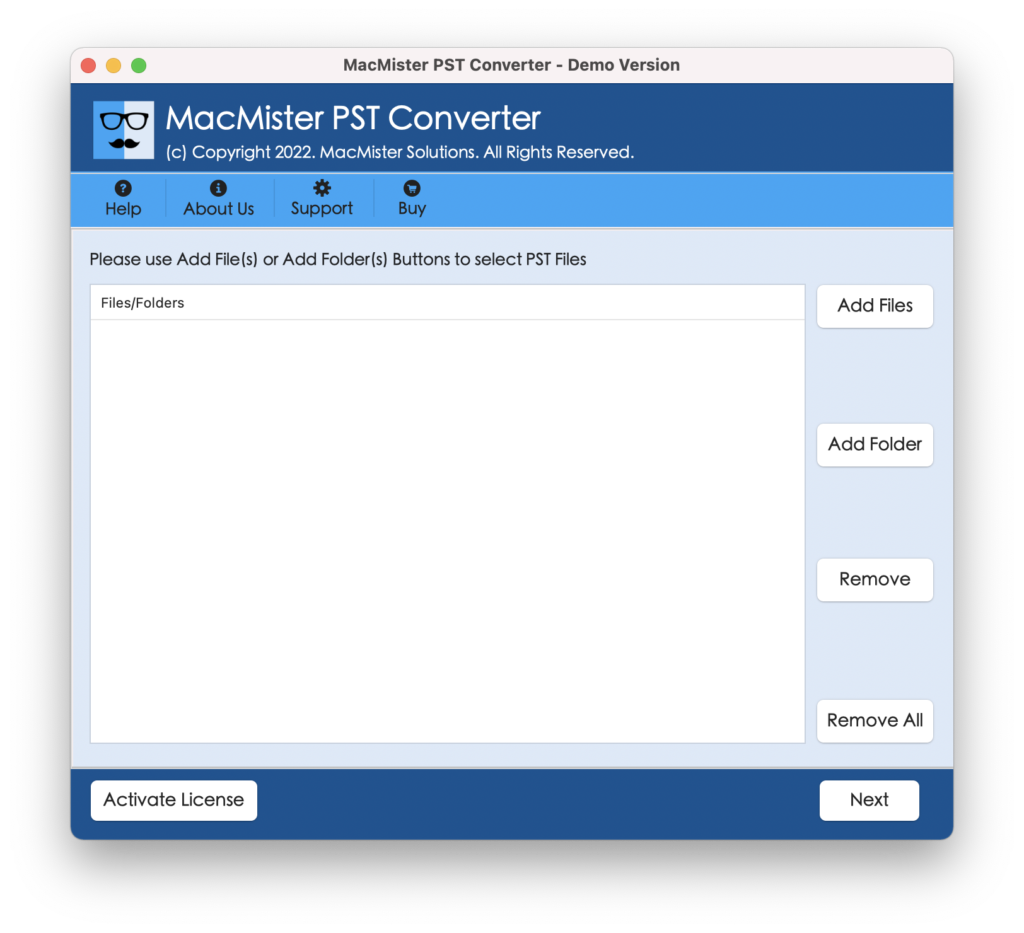
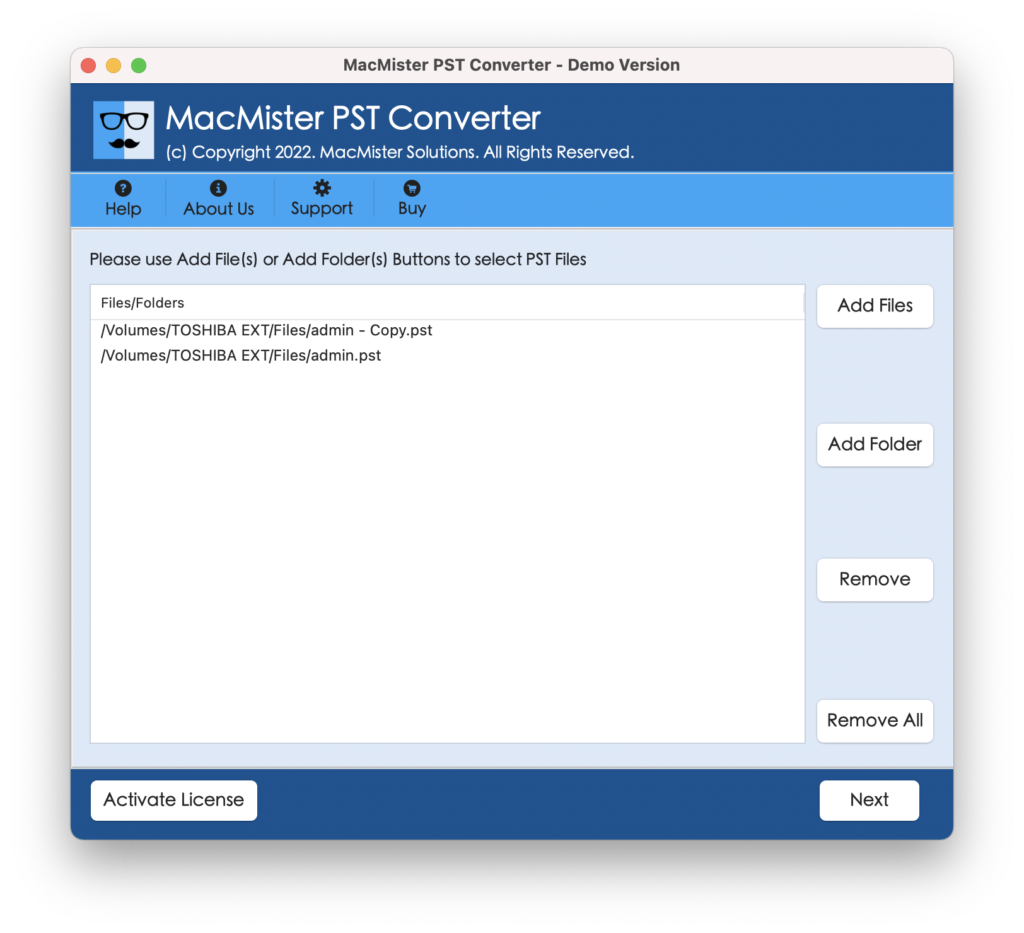
Step 2. Press the Add Files/ Folder button and add the rejected .PST file from Outlook for Mac.
Step 3. From select saving options list, choose OLM (recommended for those who wish to continue working with Outlook for Mac) or MBOX.
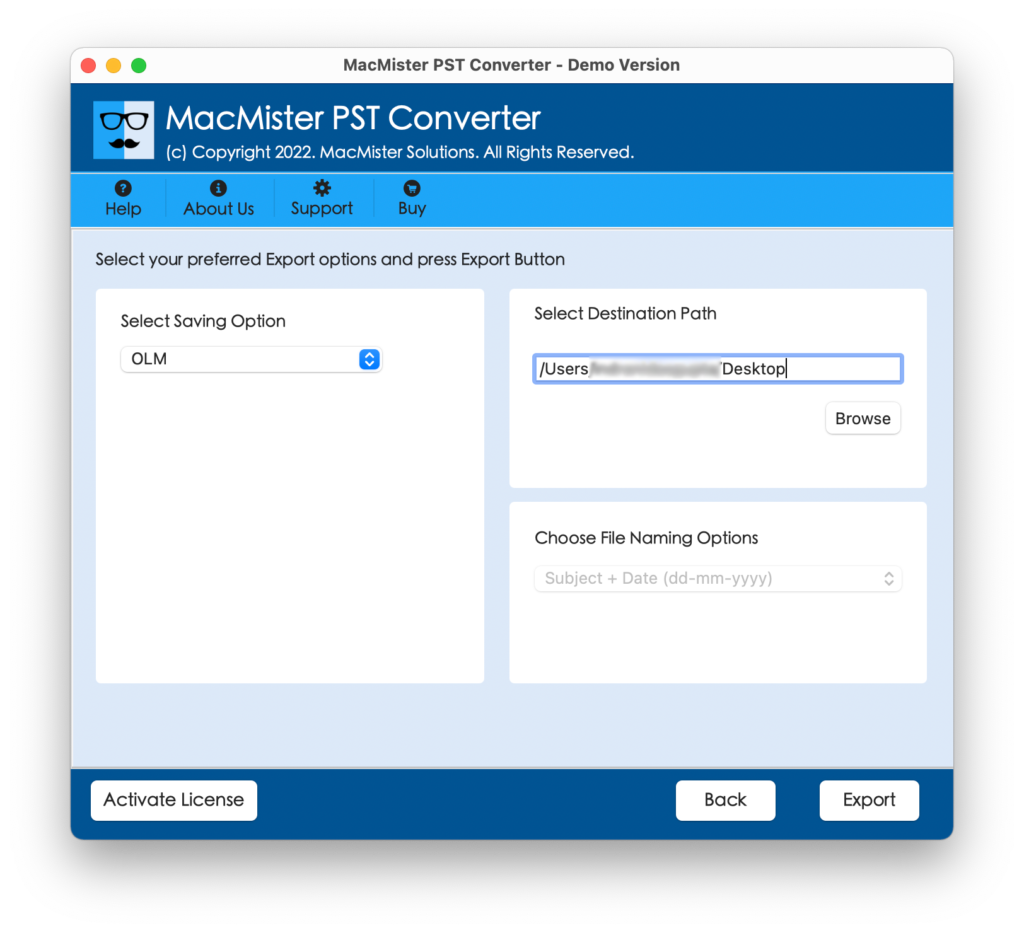
Step 4. Select a folder to save it to and press Export.
Step 2: Import into Outlook for Mac
Now that you have your .OLM file created, you may directly bring it into your Mac system.
- If you’re working under the “New Outlook” view, then head over to the Outlook icon located at the top macOS menu bar and click it to untick New Outlook to switch back to the Legacy Outlook view.
- Navigate to File > Import.
- Select Outlook for Mac Data File (.olm), and click Continue.
- Select the file made by MacMister, and witness your folders getting imported.
It’s now fine to toggle back on the “New Outlook” view!
Epilogue
You should not allow an obstinate .PST file to hinder your efficiency as you move to another platform. Once you know that the obstacle is caused by architectural differences between different operating systems, then it will be easy to find a solution. With appropriate platform settings and a good application such as the application discussed above & Windows, you will be able to overcome the restrictions of Microsoft.