Apple Mail Keeps Crashing on macOS Sequoia/Sonoma? 7 Proven Ways to Fix the Issue
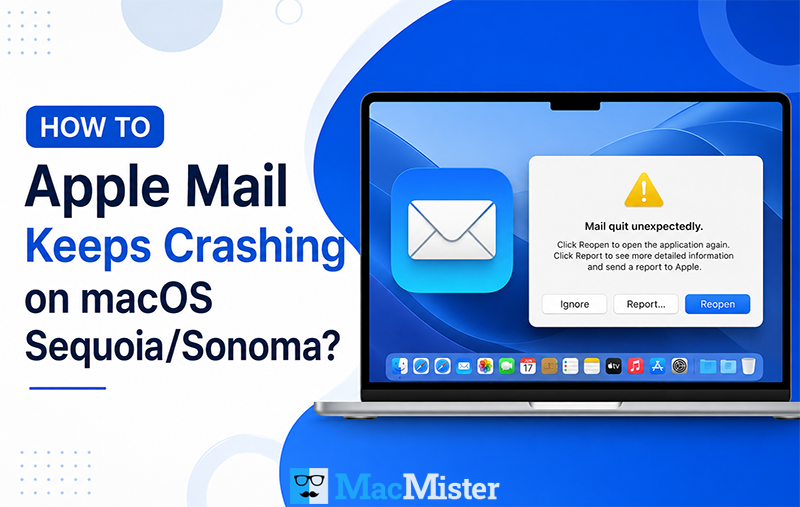
If your Apple Mail keeps crashing on macOS Sequoia/Sonoma after update, you are not alone. Many Mac users have recently reported issues like Apple Mail crashing after Sequoia update, Apple Mail not opening on Mac, emails freezing, or the Mail app suddenly quitting while syncing messages. Usually, this problem occurs because of corrupted mailbox files, outdated Mail settings, incompatible plugins, or syncing errors after upgrading to the latest macOS version. In this guide, you will learn the best ways to fix the Mac Mail app crashing on macOS Sequoia/Sonoma issue and restore smooth email functionality on your Mac.
Why Does Apple Mail Keep Crashing on macOS Sequoia/Sonoma?
There are several reasons behind the Apple Mail crashing issue on Mac:
- Corrupted Mail database
- Outdated macOS version
- Broken Mail preferences
- Incompatible plugins
- Damaged mailbox files
- Large email attachments
- Sync problems with Gmail, Yahoo, or Outlook accounts
- Insufficient Mac storage
Many users have also reported Apple Mail freezing on macOS Sonoma after installing recent system updates.
How to Fix Apple Mail Keeps Crashing on macOS Sequoia/Sonoma ? – Using Multiple Methods
Method 1: Force Quit and Restart Apple Mail
Sometimes, the Mail app freezes temporarily because of background sync issues.
- Click the Apple logo.
- Select Force Quit.
- Choose Mail.
- Click Force Quit again.
- Restart your Mac.
Now reopen Apple Mail and check whether the issue is fixed.
Method 2: Update macOS to Fix Mac Mail Crashing
Apple regularly releases updates to fix app crashes and compatibility issues. Running an outdated version of macOS may cause Apple Mail app crashing on Sonoma problems.
- Open System Settings.
- Go to General > Software Update.
- Install available updates.
Method 3: Disable Plugins to Stop Apple Mail Crashing
After upgrading to Sonoma or Sequoia, older Mail plugins may stop working properly and cause the app to crash.
Plugin incompatibility is one of the biggest reasons behind Mac Mail keeps crashing on Mac issues.
- Open Finder.
- Press Command + Shift + G.
- Enter: ~/Library/Mail/Bundles
- Move plugins to another folder.
- Restart Apple Mail.
Method 4: Rebuild Mailboxes to Fix Mac Mail Freezing on macOS Sonoma
Corrupted mailbox indexes can also make Apple Mail freezing on macOS Sonoma or quitting unexpectedly.
- Open Apple Mail.
- Select the problematic mailbox.
- Click Mailbox > Rebuild.
This process may take a few minutes depending on mailbox size.
Method 5: Delete Envelope Index Files to Fix Apple Mail Crash on Mac
Envelope Index files store Mail database information. If these files become corrupted, Apple Mail may crash repeatedly.
- Quit Apple Mail.
- Open Finder.
- Press Command + Shift + G.
- Navigate to: ~/Library/Mail/
- Search for: Envelope Index, Envelope Index-shm, or Envelope Index-wal
- Delete these files.
- Restart your Mac.
Apple Mail will automatically rebuild these files after relaunching.
This method has helped many users fix Apple Mail crashing after Sequoia update problems.
Method 6: Fix Apple Mail Not Syncing Emails on Mac
Sometimes, account synchronization problems with Gmail or Outlook can trigger crashes in Apple Mail.
- Open System Settings.
- Go to Internet Accounts.
- Remove the problematic email account.
- Restart your Mac.
- Add the account again.
This method works especially well for Mac Mail not syncing emails issues.
Method 7: Start Mac in Safe Mode to Fix Apple Mail App Crashing
Safe Mode disables unnecessary startup items and helps identify software conflicts.
- Shut down your Mac.
- Hold the Shift key while turning it on.
- Release the key when the login screen appears.
Now open Apple Mail and check if it still crashes.
Professional Solution for Apple Mail Crashing Issue on Mac
If Mac Mail keeps crashing because of corrupted mailbox files, it is recommended to secure your important emails before performing advanced troubleshooting.
You can use MacMister Apple Mail Converter for Mac to export Apple Mail emails into PST, MSG, PDF, HTML, MBOX, DOC, TXT, EML, Gmail, IMAP, Thunderbird, Office 365, and other formats. The tool can help users back up important mailbox data and avoid email loss during troubleshooting.
Frequently Asked Questions
Why does Apple Mail crash after macOS Sequoia update?
Usually due to incompatible plugins, corrupted Mail databases, or syncing conflicts after system updates.
Can corrupted emails crash Apple Mail?
Yes, damaged mailbox files or corrupted email indexes can cause frequent crashes and freezing.
Is it safe to delete Envelope Index files?
Yes. Apple Mail automatically recreates them when the app restarts.
How do I fix Apple Mail not opening on Mac?
Try Safe Mode, rebuilding mailboxes, deleting preference files, and updating macOS.
Conclusion
If your Apple Mail keeps crashing on macOS Sequoia/Sonoma, the issue is usually related to corrupted mailbox data, outdated settings, or plugin conflicts. By following the troubleshooting methods above such as rebuilding mailboxes, deleting Envelope Index files, updating macOS, and re-adding email accounts you can resolve most Mac Mail crashing on Mac problems quickly. Before applying advanced fixes, it is also recommended to back up important emails using Mac Apple Mail Converter to prevent accidental data loss and keep your mailbox secure.