Apple Mail Rules Not Working on Mac – Easy Fix Guide 2026
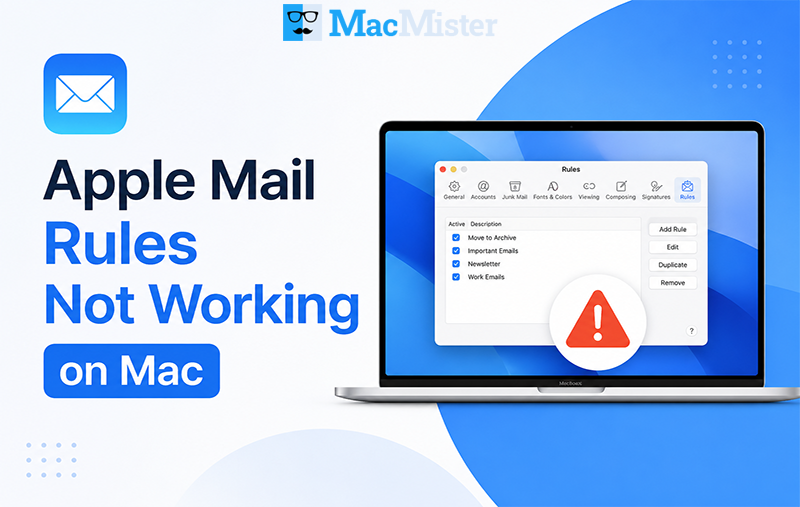
Introduction– If your Apple Mail rules are not working on Mac, emails may stop sorting automatically, causing inbox clutter and missed messages. This issue can happen due to outdated macOS versions, corrupted Mail settings, or conflicting rules. In this blog post, you’ll learn simple and effective ways to fix Apple Mail rules that are not applying automatically on Mac in 2026.
Why Are Apple Mail Rules Not Working on Mac?
Apple Mail rules may stop working on Mac for several reasons. In many cases, the issue happens after a macOS update, incorrect Mail settings, or conflicts between multiple rules. Sometimes, Mail rules are enabled but fail to apply automatically to incoming emails.
Here are the most common reasons why Mac Mail rules are not working on Mac:
- Outdated macOS or Apple Mail version
- Mail rules are disabled accidentally
- Conflicting or duplicate rules
- Corrupted Apple Mail preferences
- iCloud Mail syncing problems
- Incorrect rule conditions or actions
- Mailbox indexing issues
- Problems with email account synchronization
Identifying the exact cause can help you apply the right fix and make Apple Mail rules work properly again.
Best Ways to Fix Apple Mail Rules Not Working on Mac
Restart the Apple Mail App
Sometimes, Apple Mail rules stop working because the Mail application does not refresh properly. Restarting the app can fix temporary glitches and help Mail rules run again automatically. Follow these steps:
- Close the Apple Mail application completely.
- Open Activity Monitor and check if Mail processes are still running.
- Force quit Mail if required.
- Reopen the Mail app and test your rules again.
This simple solution often fixes minor synchronization and rule-processing issues.
Check if Mail Rules Are Enabled
Apple Mail allows users to create multiple rules for organizing emails automatically. However, if the rules are disabled accidentally, they will stop working. To verify your Mail rules:
- Open Apple Mail.
- Go to Mail > Settings > Rules.
- Check whether your rules are enabled.
- Enable unchecked rules and click OK.
After enabling the rules, send a test email to confirm they are working properly.
Rebuild Your Mailbox in Apple Mail
Mailbox indexing problems can prevent Apple Mail rules from applying automatically. Rebuilding the mailbox refreshes your email database and fixes corrupted indexes. Here’s how:
- Open Apple Mail.
- Select the affected mailbox.
- Click Mailbox from the top menu.
- Choose Rebuild.
The rebuilding process may take a few minutes depending on mailbox size. Once completed, check whether Mail rules are functioning correctly.
Update macOS to the Latest Version
Using an outdated macOS version can cause compatibility issues with Apple Mail. Installing the latest updates may fix bugs affecting Mail rules. To update macOS:
- Open System Settings.
- Go to General > Software Update.
- Install available updates.
- Restart your Mac.
After updating, open Apple Mail and verify if the rules are working normally.
Remove Conflicting or Duplicate Rules
Sometimes multiple Mail rules conflict with each other, preventing automatic email sorting. Duplicate conditions may also stop rules from applying correctly. To fix this issue:
- Review all existing Mail rules carefully.
- Remove unnecessary or duplicate rules.
- Arrange rules in proper priority order.
- Keep only relevant conditions.
Simplifying your Mail rules can improve their performance and reliability.
Recreate Apple Mail Rules
If specific rules remain broken, deleting and recreating them may solve the issue. Follow these steps:
- Open Mail > Settings > Rules.
- Select the problematic rule.
- Delete the rule.
- Create a new rule with updated conditions.
- Save the changes.
Creating fresh rules removes configuration errors and helps Apple Mail process emails correctly.
Disable and Re-enable iCloud Mail
If you use iCloud Mail, syncing problems can interfere with Mail rules. Turning iCloud Mail off and back on refreshes synchronization. Steps to follow:
- Open System Settings.
- Click your Apple ID.
- Select iCloud.
- Turn Mail off temporarily.
- Restart your Mac.
- Re-enable Mail syncing.
After synchronization completes, test your Mail rules again.
Reset Apple Mail Preferences
Corrupted Mail preference files may prevent rules from working properly. Resetting preferences can resolve deeper configuration issues. Before proceeding, create a backup of your Mail data. Then:
- Close Apple Mail.
- Open Finder.
- Navigate to Library > Preferences.
- Locate Mail preference files.
- Move them to another folder.
- Restart Apple Mail.
The application will generate fresh preference files automatically.
Most Demanding Solution to Backup Apple Mail Data
If Apple Mail continues to experience rule failures or mailbox corruption, creating a backup of your emails is highly recommended. A professional utility like MacMister Apple Mail Converter for Mac helps users safely export Apple Mail emails into multiple formats without data loss. The software allows you to:
- Convert Apple Mail emails into PST, EML, Office 365, MSG, PDF, MBOX, Gmail, IMAP, Thunderbird, TXT, HTML, Outlook.com, and other formats
- Backup important mailbox data securely
- Maintain folder hierarchy and email formatting
- Export selective emails with attachments
- Prevent accidental email loss during troubleshooting
Wrapping Up
Apple Mail rules not working on MacBook can create email management problems and reduce productivity. Fortunately, issues like outdated macOS versions, corrupted preferences, mailbox indexing problems, and conflicting rules can usually be fixed with simple troubleshooting methods.
In this segment, we discussed several effective solutions to fix Mac Mail rules that are not applying automatically on MacBook. Additionally, using Mac Apple Mail Migrator can help you secure and manage your mailbox data professionally before making major changes to Apple Mail settings.