How to Fix Apple Mail Stuck on “Indexing Messages” on macOS?
Apple Mail software is meant to allow smooth handling of emails between Mac, iPad, and iPhone products. Nevertheless, most users occasionally find themselves in a frustrating situation where the software hangs when trying to index or optimize the mail database.
Once Apple Mail hangs while indexing, the program stops responding; searches stop working, new messages do not show, and Mac CPU usage increases significantly.
Why Does Apple Mail Get Stuck Indexing Messages?
It will be much easier to avoid indexing problems with Apple Mail in the future if one understands what leads to them. The fundamental primary reasons are:
- Envelope Index Files Damage: Apple Mail makes use of special database files called Envelope Index files. They enable searching and tracking messages in Apple Mail. In case macOS crashes or closes abruptly while the application is open, those database files might get corrupted.
- Mailbox File Size or Storage Overflowing: Processing tens of thousands of emails or huge attachments may affect the local index database.
- Defective macOS Software Upgrades: Important upgrades of macOS usually change the structure of the system database, and this may lead to indexing synchronization problems.
- Conflict with Third-party Security Tools: The problem may arise when some antivirus or backup software locks Mail files when the application is trying to update the index database.
How to Fix Apple Mail Stuck on Indexing Messages?
Below are step-by-step troubleshooting steps to resolve the indexing loop on your Mac, ranging from simple soft resets to manual database rebuilds.
Method 1: Force Quit and Restart Apple Mail
If a software glitch is temporary, then the easiest way to solve the problem is by force quitting the application.
- Hit Option+Command+Esc keys to bring up the Force Quit window.
- Choose Mail from the list of applications that are currently running on the computer.
- Hit the Force Quit button.
- Open Mail application with Shift key held down.
Method 2: Manually Delete Envelope Index Files (Most Effective)
Rebuilding the Mail database is done through the deletion of the corrupt Envelope Index files so as to allow for the creation of a new index in macOS.
Note: The above steps do not delete your emails; they only reset the internal search index file.
Stop Mail App Completely:
Make sure that the Apple Mail application is completely shut down. You can force quit it using Command + Option + Esc, and then selecting Mail.
Go to the Mail Library Folder Location:
Go to Finder. In the top menu bar, go to Go > Go to Folder… (Command + Shift + G) and enter the following path into the search bar:
~/Library/Mail/
Go to the Version Numbered Folder Based on Your macOS Version:
In the Mail folder, locate the folder named after your macOS version (V10, V9, or V8 according to your installed operating system). Then click on the MailData folder inside it.
Delete Envelope Index Files:
Search and remove any files that start with “Envelope Index” (Envelope Index, Envelope Index-shm, Envelope Index-wal).
Open Apple Mail Application to Rebuild:
Open the Apple Mail application. Apple Mail will ask you to import/rebuild your messages. Click on Continue.
Method 3: Rebuild Specific Mailboxes
If opening the Apple Mail program causes it to hang when you try to view a particular mailbox or folder (such as Inbox or Sent), rebuilding this mailbox can fix this issue of index mismatch.
- Open Apple Mail.
- Click the affected mailbox or folder in the left-hand side of the window.
- Open the top menu and click Mailbox > Rebuild.
- Let it run until completion, which can take between a few minutes up to an hour.
Method 4: Boot in Safe Mode
Safe booting of your Mac will help flush the cache files and perform the required directory checking:
- Apple Silicon Mac (M1/M2/M3/M4): Turn off your Mac and hold the Power Button until you see “Loading startup options.” Choose your startup disk and press the Shift key when you click on Continue in Safe Mode.
- Intel-based Mac: Restart your Mac and hold the Shift key until the login window appears.
When your Mac starts in Safe mode, open Apple Mail and see if indexing is complete.
Essential Tip: Secure Your Mail Data with MacMister’s Powerful Conversion Tool
The manual troubleshooting techniques, particularly deleting the database file or the structure of the accounts, come with the risk of data loss, orphaned attachments, or damaged folder hierarchy. It is crucial to backup your mailboxes before performing any complicated database repairs.
Use of MacMister Apple Mail Converter for Mac offers you a perfect security solution since you can export and convert the data from Apple Mail (the .mbox files or local mailbox folders) to different formats such as PST, MBOX, PDF, EML, MSG, HTML, and CSV.
Why Convert and Back Up Apple Mail Data?
- Access mail messages out of the Apple Mail program without having to rely on it.
- Convert Apple Mail data into PST or PDF files compatible with Outlook and other applications.
- Keep the data in the same folders with all original metadata and formatting.
- Move data into the cloud services directly such as Office 365, Gmail, and Yahoo Mail.
Quick Steps to Save Apple Mail Files Using MacMister:
Download and run MacMister Apple Mail Converter on your Mac.
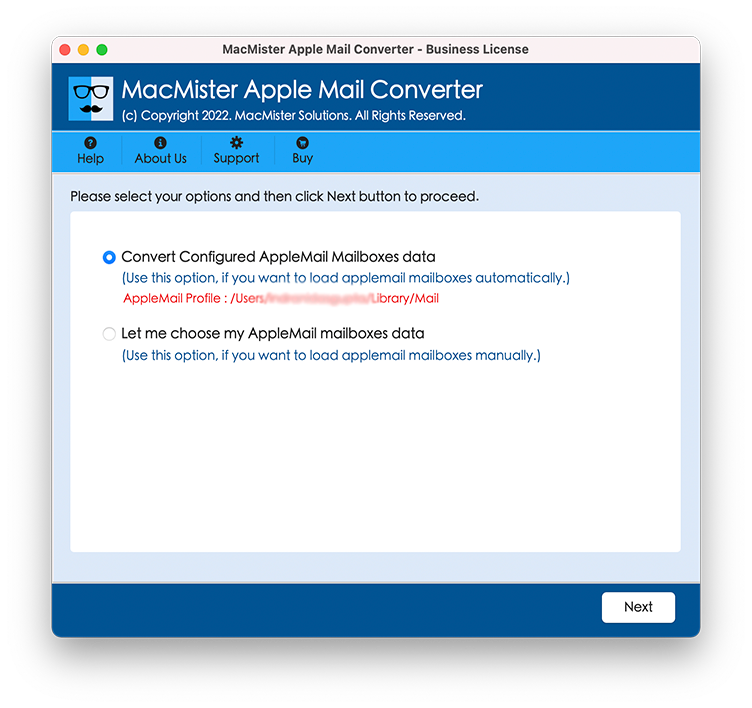
The software automatically detects local Apple Mail mailboxes, or you can manually upload them using Add Files / Add Folder.
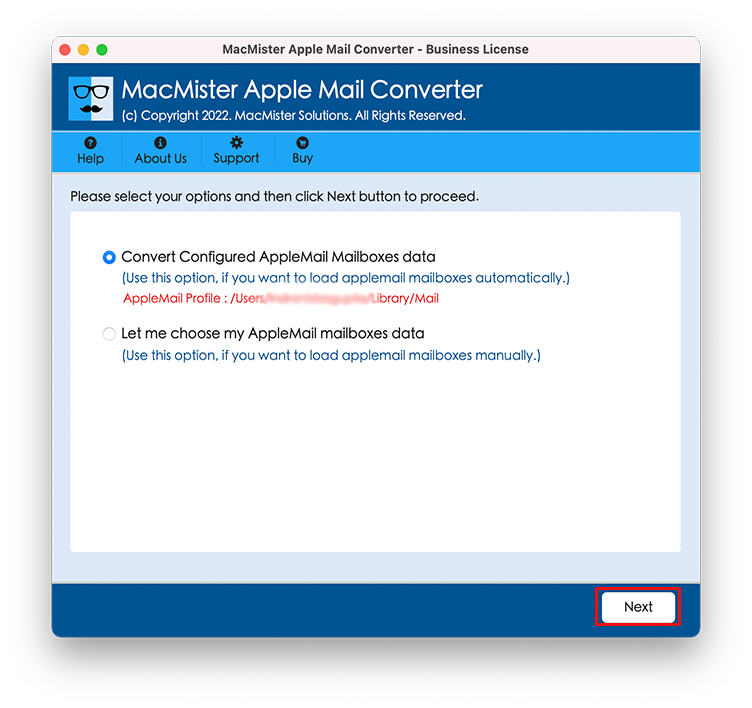
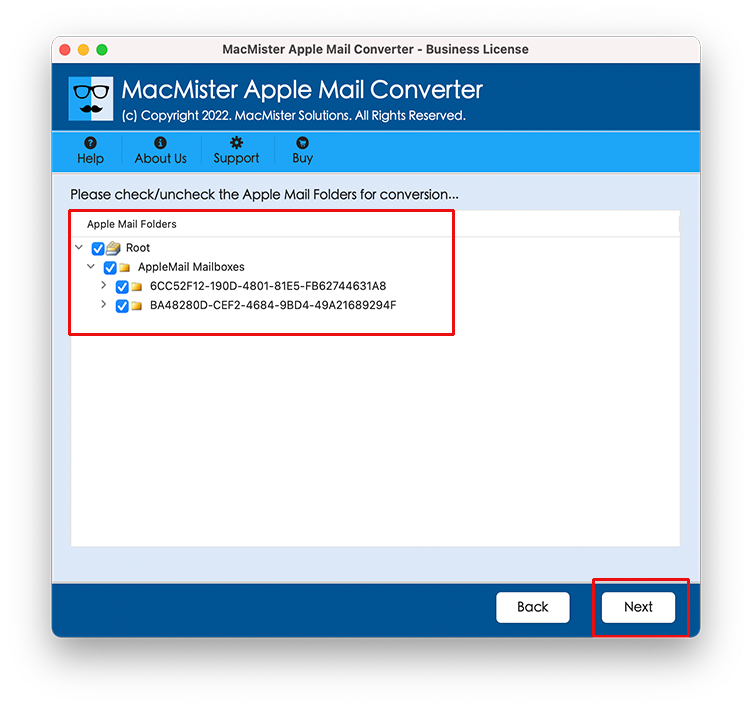
Select the specific mailboxes you wish to preserve from the preview tree structure.
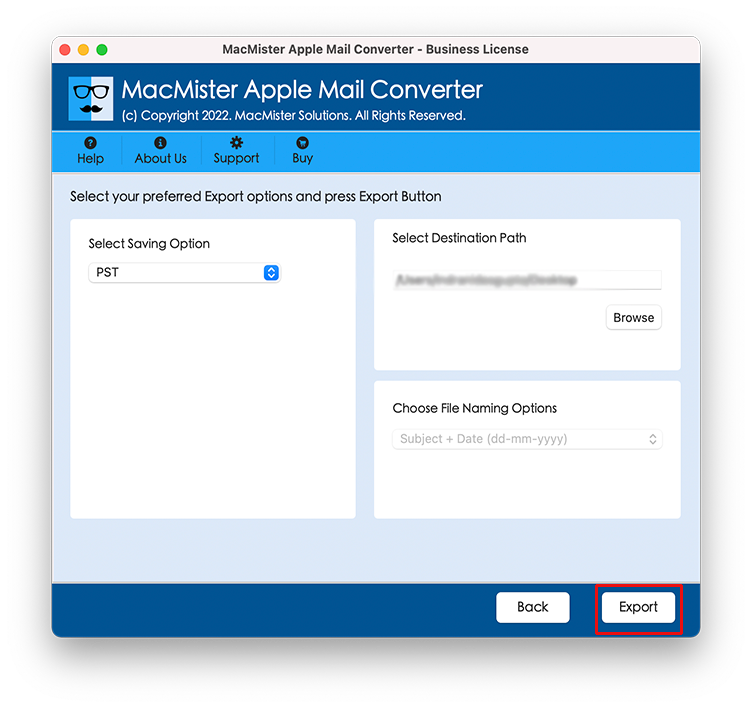
Choose your desired output format (e.g., PST, PDF, or MBOX) from the Select Saving Option menu.
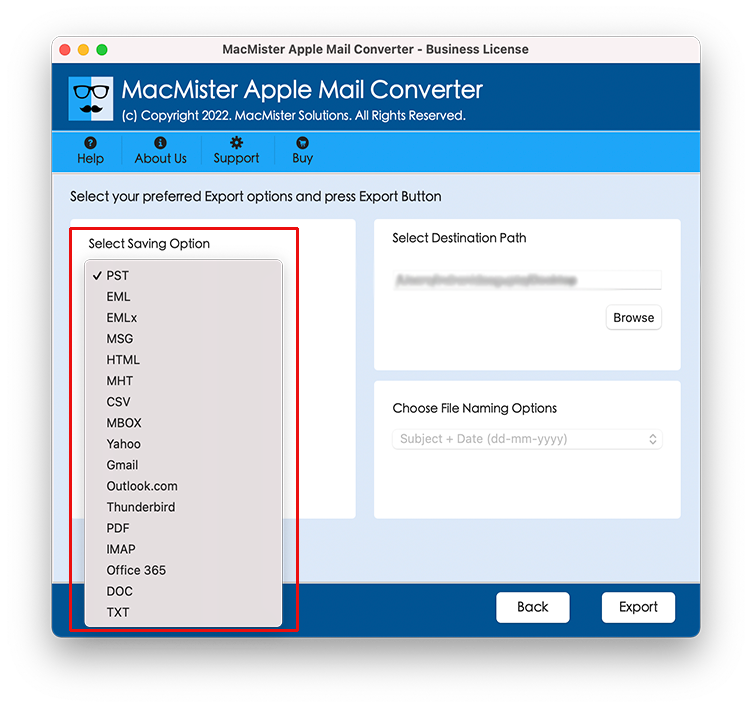
Set sub-options of a selected saving type and tap Export to safeguard your entire email database.
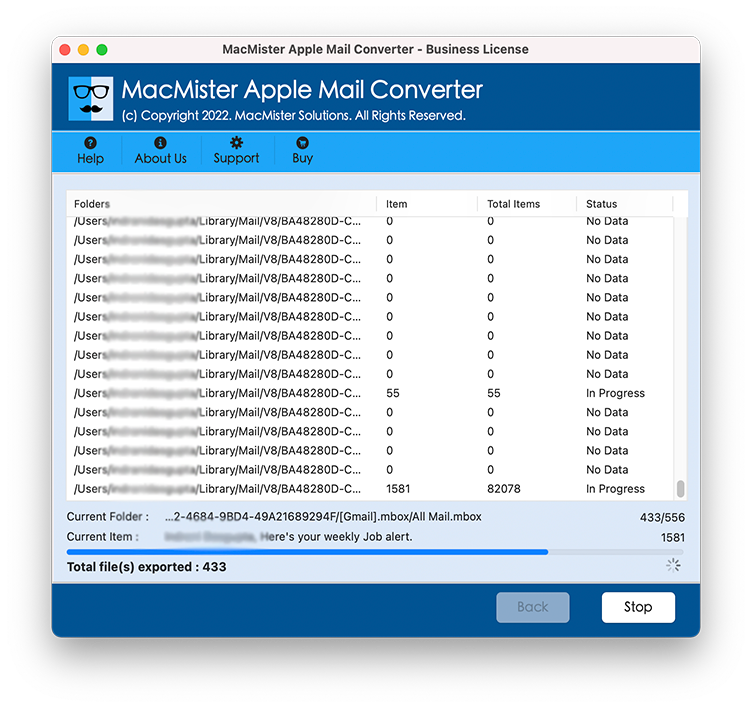
Now, check the live process using Live Conversion Window appearing on the screen.
Epilogue
When faced with an Apple Mail indexing loop, starting with a force quit and proceeding to a clean Envelope Index rebuild will resolve the issue in the vast majority of cases. Securing your mailbox data with MacMister Apple Mail Data Export utility upfront ensures your critical emails, business documents, and attachment files remain safe throughout the process.