How to Add GoDaddy Email to Thunderbird on Mac? Complete Guide
GoDaddy email accounts are commonly used by businesses and individuals for professional communication. However, users may prefer Mozilla Thunderbird on Mac to manage their emails locally, especially when they want a desktop-based email client with organized folders and easier access to messages. Thunderbird supports IMAP-based email accounts, allowing messages stored on the mail server to be accessed through the desktop application. GoDaddy also provides instructions for adding Professional Email and Professional Email powered by Titan accounts to Thunderbird using automatic detection or manual server settings.
If you are looking for a reliable way to add GoDaddy email to Thunderbird on Mac, this guide explains the manual configuration process, its limitations, and an alternative approach for users who need to manage or transfer a large amount of GoDaddy mailbox data.
Why Add GoDaddy Email to Thunderbird?
Thunderbird can be useful for users who want to access their GoDaddy mailbox through a desktop email application. Once the account is configured with IMAP, emails and folders can be accessed from Thunderbird while the original mailbox remains on the server. IMAP is designed to synchronize messages between the mail server and the email client. Some common reasons for adding GoDaddy email to Thunderbird include –
- Accessing GoDaddy emails from a desktop application
- Managing multiple email accounts from one interface
- Organizing messages into Thunderbird folders
- Searching and managing emails more conveniently
- Keeping access to business emails through a Mac email client
- Working with emails without repeatedly opening webmail
For users with a small or moderately sized mailbox, configuring the account through Thunderbird can be sufficient.
Method 1 – Add GoDaddy Email to Thunderbird Manually
GoDaddy recommends trying automatic account detection first. If Thunderbird cannot detect the correct configuration, users can manually enter the server details. For GoDaddy Professional Email, the current IMAP server is imap.secureserver.net on port 993 with SSL/TLS, while the SMTP server is smtpout.secureserver.net. GoDaddy lists port 465 for SMTP with SSL/TLS and also documents 587 as an alternative in its manual configuration guidance.
Steps to Configure GoDaddy Email in Thunderbird
Step1: Open Thunderbird on your Mac.
Step2: Go to Account Settings and select Account Actions > Add Mail Account.
Step3: Enter your name, complete GoDaddy email address, and email password.
Step4: Click Continue and allow Thunderbird to search for the account configuration.
Step 5: If the settings are not detected automatically, select Configure Manually.
Step6: Choose IMAP as the incoming protocol and enter the appropriate GoDaddy server details.
Step7: Enter the SMTP server details for outgoing messages.
Step8: Click Re-test and then select Done once Thunderbird successfully verifies the configuration.
After configuration, Thunderbird will begin loading the mailbox. Users can then send and receive GoDaddy emails directly through Thunderbird.
Limitations of the Manual Method
Although adding GoDaddy email to Thunderbird is relatively straightforward, the manual configuration approach has some limitations, particularly when users need to handle extensive mailbox data.
1. Requires Correct Server Settings – If automatic detection fails, users must enter the correct IMAP and SMTP server information. Incorrect ports, authentication methods, or security settings can prevent the account from connecting properly.
2. Depends on Internet Connectivity – Because IMAP synchronizes mailbox data with the email server, an internet connection is generally required to retrieve and synchronize current mailbox content.
3. Not Ideal for Bulk Email Backup – Simply adding a GoDaddy account to Thunderbird does not create an independent backup of the entire mailbox. Users who want to preserve emails separately may need an additional backup or export solution.
4. Large Mailboxes Can Take Time – If the GoDaddy account contains a large number of emails and attachments, Thunderbird may require considerable time to synchronize the mailbox locally.
5. Folder Synchronization Can Require Attention – Some folders may not appear exactly as expected until Thunderbird completes synchronization or the relevant folders are subscribed to and configured properly.
6. Not a Dedicated Migration Solution – Thunderbird is primarily an email client rather than a specialized GoDaddy email backup or migration utility. Users handling large-scale email transfers may need a more focused solution.
Method 2 – Use Godaddy to Thunderbird Tool for Mac
For users who want more than simply accessing their GoDaddy mailbox through Thunderbird, MacMister Godaddy Email Backup Tool for Mac can provide a dedicated approach for backing up and managing mailbox data.
|
|
|


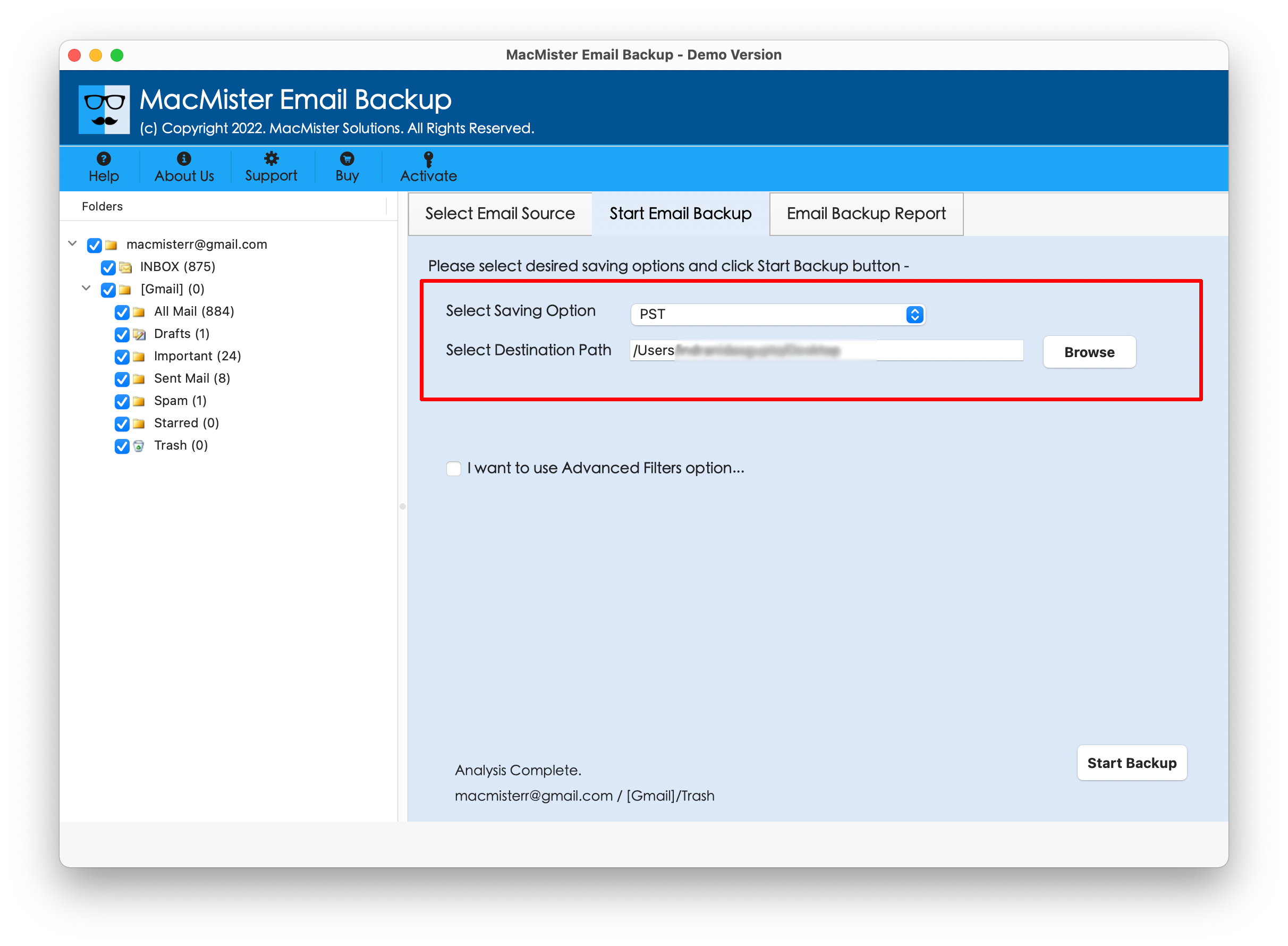
Instead of depending entirely on Thunderbird synchronization, users can use the software to connect to their GoDaddy email account, select the required mailbox folders, and export emails into Thunderbird or supported file formats MBOX for backup or further use. The general workflow involves –
Step 1: Launch Godaddy to Thunderbird Tool on Mac
Install and open the software on your Mac.
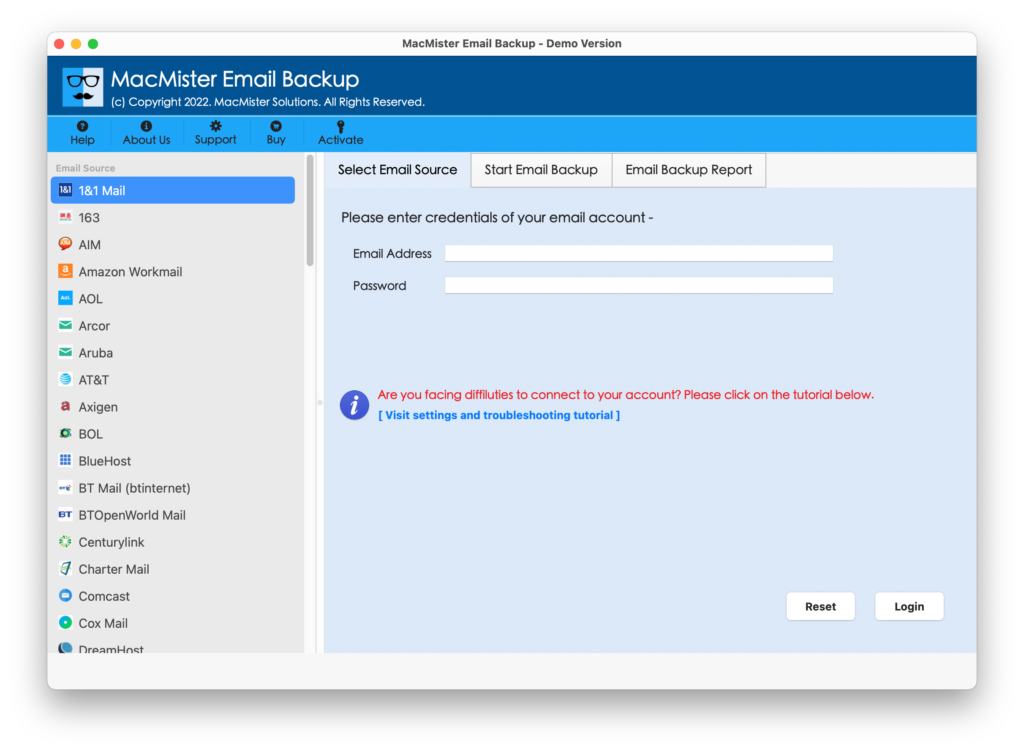
Step 2: Add the GoDaddy Email Account
Select GoDaddy Enter the required GoDaddy email account credentials and connect the mailbox.
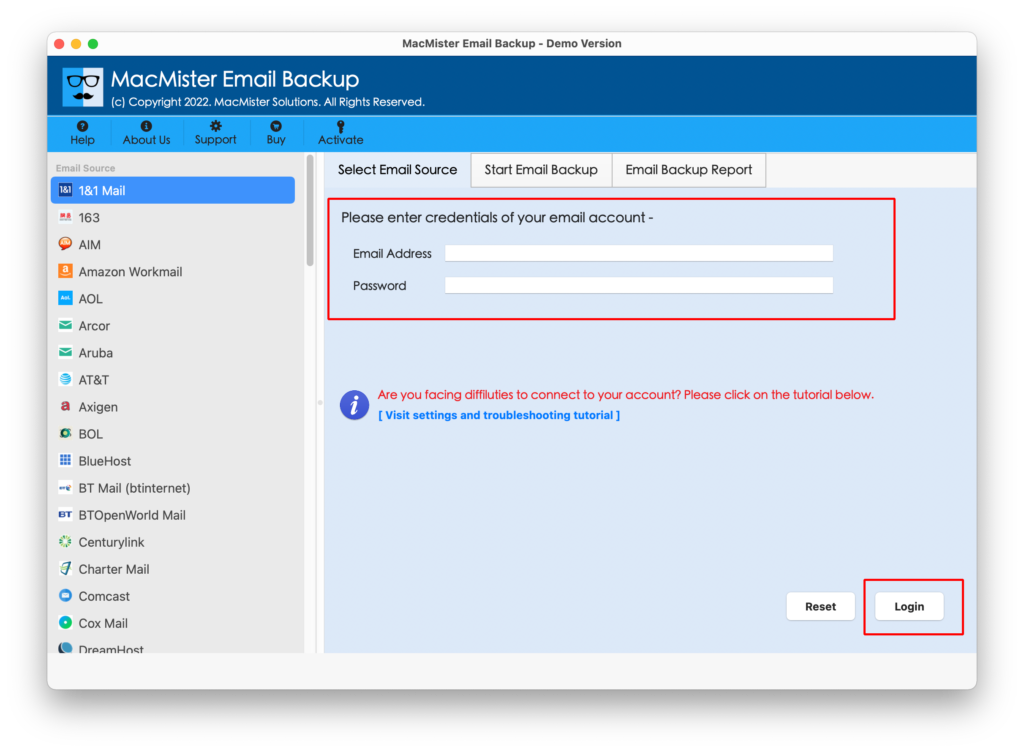
Step 3: Select Mailbox Folders
Choose Inbox, Sent Items, Drafts, or other folders that need to be backed up.
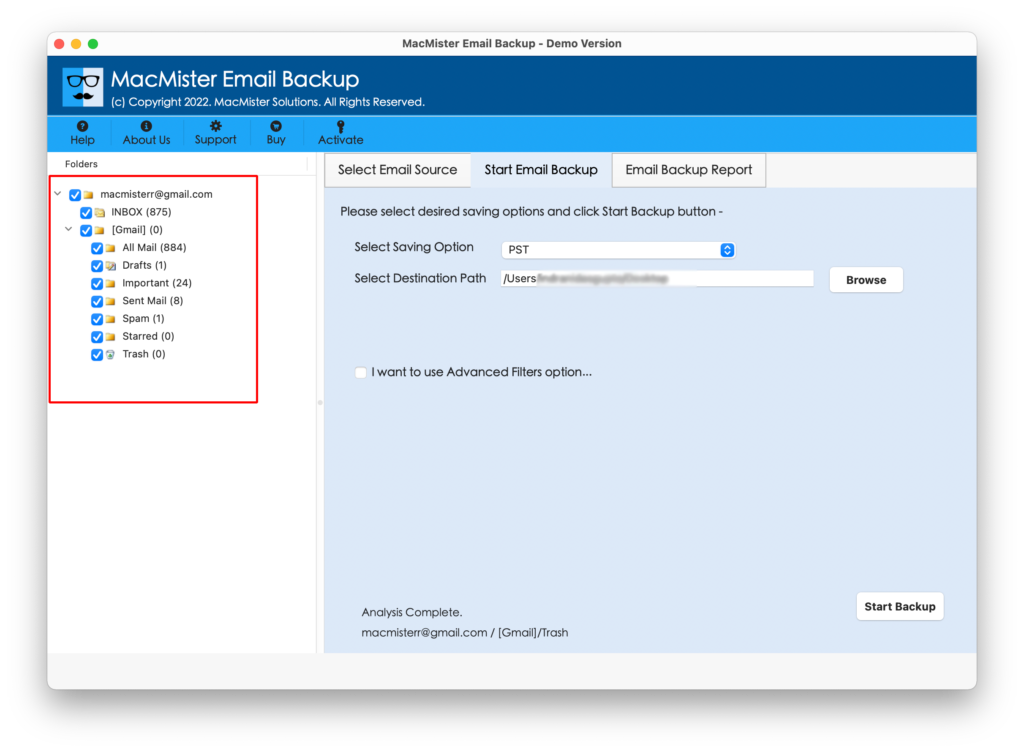
Step 4: Select the Output Format
Choose Thunderbird (if installed in system) or MBOX format on your backup or migration requirements.
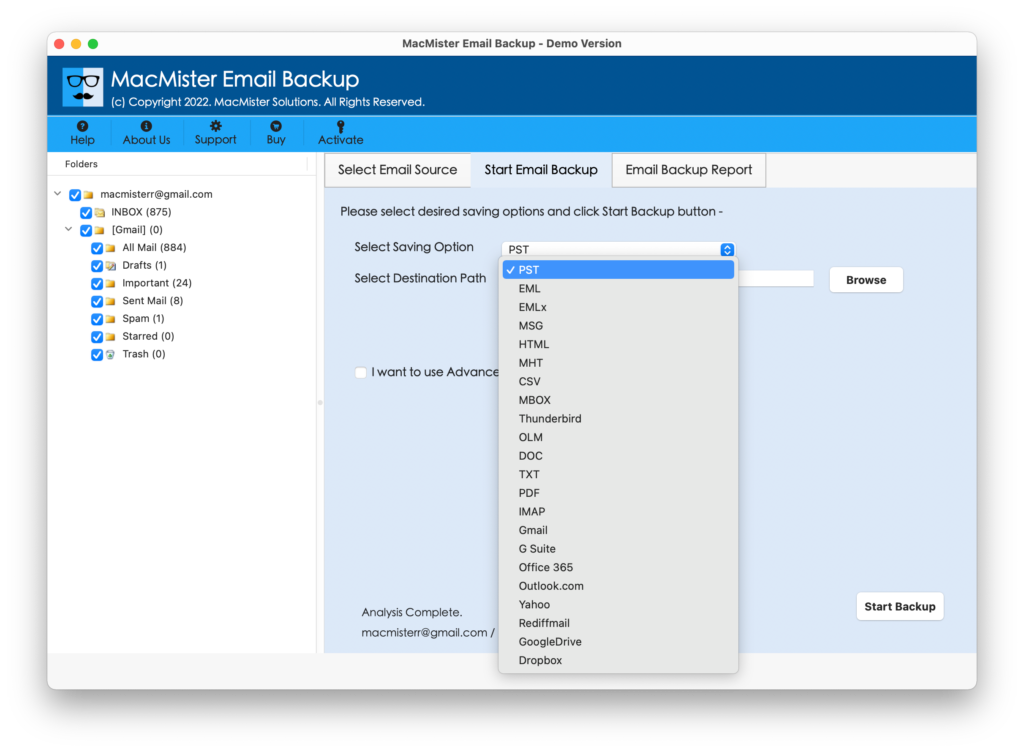
Step 5: Start the Backup
Click the start backup option and allow the software to process the selected emails.
GoDaddy Email to Thunderbird – Which Method Should You Choose?
The right method depends on the user’s requirement. If you simply want to access your GoDaddy mailbox from Thunderbird, the built-in IMAP configuration is usually sufficient. GoDaddy itself provides automatic detection and manual configuration options for Thunderbird.
However, if you need to backup a large mailbox, preserve emails independently, or manage email data for future migration, relying solely on Thunderbird may not be the most convenient approach. Advanced Godaddy to Thunderbird tool for Mac can provide a more focused workflow for exporting and preserving mailbox data.
Also Read about >>
Conclusion
Adding GoDaddy email to Thunderbird on Mac can be completed through automatic account detection or manual IMAP configuration. The process is useful for everyday email access and management, but it may become less convenient when dealing with large mailboxes or dedicated backup requirements. Manual configuration also requires the correct GoDaddy server settings and may involve synchronization time for larger mailboxes. For users who need a separate backup of their GoDaddy emails, the tool offers a dedicated way to export and preserve mailbox data on Mac.
|
|
|