How to Fix MBOX File Corruption and Restore Email Data?
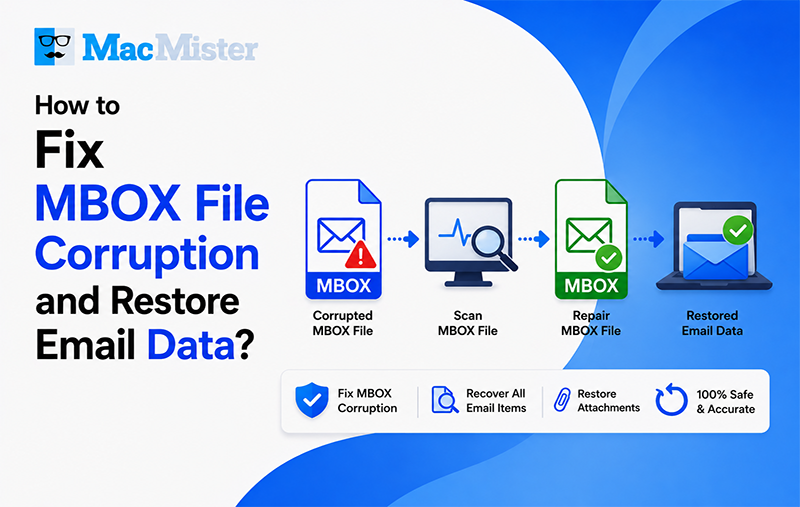
Summary: Email applications such as Mozilla Thunderbird, Apple Mail, and Eudora are widely used for managing personal and professional communication. These email clients commonly store mailbox data in the MBOX file format, which is designed to keep multiple email messages within a single file.
MBOX files have long been considered a dependable and portable solution for storing and transferring email data. However, like any digital file, they are vulnerable to corruption due to unexpected situations such as system crashes, improper shutdowns, malware infections, interrupted backup processes, or hard drive failures. Once an MBOX file becomes damaged, users may experience missing emails, inaccessible mailbox data, or errors while opening the file.
This blog explains the common causes of MBOX corruption and discusses effective methods to repair damaged MBOX files while recovering important email data safely.
MBOX file corruption is more common than many users expect. Whether you are an IT administrator handling large business mailboxes or an individual trying to recover years of important personal emails, losing access to an MBOX file can create serious challenges. Corrupted mailbox files may prevent you from opening emails, accessing attachments, or restoring critical communication records.
Because email data often contains valuable personal, professional, or legal information, resolving MBOX corruption quickly becomes extremely important. In this guide, we will discuss reliable methods to repair damaged MBOX files, recover inaccessible emails, and restore mailbox data safely without losing important information.
Common Indicators of a Damaged MBOX File
When an MBOX file becomes corrupted, the issue is often reflected in the behavior of the email client. Some of the most frequently observed symptoms include:
- The email application fails to open or load the mailbox, even after repeated attempts.
- The email client crashes unexpectedly whenever you try to access or browse the mailbox.
- Previously available emails or entire folders suddenly disappear from view.
- Errors appear during mailbox migration or while transferring MBOX data between systems.
- Emails may open, but attachments do not load or appear to be missing.
- The mailbox becomes unusually slow, freezing or lagging during basic actions like searching or scrolling.
- The MBOX file appears normal in size, but no content is accessible when opened.
Reasons Behind MBOX File Corruption
Understanding the root causes of MBOX corruption is essential for effective recovery and prevention. Several factors can lead to file damage:
- Unexpected system shutdowns while the email application is still running can interrupt file operations and damage the mailbox structure.
- Malware or viruses may silently alter or corrupt email data without deleting the file completely.
- Improper or incomplete migration between email clients can result in damaged or unreadable MBOX files.
- Storage device issues such as bad sectors, hardware failure, or disk errors can gradually corrupt stored data.
- Interruptions during file transfer, copying, or downloading can leave the MBOX file partially written and unusable.
If you are planning to move from an MBOX-supported client to another platform such as Google Workspace, it is important to follow a proper migration process to avoid data corruption during transfer.
Basic Method to Repair a Corrupted MBOX File
For minor corruption issues, email clients often provide built-in tools that can help restore mailbox functionality. You can try the following general steps:
- Open your email application and navigate to the affected mailbox folder.
- Access the folder settings and look for options such as Repair Folder, Rebuild Index, or similar maintenance tools.
- Initiate the repair or index rebuilding process and allow it to complete.
- Restart the email client and check whether the mailbox loads correctly.
This approach may help resolve small indexing or structural issues in the MBOX file, but it may not be effective for severely corrupted or heavily damaged data.
What to Do If the MBOX File Still Won’t Open
If your MBOX file does not open even after trying basic troubleshooting steps, it usually indicates a more severe level of corruption. At this stage, manual repair methods may not be effective and, in some cases, repeated attempts can further increase the risk of data loss.
When dealing with critical email data, having a backup becomes extremely important. A recent backup can help you restore lost information without depending on repair attempts.
In situations where you want to securely back up your mailbox or move MBOX data to platforms like Gmail, specialized solutions such as the MacMister MBOX Converter for Mac Tool can be useful. It supports converting and exporting MBOX files into multiple formats and email platforms while preserving email structure and content integrity.
Final Thoughts
In this guide, we explored the warning signs of MBOX file corruption, its common causes, and basic manual techniques that may help in minor cases. However, it is important to understand that manual repair methods have limitations and may not work when the file is severely damaged.
The most reliable practice to avoid data loss is to maintain regular backups of your mailbox. For users who need a more stable approach to migration or conversion, dedicated tools like MacMister Mac MBOX Converter can help simplify the process and ensure safer handling of email data.
Frequently Asked Questions
Q1. What should I do if my MBOX file is not opening at all?
When an MBOX file fails to open, it is best not to repeatedly modify or attempt repairs on the original file, as this can worsen the corruption. Instead, focus on using a backup or recovery method.
Q2. What is the safest way to fix a corrupted MBOX file quickly?
The safest approach is to first create a duplicate copy of the affected file. After that, try using your email client’s built-in repair or index rebuilding option before attempting any advanced recovery methods.
Q3. Why does an MBOX file stop opening and how can it be resolved?
This issue can occur due to unexpected system shutdowns, virus infections, interrupted file transfers, oversized mailbox data, or disk-related problems. Possible fixes include rebuilding the mailbox index, re-importing the file, or restoring data from a backup.
Q4. How can I recover emails after MBOX file corruption or system crash?
Start by checking whether your email application offers a repair or rebuild feature. If that does not work, restoring the most recent backup is usually the most effective solution.
Q5. Is there a tool that can help manage or convert corrupt MBOX files safely?
While no tool can directly repair severely corrupted MBOX files, solutions like the MacMister MBOX File Converter Tool can help users back up, convert, and migrate emails safely while maintaining folder structure, attachments, and formatting.