How Do I Enable Apple Intelligence on Mac to Explore More?
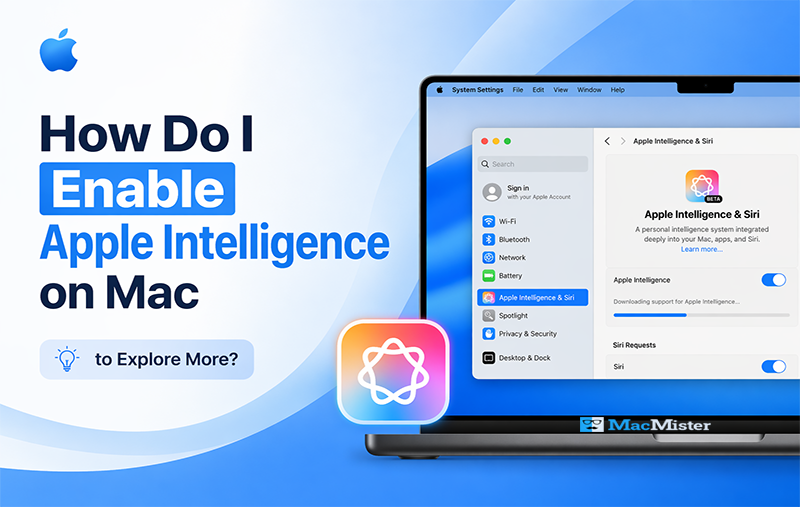
Apple Intelligence is quickly becoming the talk of the town, with Apple users eager to explore its capabilities and asking, how do I enable Apple Intelligence on Mac to explore more advanced features. While many discussions have focused on disabling it for traditional workflows, it’s equally important to understand the value it brings when turned on. As artificial intelligence continues to evolve, Apple devices are becoming smarter, more intuitive, and better equipped to handle everyday tasks seamlessly.
Apple Intelligence works quietly in the background to streamline processes, enhance productivity, and deliver a smoother overall experience. From automating routine tasks to improving system responsiveness, it transforms the way users interact with their Macs without disrupting their workflow.
With growing interest among Mac users to unlock these advanced capabilities, this guide will walk you through everything you need to know. From enabling Apple Intelligence on your device to exploring its key features and benefits, you’ll discover how it can elevate your everyday computing experience.
What is Apple Intelligence?
Apple Intelligence is a powerful personal AI system built into Apple devices like iPhone, iPad, and Mac. It enhances both productivity and creativity by combining advanced generative AI models with seamless system integration. Designed with privacy at its core, it primarily uses on-device processing while leveraging Private Cloud Compute for more complex tasks.
With features like smart writing tools, image generation, priority notifications, and a more natural, context-aware Siri, Apple Intelligence helps users accomplish more with less effort—making everyday interactions faster, smarter, and more intuitive.
Why You Should Enable Apple Intelligence on Mac?
There are several compelling reasons to turn on Apple Intelligence on your Mac:
- When enabled on macOS Sequoia and other Apple devices, it helps you complete tasks faster and manage your workflow more efficiently.
- Easily rewrite, summarize, or proofread content in seconds, perfect for students, professionals, and content creators.
- Summarizes long email threads into concise overviews, saving time and reducing clutter.
- Focuses on on-device processing to ensure your personal and sensitive data remains secure.
- Works effortlessly across Apple devices, delivering a consistent and unified user experience.
System Necessities before You Start
Before enabling Apple Intelligence on your Mac or other Apple devices, make sure you meet the following requirements:
- Your device is running the latest version of macOS
- You are using an Apple Silicon Mac (M1, M2, or newer)
- You have an active Apple ID
- Your device is connected to a stable internet connection
- Language and region settings are set to a supported option
How to Enable Apple Intelligence on Mac OS?
Follow these simple steps to turn on Apple Intelligence on your Mac:
- Open System Settings and go to General > Software Update.
- Click on your profile and sign in with your Apple ID (if not already logged in).
- Navigate to Apple Intelligence & Siri.
- Toggle Apple Intelligence to turn it on.
- Enable features like Writing Tools, Summaries, and Suggestions.
- Customize the settings based on your preferences.
- Restart your Mac to ensure everything runs smoothly.
How to Turn On Apple Intelligence on iPhone and iPad?
- The steps are similar for both iPhone and iPad:
- Open the Settings app.
- Tap on Apple Intelligence & Siri.
- Turn on Apple Intelligence.
- Customize features according to your needs.
How to Sync Apple Intelligence Across Devices?
To ensure a seamless experience across all your Apple devices:
- Use the same Apple ID on all devices
- Enable iCloud sync
- Keep all devices updated to the latest software version
Pro Tip: Back Up Apple Mail Data Before Enabling Apple Intelligence
Before enabling AI features, it’s a good idea to secure your important email data. Managing or backing up your Apple Mail data ensures everything stays safe and accessible.
Tools like MacMister Apple Mail Converter for Mac can help simplify this process. These tool offer an easy and efficient way to back up Apple Mail data into multiple formats such as PST, PDF, MBOX, HTML, DOC, Gmail, Office 365, IMAP, Thunderbird, and more.
They come with user-friendly interfaces and advanced features, making them suitable for both beginners and professionals who want a reliable backup solution before enabling Apple Intelligence.
Key Features of Mac Apple Intelligence
Apple Intelligence offers a range of smart features designed to enhance productivity and simplify data management:
- Writing Tools: Easily rewrite, proofread, or summarize content across emails, notes, and other applications perfect for both professional and casual use.
- Genmoji: Create fun, personalized emojis and images by typing descriptions or sketching directly within apps like Messages.
- Advanced Photo Features: Remove unwanted objects, eliminate distractions, and quickly find specific images just by describing them.
- Enhanced Siri with ChatGPT Integration: Experience a more natural and context-aware Siri that can assist with complex queries, writing tasks, and even image generation without switching between apps.
Important Things to Know Before Enabling Mac Intelligence on Mac
Before turning on Apple Intelligence, keep these points in mind to ensure a smooth experience:
- Ensure your Mac supports Apple Intelligence features
- Always back up your important data beforehand
- Review and adjust permissions based on your comfort level
- Start by enabling only essential features, then explore more gradually
- If you notice performance issues, disable unnecessary AI features
Final Thoughts
Enabling Apple Intelligence on your Mac and other Apple devices can greatly enhance productivity and overall user experience, offering powerful writing tools and smarter Siri interactions that make everyday tasks faster and more intuitive, by following the correct steps and taking precautions like backing up your data and ensuring system compatibility, you can safely unlock its full potential, and if you still have questions or need assistance, reaching out to a trusted technical support team can help you explore these AI features more effectively.
You May Also, Like-