How to Rename a File Folder in Mac?
It is possible that you create a new folder for the first time and you haven’t picked appropriate name for the same. Fortunately, macOS provide multiple options to rename items, whether cleaning up desktop or managing it. In the segment, we will go through a procedure that will quickly fix the issue “how to rename a file folder in Mac”.
Renaming files and folders is not complicated but there are some methods to achieve the same, depending on the preference and the count of files you need to rename. Here by using a comprehensive guide, one may easily rename files in batch on Mac and the folders proficiently.
Quick Tip: Try MacMister different solutions to preserve files on Mac. Utilize MacMister’s MBOX Converter, PST Converter, OLM Converter, EML Converter and other tools to prevent essential files from loss or corruption.
There are situations when a project title need to be modified as the terminology used to refer clients and projects.
On a bright side, renaming files on Mac need just a few clicks and the same need to be done for folders.
Methods to Rename a File Folder in Mac
Here, we will be offering 4 methods to rename a file folder in Mac. All the methods and steps are mentioned below –
Method 1. Select a File and Rename
Step 1. Choose a desired file or folder that you need to change.
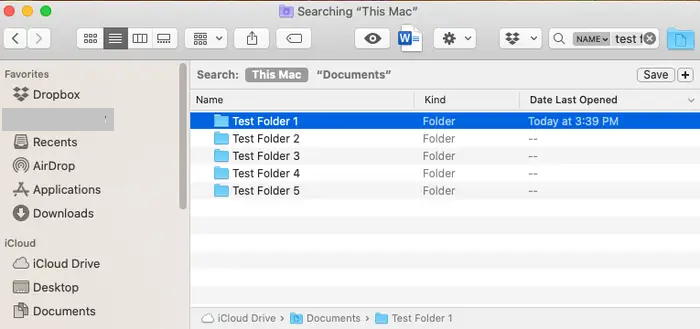
Step 2. Tap on a file name as appearing below.
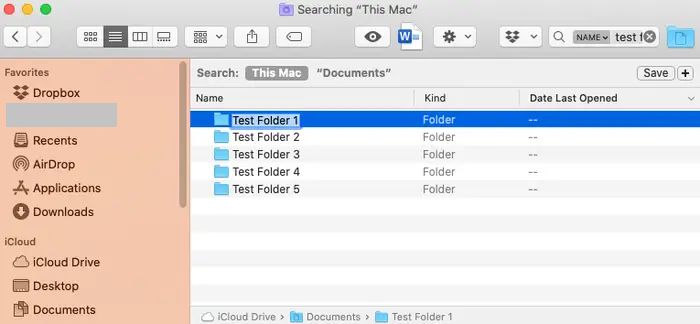
Step 3. Enter a new name for a file which needs to be renamed.
Step 4. Last, click anywhere on the screen and a file will be saved with a new name.
Method 2. Rename using Return Key
Step 1. Again select a required file or folder.
Step 2. Press Return Key to choose a folder name.
Step 3. Provide a new name to file or folder on Mac.
Method 3. Rename a File Folder using Rename Option
Step 1. Choose a folder by clicking on it for once.
Step 2. Right-click on a file or folder for renaming.
Step 3. Select Rename option from the list.
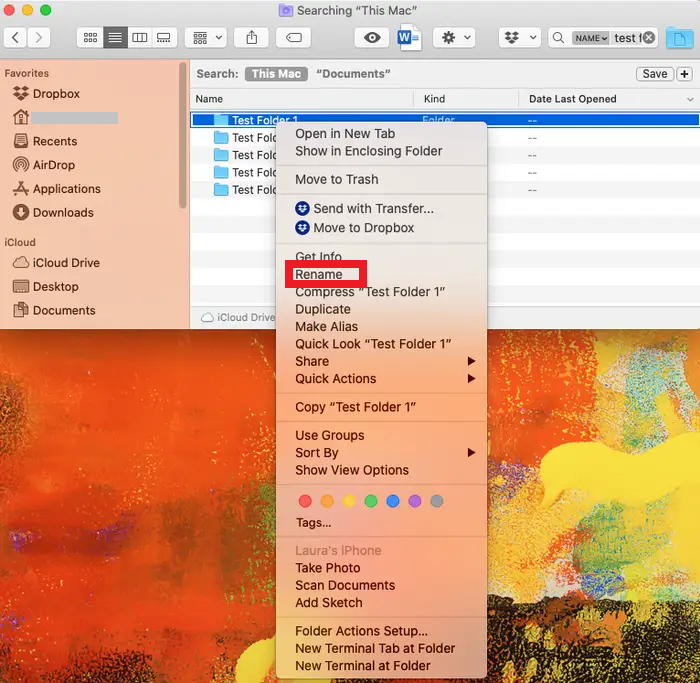
Step 4. Specify a new file name and click on the screen.
Method 4. Rename a File Folder on Mac Terminal
Step 1. Open Terminal to rename a folder on a Mac.
Step 2. Now, go to the location of a file that needs to be renamed.
cd ~/Documents
Step 3. Afterwards, make use of MV command to rename a file folder in Mac Terminal.
mv oldfilename.txt newfilename.txt
Step 4. Now, type the command as appearing below –
Example – mv test2.txt newname.txt
As here we have discussed 4 methods to rename a file folder in Mac. You can take help of these techniques on all Mac OS such as MacBook Pro, OS X, and other macOS machines. One may use the above suitable solution and fix the issue as soon as possible. Now, we will go through some FAQs that many users asks when they face errors and issues while renaming a file folder in Mac.
Method 5. Rename Files in Batch
- Run Finder on Mac.
- Choose the required files one need to rename.
- A user may drag the cursor or shift-click to select multiple files.
- Right-click on chosen files.
- Click Rename Items.
- Choose Format from the tab.
- Select a Name Format and specify a name.
- Tap Rename button to finish the task.
Thus, a user may update the number of file names sharing similar names.
FAQs – Batch Rename a File Folder in Mac
Ques 1. I am using MacBook Pro and facing an error while renaming my files, so I am not able to rename a file and folder in Mac. Can you suggest a solution for the same?
The situation arises while using dots in the name to rename a file folder in Mac machines. To avoid the same, make use of alphabetic characters.
Ques 2. How to rename multiple files and folders on a Mac machine?
Mac OS has the ability to rename files and folders in batch. This can be done by taking help of context menu. A pop-up box opens allowing using a naming format for files and folders.
Also, it is possible to rename a file folder in Mac terminal by making use of mv along with right wildcard characters. Although the approach is complex yet attainable.
Ques 3. Is it possible to rename a file in Mac multiple times?
Yes, renaming file in Mac multiple times is possible; there are no limitations at all.
Epilogue
Rename a file folder in Mac is achievable using different techniques. By making use of Finder in desktop is one of the easiest procedures. Although users who are already familiar with Mac Terminal opt for a command-line approach as it is convenient to rename folders in Mac Terminal. For any queries, contact MacMister Support.