How to Print MBOX Files in Digital Format: Complete Guide
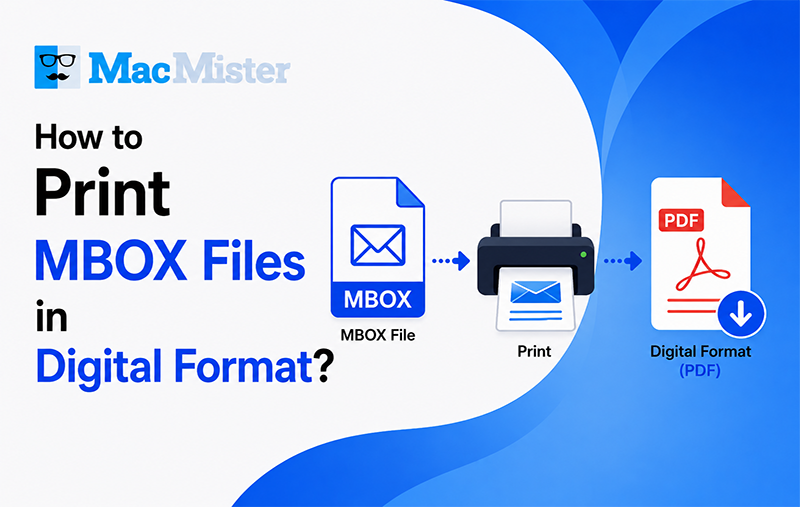
Emails have become an essential part of modern communication for both individuals and businesses. From project discussions and invoices to legal conversations and personal records, emails often contain important information that users want to preserve for future use. Since email data is valuable, many users prefer saving their mailbox information in a secure and portable format.
Different email clients store mailbox data using different file formats, and MBOX is one of the most widely used among them. Popular email applications and services such as Mozilla Thunderbird, Apple Mail, Eudora, and Google Takeout support the MBOX format for storing email messages. While MBOX files are useful for maintaining mailbox data, they are not always convenient for printing, sharing, or long-term documentation.
This is where converting or printing MBOX files into a digital format like PDF becomes helpful. PDF files are universally accessible, easy to share, and ideal for archiving email records. In addition, PDF documents are commonly accepted for legal and official purposes because they preserve formatting and are difficult to modify. If you are searching for an efficient method to print MBOX files in digital format, this guide explains both manual and professional solutions in detail.
Why Save MBOX Files in PDF Format?
Many users prefer converting MBOX emails into PDF documents because of the flexibility and accessibility that PDF files provide. Unlike MBOX files, which require a compatible email client to open, PDF documents can be viewed on almost any device without additional software.
Here are some common reasons for saving MBOX emails as PDF files:
- Easy email backup and archiving
- Secure storage of important conversations
- Convenient printing and sharing options
- Better accessibility across multiple platforms
- Preservation of email formatting and content
- Acceptance in legal and compliance-related environments
Whether you want to maintain personal records or preserve business communication, PDF is considered one of the safest and most practical digital formats.
Manual Method to Print MBOX Emails
One of the easiest free methods for printing MBOX emails is by using Mozilla Thunderbird. Thunderbird is a widely used email client that supports importing MBOX files with the help of an add-on. Once imported, users can print selected emails directly from the application.
Steps to Print MBOX Emails Using Thunderbird
Follow the instructions below carefully:
Step 1: Install Thunderbird Add-on
Download and install the ImportExportTools NG extension from the Mozilla Thunderbird add-ons page. This add-on enables Thunderbird to import MBOX files easily.
Step 2: Launch Thunderbird
Open the Thunderbird application on your computer.
Step 3: Import MBOX Files
- Right-click on the Inbox folder.
- Select ImportExportTools NG from the menu.
- Choose the option to import MBOX files.
- Click on “Direct Import One or More MBOX Files.”
- Browse your computer and select the desired MBOX file.
Step 4: Access Imported Emails
After importing the file, Thunderbird will display the mailbox folder containing all email messages.
Step 5: Print Emails
- Open the imported folder.
- Select the required emails using Ctrl + A or manual selection.
- Right-click on the selected messages.
- Choose the Print option.
- Configure the print settings as needed.
- Click Print to continue.
Using these steps, users can print their MBOX emails directly from Thunderbird.
Drawbacks of the Manual Method
- Although the Thunderbird method is free, it has several limitations that can make the process difficult for users handling large mailbox data.
- The import and printing process must be repeated for every MBOX file, which can take a significant amount of time when managing multiple mailboxes.
- In some cases, attachments may not be printed or preserved correctly during the process.
- The manual method is not ideal for bulk email conversion or printing large email collections.
- Users must install Thunderbird and the required add-on before accessing MBOX files.
Because of these restrictions, many users prefer using a dedicated automated solution.
Professional Solution to Print MBOX Files
For users who need a faster, more efficient, and accurate method, a professional MBOX to PDF Converter is the best choice. Dedicated software simplifies the entire process and eliminates the limitations associated with manual methods.
An automated MBOX Converter for Mac can directly export mailbox data into PDF format while maintaining the original structure and email properties. It supports bulk conversion and helps users save both time and effort.
Benefits of Using an Automated MBOX to PDF Converter
Professional software solutions offer advanced features that improve the conversion and printing experience.
- Batch Conversion Support: Users can convert multiple MBOX files into PDF format simultaneously without repeating the process manually.
- Preserves Email Formatting: The software maintains email headers, metadata, formatting, hyperlinks, and embedded images during conversion.
- Attachment Preservation: Email attachments remain associated with their respective messages after conversion.
- Supports Multiple MBOX Variants: The tool supports standard MBOX files as well as MBX and MBS file formats created by various email applications.
- Advanced File Naming Options: Users can organize exported PDF files using customized naming conventions.
- Date Filter Option: The software allows users to export emails from a selected date range only, reducing unnecessary data conversion.
- Searchable PDF Output: Generated PDF files remain searchable, making it easier to locate specific emails or keywords later.
- Wide Platform Compatibility: The professional tool support Windows operating systems such as Windows 11, 10, 8, and 7, along with Windows Server editions. And also provide support for macOS users.
Who Should Use an Automated MBOX File Converter?
Professional MBOX conversion software is useful for:
- Businesses maintaining email archives
- Legal professionals preserving evidence
- IT administrators handling large mailbox migrations
- Individual users creating email backups
- Organizations requiring compliance documentation
If you regularly work with large email databases, automated software can significantly simplify your workflow.
Tips for Safe Email Archiving
- Before converting or printing MBOX emails, consider the following best practices:
- Create a backup of original MBOX files before conversion.
- Verify that attachments are included after exporting.
- Store PDF files in a secure location.
- Use password protection for confidential documents.
- Organize exported files into folders for easier access.
Following these practices can help maintain data security and improve long-term email management.
Final Thoughts
Saving MBOX files in a digital format such as PDF is one of the most reliable ways to preserve important email communication. PDF documents provide easy accessibility, long-term storage, and compatibility across multiple devices and platforms.
While Mozilla Thunderbird offers a free manual method to print MBOX emails, the process may become complicated and time-consuming for users managing multiple mailbox files. In contrast, a professional MBOX File to PDF converter provides a more advanced and user-friendly solution by supporting batch conversion, preserving attachments, and maintaining email formatting.
Users can choose between the manual and automated methods depending on their requirements. However, for large-scale email conversion and efficient document management, professional software remains the most practical and time-saving option.