How do I Transfer my Emails from Rackspace to Office 365 on Mac?
In the following section, we will be discussing a direct procedure to migrate Rackspace to Office 365 environment on Mac directly. However, there are several users nowadays who are moving to Office 365 account from Rackspace. And, there could be many reasons behind this process. The migration can be easily done but what makes the process challenging is the migration between their email files. Because, each email server contains its own methodology for storing user database. In other words, users cannot open email file of one email platform to another. Therefore, to resolve the process in an easier and simple way, MacMister Solutions is bringing a powerful tactic to transfer Rackspace emails to Office 365.
Rackspace is a cost-effective, business-class email client. Its services can be accessed from anywhere anytime. Users can easily use their emails from Rackspace through Outlook, mobile phones or webmail application. The best thing about Rackspace is that it delivers 100% uptime guarantee with premium spam and anti-virus protection. Even, Rackspace has a cloud drive as well that stores large amount of user files. Moreover, it makes sure that the user stored data remain protected against dead hard drives, theft and ransomware.
Rackspace is filled with loads of ultimate features. But, these days Microsoft 365 is winning the competition because of its smart productivity apps and manageable GUI. Let’s see some more benefits of using Office 365.
Benefits of Using Office 365 Environment over Rackspace
There are various undeniable benefits of using Office 365 and some of them are listed below:
- Flexible licensing
- The licenses are available in two different formats i.e. subscription-based cloud version or a perpetual license.
- Collaboration Tools
- Microsoft 365 offers multiple collaborative tools and one of them is Microsoft Teams. Here, users can create multiple projects, workstreams and groups as much as needed.
- Advance Productivity
- There are multiple productivity tools available for users. Office 365 Planner is one such tool that help team leaders in coordinating schedules, deadlines, assignments, workflows etc.
- Enhanced Cloud Security
- With Microsoft Secure Score, one can assess vulnerabilities and delivers recommended solutions that offers more control over network security measures.
- Automatic Updates
- Automatic Updates is another impressive beneficial feature of Office 365. Whenever new tool is added in Microsoft, users can instantly access them by easily activating the latest version of Microsoft 365.
There are lot more amazing options that Office 365 offers to its customers. But, the main issue is how to migrate email from Rackspace to Office 365. So, without more ado, let’s know the step-by-step process that securely implements the migration process.
Direct Method to Migrate Email from Rackspace to Office 365
Rackspace Backup Tool is a safe and strong solution that directly migrate email from Rackspace to Office 365 on Mac with attachments. The application possesses friendly GUI and has a simplified working structure that users can access easily on any macOS version. Moreover, the tool only requires the necessary credentials of a Rackspace and Office 365 account. When login details are correctly entered, then the tool will start the process immediately.

The application carries many wonderful options that will help users migrating emails from Rackspace to Office 365 with attachments as per need. The software has a freeware version through which users can analyse the working of the migration process.
Step-by-Step Process to Migrate Rackspace Email to Office 365
Step 1. Run Rackspace to Office 365 Migration Tool on macOS.
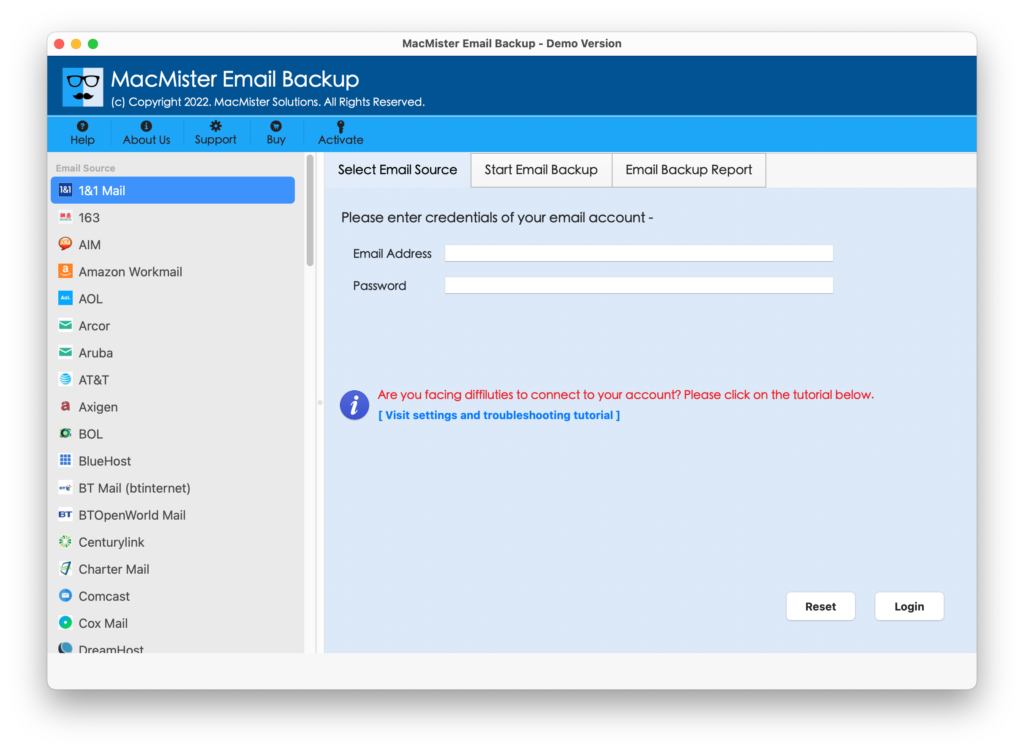
Step 2. Select Rackspace webmail option from the left and enter Rackspace login details. After this, press Login button.
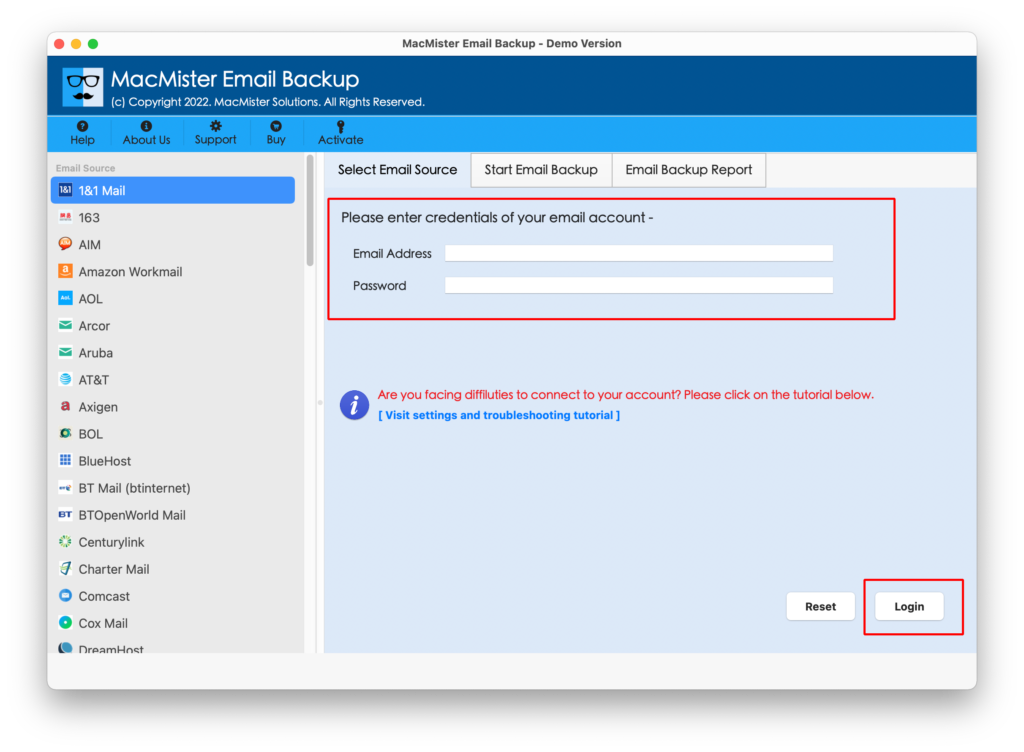
Step 3. Tool will start showing Rackspace mailbox items when connected with the application.
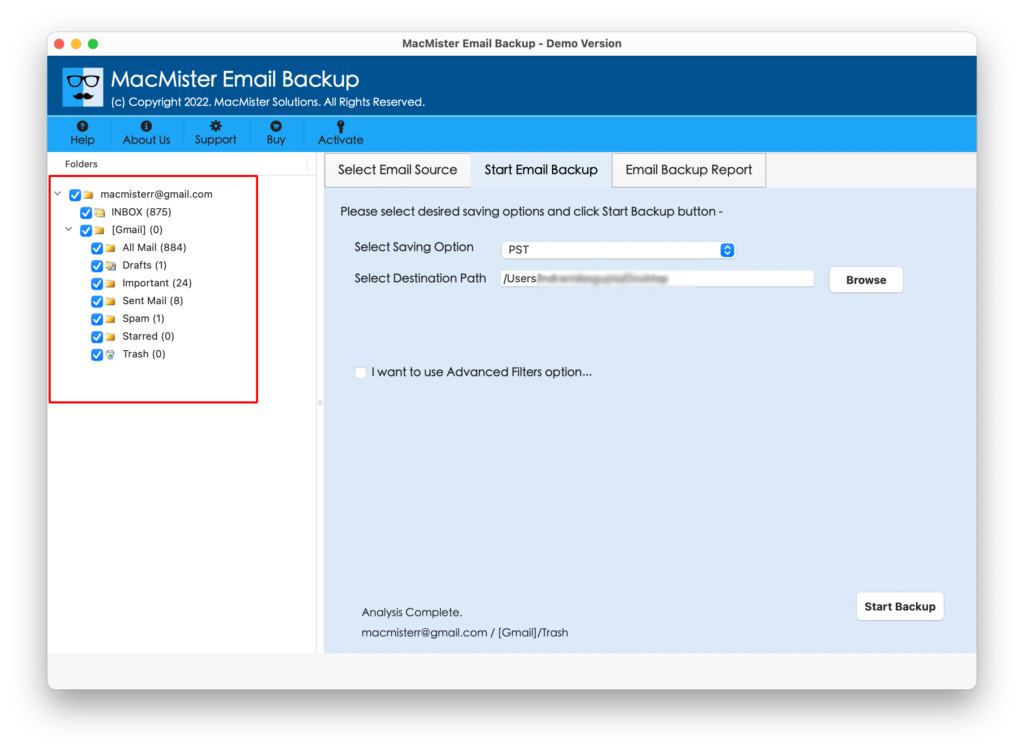
Step 4. Choose Office 365 as a saving type after clicking the Select Saving Option.
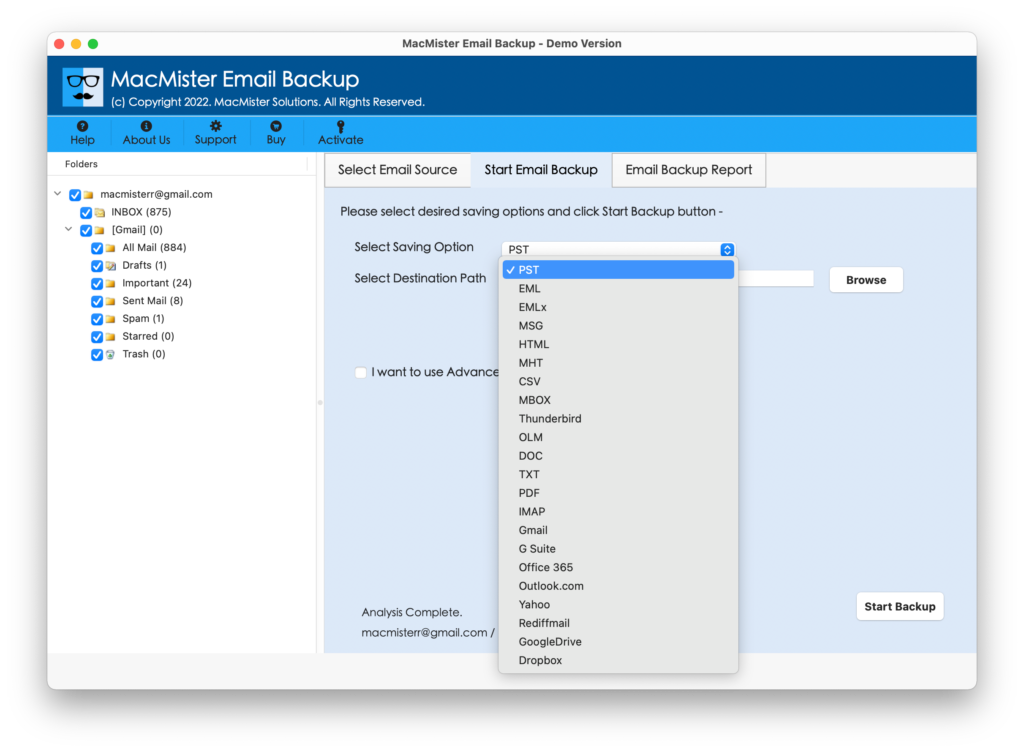
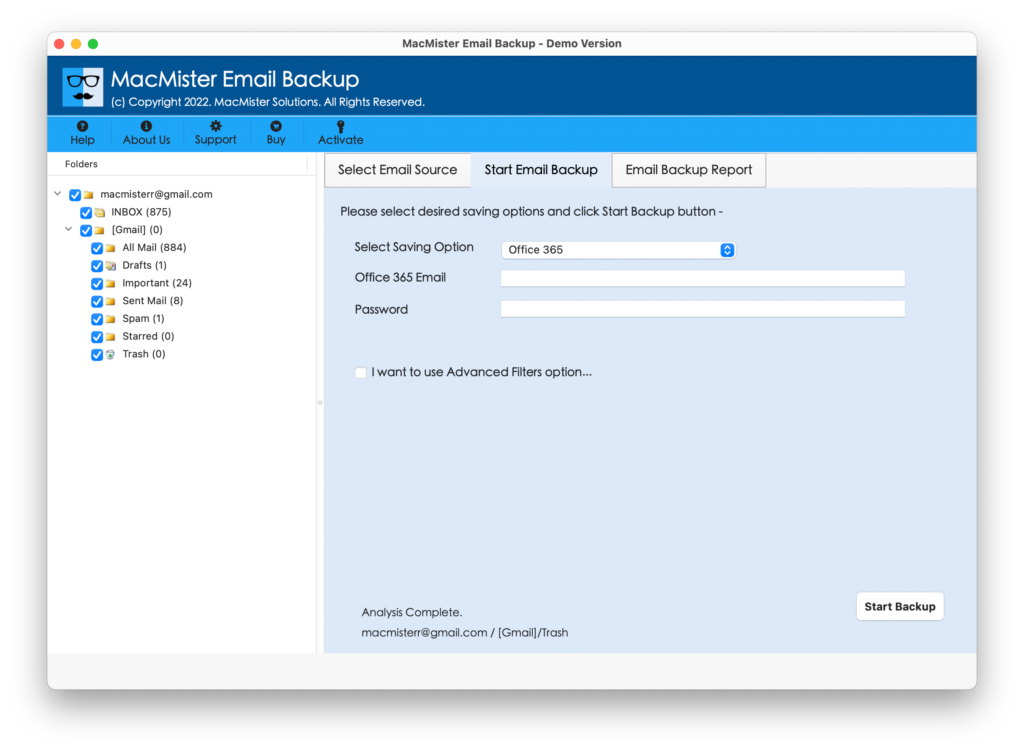
Step 5. Enter credentials of Office 365 in Email ID and Password. You can also use filters in case you need to migrate specific Rackspace emails to Office 365. Otherwise, click Start Backup button.
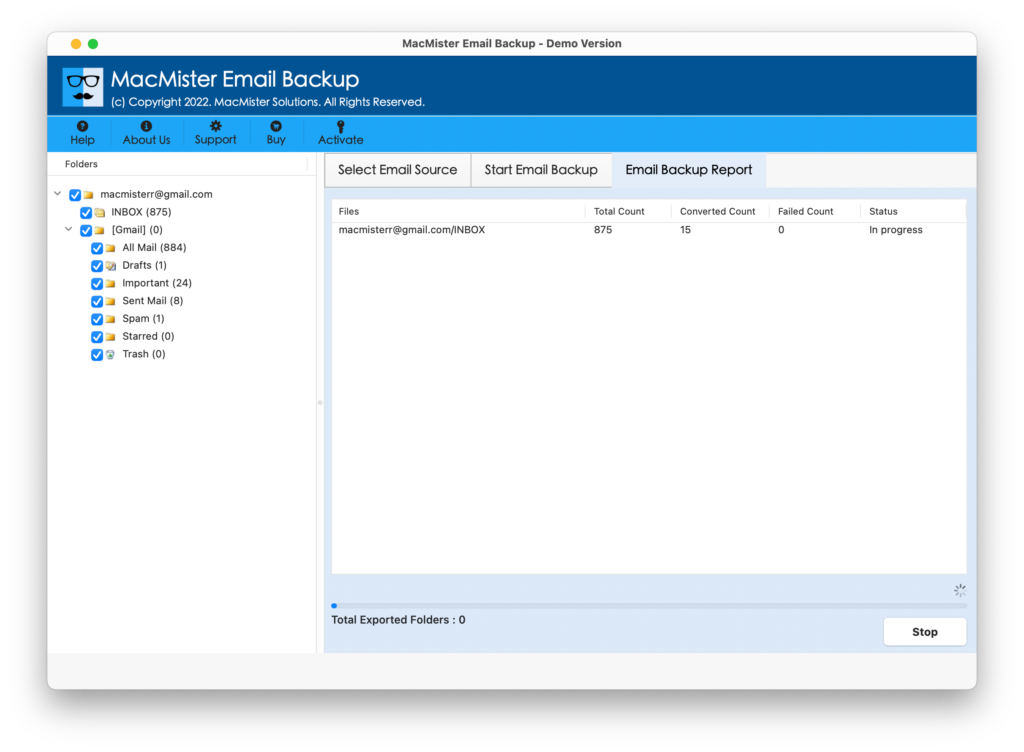
Step 6. Rackspace to Office 365 process will immediately start. You can also track the migration using the Live Conversion screen as shown-
The application will notify a process completion through a message showing “Process Completed” on the screen. Now, navigate to specified Office 365 account to check the resultant file. The Rackspace email data integrity also remain accurate. It will be shown in an exact form after the process.
Why Rackspace to Office 365 Tool is Incomparable?
Rackspace to Office 365 application has many options that makes it incomparable and unmatched from other available solution. And, here we have mentioned some important benefits of using the advance tool:
- Directly migrate email from Rackspace to Office 365 on Mac in batch at once.
- Able to transfer Rackspace emails to Office 365 with attachments in seconds.
- Maintains the accuracy of Rackspace email properties during the process.
- Provide the benefit of multiple filters to migrate selective Rackspace email files.
- User-friendly and a simple operational structure give access to every user.
- Includes Email Backup Report window that shows the status of live migration.
- Also supports PDF, MBOX, OLM, EML, EMLx, MHT, HTML, Thunderbird, Gmail and many more saving options other than Office 365.
- Users have a freedom to export unlimited Rackspace emails to O365 without restriction.
- Protects user’s account private credentials when implementing the process.
- Offers trouble-free working on all macOS versions including Mac OS Ventura.
Common FAQs on Rackspace to Microsoft 365
How much time the migration will take to complete the process?
Rackspace to Office 365 is completely a time-saving solution. Once the required details are entered, the tool will immediately start the process and complete the entire task within seconds.
Can I use the solution on Mac OS Mountain Lion as it is my current Mac OS version?
Yes, you can download and use the solution on any macOS version. So, without thinking twice just run the application on macOS Mountain Lion and migrate email from Rackspace to Office 365 effortlessly.
Is there any way available that could help me checking the working criteria of the tool?
Yes, you can download the freeware version of the application that is especially available for those who wants to test the working of the tool and its related options.
I need to save Rackspace emails of January month 2022. Can I accomplish the task by using the tool?
Yes, definitely you can use our Advance Filters option. Apply the date range in the required sections and then you will receive emails of January month.
Final Thoughts
The simpler process is discussed in the article that migrate Rackspace emails to Office 365 with attachments. The Rackspace Email Backup Software Mac is secure and direct. The tool also possesses friendly environment which is accessible by any organization and user quickly. However, users can make use of a trial edition and check the migration of the application for free. It allows to transfer first 25 Rackspace emails to Microsoft 365 for free.