How to Import Entourage to Mac Apple Mail?
Are you moving to Apple Mail from Entourage? Want to import Entourage to Apple Mail? Searching an advance solution for the same? Not to worry as MacMister Solutions is here to help you. In the section, we have discussed different techniques which will definitely help you in importing Entourage to Mac Mail easily.
About Entourage and Apple Mail
Entourage is a popular email client which carries inbuilt browser as well. It is a personal information manager that easily manages all the user account items such as emails, notes, calendar, tasks etc. Moreover, it manage large projects as well. Due to this, numerous organizations make use of the email program earlier. But, now it has been discontinued and that is why most of the users are shifting to a different email platform on Mac. However, there’s still some important data of users that it contains that users wants to migrate in Mac Mail email client.
Apple Mail on the other hand is a pre-installed email client of Mac and is designed by Macintosh itself for Mac users. It has a similar functioning just as Entourage. The email application has the ability to manage user data in large amount. Also, the regular update makes the email functioning smooth and stable.
Why to Import Entourage to Mac Mail?
Both Entourage and Apple Mail are amazing applications but still due to some unavoidable reasons users want to import Entourage mailboxes to Apple Mail. And, some of them are listed below –
- Mac Mail has advance search option with the help of which users search files in seconds.
- The Apple Mail allow users to organize multiple files in a single folder.
- Automatically append signatures to outgoing emails.
- iCal and address book work appropriately when using Mac Mail.
Multiple Ways to Import Entourage to Apple Mail on macOS
Here, we have discussed two different ways to import Entourage mailboxes-
- Professional Solution i.e. MBOX Converter for Mac
- Manual Method
Solution 1. Importing Entourage using Professional Solution
The MBOX Migrator for Mac is all-in-one secure and handy solution that allows to import Entourage to Mac Mail directly on macOS. The application possesses friendly steps and smart working that technical and novice users can use quickly use to import Entourage to Apple Mail.

The three simple steps of the application and advance features of the tool help users to get the desired output. And, in order to check more about the working of the app, download the free demo of the tool and experience the process on your own.
Note. However, let us first extract MBOX files from Entourage and then implement the same using third party solution.
Step 1. Extract MBOX Files from Entourage on Mac
You can extract the files from Entourage using two methods –
Methods 1. Using Drag and Drop Folders
Go to Entourage email client. Now, drag the required files from the account and drop them on the desktop directly. This will create a file with the same name with .mbox extension.
Method 2. Extract Files from Archive
- Open Entourage and click on File and select Export.
- Choose Export items to an Entourage archive and then select All Items.
- Now, you will see that right arrow is appearing at the bottom of the window, select required path and hit Export.
- Navigate to specified location to see file that is saved with .rge extension.
- Right Click on the extracted .rge file and select Show Package Content from the dropdown list.
- Open Folder Mail and go to My Computer. This will display subfolders that is carrying MBOX files.
Steps to Import Entourage to Mac Apple Mail
Step 1. Run Entourage to Apple Mail Tool on Mac OS.
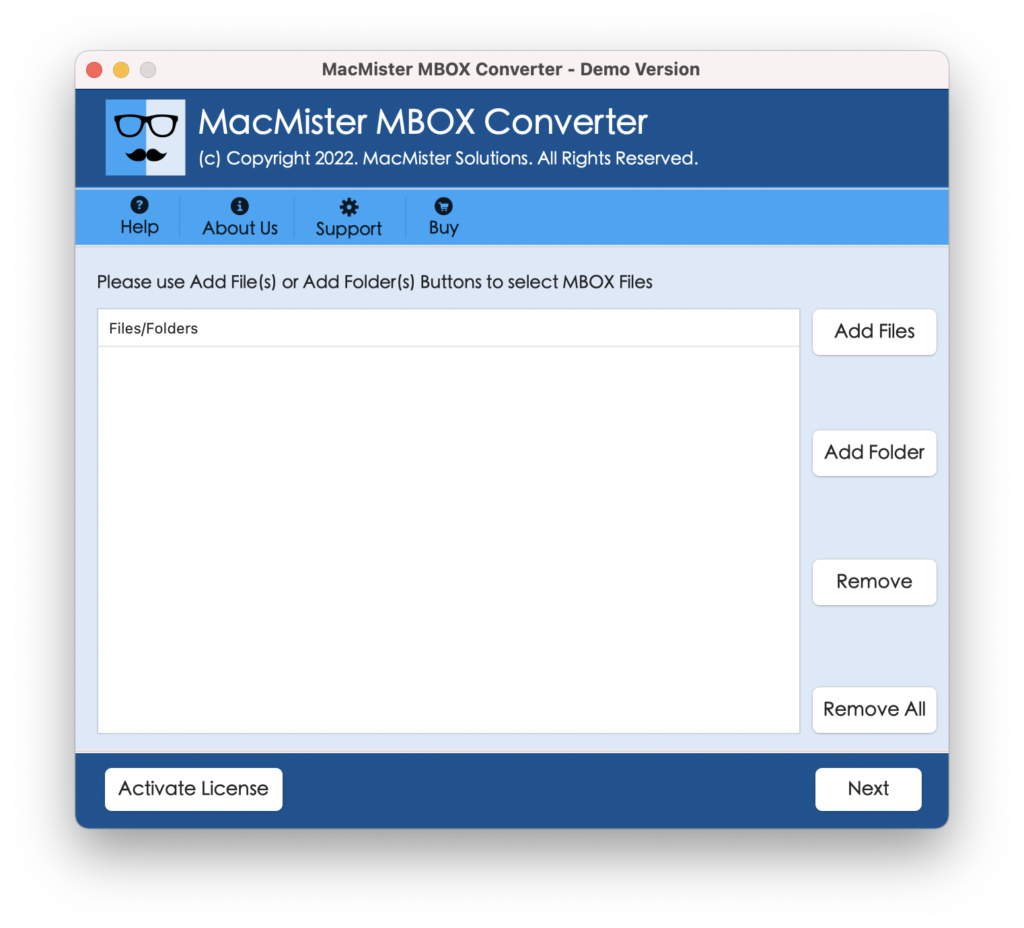
Step 2. Upload Entourage mailboxes i.e. .mbox files using Add Files and Add Folder options present and click on Next.
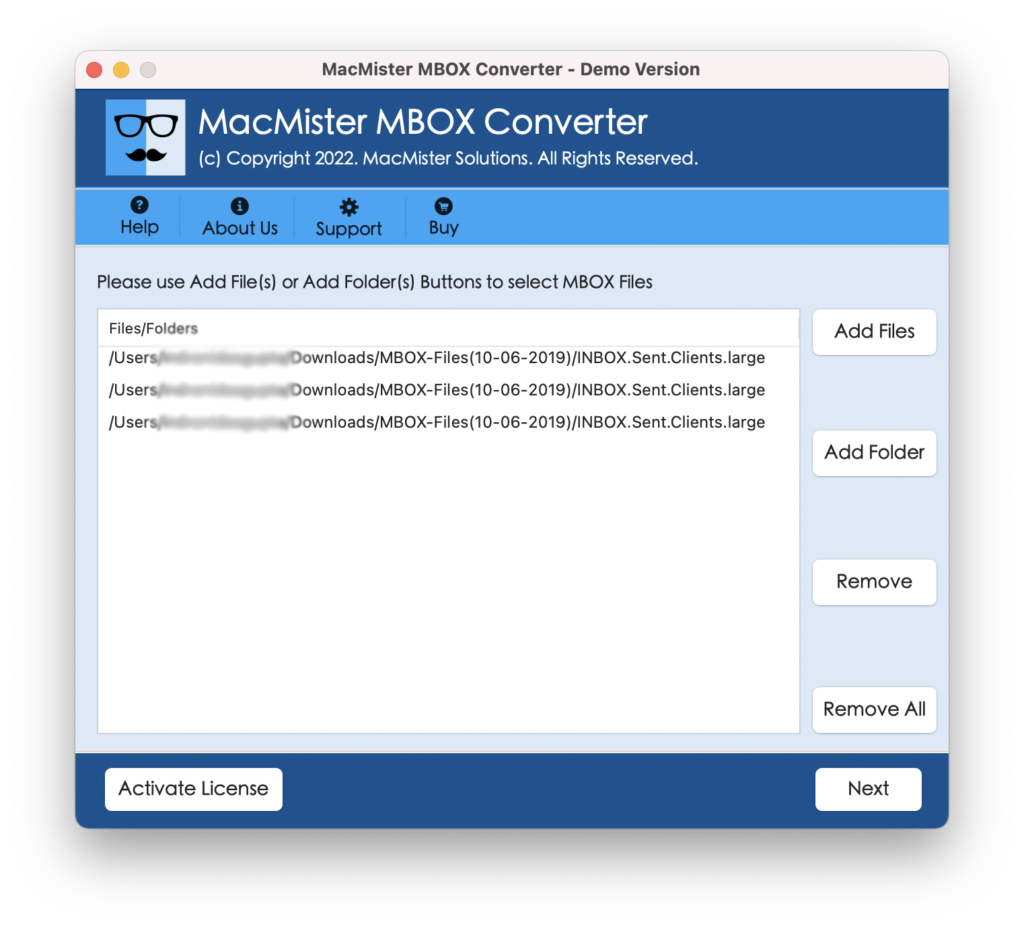
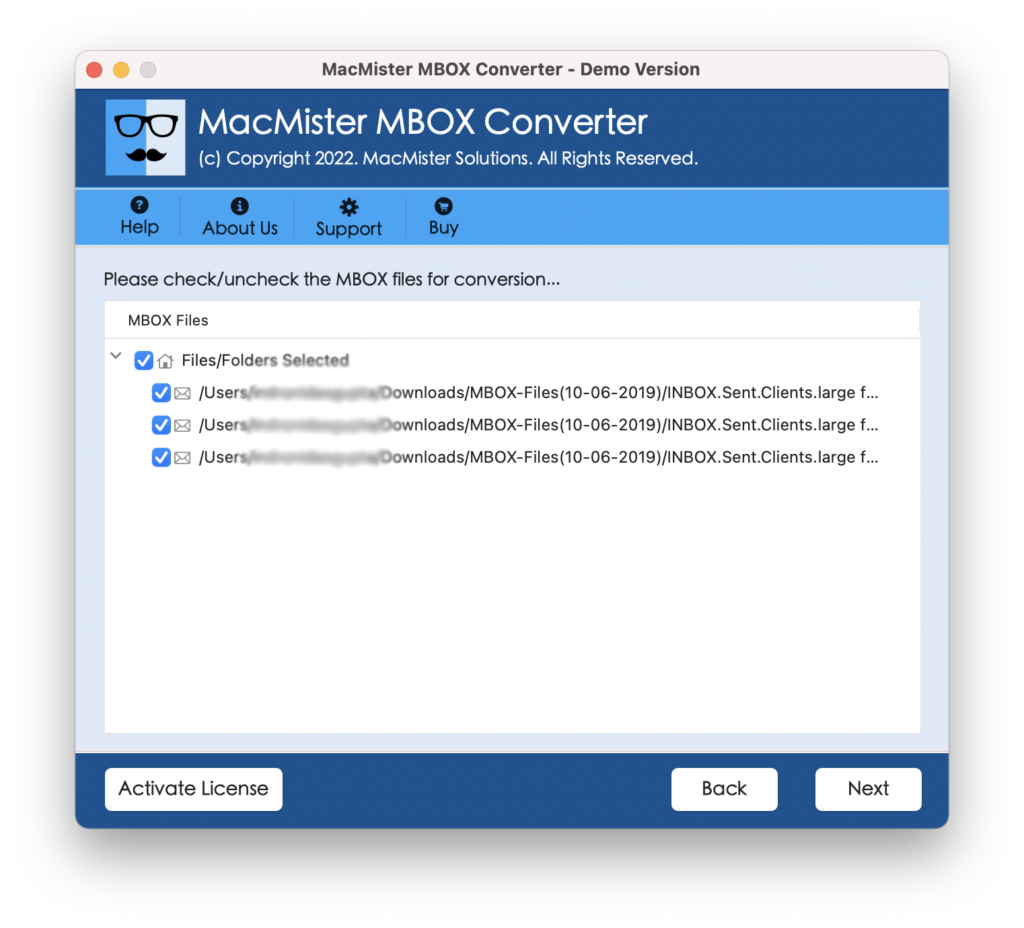
Step 3. Entourage files start showing on the software screen in hierarchical structure with corresponding checkboxes. The checkbox could help you to import selective Entourage files if required. Otherwise click Next.
Step 4. Choose IMAP Server by clicking Select Saving Option.
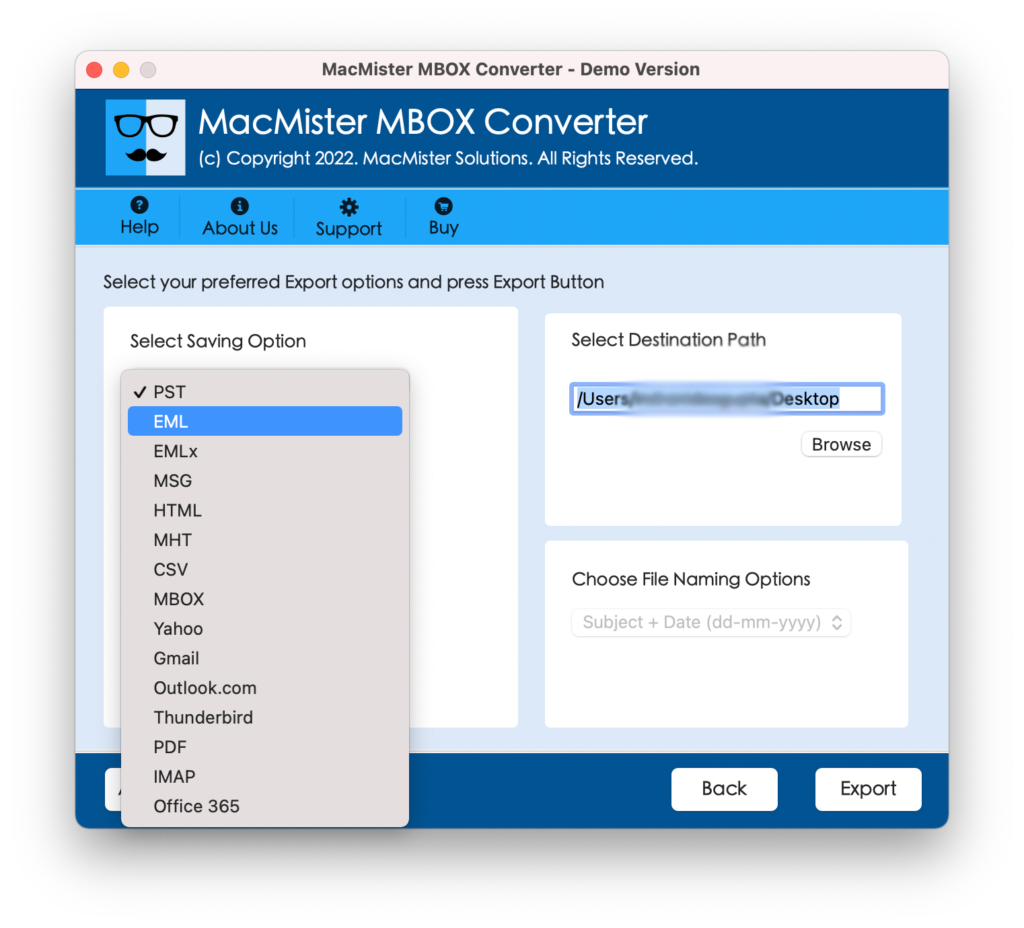
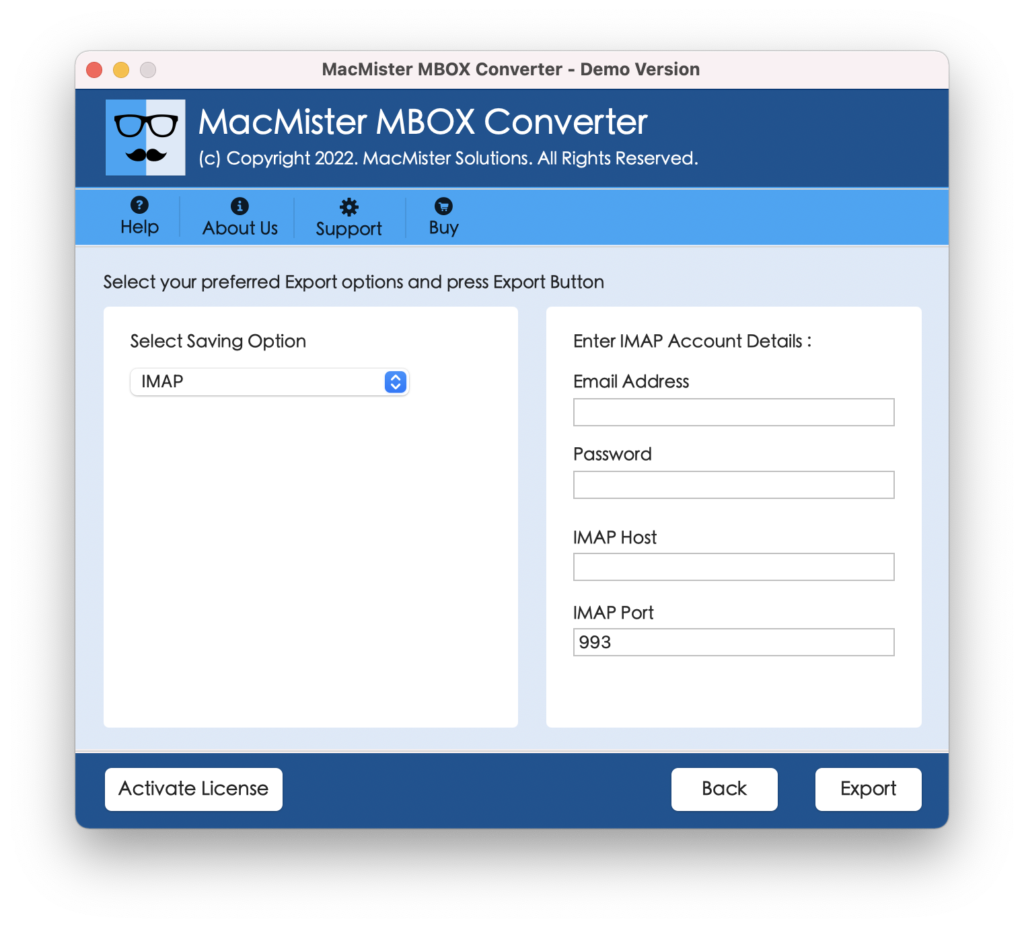
Step 5. Enter the IMAP details in the required fields with credentials of Apple Mail iCloud account in which you want to import Entourage files. Then, click Export.
Step 6. The migration will run immediately and display the on-going Live Conversion report on the screen. You can check the status of import process from the same.
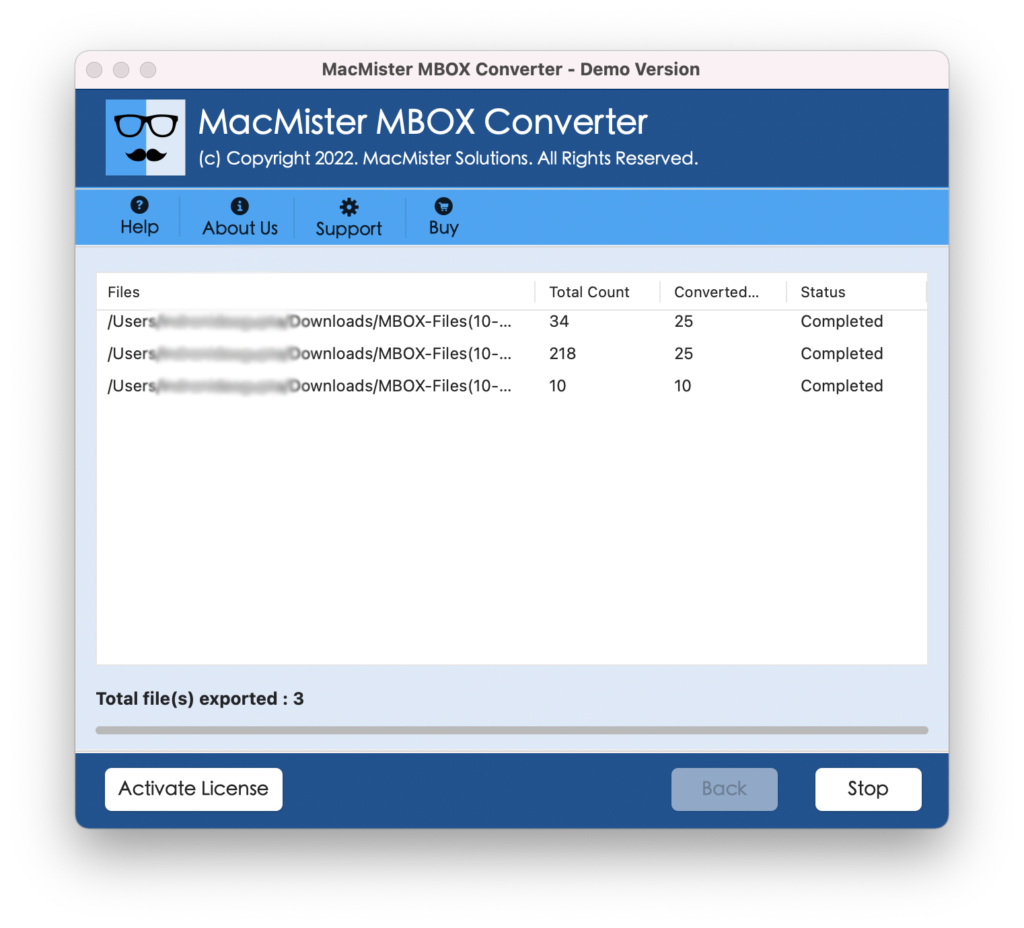
However, the complete migration process ends by displaying a message on the screen ‘Process Completed’. Now, click the OK button to exit from the import process.
After this, navigate to the Apple Mail account that you specified earlier to check the imported data. You will see that the data integrity remained original even after migration.
Solution 2. Manually Import Entourage Files to Mac Mail
Follow the steps carefully and import Entourage files manually –
Step 1. Open Entourage on Mac and navigate to File option.
Step 2. Choose Export option and select Items to an Entourage Archive. The checkboxes will be shown with every email file. You can select them and migrate accordingly. After this, press Next button.
Step 3. Choose the option – Yes, delete items from Entourage after they archived.
Step 4. Set a destination path where you want to save files and click Save button.
Now, once you extracted all emails from Entourage account locally, use the steps mentioned to import the same into Apple Mail environment.
Step 1. Open Mac Apple Mail and move to File.
Step 2. Choose Import Mailbox, select file that extracted earlier in MBOX format and press Continue.
Step 3. Select Entourage MBOX files and hit Continue button.
The process will start instantly and completely ends within seconds.
However, the process requires installations of both email applications i.e. Entourage and Apple Mail.
You can use the suitable solution and perform the process as per your requirements.
Conclusion
The blog here offered multiple methods to import Entourage to Apple Mail on macOS. The first solution will give you the freedom to directly import Entourage supported MBOX files into the required account without getting any help from technical experts. Moreover, you will also get the freeware version that allows to import 25 Entourage files free of cost. Whereas, the second method can be done manually under expert’s guidance. Each step should be implemented carefully. Also, make sure that Entourage and Apple Mail is installed on the system.