How to Import Entourage to Outlook 2019 Mac?
Having Entourage mailboxes on your Mac system, but using Outlook 2019 Mac edition? Searching for an appropriate technique that could easily import Entourage to Outlook 2019 Mac? Not to worry as MacMister Solutions is here to help you!
Entourage is a popular mailing program that is no longer used by users and organizations. It was programmed in 2000 for Mac OS by Microsoft. The email client was a part of Microsoft Office Suite. It also acts as a Personal Information Manager and easily manages the user database such as emails, calendar, tasks, contacts, notes, etc.
Outlook, on the other hand, is also a part of Microsoft Corp. and comes as a part of MS Office Suite. It has been introduced for both Mac and Windows. Both are known for managing user account mailboxes. However, both offer similar functionalities but vary in storage file types. Windows Outlook stores all user data in PST and Mac Outlook keeps entire user data in OLM. And, Outlook is the main reason for the discontinuation of the Entourage email client.
Why to choose Mac Outlook over Entourage Email Application?
- Discontinuation of the Entourage email application.
- Mac Outlook offers more advanced features than Entourage.
- Entourage does not provide offline account accessibility whereas Outlook gives the user the freedom to check messages when offline.
- Email Processing, Manage Rules, Social Connectivity, Alerts and etc. are some strong options offered by Outlook. However, Entourage lacks in the same.
- Advanced data protection facility available in Outlook than Entourage.
- Microsoft Outlook for Mac supports Exchange Server for keeping email communication secure.
Apart from this, there are many other reasons as well that pressurize users to import Entourage to Outlook 2019 Mac. Because each user has a different perspective. So, they face issues differently.
How to Import Entourage to Outlook 2019 Mac?
The process to import Entourage mailboxes is divided into two steps –
- Extraction of MBOX files from Entourage
- Importing Entourage folders using Recommended Tool.
Step 1. Extracting Entourage MBOX Files
Follow the steps and extract Entourage MBOX files for migration into Mac Outlook 2019:
- Go to Entourage, click File, and hit Export.
- Navigate to Item to an Entourage Archive and choose All Items.
- Now, select the destination location to save and hit the Save button.
- Click the saved Entourage Rge file and choose Show Package Contents to copy the entire list of MBOX files stored in it.
Note. You can also use the drag-and-drop method and save Entourage files in MBOX format on your desktop.
Step 2. Importing Entourage files using Professional Solution
To implement the process to import Entourage mailboxes, make use of MBOX Converter for Mac. The user-friendly solution is designed with many amazing features and a three-easy-step process. Professionals and novice users can use the application and perform the process instantly without taking help from third parties.

Moreover, the multiple options present in the application will help you to access the resultant data according to your requirements. And, the batch functionality will save you time by importing unlimited mailboxes at once. Download the free trial edition and experience the import process free of cost.
Steps to Import Entourage Folders to Mac Outlook 2019
Step 1. Download and run Entourage to Outlook Converter Tool on macOS.
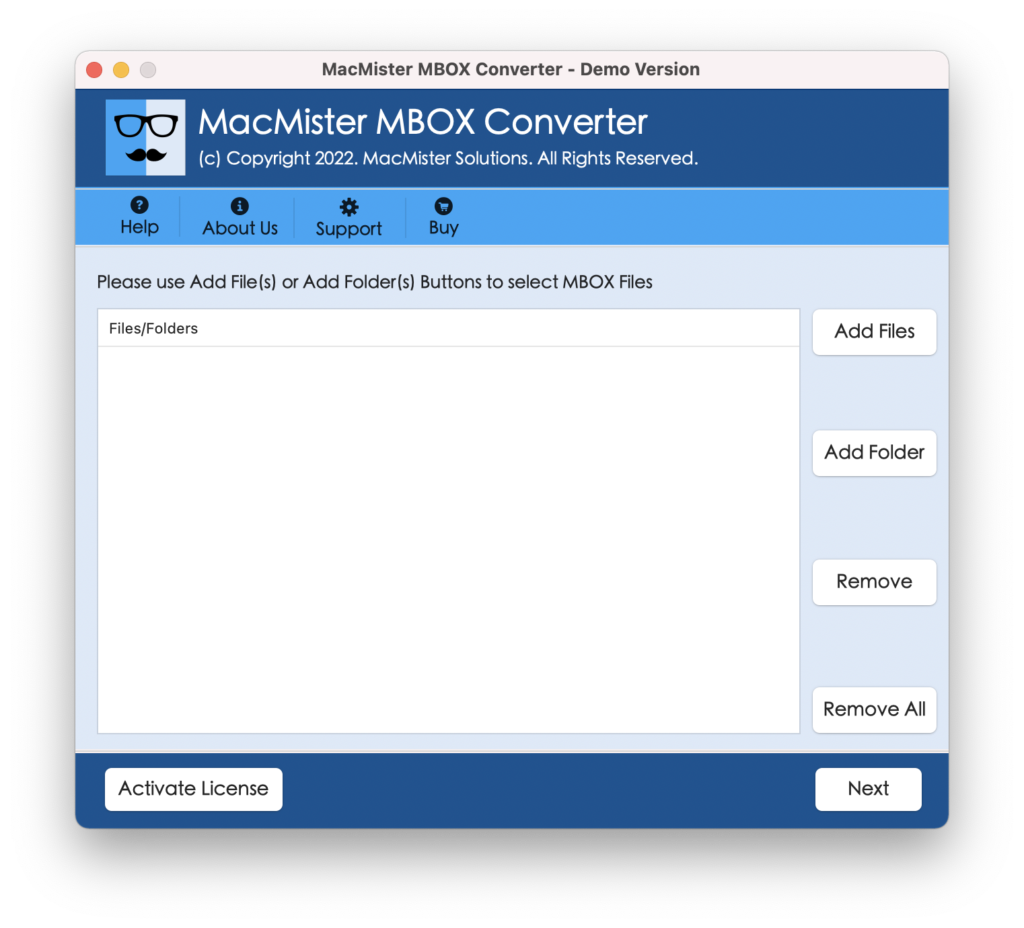
Step 2. Load Entourage MBOX files by taking the help of Add Files and Add Folder buttons and clicking Next.
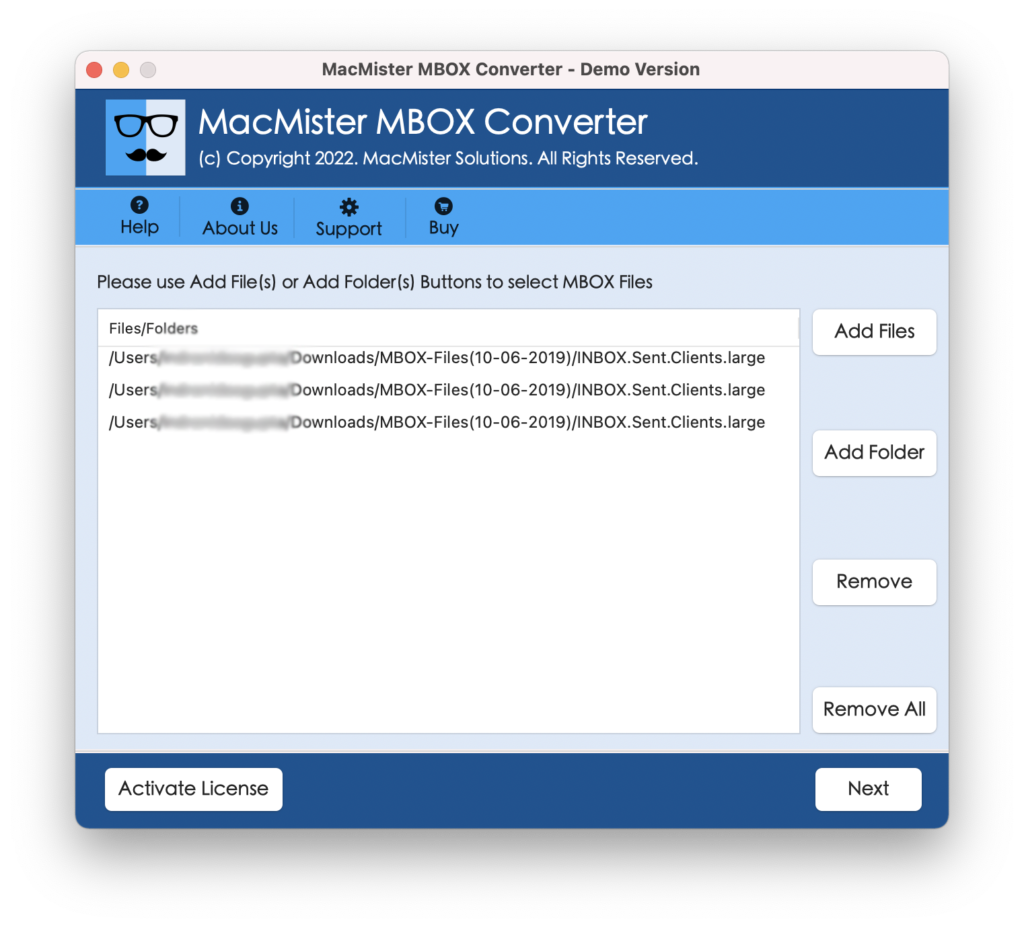
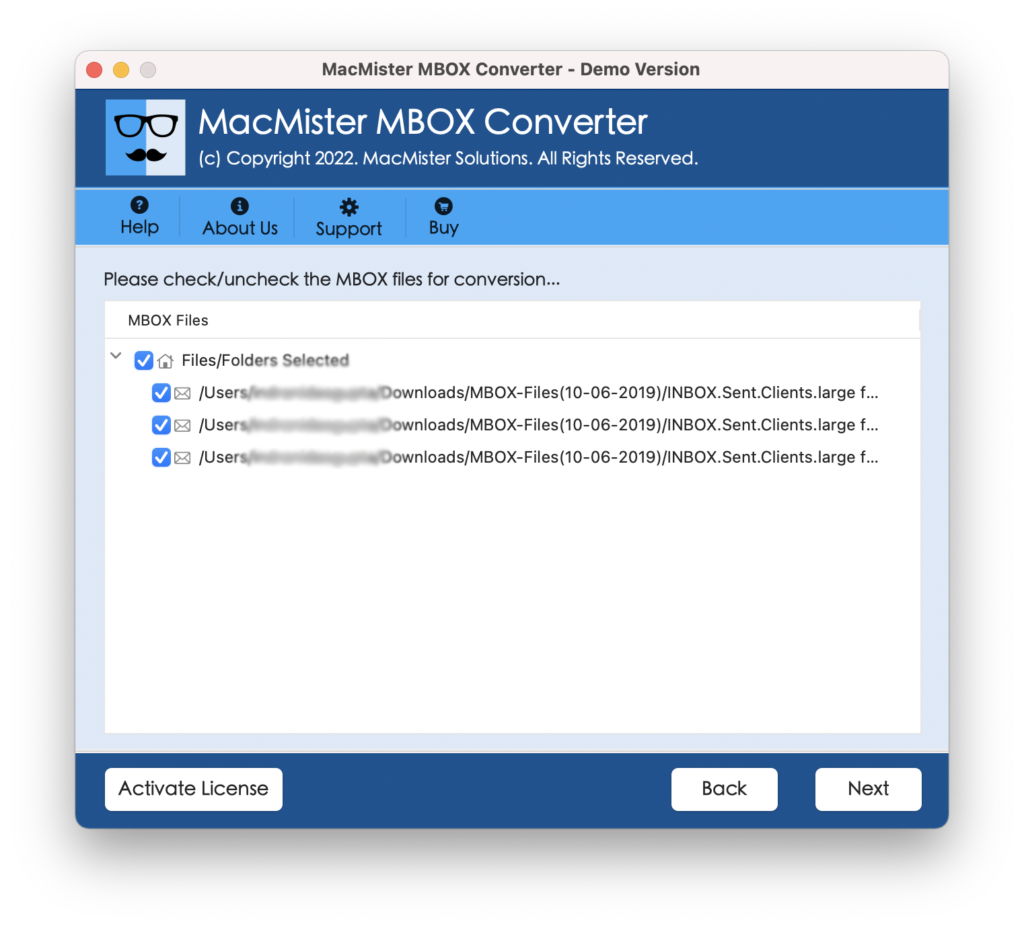
Step 3. Entourage files will show the MBOX files list after the scanning process. Each file will appear with checkboxes that will help users to implement selective migration of Entourage mailboxes. Click Next.
Step 4. Choose the OLM file saving option through the Select Saving Option drop-down menu.
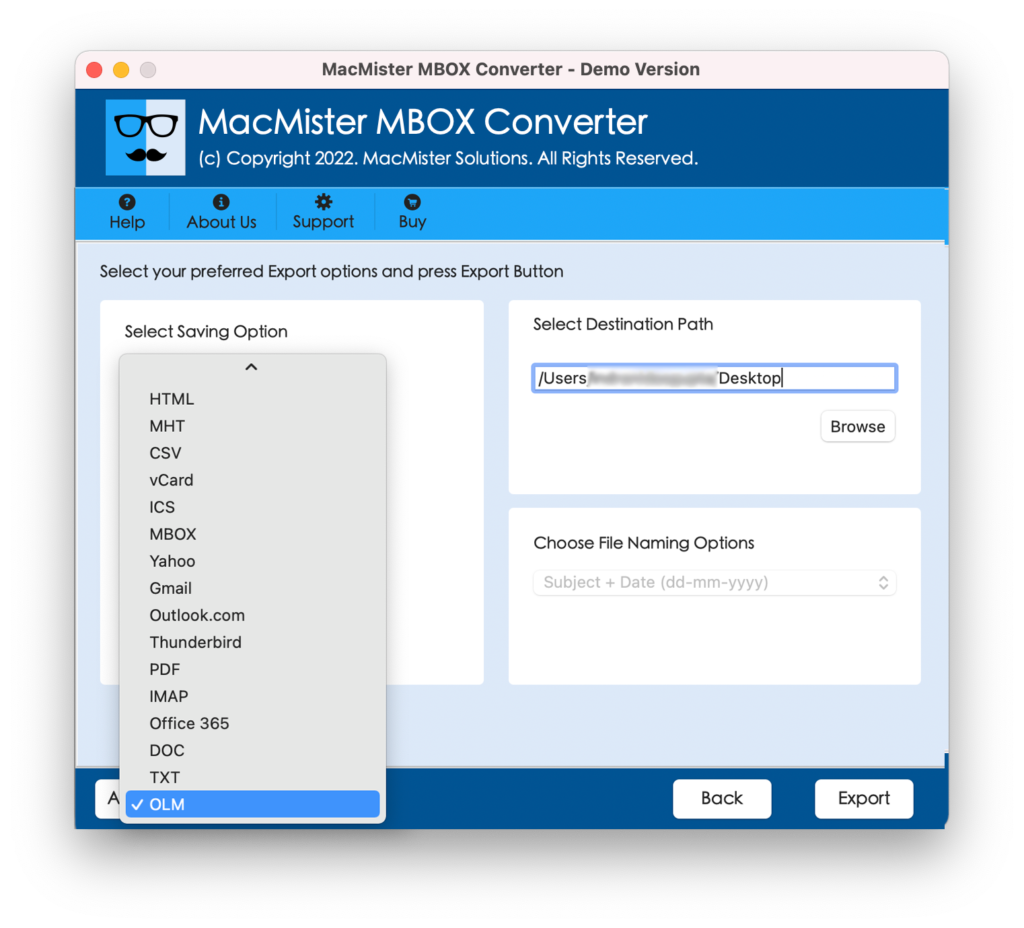
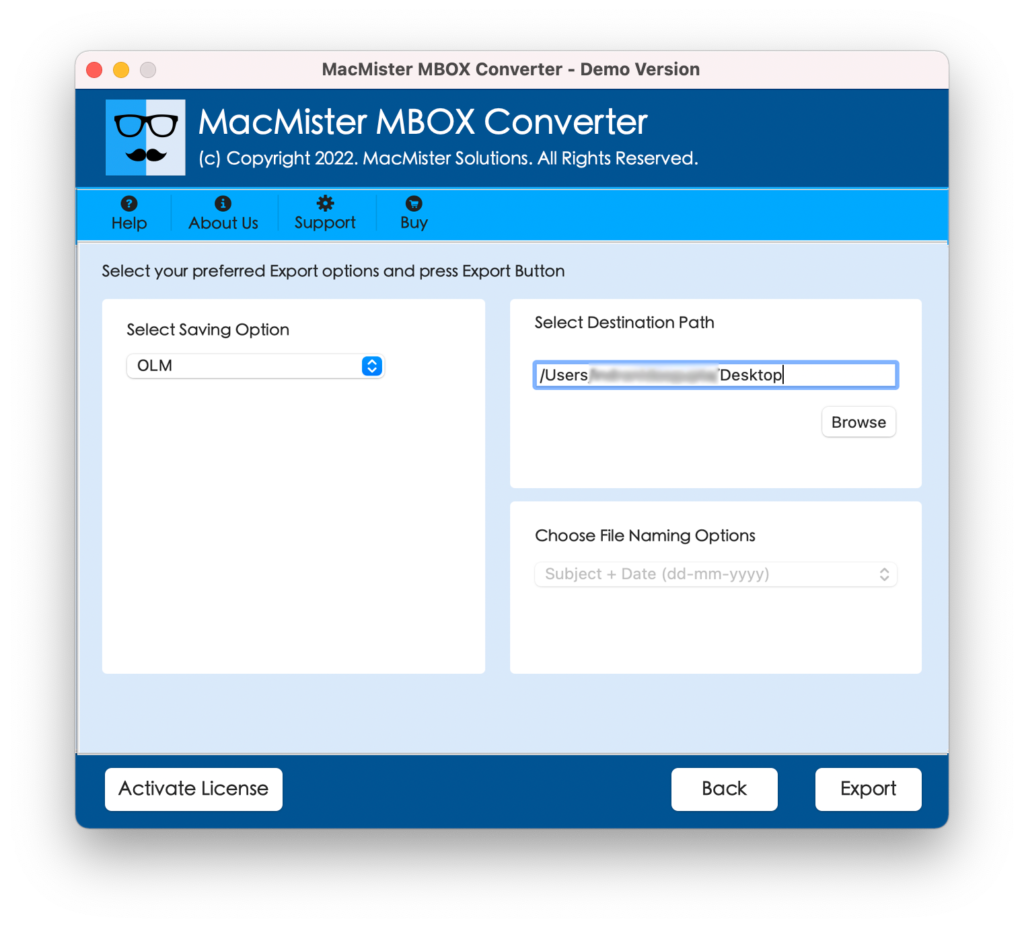
Step 5. Set the OLM sub-options as per specific needs and press the Export button.
Step 6. The migration will start quickly and the tool will show the Live Conversion process on the screen. You can check the ongoing progress and track the report.
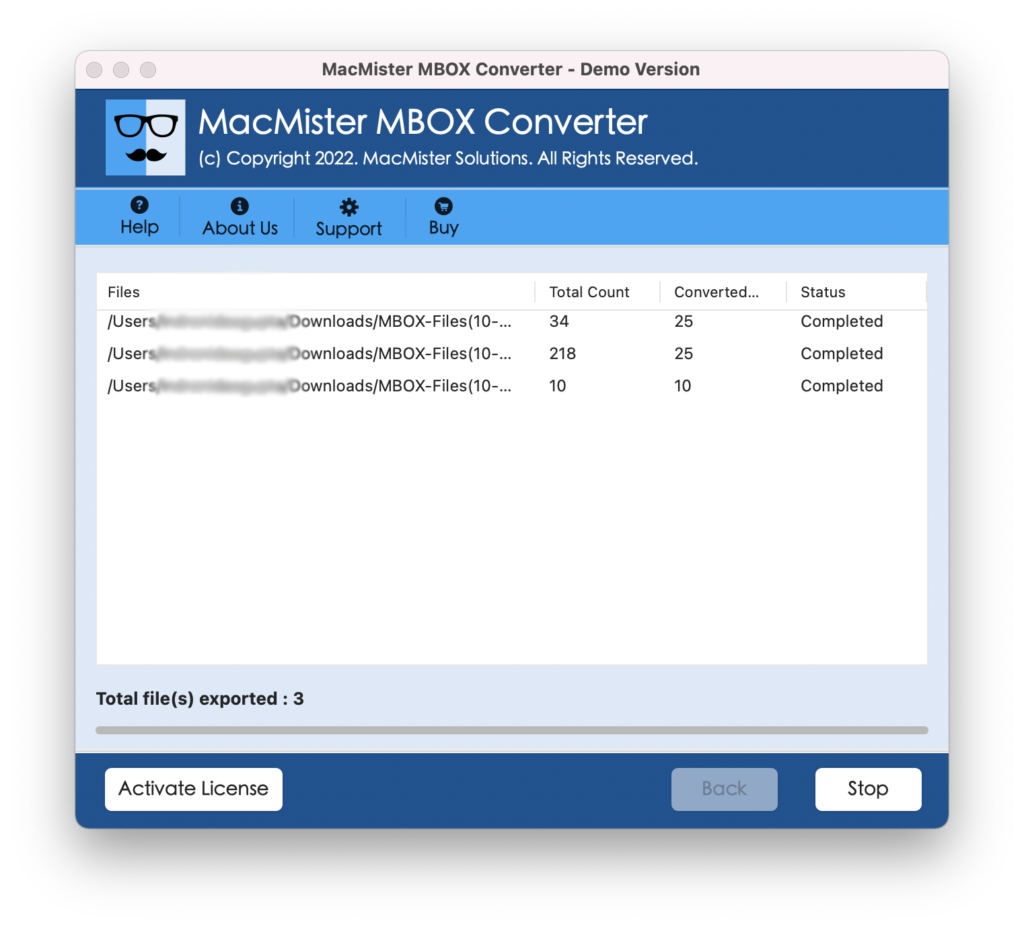
You will see a “Conversion Completed” message will appear once the tool transfers all Entourage mailboxes to Outlook 2019 Mac. After this, click on the OK button. Now, the log report will appear that shows the detail of the migration process. It includes total items converted, saving options, start and end time migration, etc. After this, go to Outlook for Mac 2019 specified account and check the resultant file. You will see that the resultant output will be 100% accurate.
Note. If you find any error while implementing the process, then you can contact our support team anytime. They will help you in getting Entourage mailboxes in Mac Outlook 2019 without data loss.
Conclusion
The article here offered a solution that allows to access Entourage emails and attachments in Outlook for Mac 2019. The MBOX to OLM Converter for Mac solution has many benefits that will help you in extracting MBOX files from Entourage to Mac Outlook accurately. You can check the whole working of the tool with the help of the trial edition. It enables to import of 25 Entourage mails to Outlook 2019 Mac free of cost.